Advanced Search
The Advanced Search feature allows Tier 1 and Tier 2 users to locate Dockets or documents efficiently within the NMPRC Docket Management System (CMS).
Users can perform searches either:
- By logging into their NMPRC dashboard, or
- Directly from the NMPRC public landing page (without login).
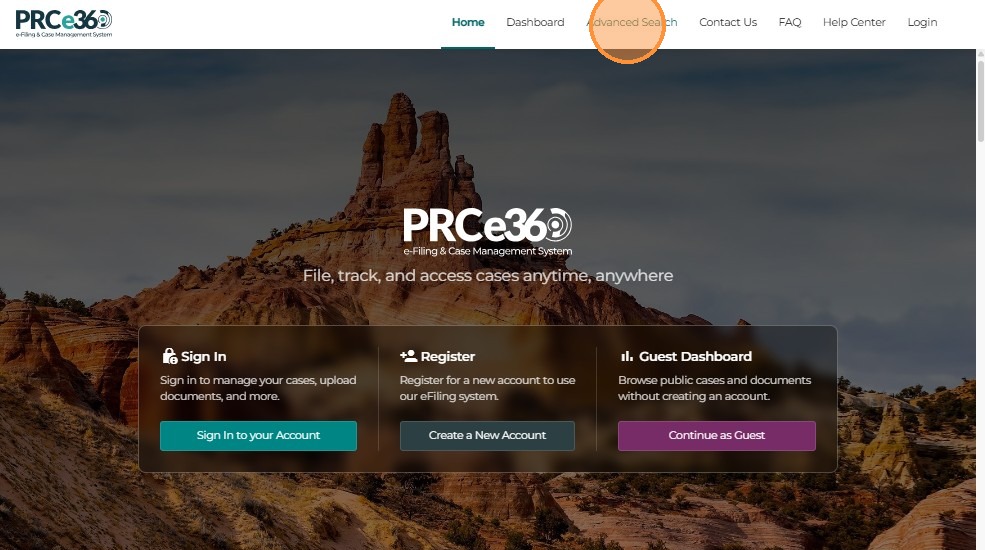
1. Access Advanced Search from the Landing Page
On the NMPRC public website, click the Advanced Search option located at the top-right corner of the page.
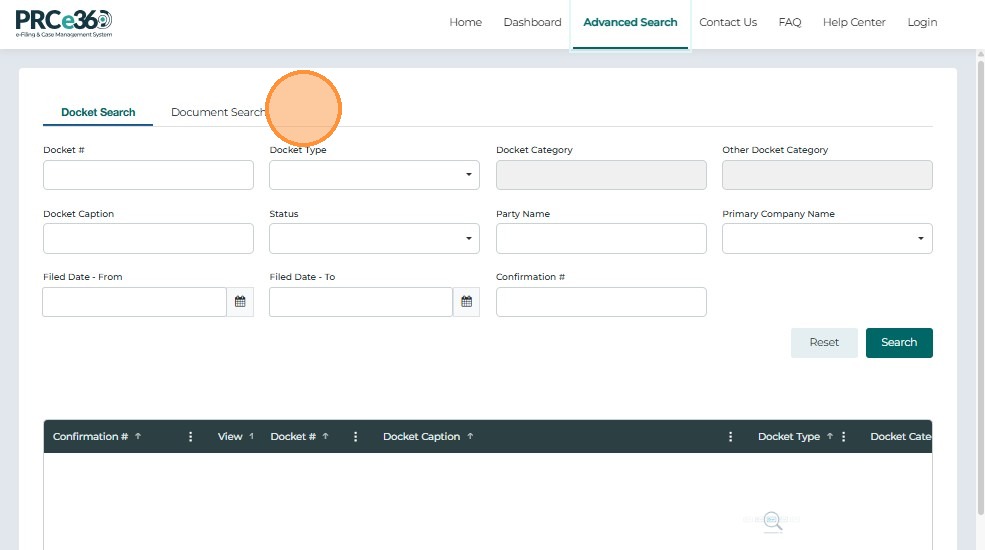
The system navigates to the Advanced Search screen.
2. Access Advanced Search from the Dashboard
After logging into the NMPRC dashboard:
- Click Advanced Search from the main menu.
- The system opens the Advanced Search page where you can search for Dockets or documents.
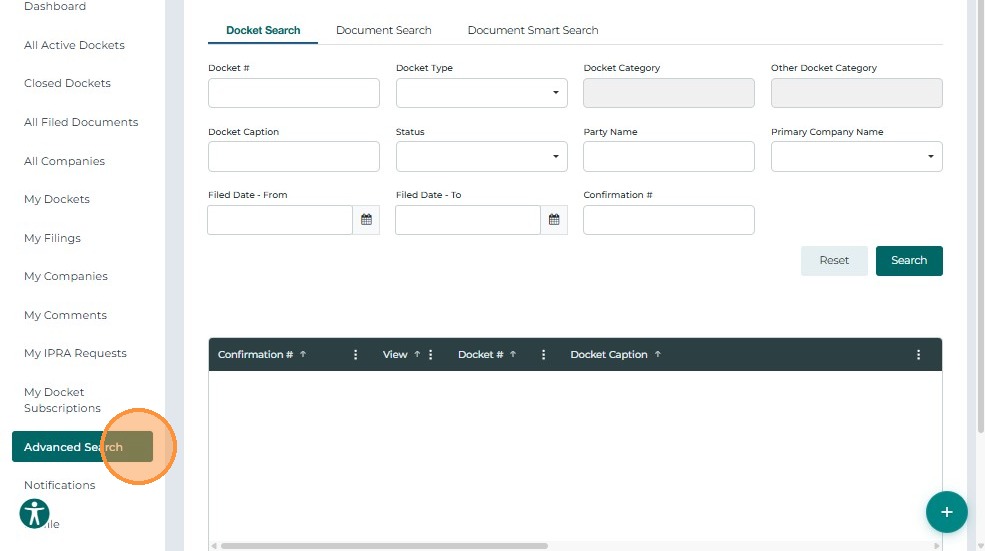
3. Docket Search
The Docket Search tab enables users to locate Docket records using multiple filters.
Search Filters
| Filter | Description |
|---|---|
| Docket # | Enter the unique docket number. |
| Docket Caption | Search by Docket title or caption text. |
| Docket Type | Select from dropdown (e.g., Complaint, Application). |
| Docket Category | Choose the relevant category. |
| Party Name | Search by participant or party name. |
| Primary Company Name | Select the associated company from dropdown. |
| Filed Date | Specify filing date using the calendar picker. |
| Confirmation # | Enter the confirmation number. |
| Status | Filter by Docket status (e.g., Active, Closed). |
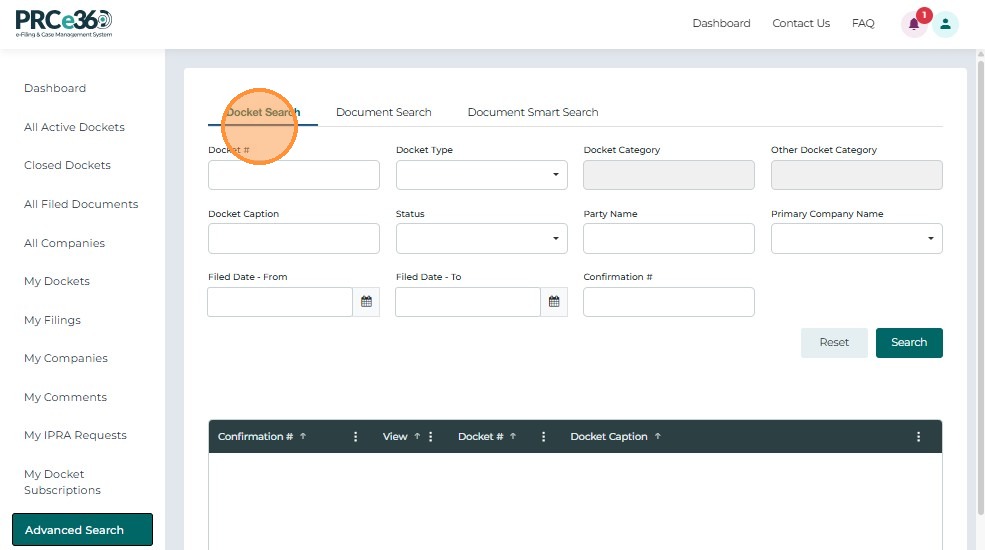
Action Buttons
- Search – Executes the search based on selected filters.
- Reset – Clears all filters and resets the form to default.
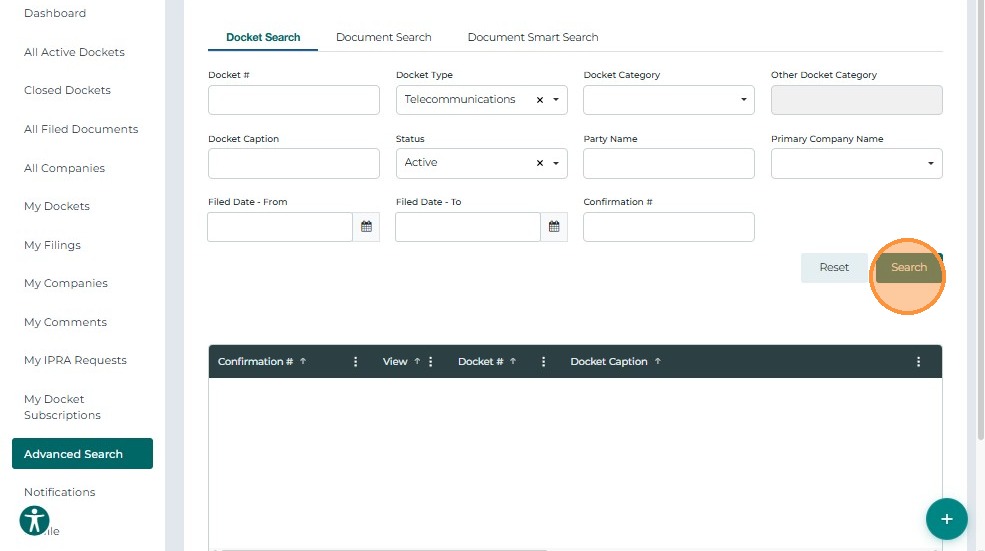
Search Results
The results grid displays all Dockets that match the applied filters.
| Column | Description |
|---|---|
| Confirmation # | Hyperlinked ID for confirmation details. |
| Docket # | Click to open Docket details. |
| Docket Caption | Displays the Docket title. |
| Docket Type | Type of Docket (e.g., Formal, Informal). |
| Docket Category | Assigned category. |
| Primary Company Name | Linked company name. |
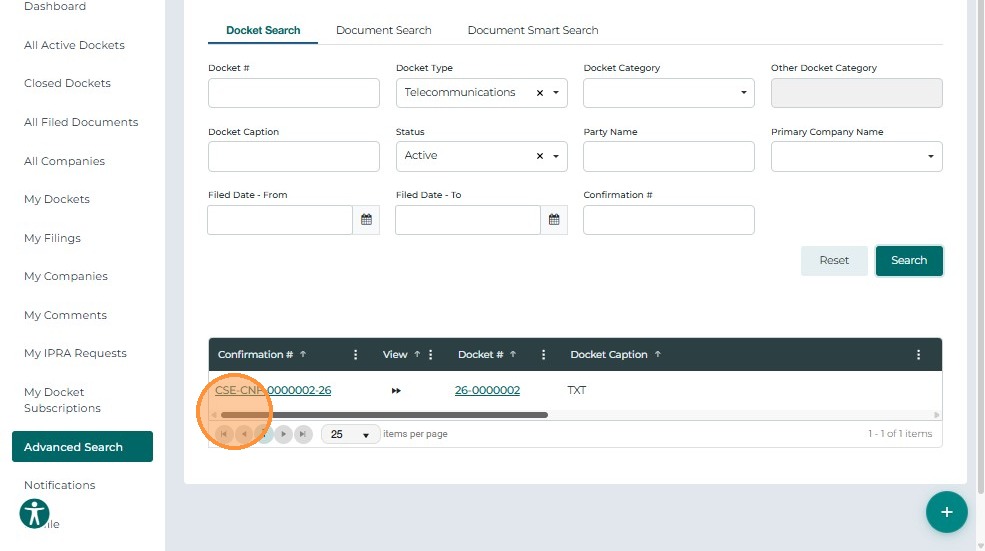
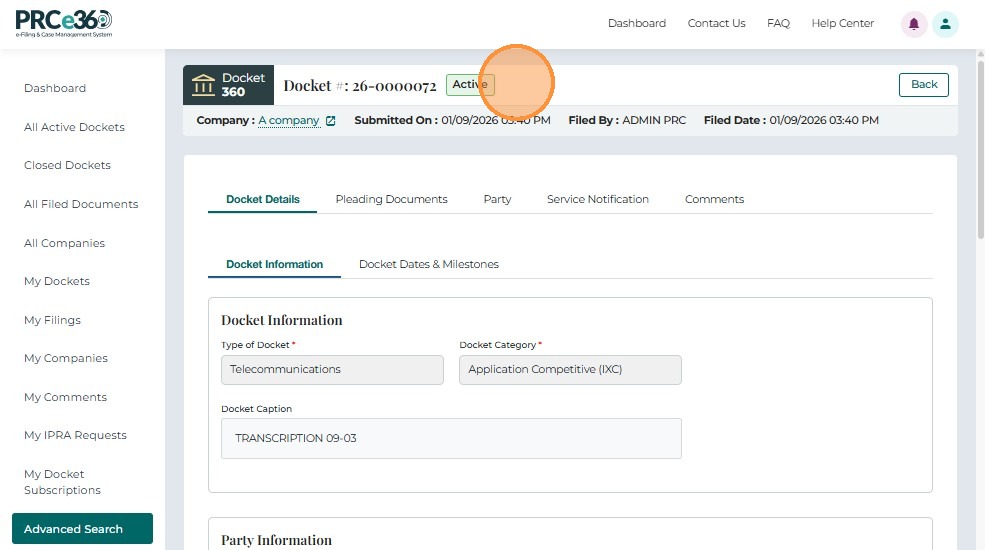
Clicking a Confirmation # or Docket # opens the Docket Details page in read-only mode.
4. Document Search
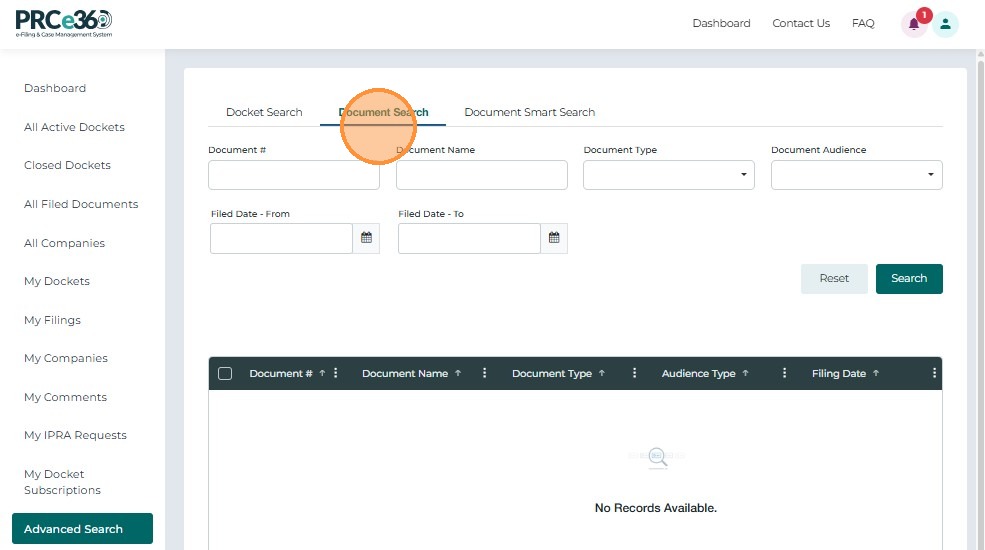
The Document Search tab allows users to find specific filings or documents.
Search Filters
| Filter | Description |
|---|---|
| Document # | Enter the unique document identifier. |
| Document Name | Search by document title or name. |
| Document Type | Select from dropdown (e.g., Order, Filing, Notice). |
| Document Audience | Specify audience type (e.g., Public, Confidential). |
| Filed Date | Select filing date using the calendar picker. |
Action Buttons
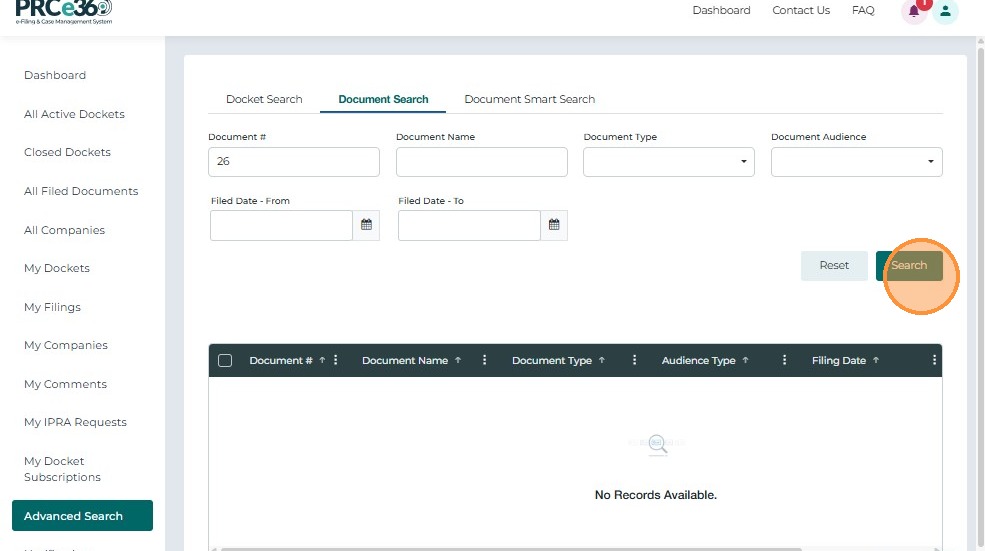
- Search – Executes search based on entered criteria.
- Reset – Clears all fields and resets to default.
Search Results
The document results grid displays key details for each record.
| Column | Description |
|---|---|
| Document # | Hyperlinked ID – click to open in the document viewer. |
| Document Name | Name or title of the document. |
| Document Type | Type of filing or record. |
| Name | Original file name. |
| Audience Type | Visibility classification (e.g., Public, Internal). |
| Filing Date | Date/time when document was filed. |
| Filed By | User or staff member who submitted the document. |
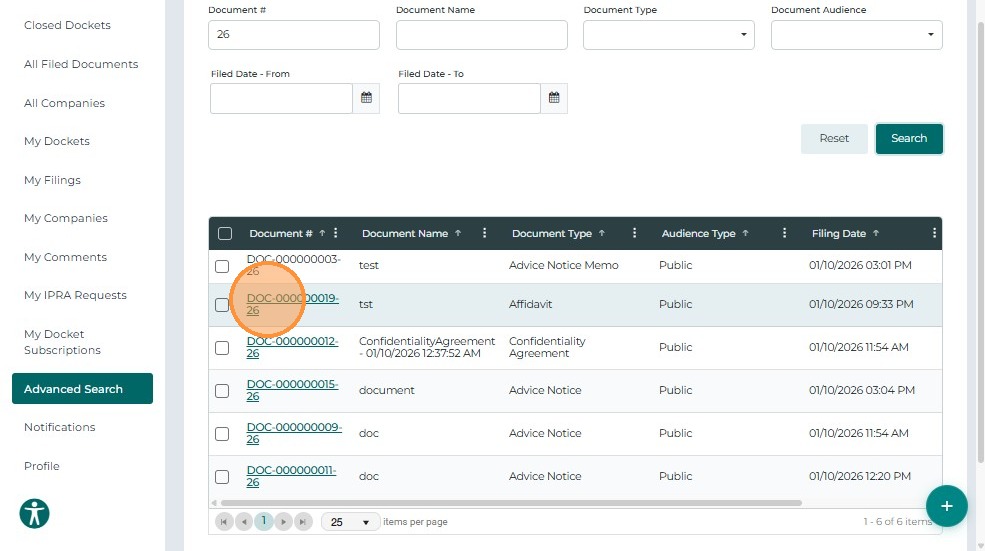
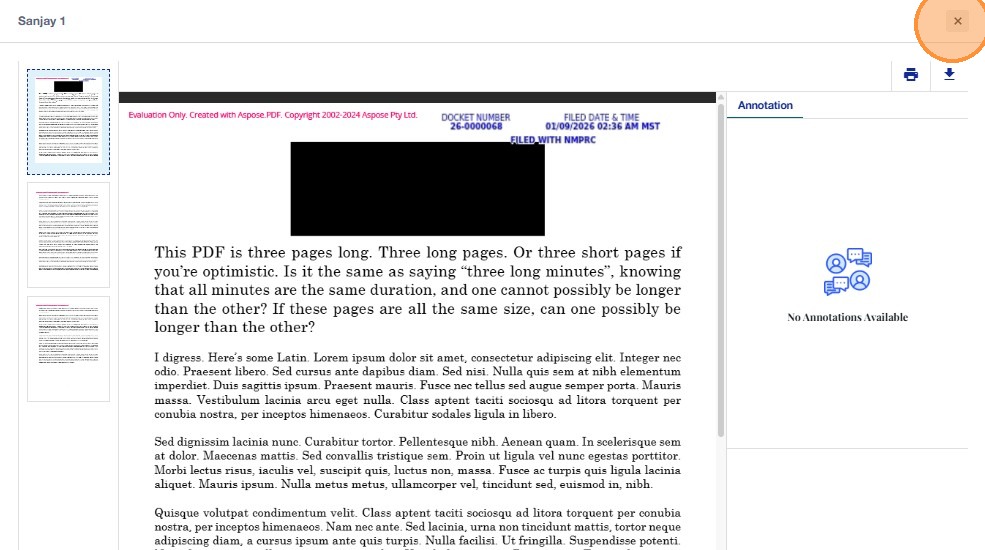
Click a Document # link to open the selected record in the Document Viewer.
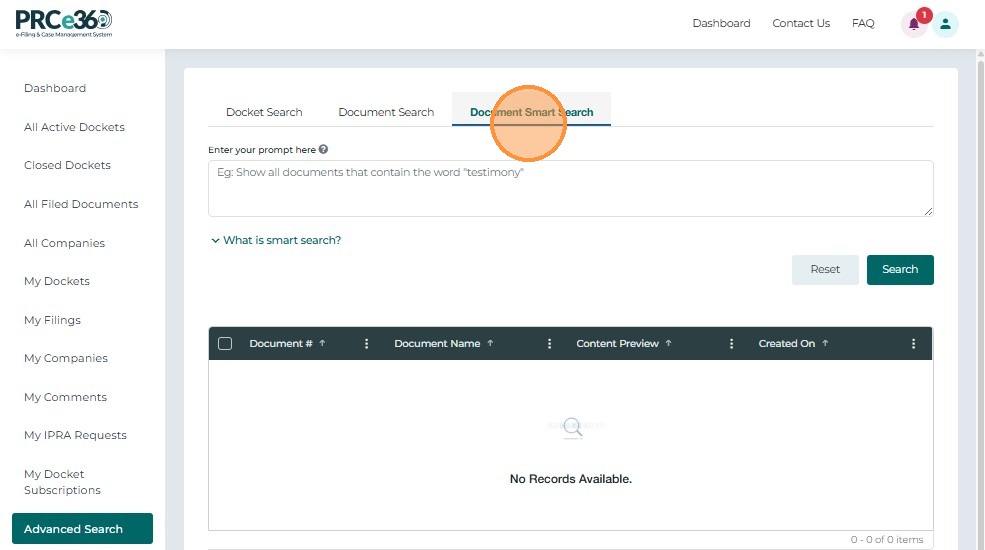
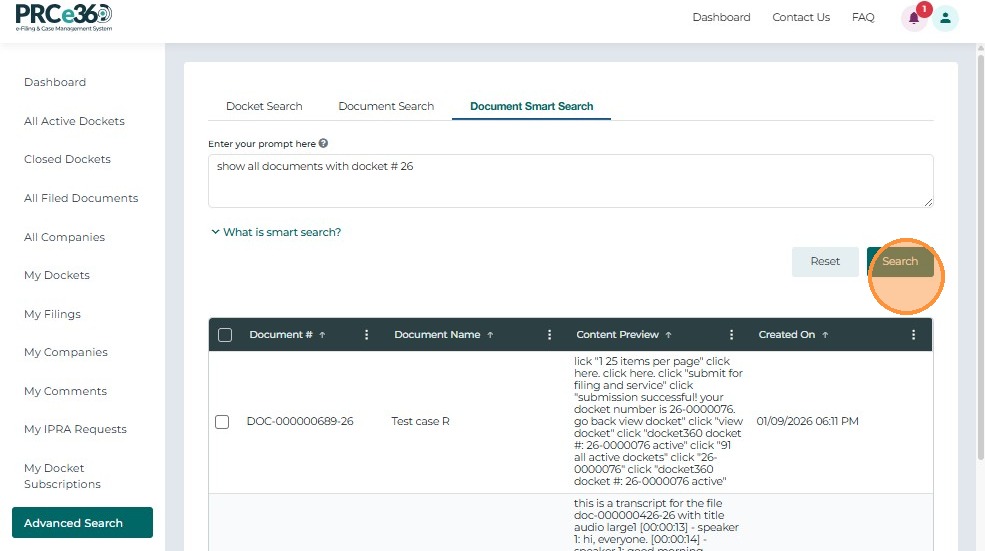
5. Document Smart Search
The Document Smart Search helps user search for documents by giving a prompt