Create New Public Comment
Note: This page has been split into multiple sections for better navigation. Please use the links below or the sidebar to navigate to specific topics.
Quick Navigation
- Overview - Introduction and what you'll need
- Getting Started - Access the comment form from landing page or dashboard
- Completing the Form - Step-by-step guide to fill out all comment details
- Uploading Documents - How to attach supporting documents
- Submitting Your Comment - Final steps to submit your comment
Create New Public Comment (Legacy Content)
The Create New Public Comment feature allows users—both registered and unregistered—to submit comments related to active Dockets, companies, or general topics.
This function promotes transparency by allowing public participation in the regulatory process.
Public comments can be submitted in two ways:
- From within a logged-in dashboard (Tier 1 and Tier 2 users)
- Directly from the PRC public landing page (for external users without an account)
1. Submit a Public Comment from the Landing Page
External users can submit comments without logging into the system.
From the PRC main landing page, click the Submit New button located at the bottom-right corner of the screen.
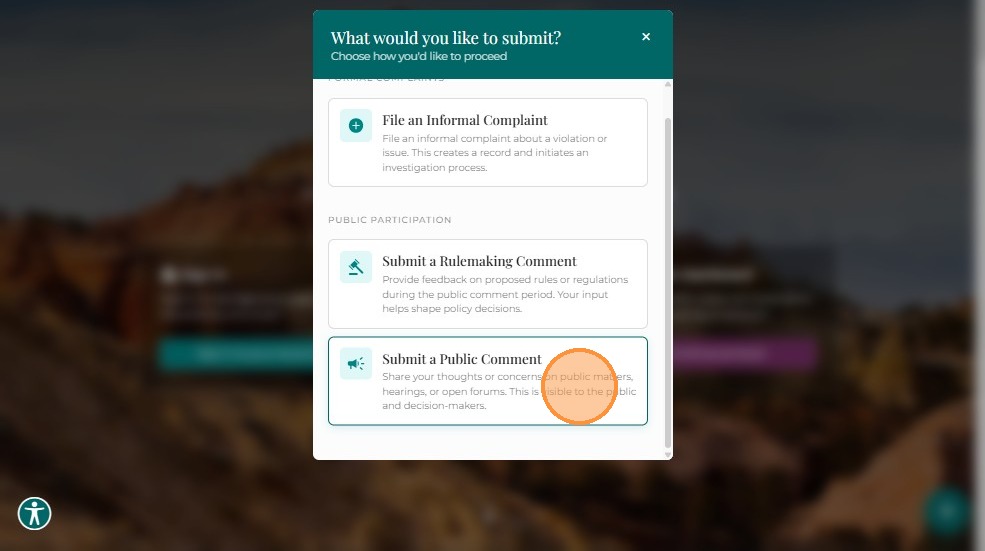
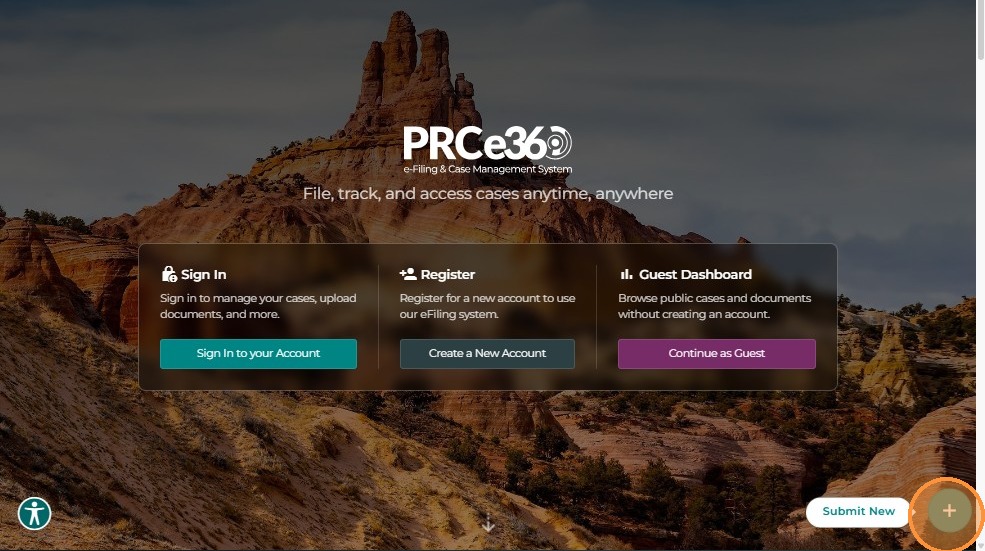 The system displays three options:
- File an Informal Complaint
- Submit a Rule Making Comment
- Submit a Public Comment
Select Submit a Public Comment to proceed.
Note: Both registered (Tier 1 or Tier 2) and external users can submit comments using this method.
2. Create a Public Comment from the Dashboard
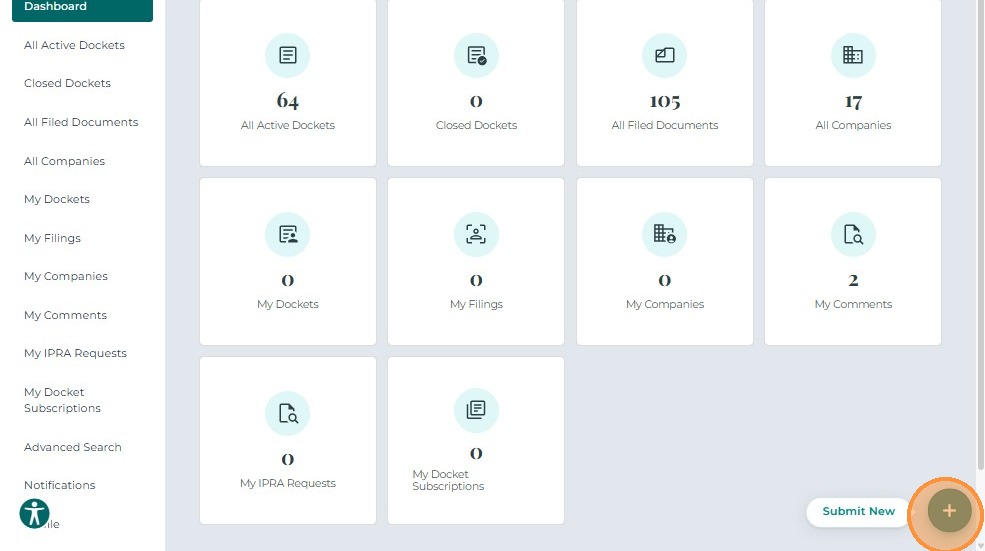
After logging in, Tier 1 or Tier 2 users can create comments directly from their dashboard.
- Click the Submit New button.
- Select Create New Public Comment.
The Create New Public Comment screen opens, allowing users to submit comments related to a specific Docket, company, or miscellaneous topic.
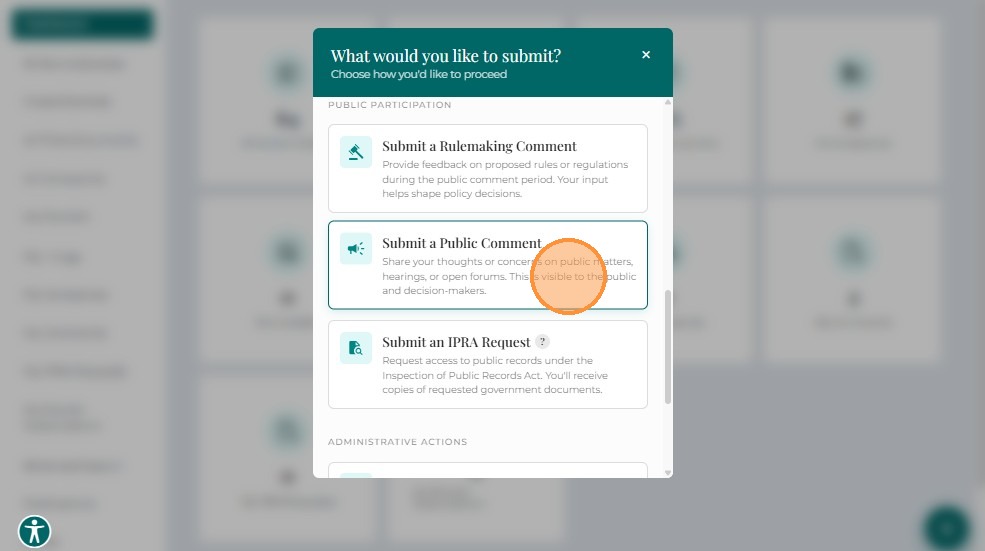
3. Complete the Comment Details
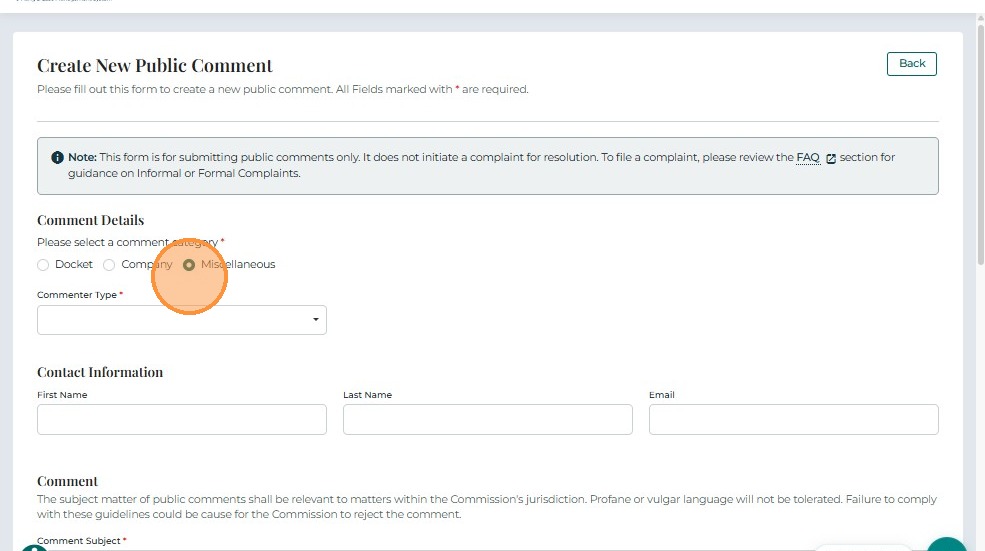
3.1 Select Comment Category
- Please select a comment category*
Options include:- Docket
- Company
- Miscellaneous
Depending on the selected category, the form dynamically displays relevant fields.
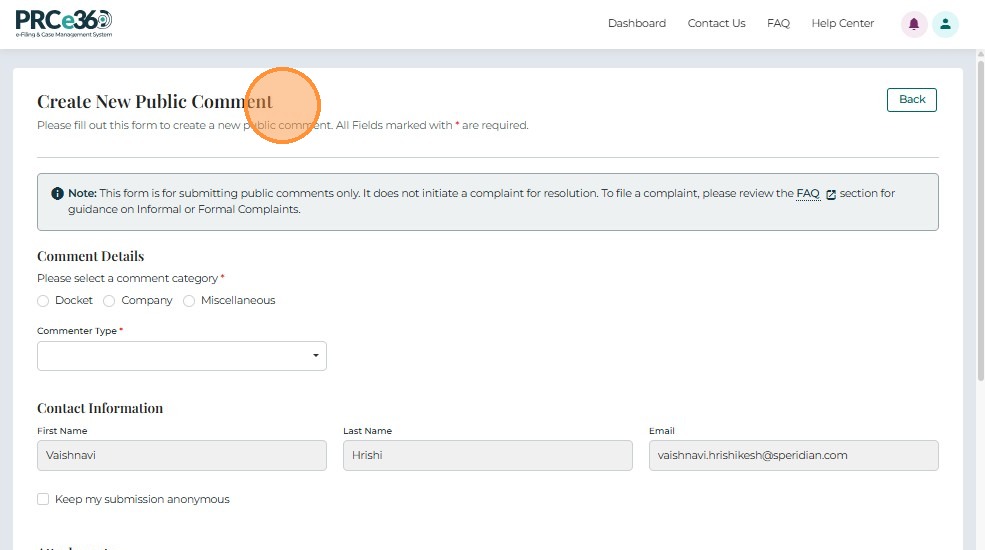
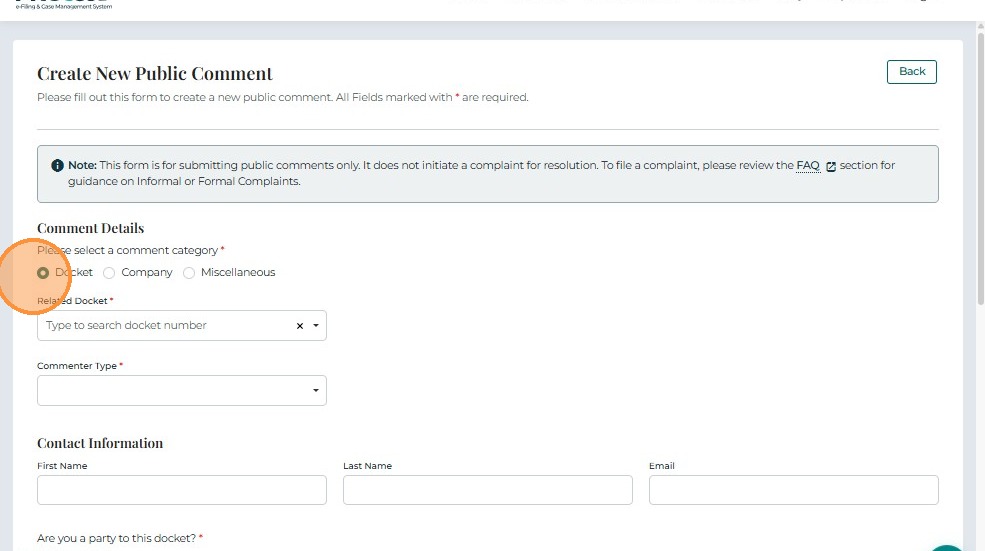
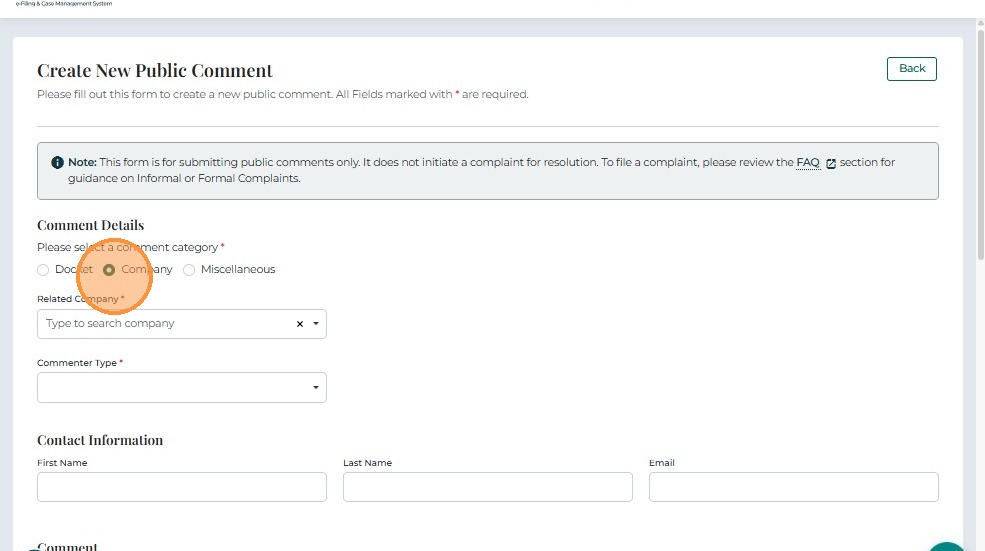
3.2 If Docket or Company Is Selected
- Related Docket* – Search-enabled dropdown to select the docket number.
- Commenter Type* – Dropdown to specify type of commenter (Ratepayer, Utility, or Other Stakeholder).
3.3 If Miscellaneous Is Selected
- Commenter Type* – Dropdown to specify commenter classification.
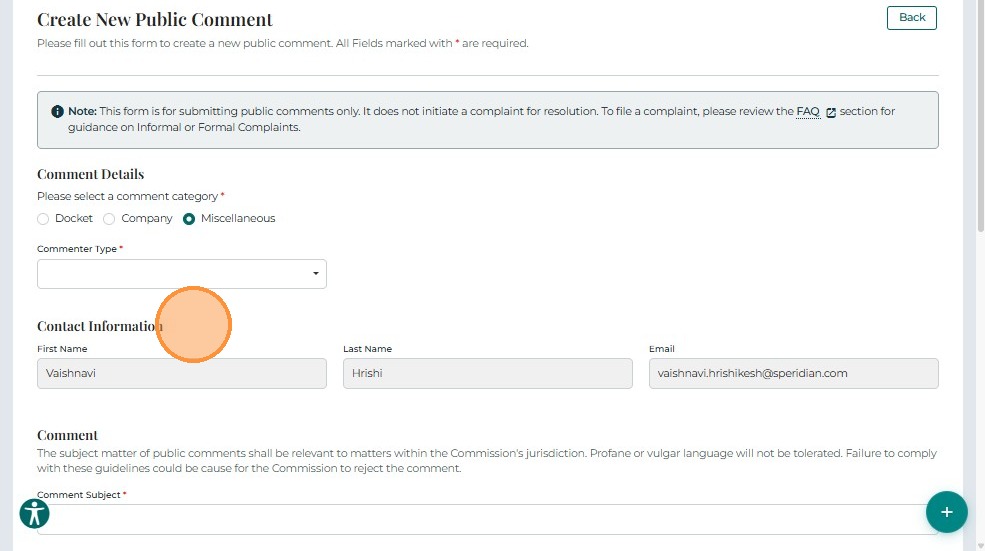
3.4 Contact Information
Provide the required contact details:
- First Name* – Comment submitter's first name
- Last Name* – Comment submitter's last name
- Email* – Primary email address for communication
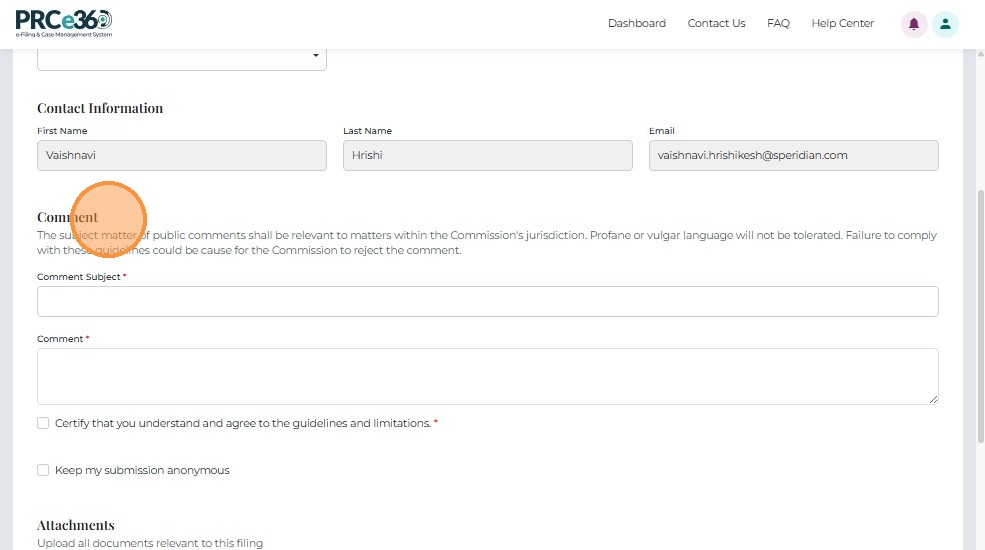
3.5 Comment Section
Enter the following:
- Comment Subject* – Brief summary or title for the comment.
- Comment* – Full text of the comment.
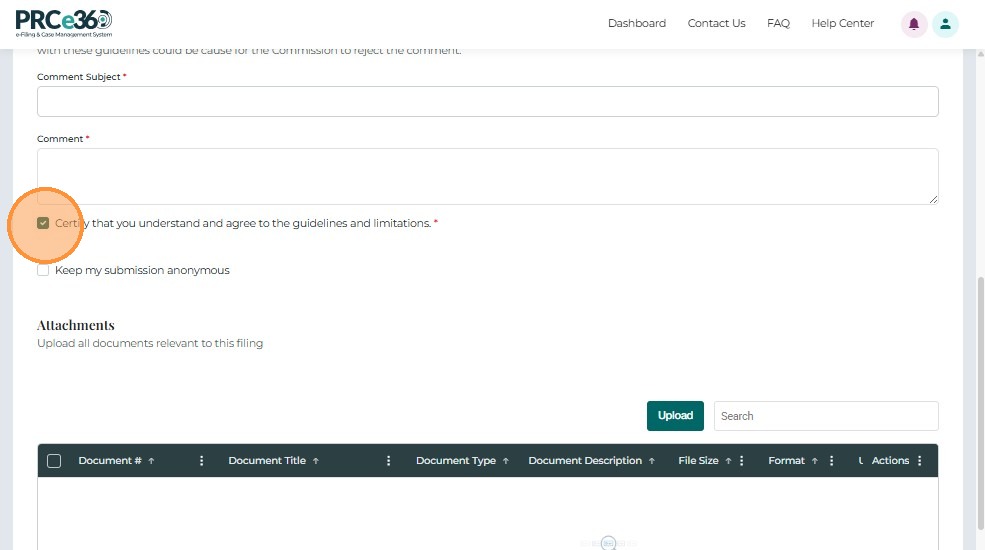
3.6 Certification and Privacy Options
- Certify that you understand and agree to the guidelines and limitations* – Required before submission.
- Keep my submission anonymous – Optional checkbox for anonymous posting.
4. Upload Supporting Documents (Optional)
The attachments grid displays the following information for each uploaded document:
| Field | Description |
|---|---|
| Document # | Auto-generated unique identifier for each uploaded document. |
| Document Title | Name provided for the document. |
| Document Type | Classification of document (e.g., Advice Notice, Application, Brief). |
| Document Description | Short description of contents. |
| File Size / Format | Displays the file size and type. |
| Uploaded | Shows upload status. |
Users can remove uploaded documents using the Actions (⋮) menu.
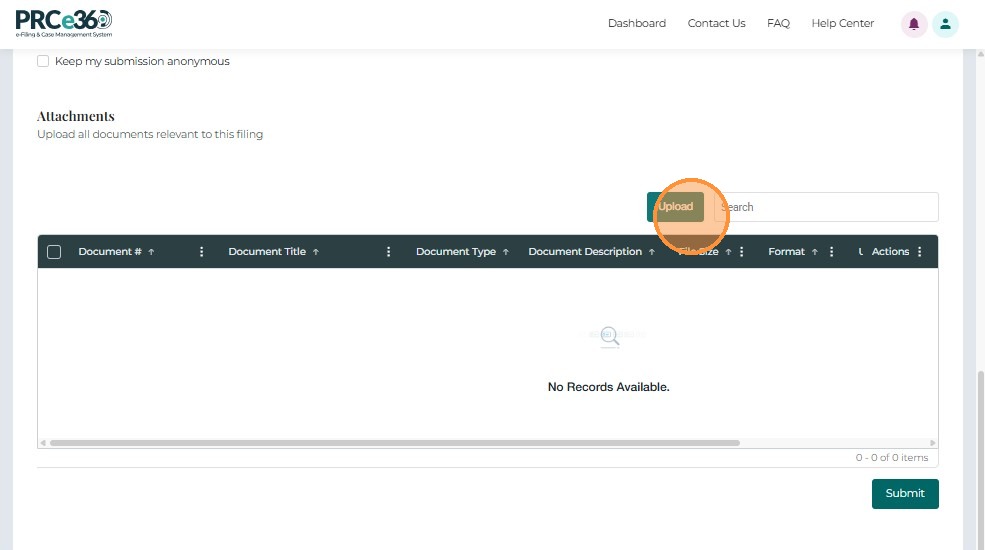
Upload a Document
Click Upload to open the document upload form.
Fill in the required details:
- Document Title*
- Document Type*
- Access Type* (Non-Confidential / Confidential)
- Description (optional)
- Select File* – Browse or drag-and-drop to upload
Then click Save to add it to the attachments grid, or Cancel to exit without saving.
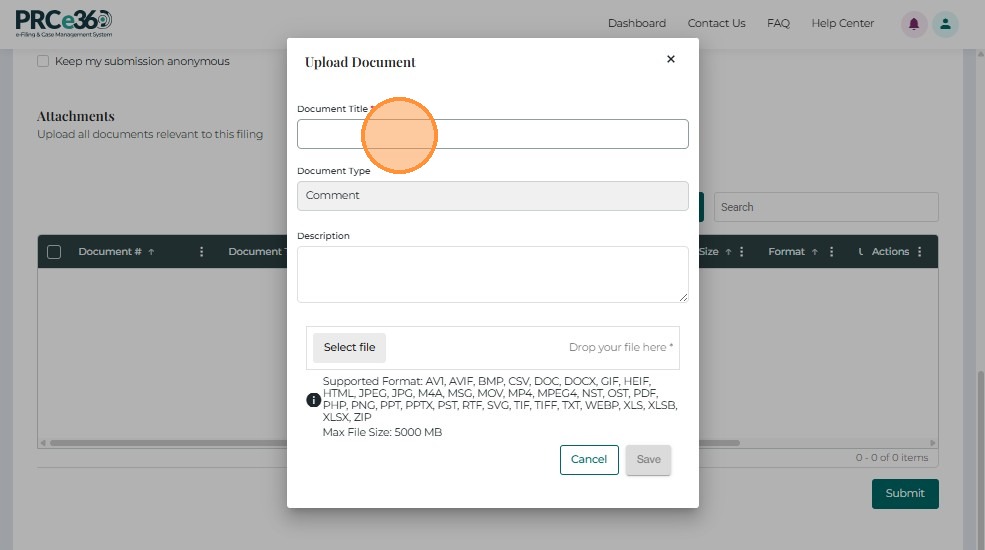
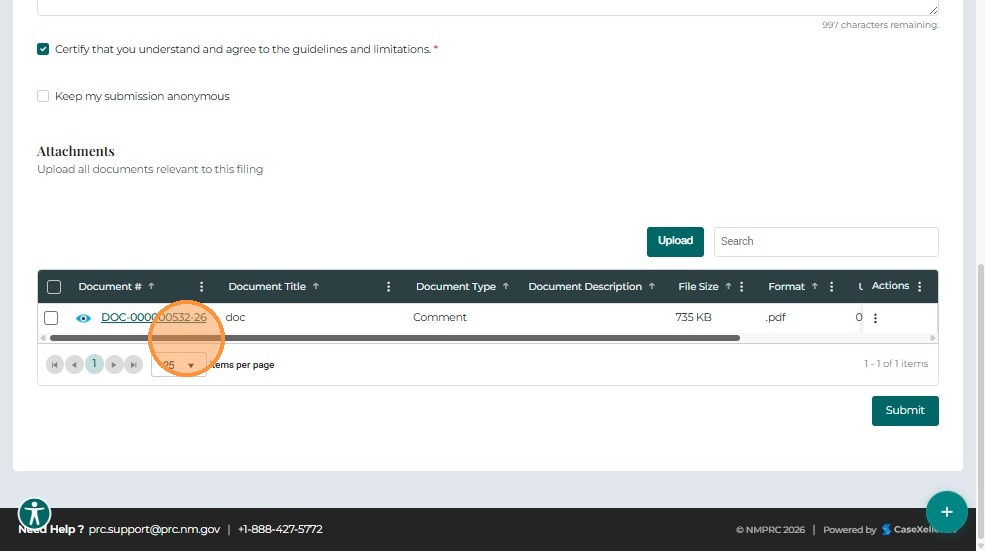
5. Submit the Public Comment
After completing all mandatory fields and attaching any documents:
- Review the information entered.
- Click Submit to send your public comment to the NMPRC system.
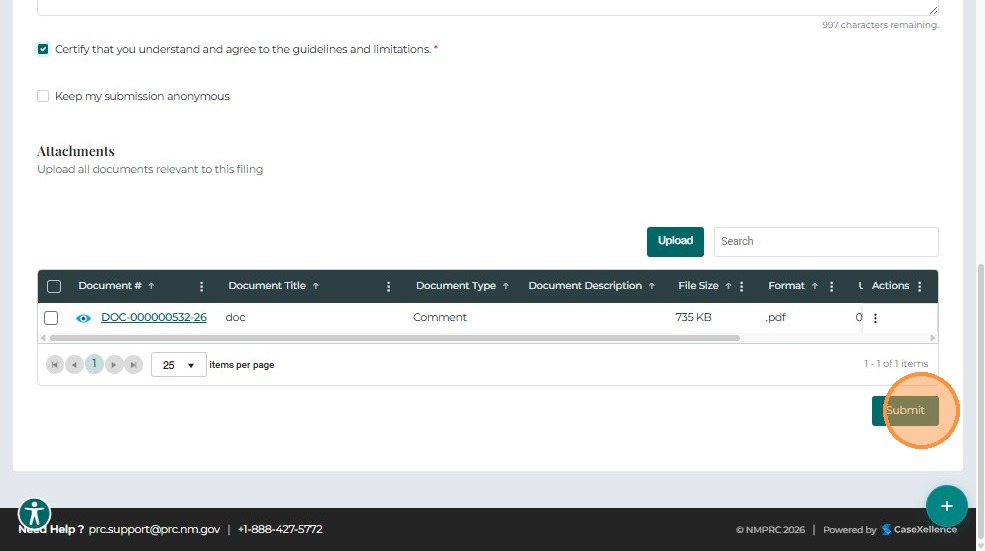
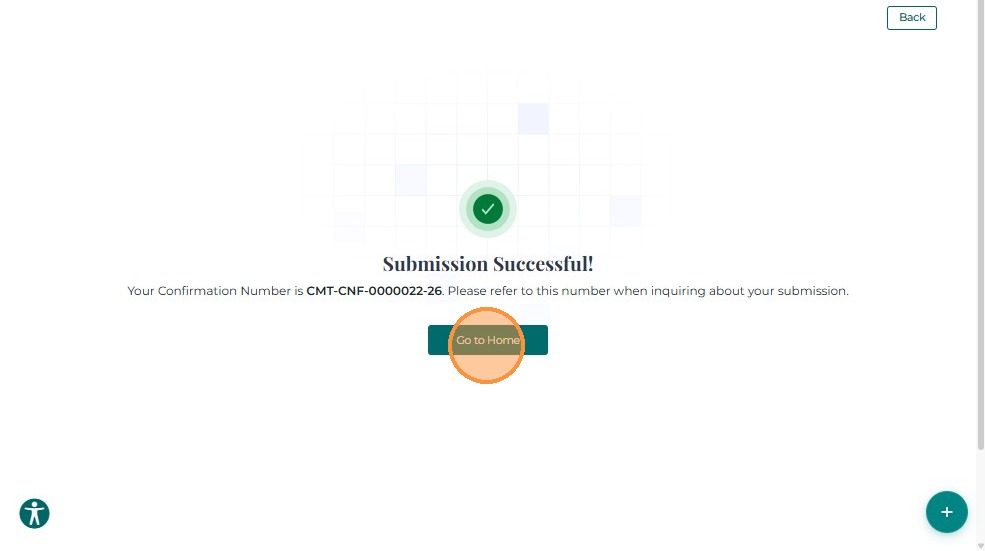
A confirmation message appears once the comment is successfully submitted.