Uploading Documents
The Attachments section allows users to include additional files relevant to their comment. This step is optional but can help provide context and supporting evidence for your comment.
Attachments Overview
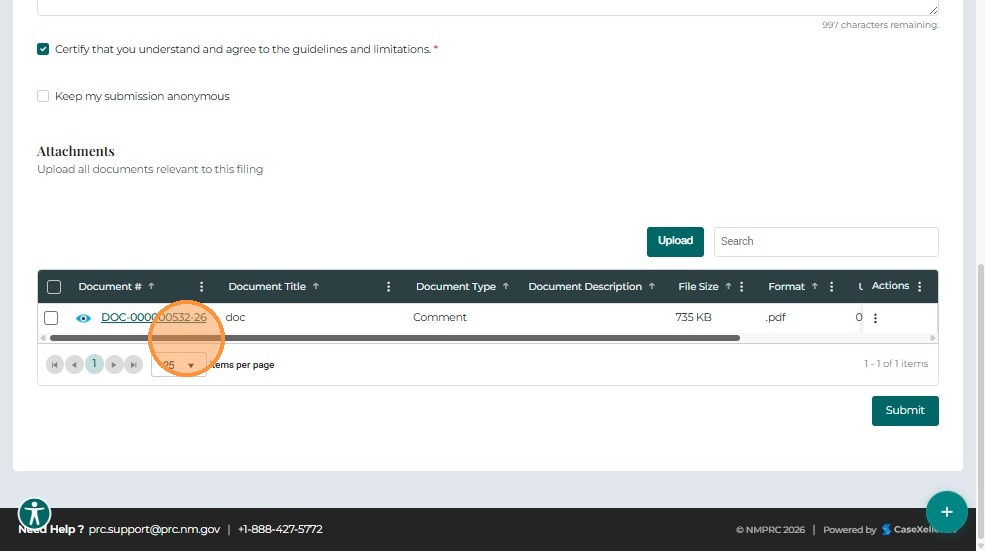
The attachments grid displays the following information for each uploaded document:
| Field | Description |
|---|---|
| Document # | Auto-generated unique identifier for each uploaded document. |
| Document Title | Name provided for the document. |
| Document Type | Classification of document (e.g., Advice Notice, Application, Brief). |
| Document Description | Short description of contents. |
| File Size / Format | Displays the file size and type. |
| Uploaded | Shows upload status. |
Users can remove uploaded documents using the Actions (⋮) menu.
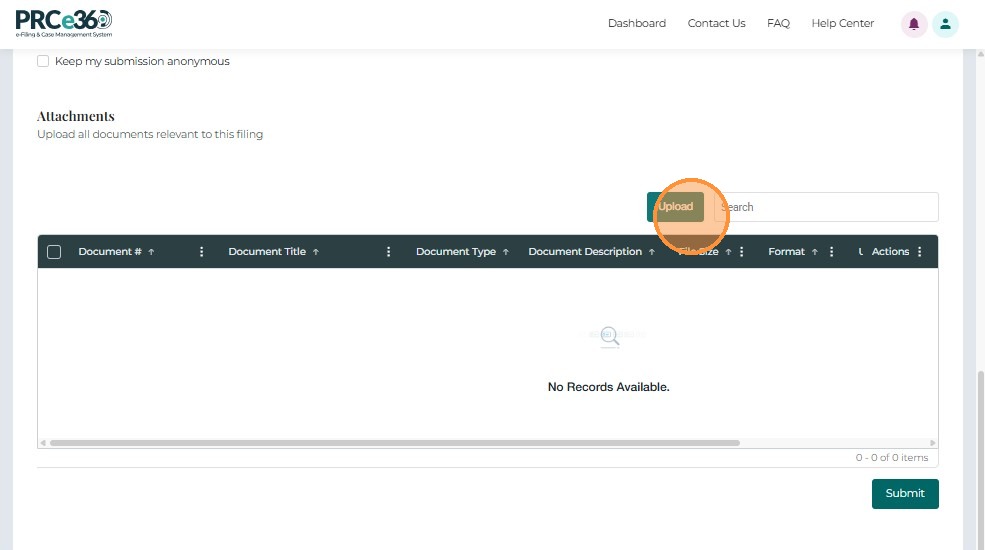
Upload a Document
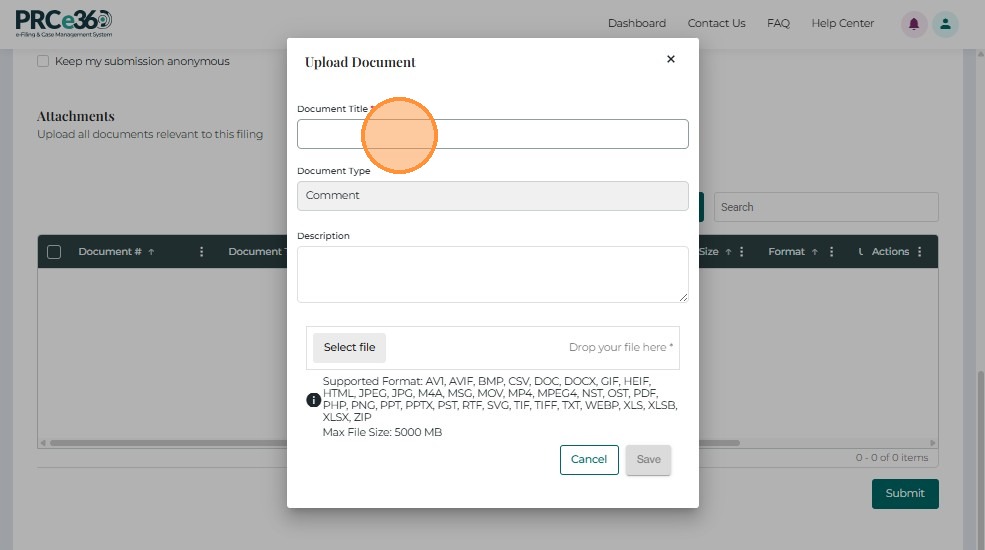
Click Upload to open the document upload form.
Fill in the required details:
- Document Title*
- Document Type*
- Access Type* (Non-Confidential / Confidential)
- Description (optional)
- Select File* – Browse or drag-and-drop to upload
Then click Save to add it to the attachments grid, or Cancel to exit without saving.
Next Steps
After uploading any supporting documents:
- Submitting Your Comment - Submit your comment
Related Guides
- Create Public Comment - Overview - Introduction to public comments
- Completing the Form - Fill out comment details