My Dockets

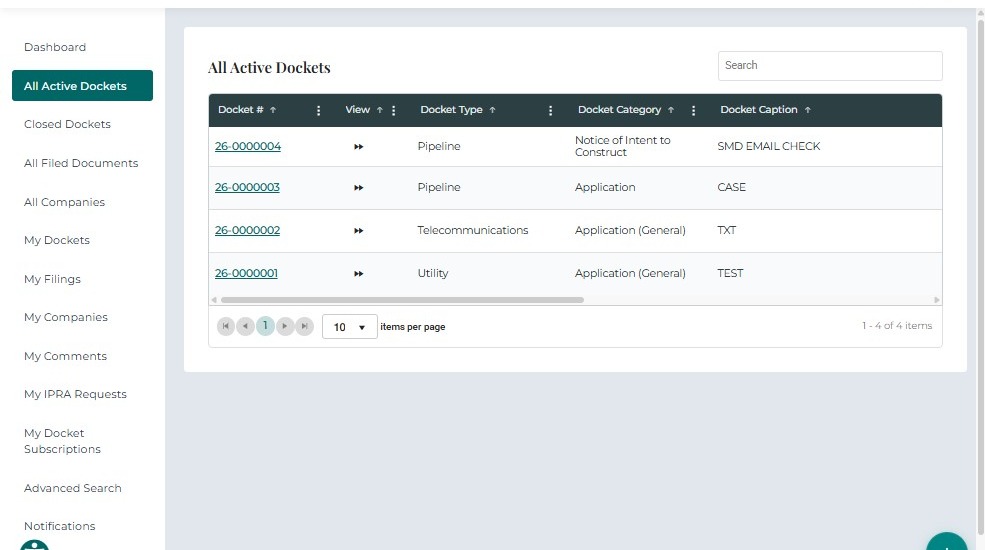
The My Dockets tab displays all Dockets created, filed, or submitted through the Public Portal.
Tier 2 users can file new dockets, submit formal filings, and file into existing Dockets — their My Dockets list reflects all related activity.

ColumnDescription
Confirmation #System-generated confirmation ID assigned when the Docket was created. The link opens Docket details.
Docket #Official docket number assigned after approval or processing.
Docket TypeType of Docket filed (e.g., Pipeline, Complaint, Rate Docket).
Docket CategoryCategory within the Docket type (e.g., Water, Gas, Telecom).
Docket CaptionShort title or description of the Docket.
CompanyCompany associated with the Docket or filing.
Filed ByName of the user who filed the Docket.
Filed DateDate and time the Docket was submitted.
StatusCurrent Docket status (e.g., Active, Closed, Pending Review).

Once the docket is approved and processed by PRC staff, the Docket # appears in the list.

Image

Image

User Actions:

  • Click the Confirmation # to open the user's original submission details.

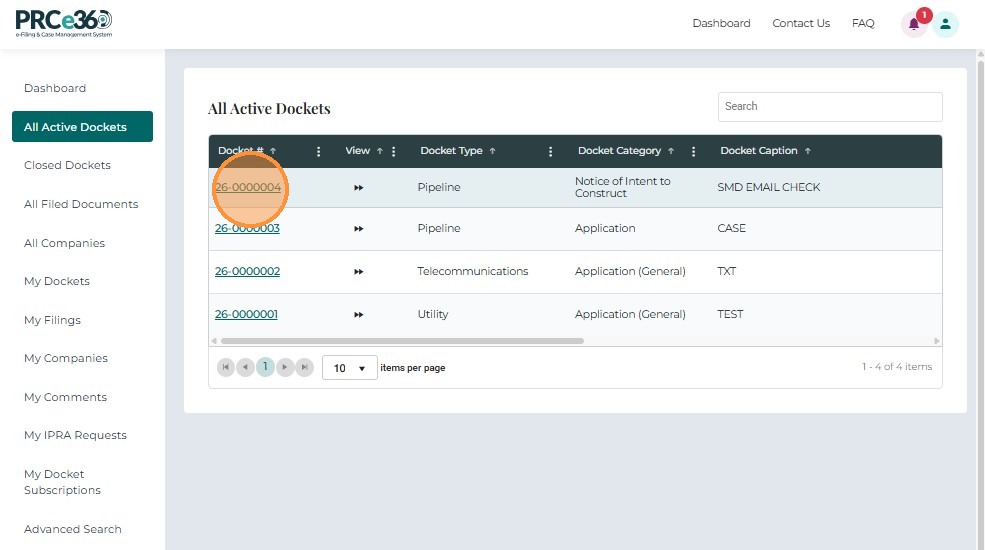
  • Click the Docket # to open the official Docket detail page showing filings, Docket history, and related documents.

  • Use the Search Bar to filter Dockets by confirmation number, docket number, or Docket type.

    Image


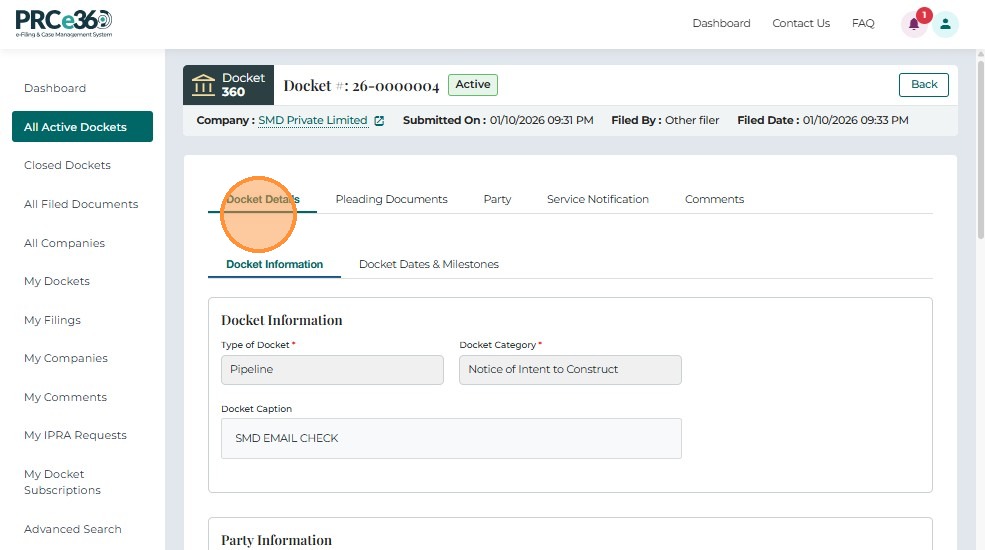
Docket Details Tab

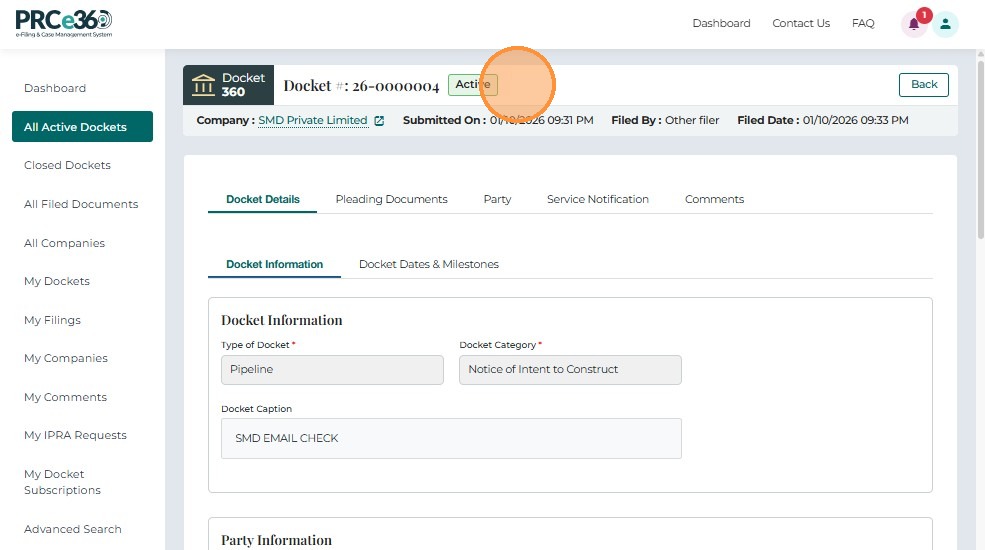
Selecting a Docket from My Dockets opens the Docket Details View, where users can review full Docket information, parties, filings, and notification options.
This view provides a complete 360-degree summary of the selected docket.

FieldDescription
Docket #Official docket number assigned to the Docket.
StatusCurrent Docket status (Active, Closed, Pending).
CompanyCompany associated with the filing (if applicable).
Submitted OnDate and time when the initial filing was submitted.
Filed DateDate and time when PRC accepted or recorded the filing.
Filed ByName of the user who submitted the Docket.

A Cancel button is available to return to the previous page.

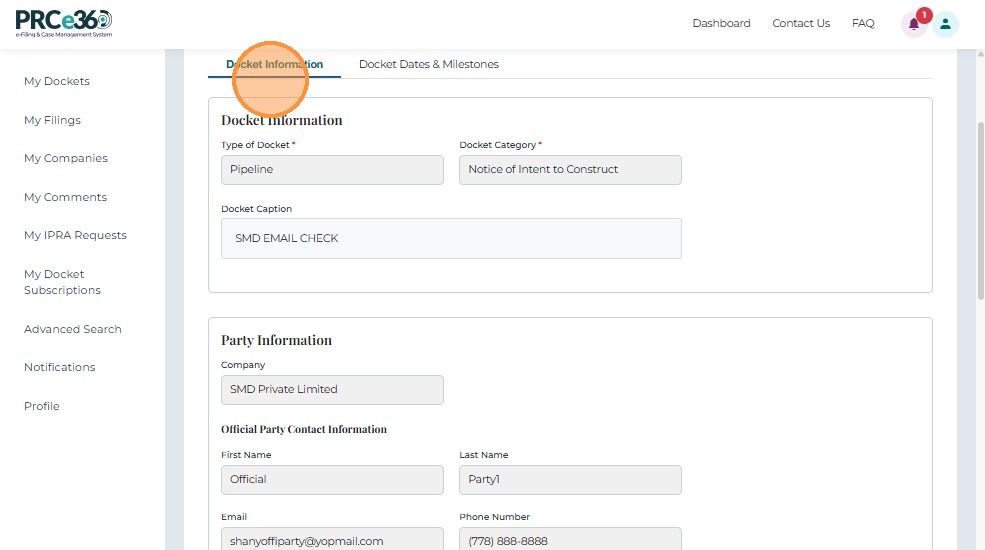
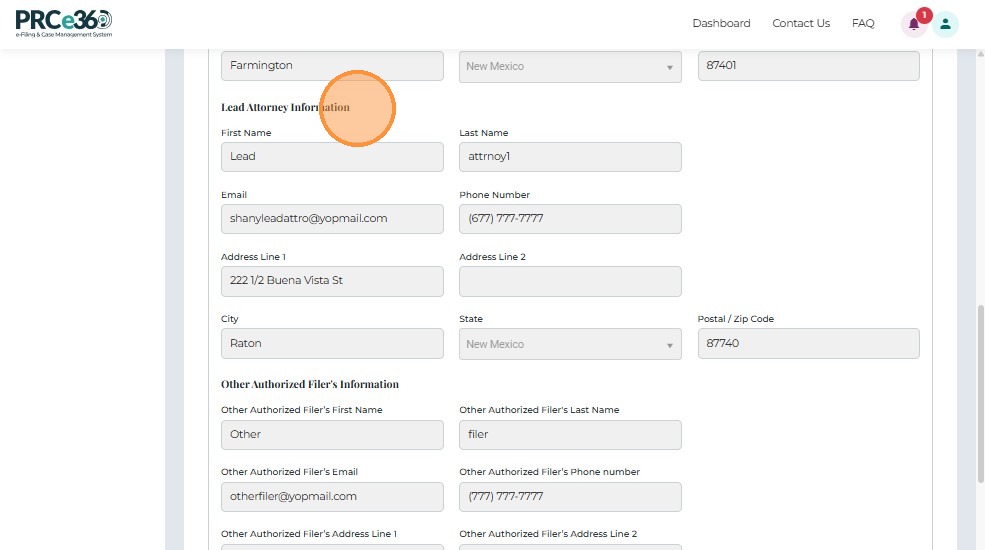
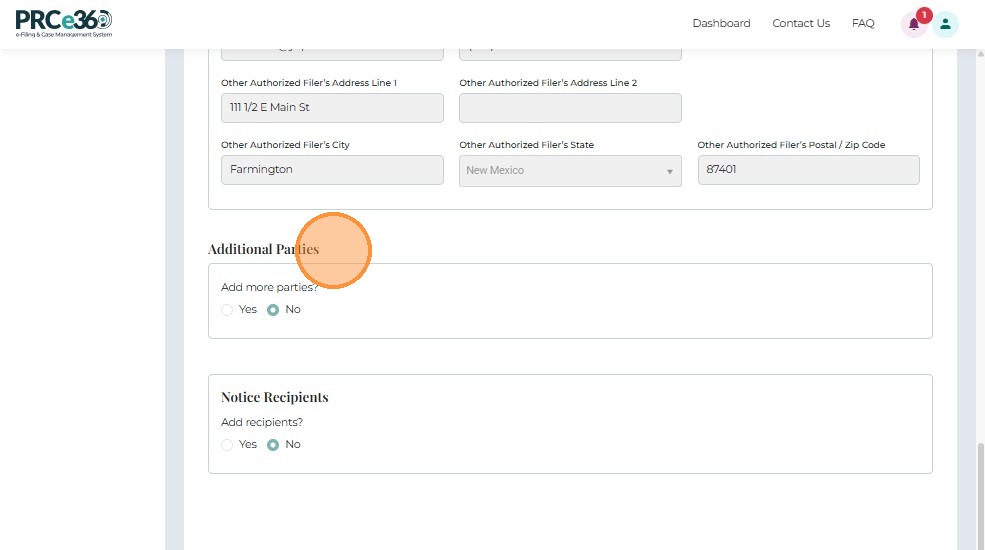
The Docket Details tab displays the complete form submitted when the Docket was created, including:

  • Docket Information: Type of Docket (e.g., Pipeline), Docket Caption (short descriptive title)

  • Party Information: Details of the primary filing party

  • Lead Attorney Information: Assigned attorney details

  • Filer Information: Automatically populated with the logged-in user's details

  • Additional Parties: Option to include more parties

  • Notice Recipients: Option to add individuals to receive filing notifications

    Image

    Image

    Image

    Image


Pleading Documents Tab

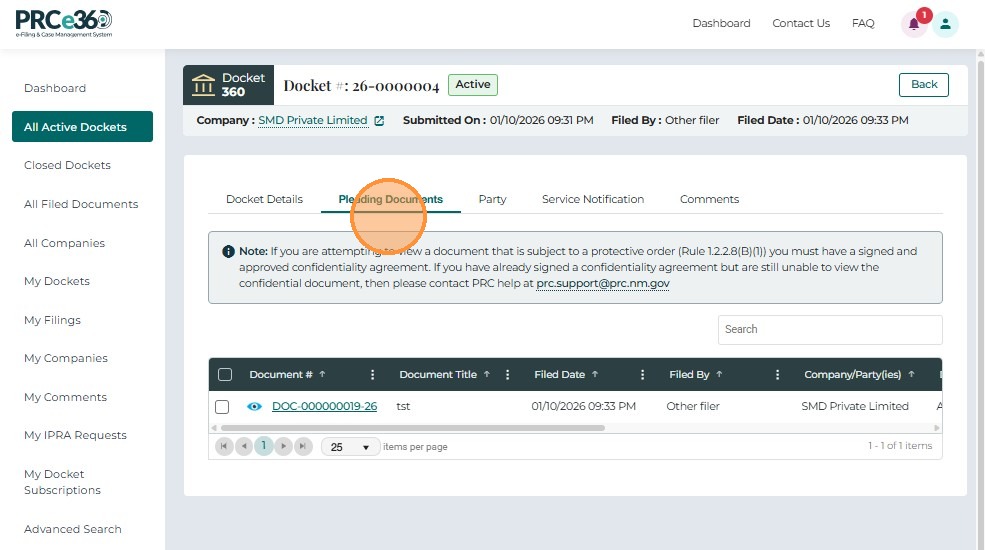
The Pleading Documents tab displays all filings and documents associated with the selected Docket.
Users can review document details, download filings, and verify confidentiality restrictions.

FieldDescription
Document #Unique document identifier. Clicking the link opens the document (if public).
Document TitleName or title entered by the filer during submission.
Filed DateTimestamp indicating when the document was officially filed.
Filed ByName of the individual who submitted the document.
Company / PartyThe party or company associated with the filing.
Document TypeClassification such as "Advice Notice," "Exhibit," or "Motion."
ConfidentialIndicates whether the filing is confidential ("Yes" / "No").
LinkedShows if the document is tied to another filing or Docket component.
SourceIndicates where the document originated (e.g., Online).

Image

Image

  • Users may select one or multiple filings using the checkboxes provided.

    Image

    Image

  • Once one or more documents are selected, click the Download Document(s) button.

    Image

A pop-up appears prompting:
Select how you want to download the documents:

  • Individual
  • ZIP

Choose the preferred option and click Download.

Image

Image

After completion, a success message confirms:
"Document(s) downloaded successfully."

Image


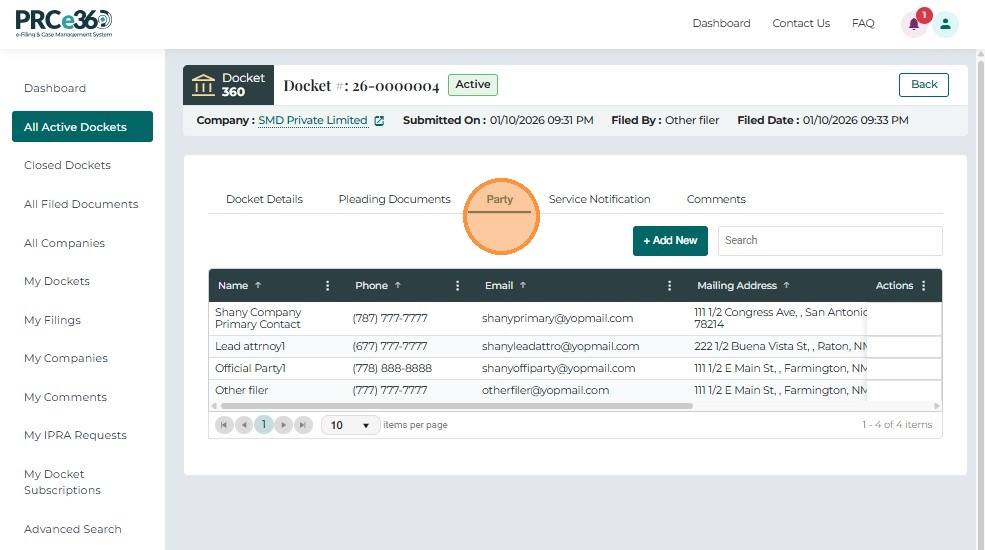
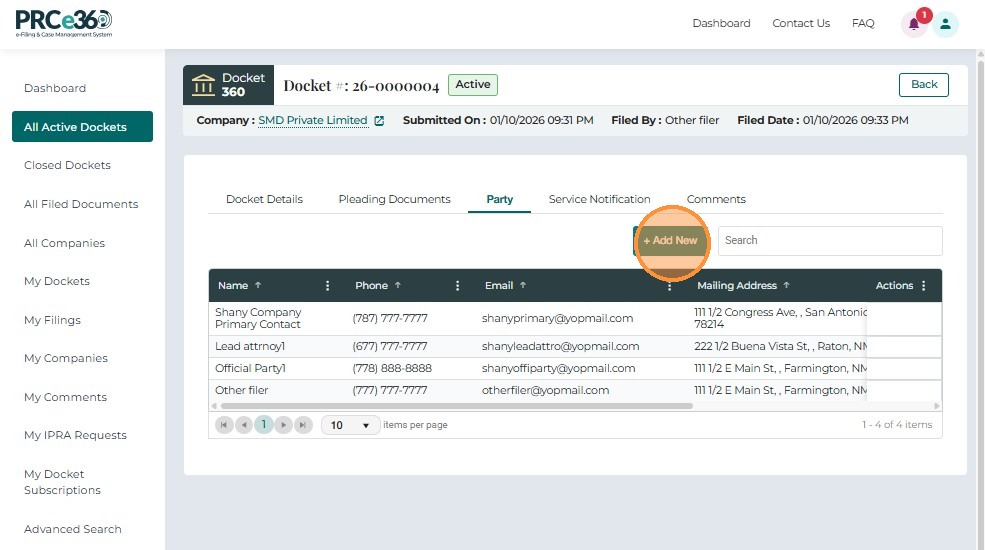
Party Tab

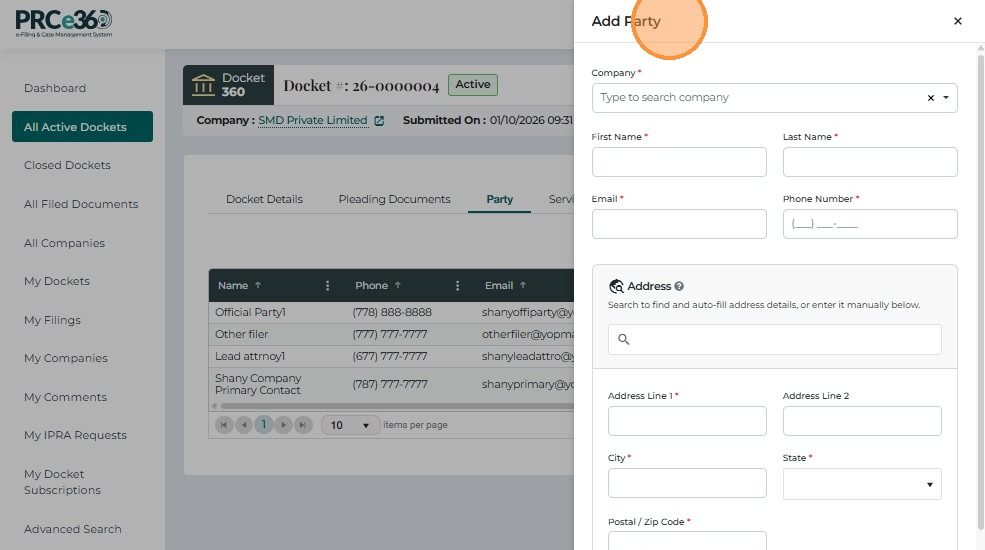
The Party tab displays all individuals and organizations associated with the selected Docket.
This includes parties added during Docket creation, manually added parties, attorneys, and company participants.

FieldDescription
NameFull name of the party (applicant, petitioner, company representative, or attorney).
PhoneContact phone number provided during filing.
EmailEmail address used for communication or service.
Mailing AddressPhysical or mailing address used for official notices.
CompanyDisplays the associated company, if applicable.

This tab provides a consolidated view of all primary parties (Applicant, Petitioner, Respondent) and their contact details.

Image


Service Notification Tab

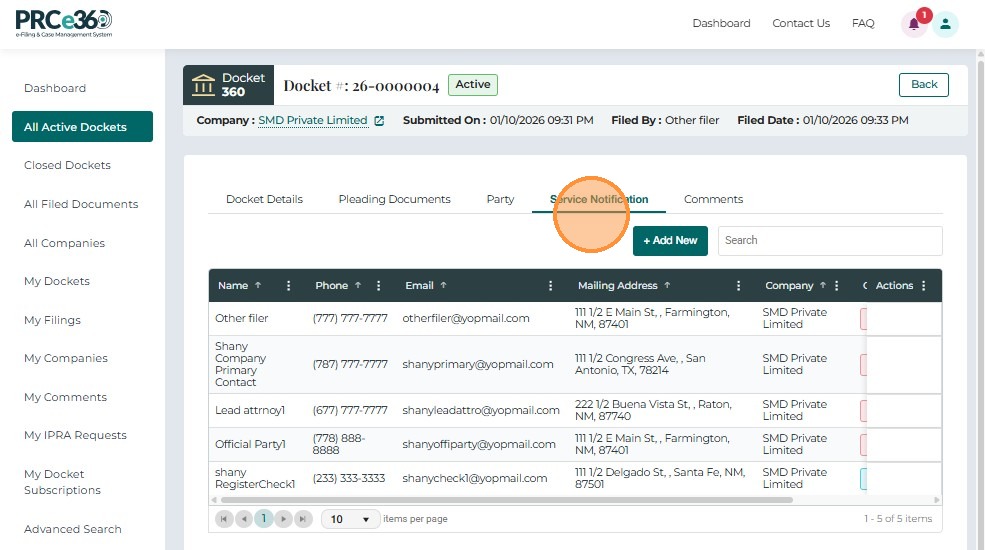
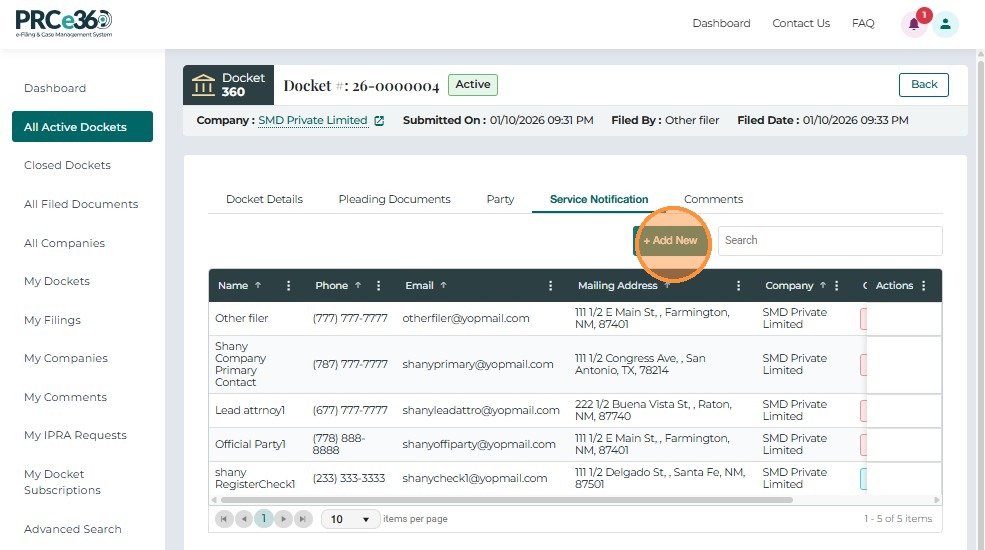
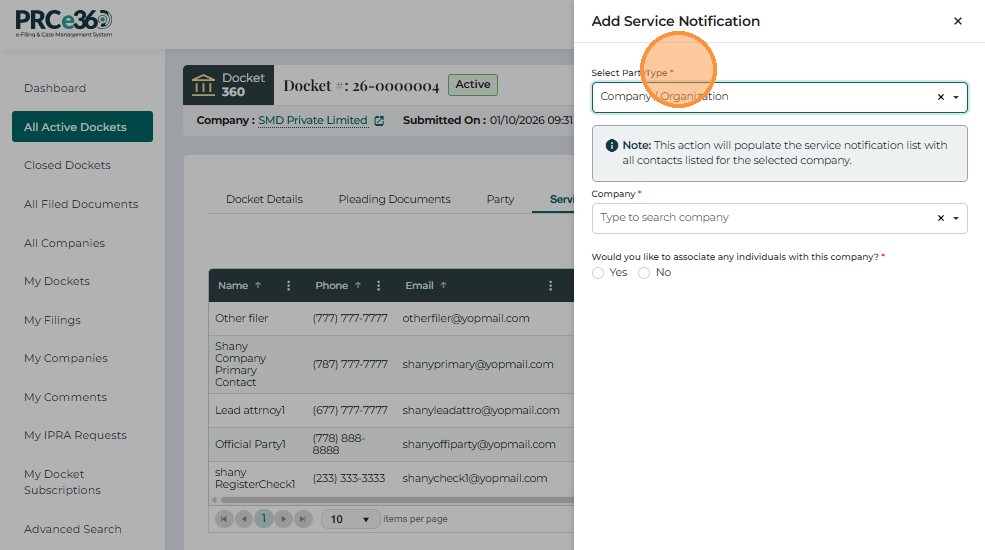
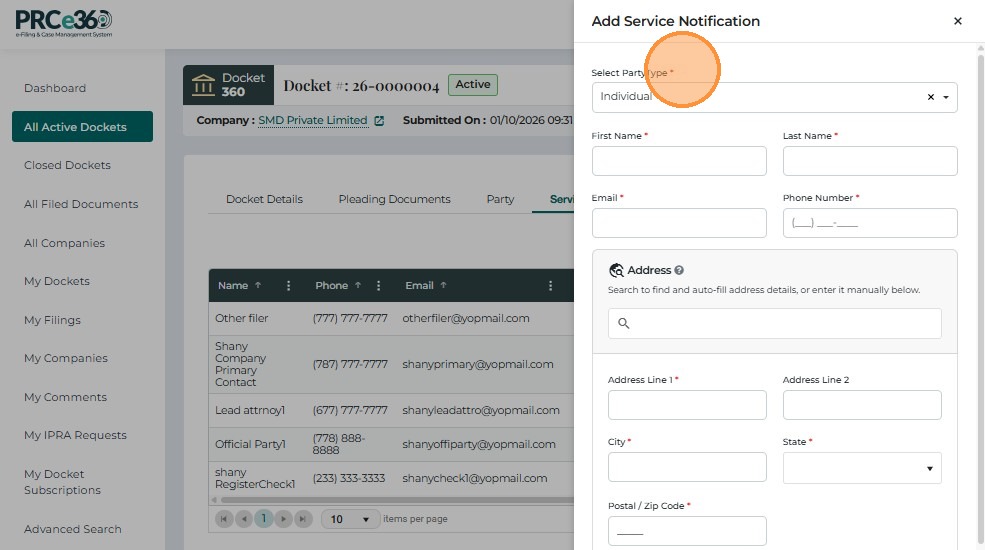
The Service Notification tab displays all individuals and company contacts subscribed to receive updates for the selected Docket.
This includes parties added during Docket creation, manually added contacts, and company representatives linked to the Docket.

This tab allows users to:

  • View all contacts who will receive notifications for the Docket
  • Review recipients including Primary Filing Party, Additional Parties, Company Contacts, and Manually Added Contacts
  • Validate mailing addresses and company associations
  • Review notification status for each contact
FieldDescription
NameFull name of the notification recipient.
PhoneContact number of the recipient.
EmailEmail address where notifications are sent.
Mailing AddressPhysical or mailing address (auto-loaded or entered during filing).
CompanyCompany the recipient is associated with, if applicable.
Online UserIndicates if the recipient has an active PRC Portal login (Yes / No).

Image


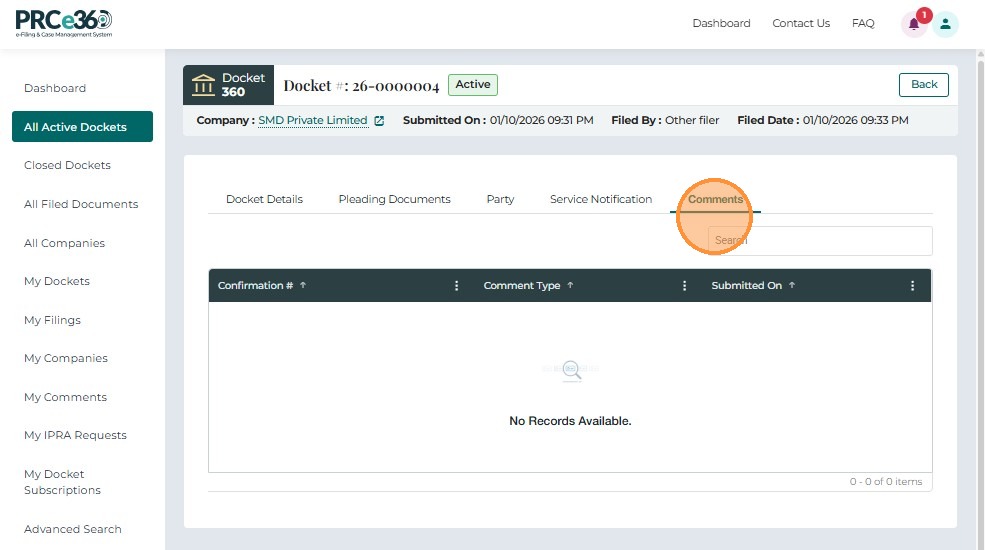
Comments Tab

The Comments tab displays all comments or notes associated with the selected Docket.
These may include public comments, rulemaking comments, or internal notes, depending on the Docket type and system configuration.

This tab is designed to:

  • Display all comments submitted to the Docket
  • Provide transparency into comment-related Docket activity
  • Allow users to track public or procedural commentary related to the docket
FieldDescription
Confirmation #System-generated confirmation number for the submitted comment.
Comment TypeIdentifies the comment type (e.g., Public Comment, Rulemaking Comment).
Submitted OnDate and time when the comment was submitted.
StatusIndicates whether the comment is Processed, Pending, or Rejected.

Image