Viewing Dockets
From the Dashboard, click All Active Dockets on the left-hand navigation menu to open the full list of dockets available to you.
Each row represents an individual docket record and includes searchable and filterable columns such as Docket ID, Docket Type, and Docket Caption.
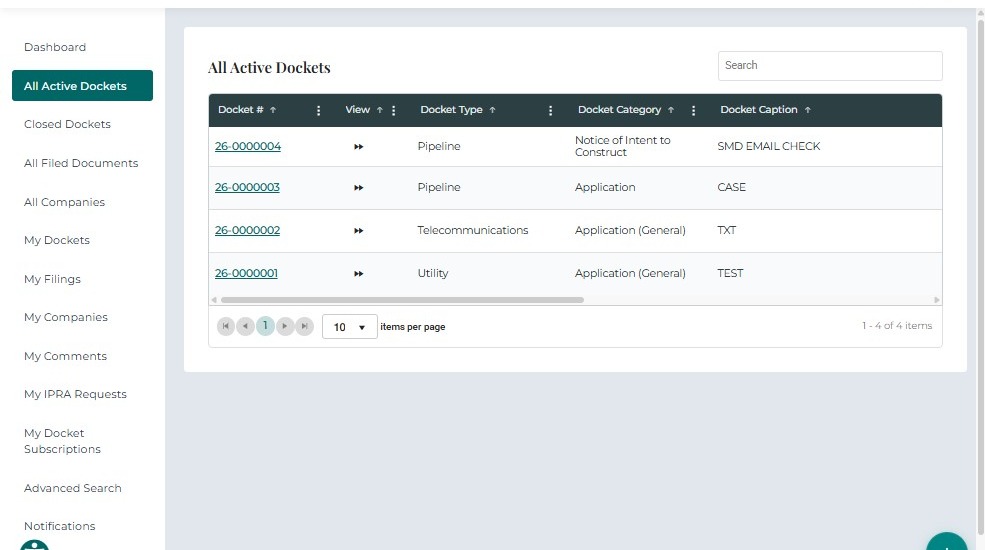
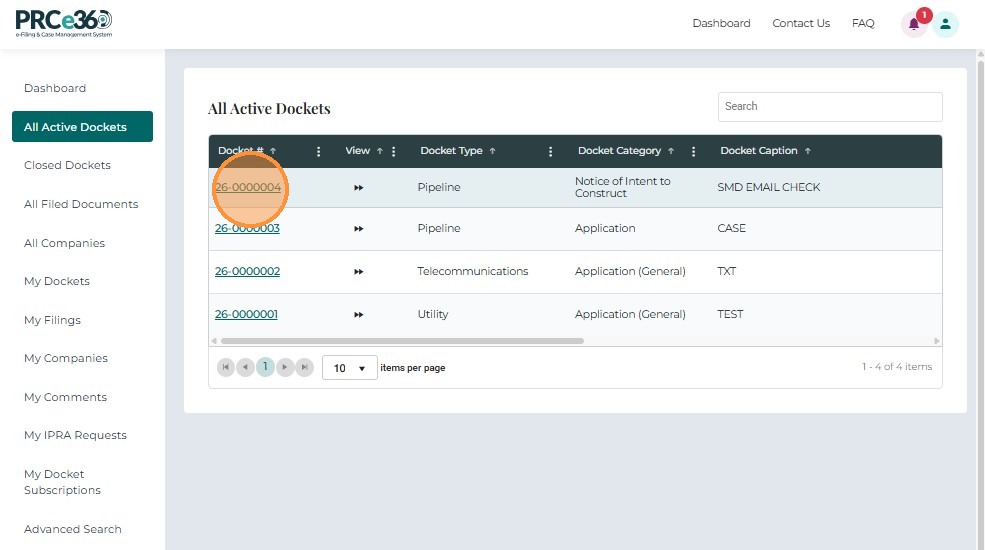
Click the Docket ID link to open the Case 360 View.
This detailed view shows all Docket-related information, including parties, pleadings, service notifications, and comments.
2.1 Docket 360 Overview
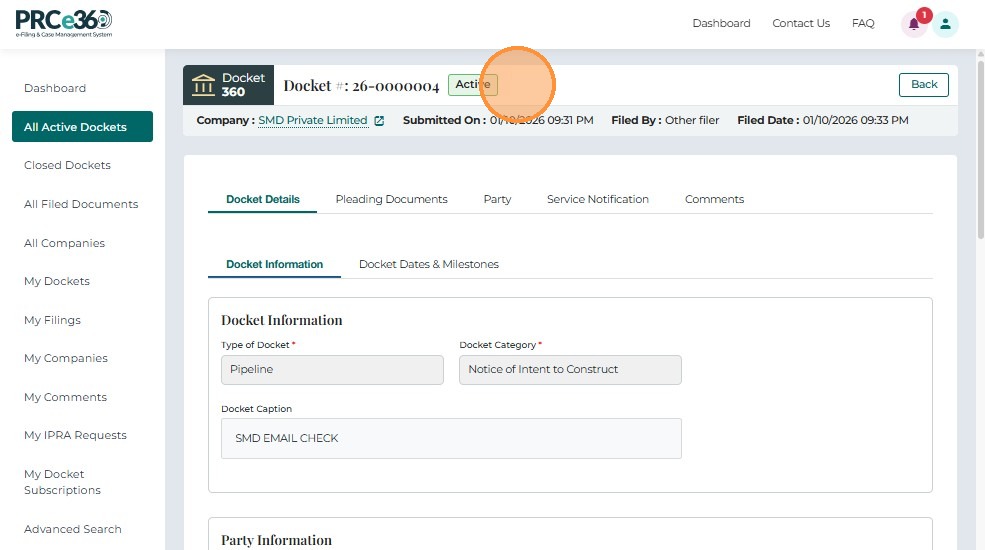
The Docket 360 View displays the complete information for a selected docket.
At the top of the screen, you can view the Docket #, Docket Status (e.g., Active / Closed), Company Name, Submission Date, Filed By, and Filed Date.
2.2 Docket Details Tab
This tab displays all read-only details about the docket such as Docket Type, Category, Caption, and Status.
It also includes Party Information, Contact Information, Lead Attorney Details, and Filer Details.
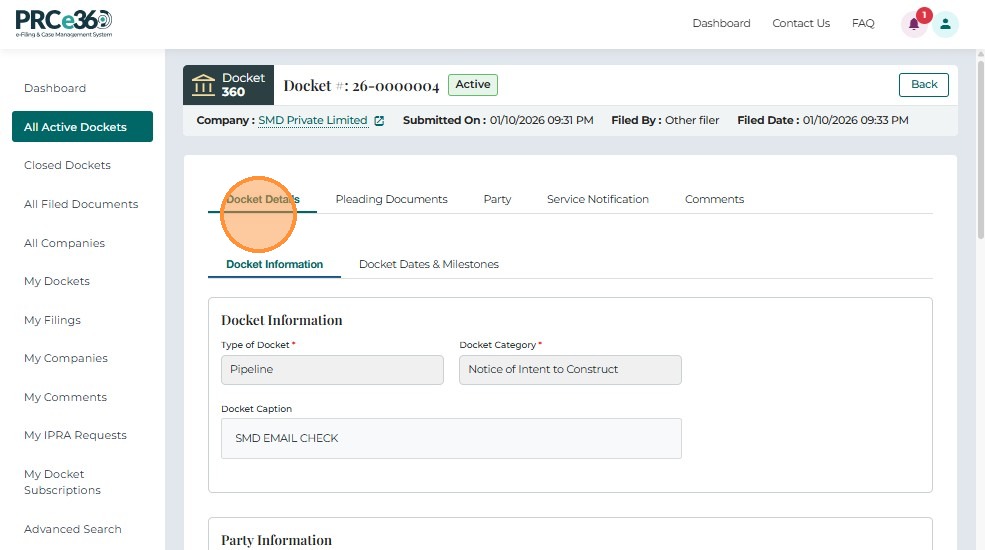
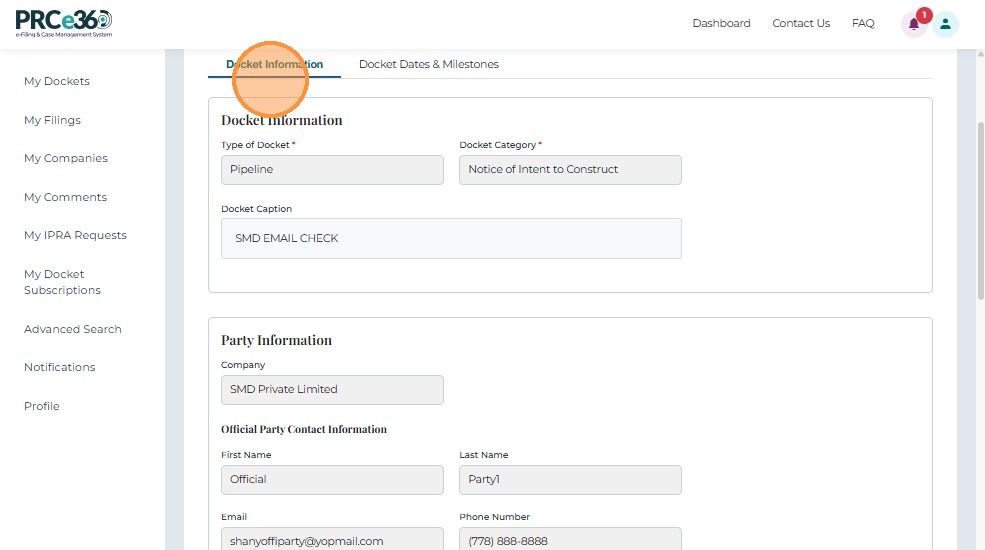
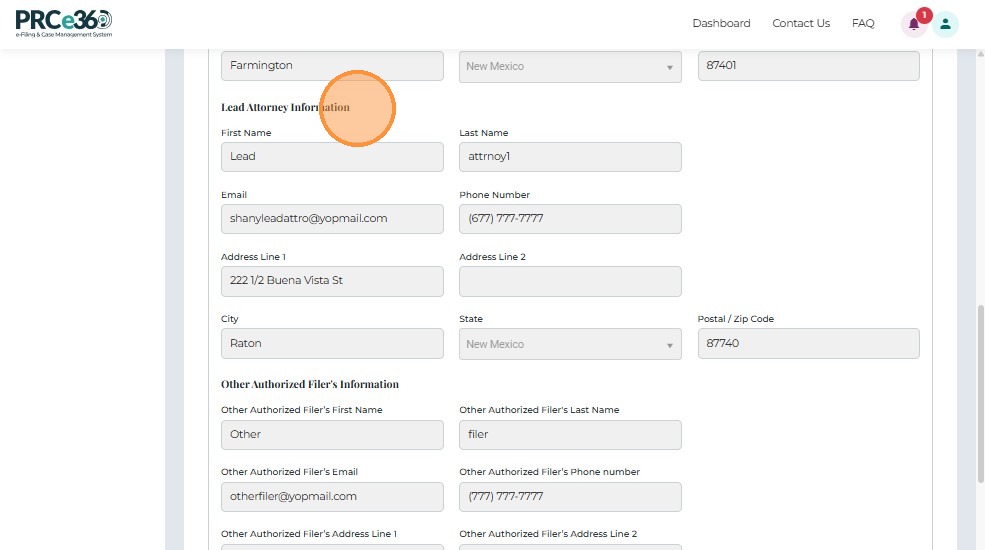
Additional parties and Notice Recipients appear further down the screen.
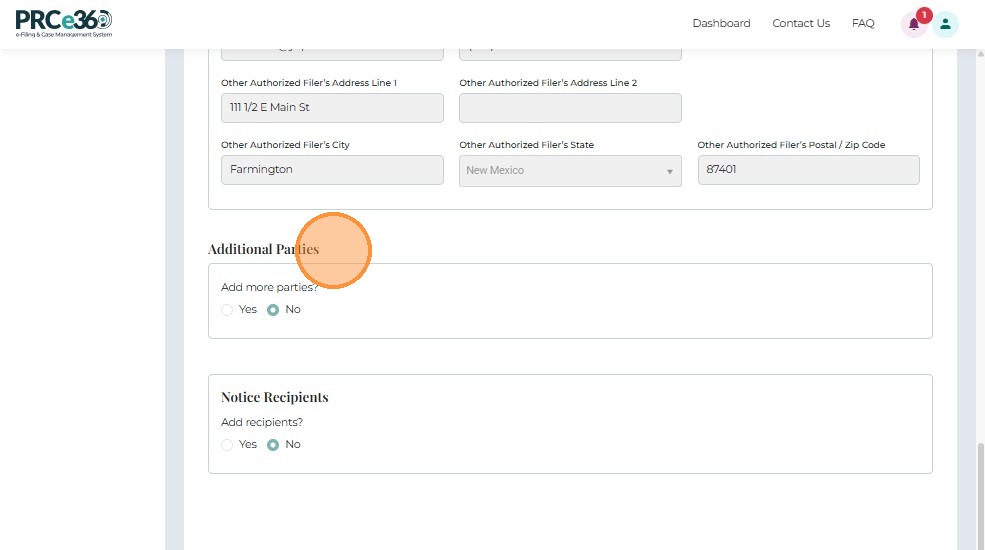
The Docket Dates and Milestones tab will show important dates related to the docket.
2.3 Pleading Documents Tab
This tab lists all supporting documents filed for the selected docket.
Each row shows the Document ID, Filed Date, Filer, Company / Party, and other filing metadata.
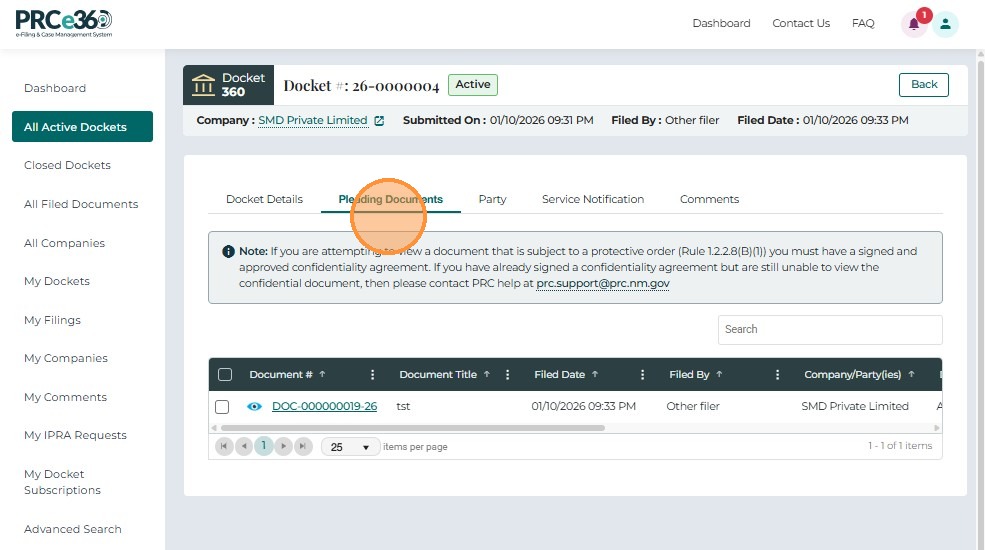
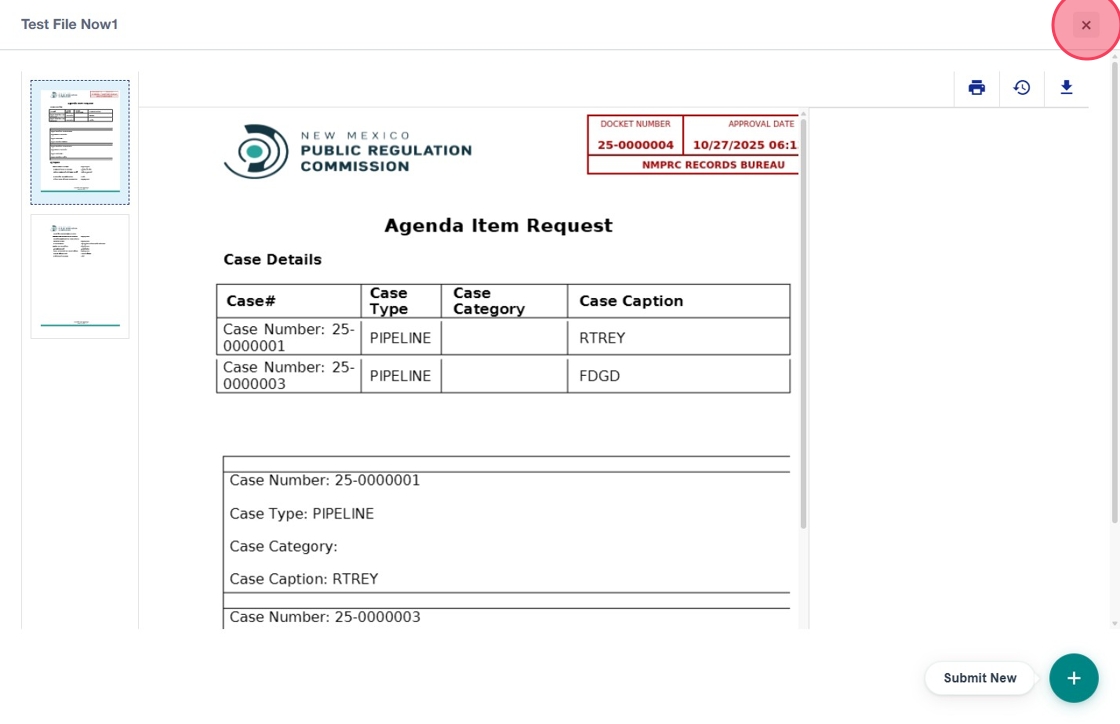
Click the Document ID link to view the document.
You can also check one or more documents and click Download to save them locally.
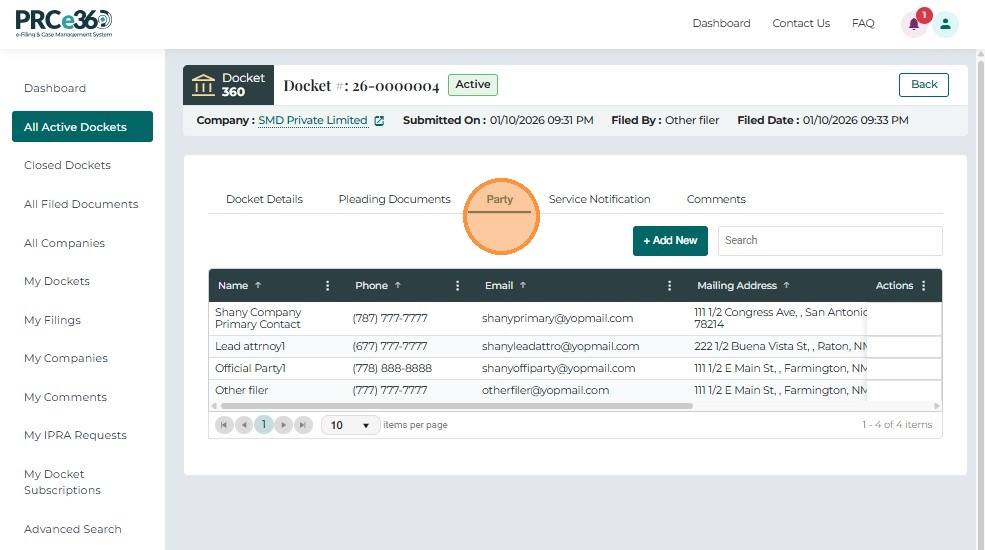
2.4 Party Tab
The Party Tab lists all parties linked to the docket, including their Name, Phone, Email, Mailing Address, and associated Company.
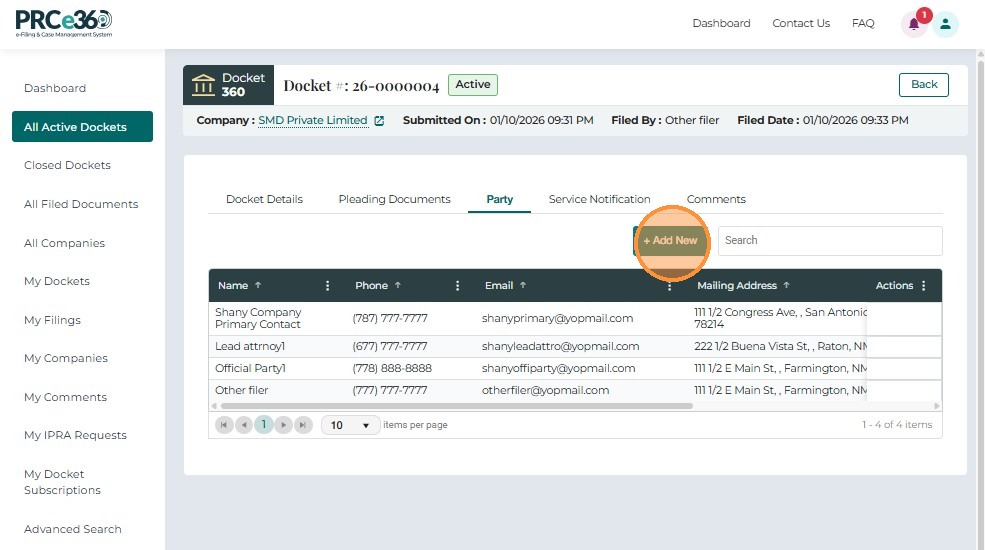
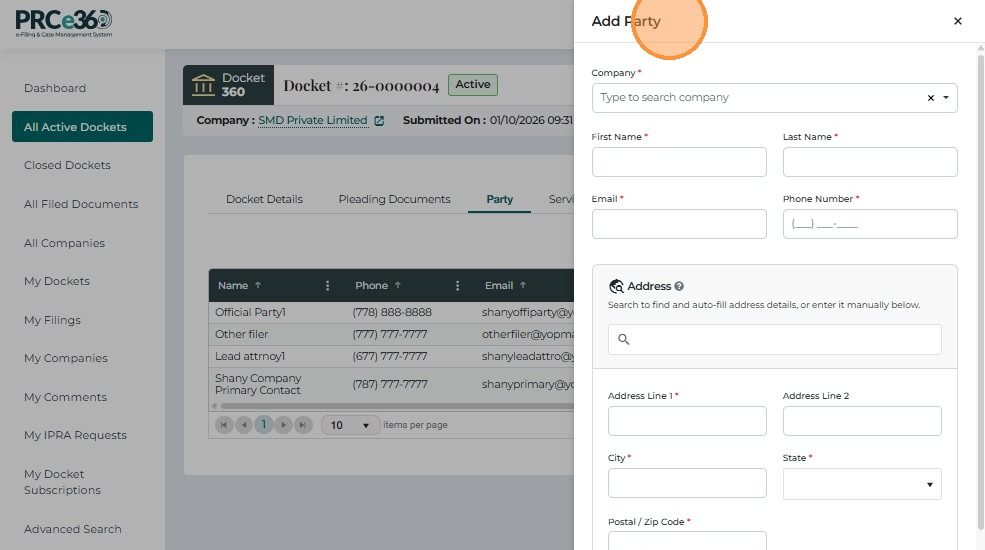
Click on Add New button to add more party members to the docket.
2.5 Service Notification Tab
This tab lists all service notifications related to the docket, including recipients and delivery details.
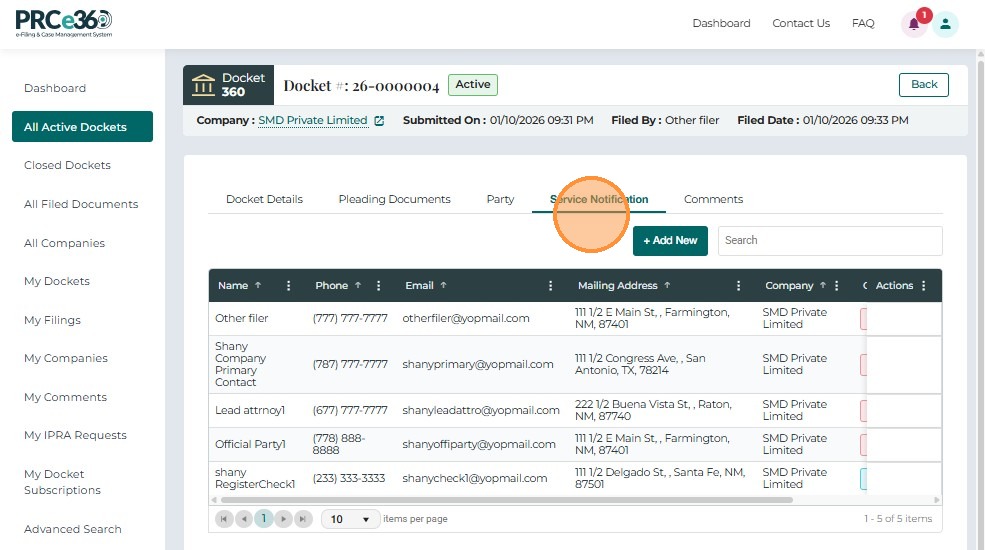
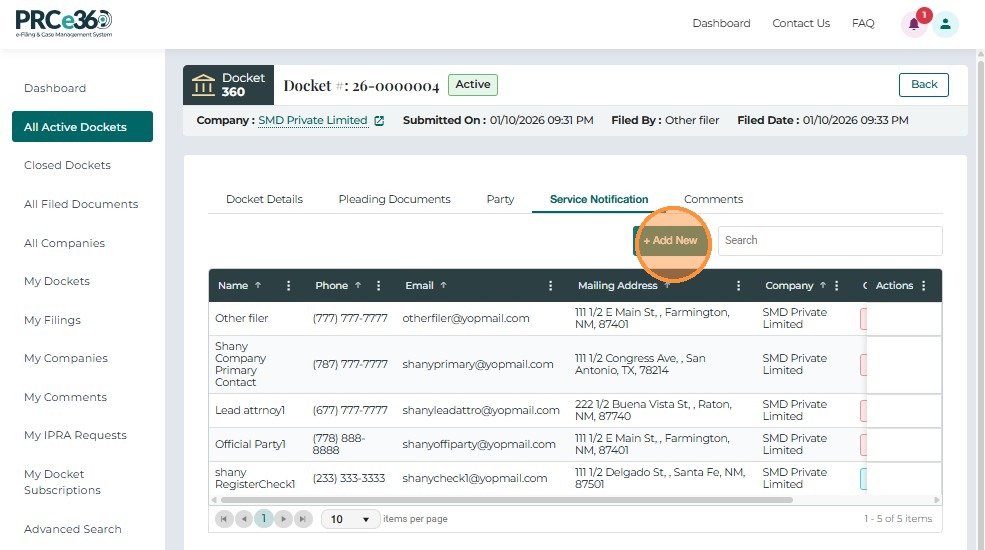
Users can add new Service Notification by clicking on the Add New button.
Select Party Type as Company or Individual and enter the necessary details.
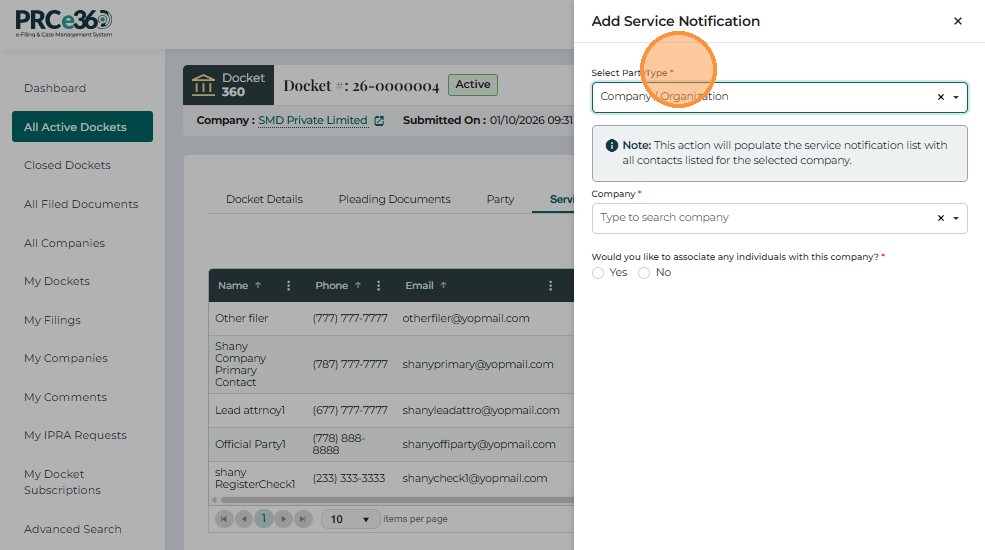
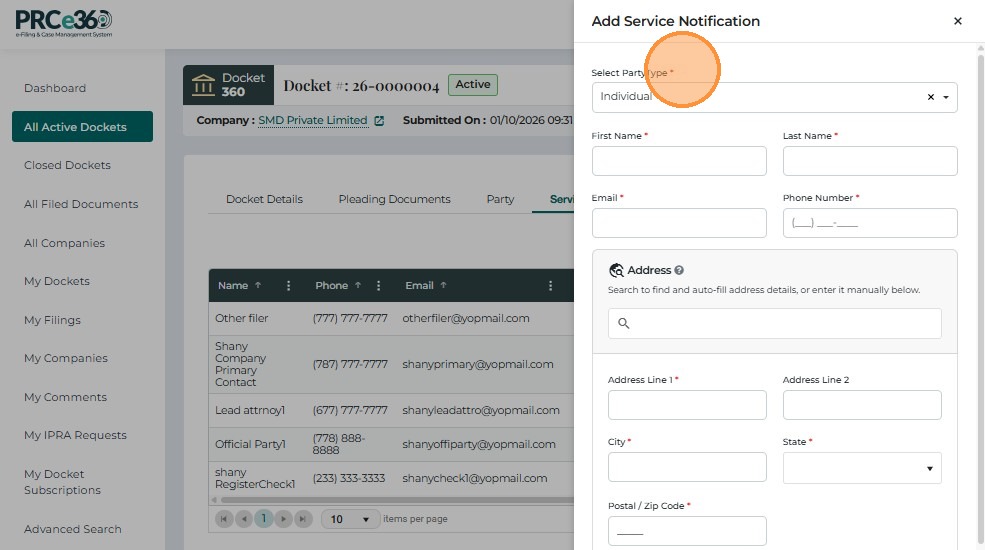
Fill in the information in the fields and click Submit to save.
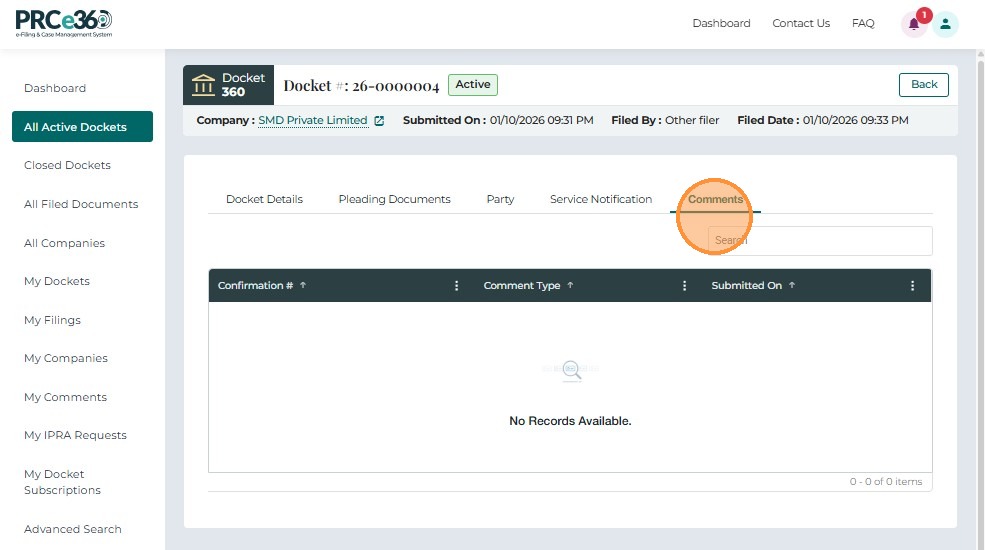
2.6 Comments Tab
The Comments Tab displays all comments linked to the selected docket, including Comment ID, Type, Date, and Status (e.g., Accepted, Pending, In Review).
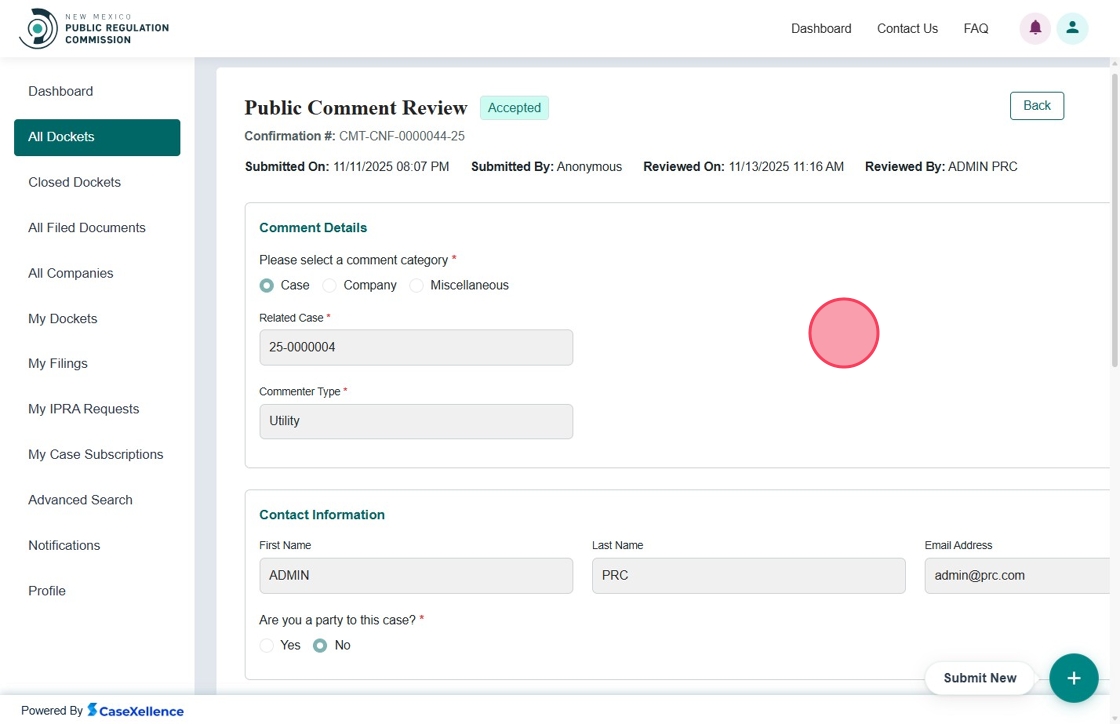
Comment 360 View
Clicking a Comment ID opens the Comment 360 View, which displays all information related to that comment — including Comment Details, Contact Information, Attachments, and the Review Summary.
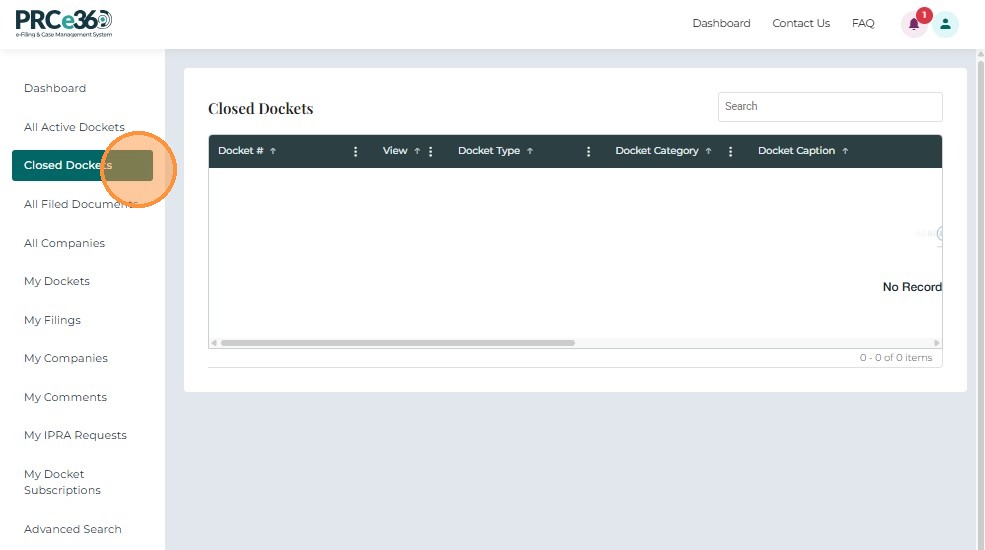
Closed Dockets Tab
This tab displays a list of the closed Dockets. Users can click on Docket ID and view Case 360 details but the Status will appear as Closed.
Related Guides
- Dashboard Overview - Learn about the dashboard and submit new functionality
- My Dockets - Manage your personal dockets