Managing Your Request
This guide covers how to view, track, and manage your submitted IPRA requests, including viewing status updates, downloading documents, and responding to requests for clarification.
1. View Submitted Requests
Navigate to the IPRA Request tab in the left-hand menu to view your submitted requests.
Your most recent request appears at the top of the list.
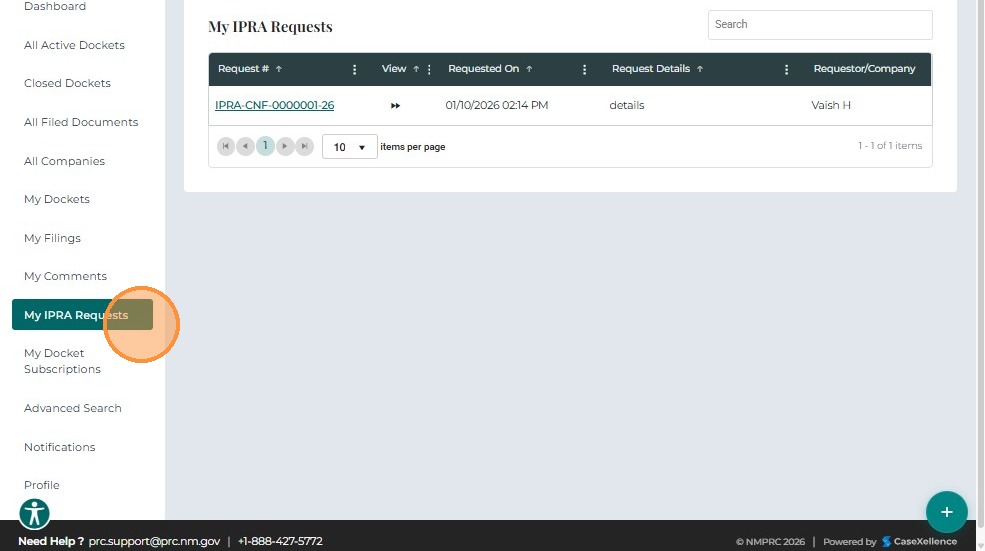
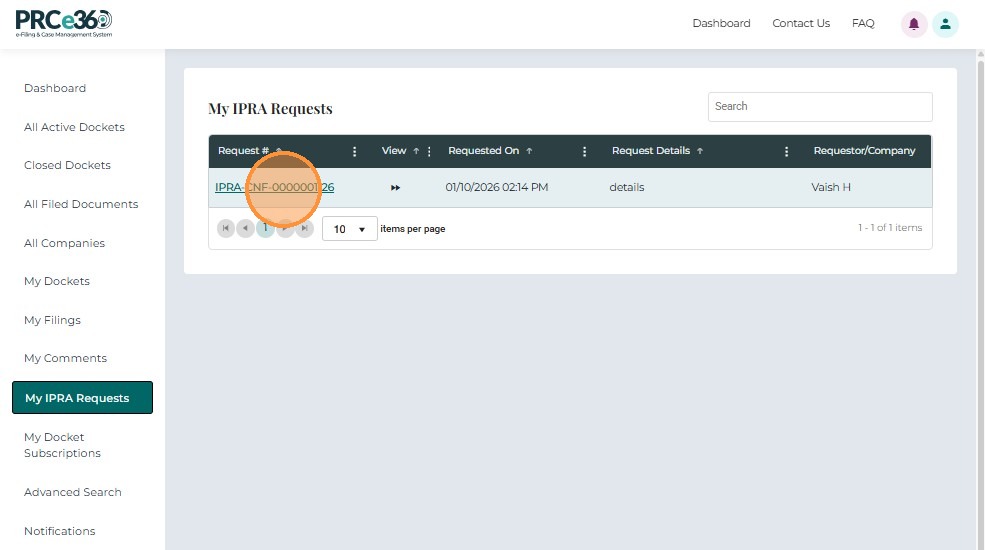
- Click the IPRA Request ID to open the 360° view.
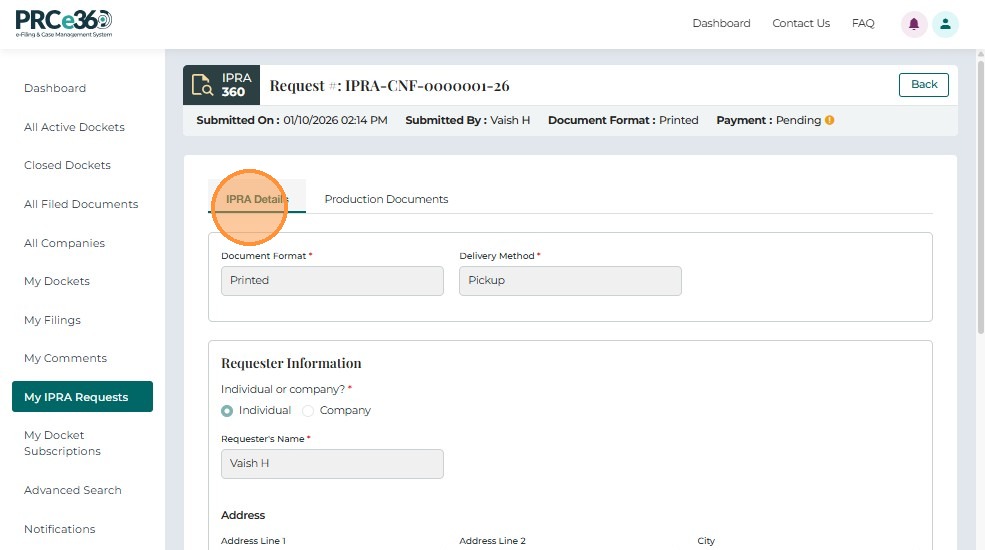
- The request details and current status are displayed at the top of the screen (e.g., Acknowledged – Pending Review).
2. Production Documents
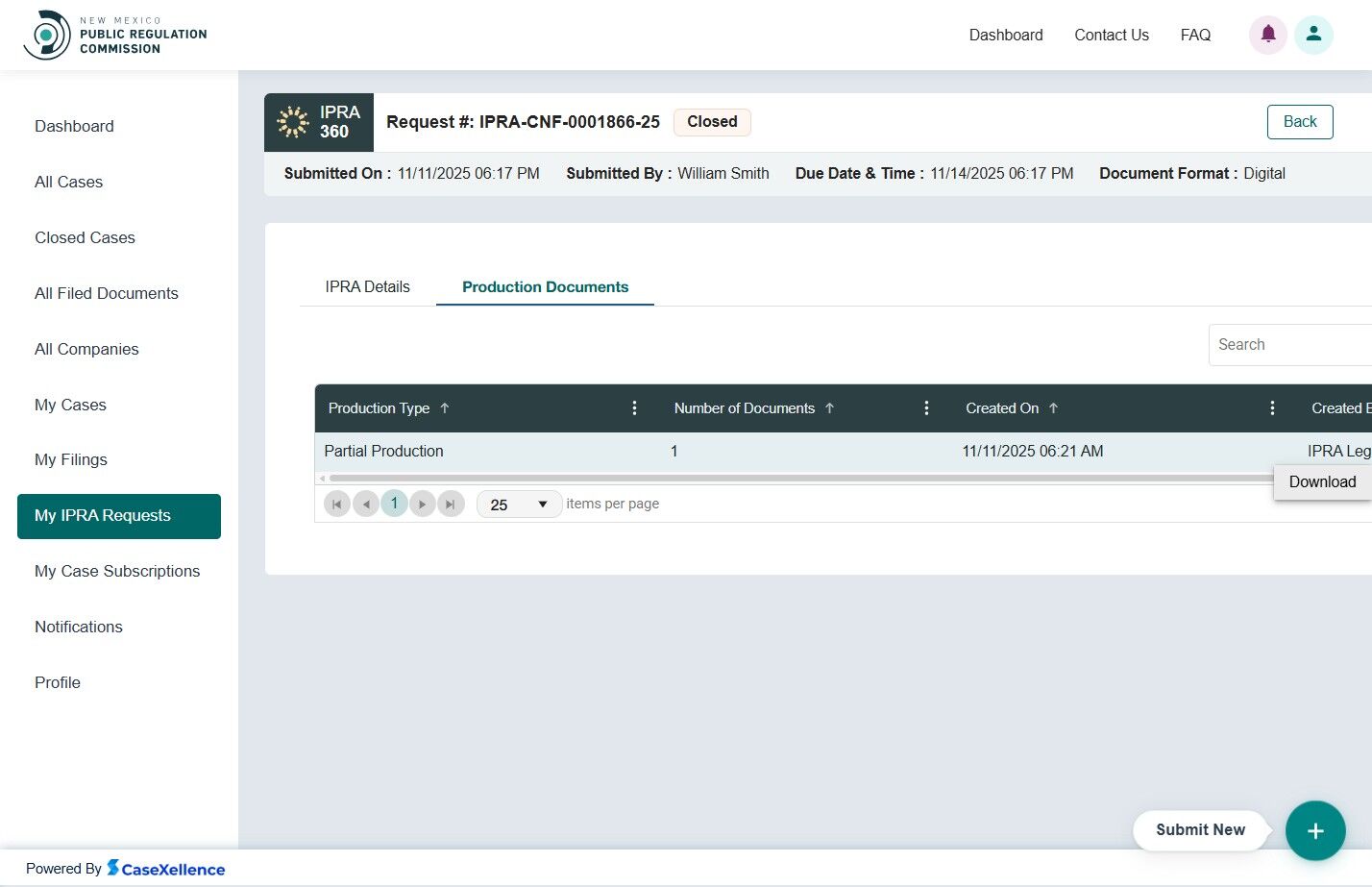
When Legal Counsel adds production documents (Partial or Full), they appear under the Production Documents tab of your request.
To download:
- Go to the Action column.
- Click the ⋮ (three dots) icon.
- Select Download.
3. Clarification Required
If Legal Counsel requests clarification, the requester receives an automated email notification.
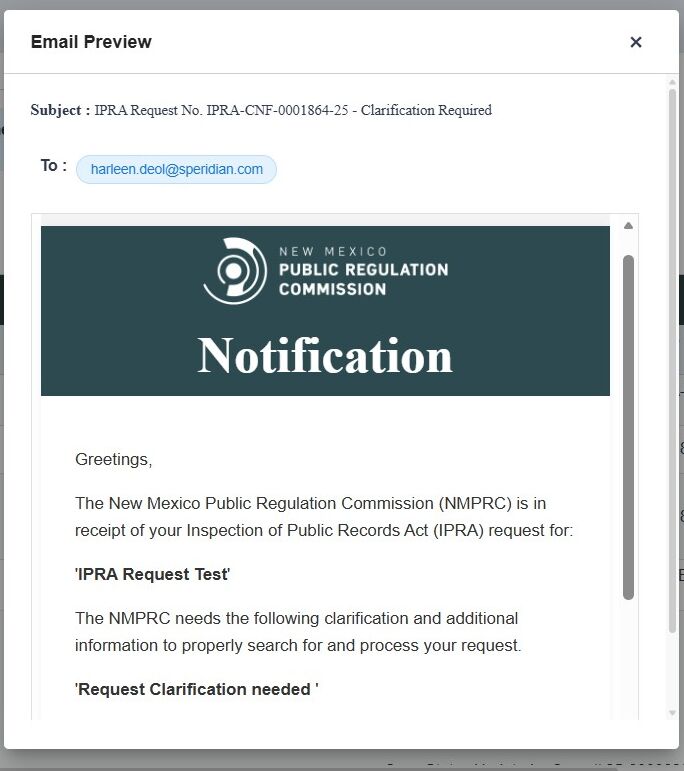
The requester can also view this status from their dashboard.
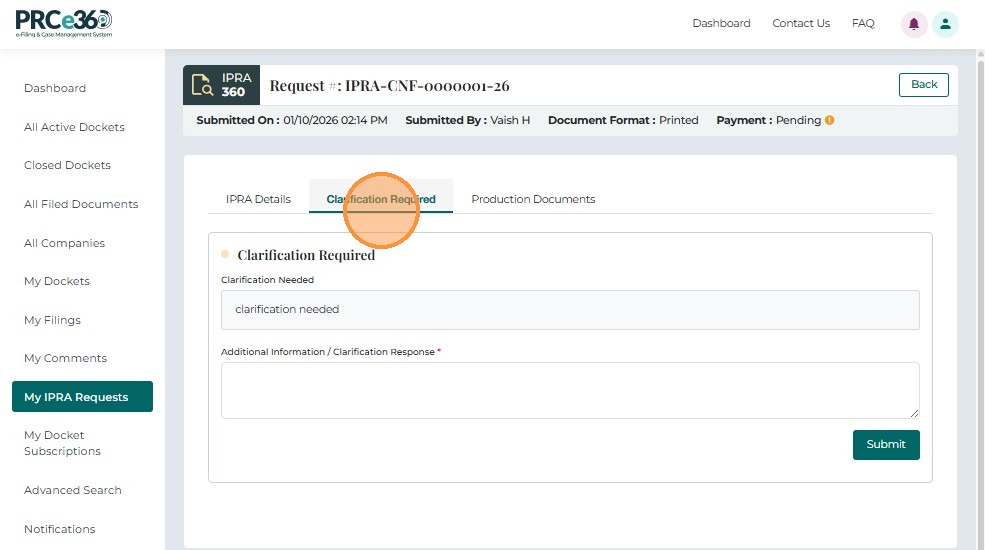
To respond:
- Open the request.
- Navigate to the Clarification tab.
- Add the required details.
- Click Submit to send your response.
4. Extension Request
If Legal Counsel requires additional time, an Extension Request email is automatically sent to the requester.
5. Wrong Custodian
If Legal Counsel determines that the request was filed under the wrong custodian:
- The requester receives an automated Wrong Custodian email.
6. Broad and Burdensome
If Legal Counsel identifies the request as Broad and Burdensome, the requester receives an email notification detailing the issue and next steps.
7. Request Rejection
If Legal Counsel rejects the IPRA request:
- The requester receives an automated rejection email.
- The requester will receive an email notification about the status change.
8. Payment Request
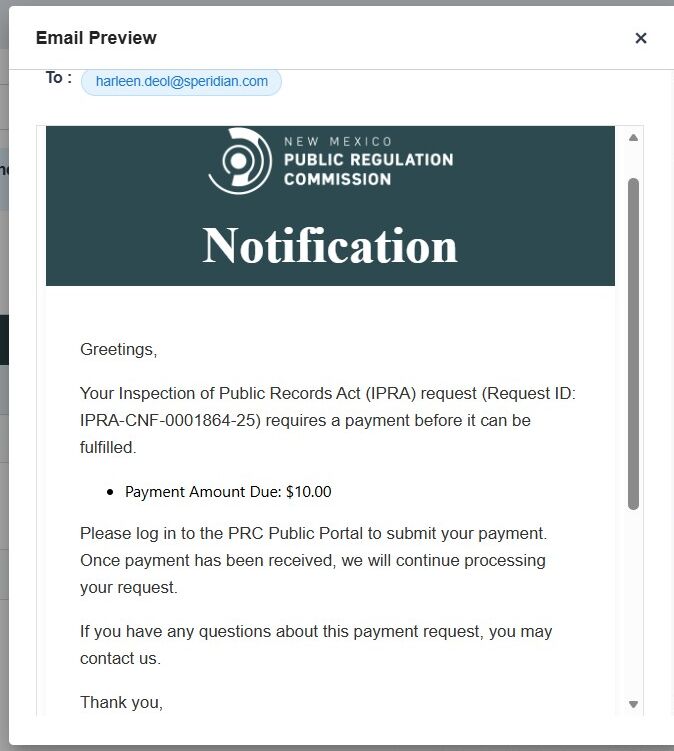
When Legal Counsel issues a Payment Request, an automated email is sent to the requester.
This email is also logged in the Audit Log (visible to IT Administrators).
After receiving the payment request:
- The requester may coordinate payment with the PRC or send a check.
- Once payment is received, Legal Counsel records it in the system.
9. Close Request
Once the IPRA Legal Counsel completes processing, the request status is updated to Closed.
The requester will receive an email notification about the status change.
Related Guides
- Submit IPRA Request - Overview - Introduction to IPRA requests
- Getting Started - How to access the request form
- Completing the Form - Fill out request details
- Submitting Your Request - Submit your request
- Dashboard - My Items - View your IPRA requests