Rulemaking Comment
The Rulemaking Comments feature provides a structured workflow for collecting, logging, and managing comments submitted during rulemaking proceedings. Comments may be submitted directly by the public through the portal or logged internally by the Legal Division or Records Staff when received outside the portal (e.g., by mail or email).
While most users can view or review submitted comments, only the Records, Legal, and OGC divisions are permitted to create and submit new rulemaking comments.
All comments follow the same workflow, validations, and routing rules regardless of which authorized division submits them. Each comment is validated, assigned a unique Confirmation ID, and routed to the Rulemaking Comments queue.
Access and Permissions
| Division | Roles with Permission | Comment Types Accessible |
|---|---|---|
| Records Division | Records Staff, Records Supervisor | Rulemaking Comment & Public Comment |
| Legal Division | Legal Staff, Legal Supervisor | Rulemaking Comment & Public Comment |
| OGC Division | OGC Staff, OGC Supervisor, OGC Paralegal | Rulemaking Comment & Public Comment |
Routing and Queues
| Action | Performed By | System Outcome |
|---|---|---|
| Create Rulemaking Comment | Records Division | Comment automatically accepted and added to All Rulemaking Comments. |
| Create Rulemaking Comment | Legal and OGC Division | Comment submitted to Records for approval. Appears in New Rulemaking Comments. |
| Accept / Reject Rulemaking Comment | Records Division | Accepted comment moves to All Rulemaking Comments. Rejected comment is listed under Rejected Comments. |
Steps to Access Rulemaking Comments
- Enter your Username or Email.
- Enter your Password.
- Click Sign In to access the system.
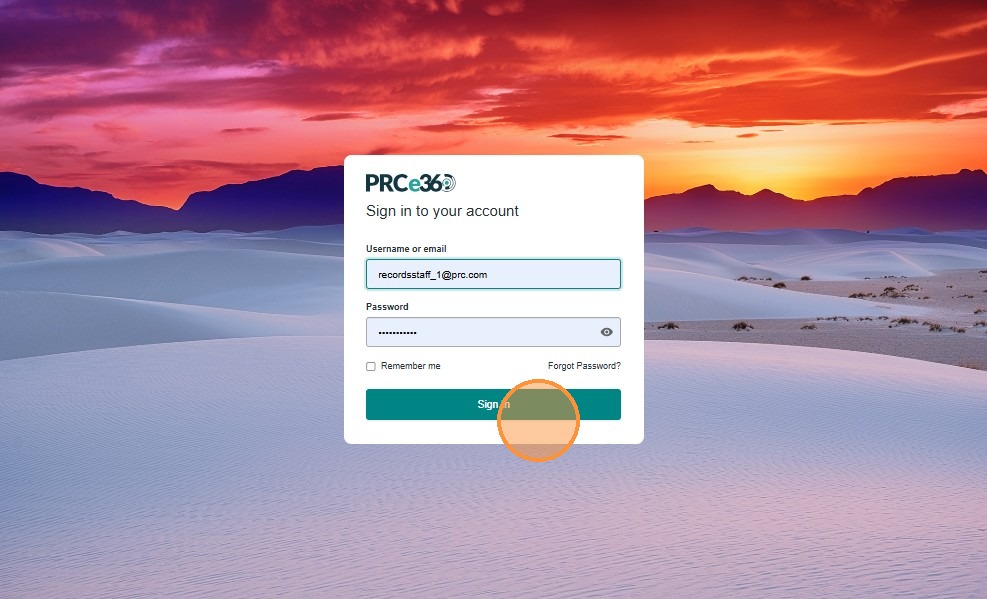
Once logged in, the user is directed to the Dashboard. From here, you can navigate to the Rulemaking Comments module.
-
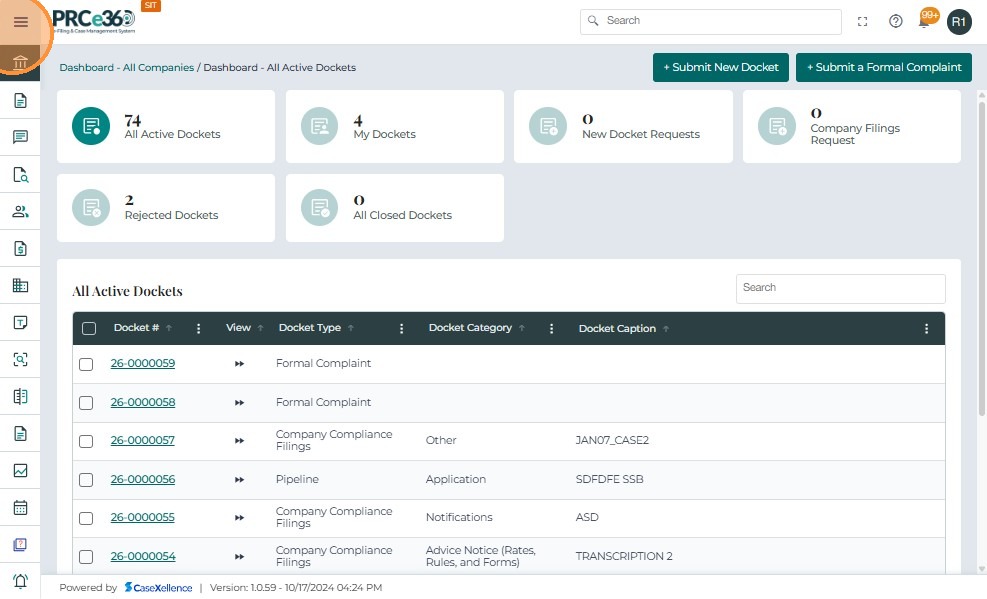
From the Dashboard, click the Menu icon located in the upper left corner.
-
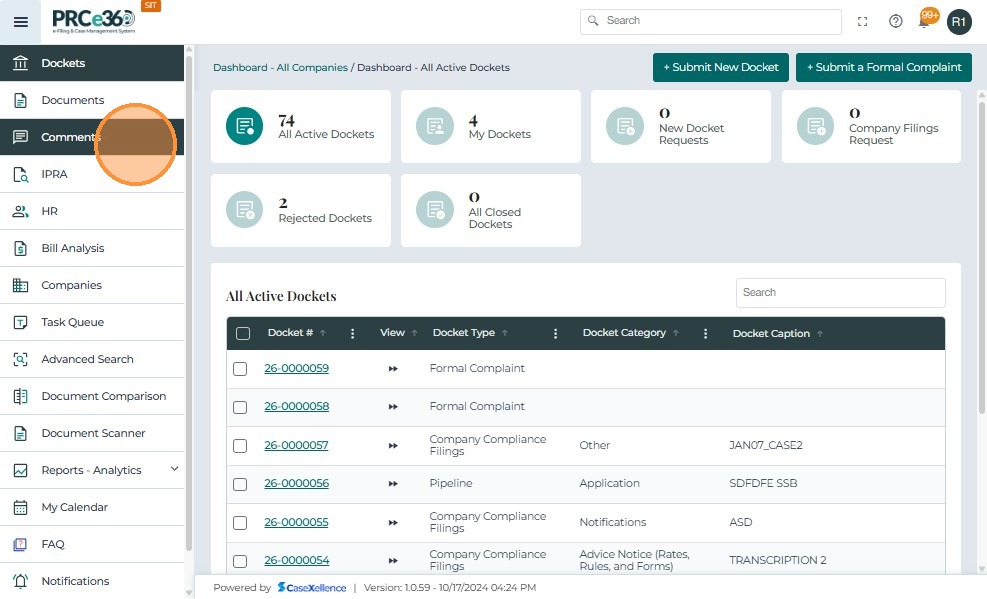
In the side menu, select Comments.
This option opens the Rulemaking Comments module where staff can view, log, or process public and internally submitted comments.
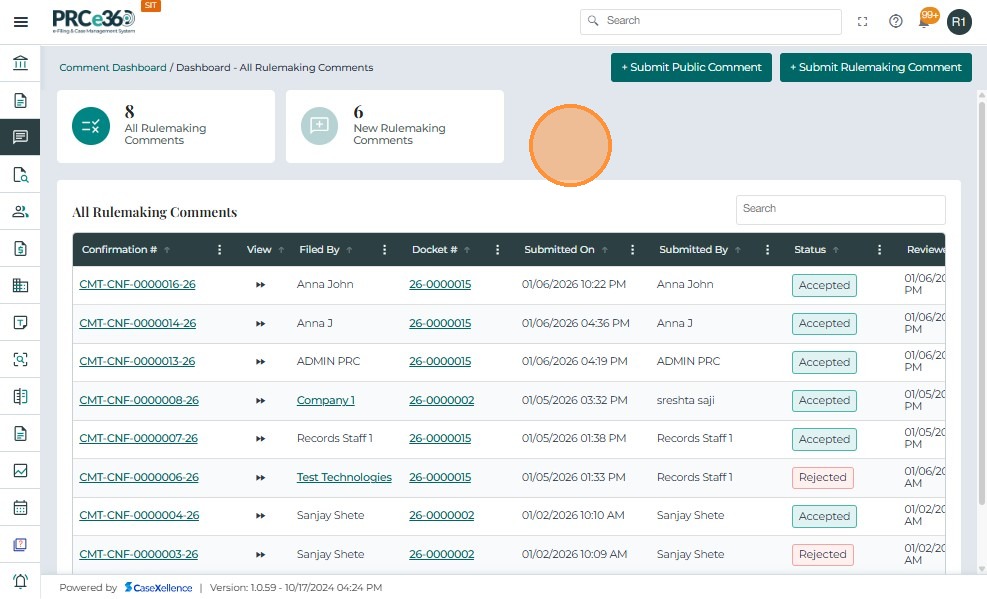
The Comments Dashboard gives Records Staff access to all rulemaking and public comments and provides options to log new submissions.
Dashboard Features
-
All Rulemaking Comments – Shows the total number of approved rulemaking comments.
-
New Rulemaking Comments – Displays the number of recently added comments awaiting review.
-
All Rulemaking Comments Table – Lists all submitted public comments with the following metadata fields:
- Confirmation # – Unique ID assigned by the system when a comment is submitted.
- Docket # – The docket number linked to the rulemaking case.
- Company – The associated utility or entity.
- Submitted On – Date and time of submission.
- Submitted By – Name of the filer (individual or organization).
- Status – Current state of the comment (e.g., Pending Review, Accepted, Rejected).
- Reviewed On – Date the Records/OGC/Legal Division reviewed the comment.
- Reviewed By – Name of the reviewer (Records/Legal Division/OGC).
- Search Bar – Allows staff to search and filter comments by ID, company, filer, or status.
Submitting a New Comment
At the top of the dashboard, two options are available:
- + Submit Public Comment – For logging public-submitted comments.
- + Submit Rulemaking Comment – For manually logging comments received via email, mail, or in person.
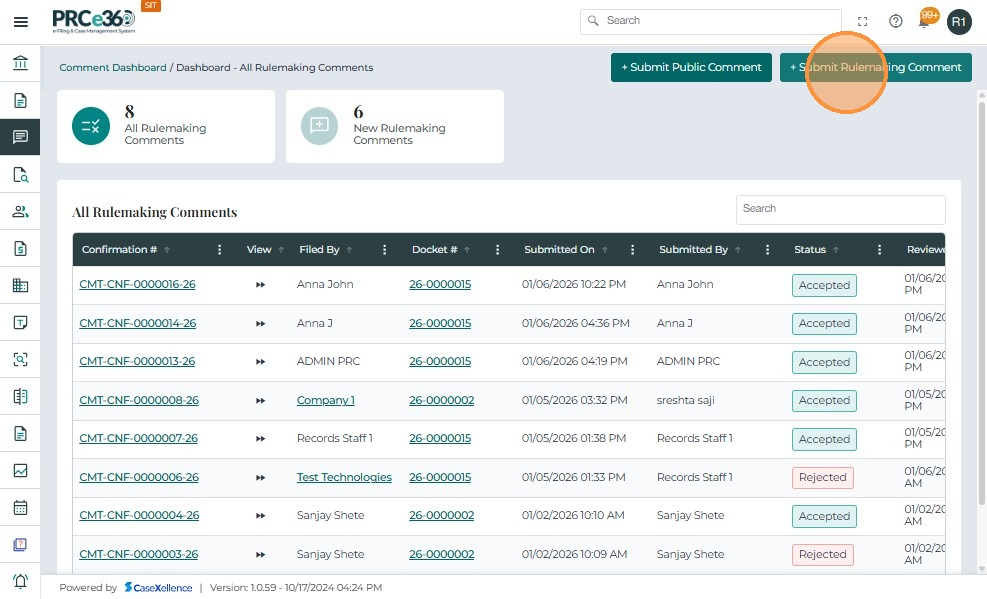
When the user selects + Submit Rulemaking Comment, the system opens the Create New Rulemaking Comment form. Here, staff can log a new comment either for an individual or on behalf of a company.
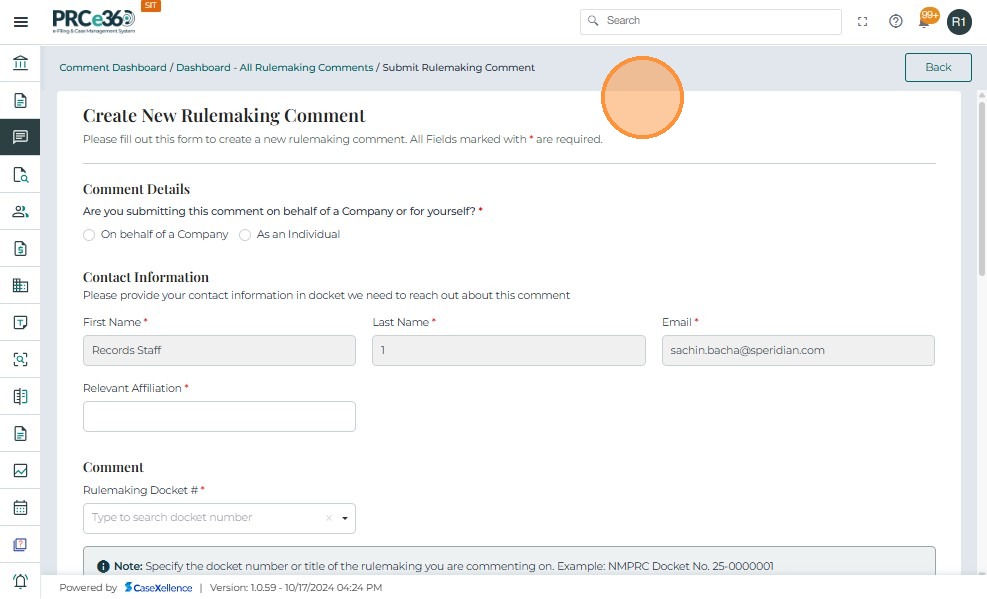
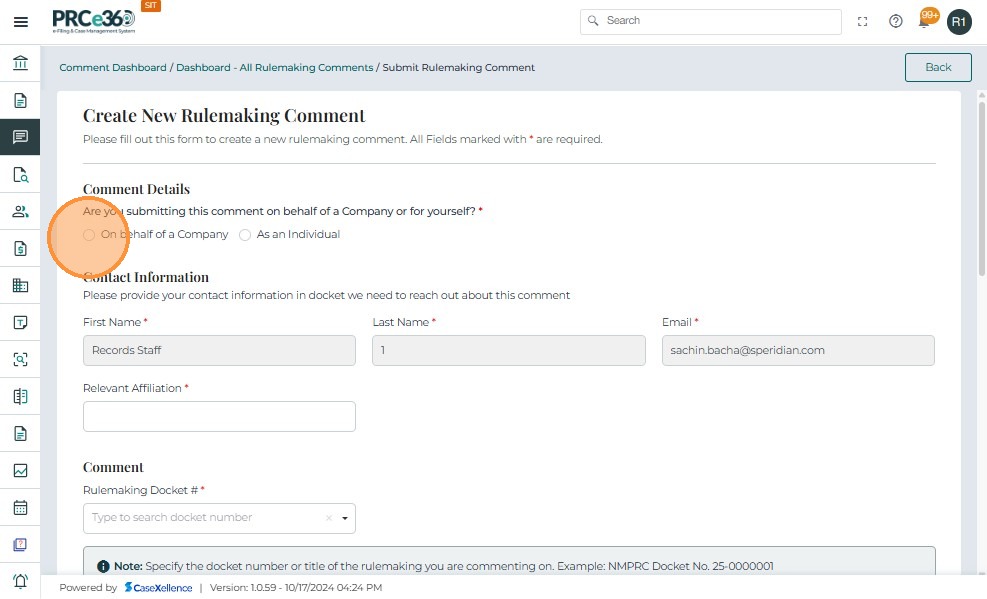
In the first Comment Details section, the user must specify whether the rulemaking comment is being submitted on behalf of a company or as an individual.
- Select On behalf of a Company if you are submitting the comment for an organization or business entity.
- Select As an Individual if you are submitting the comment in your personal capacity.
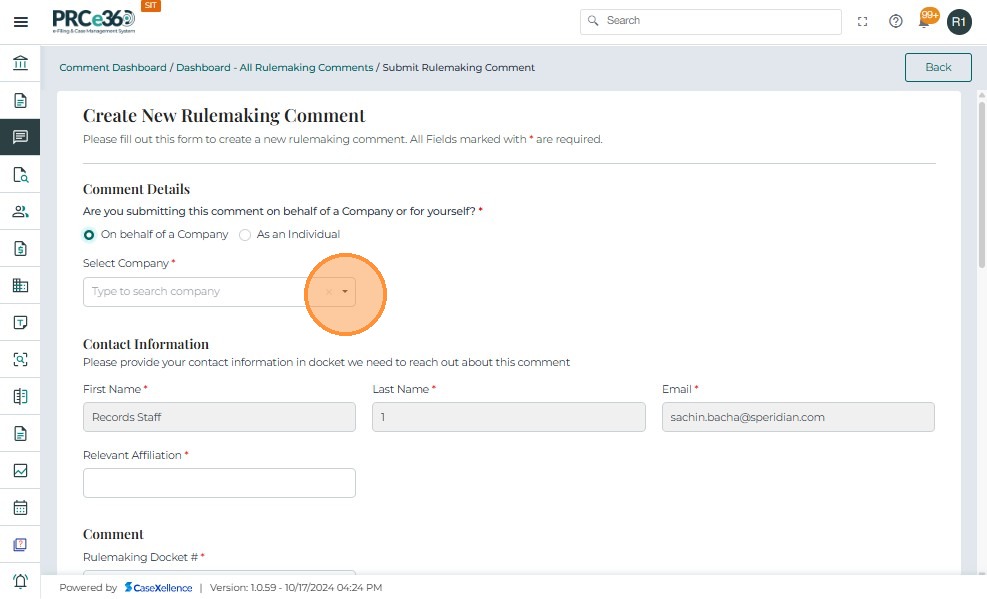
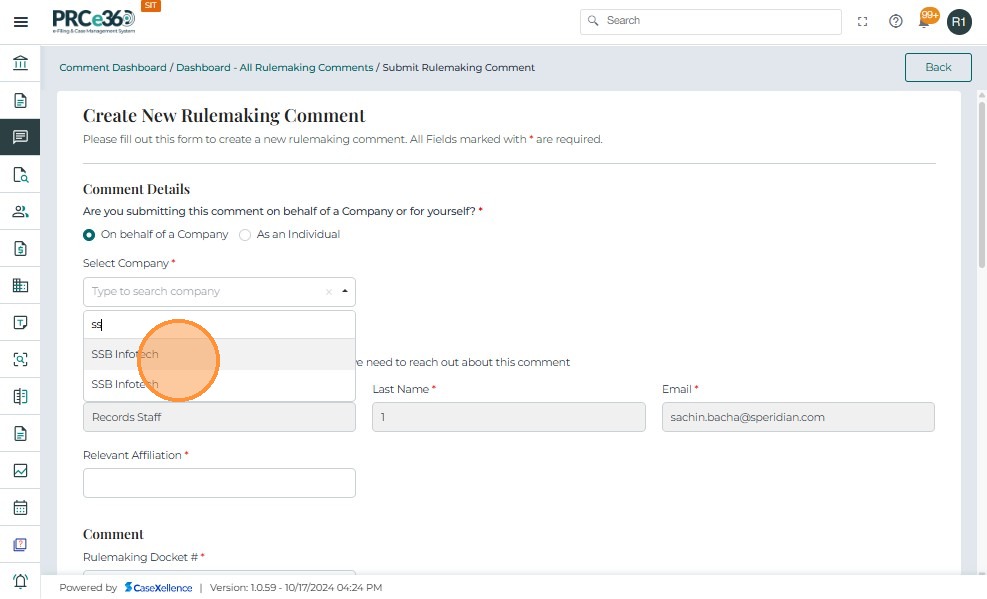
If the filer selects On behalf of a Company, an additional field appears to select the company.
- Select Company (Mandatory).
- Use the dropdown to search for and select the company associated with the comment.
- If the company is not listed, it must first be created/registered in the system before proceeding.
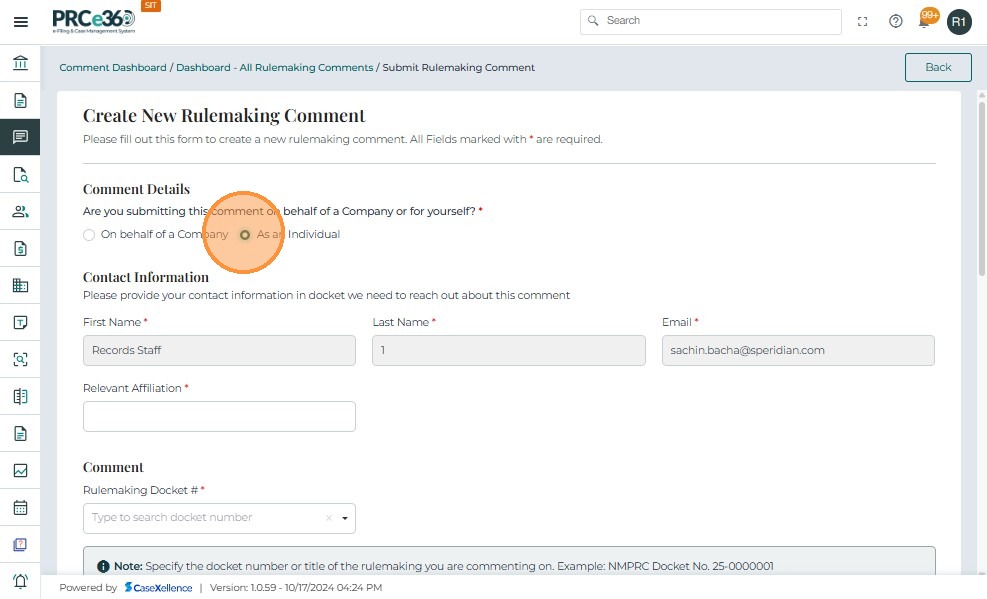
If the filer selects As an Individual:
- The user must provide contact details.
- The affiliation can be left blank if not applicable.
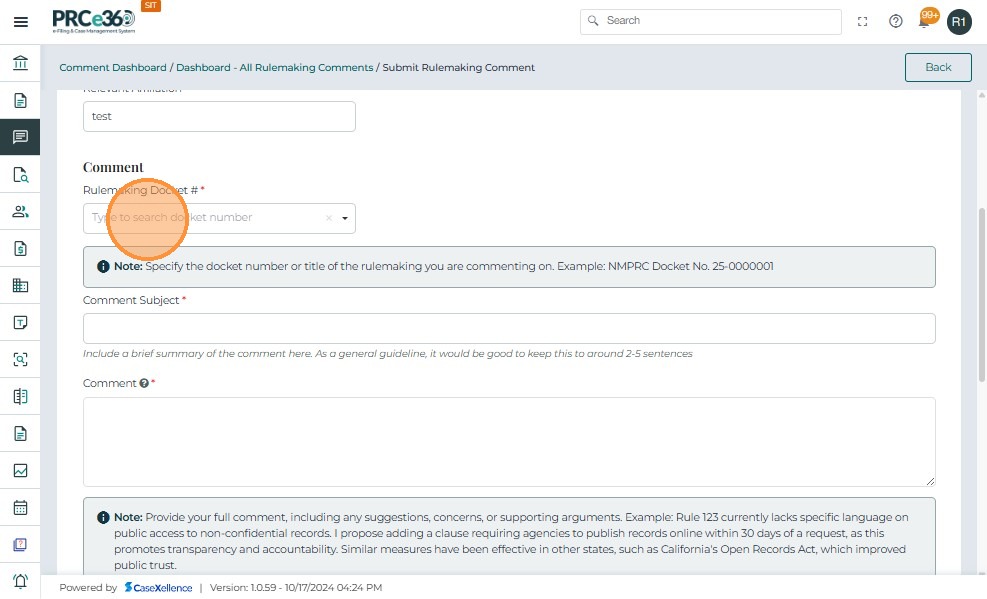
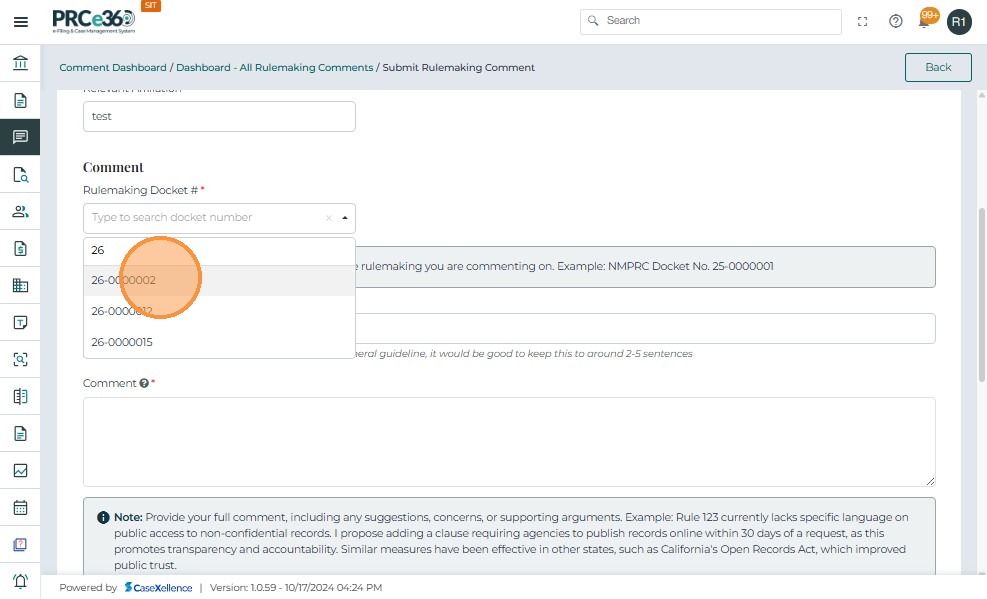
After specifying the comment details, in the next section the filer specifies the docket number.
- Search and select the Docket Number for the rulemaking proceeding being commented on.
- This links the comment to the correct rulemaking case in the system.
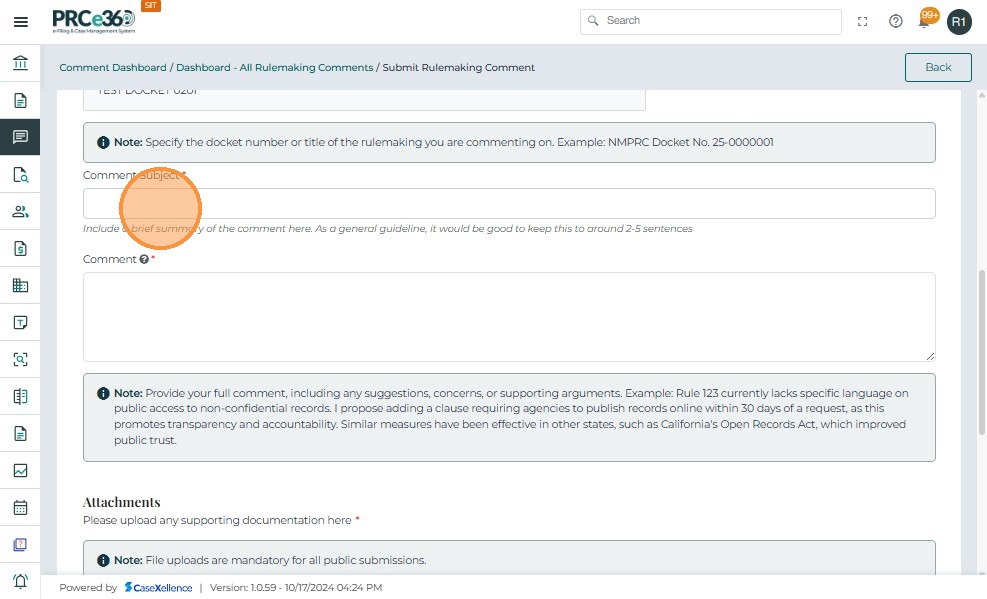
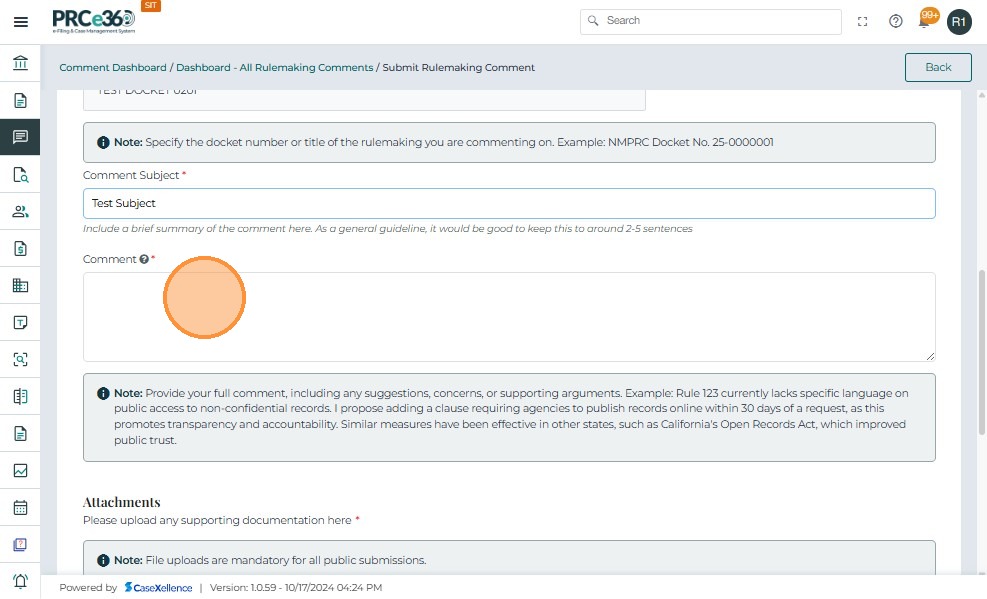
Once the Rulemaking Docket Number is selected, the filer must provide both a Comment Subject and a Detailed Comment.
-
In the Comment Subject (Optional but Recommended):
- Enter a short, descriptive title that summarizes the purpose of your comment.
- Best Practice: Keep the subject concise and focused, ideally within 2–5 sentences.
-
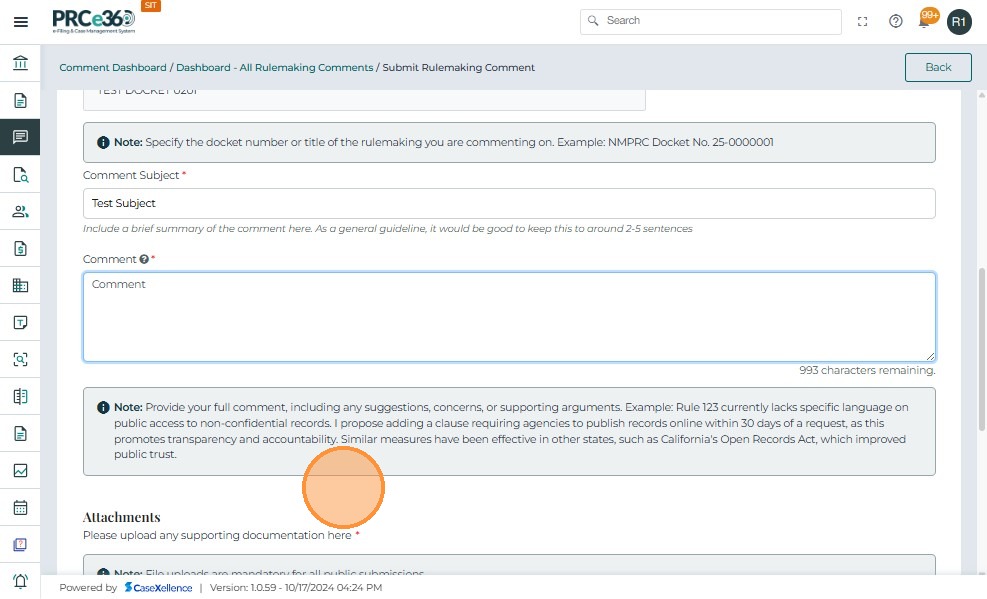
In the Comment (Required) field:
- Enter the full text of your rulemaking comment.
- Clearly outline your feedback, suggestions, objections, or support related to the specific rulemaking docket.
- Include any supporting details such as data, examples, or references that strengthen your comment.
- This field is mandatory and serves as the primary input for the submission.
-
System Guidance Note
The system provides on-screen instructions reminding users to:- Provide a complete and well-structured comment, including any suggestions, concerns, or supporting arguments.
- Consider referencing applicable rules, real-world examples, or best practices for clarity.
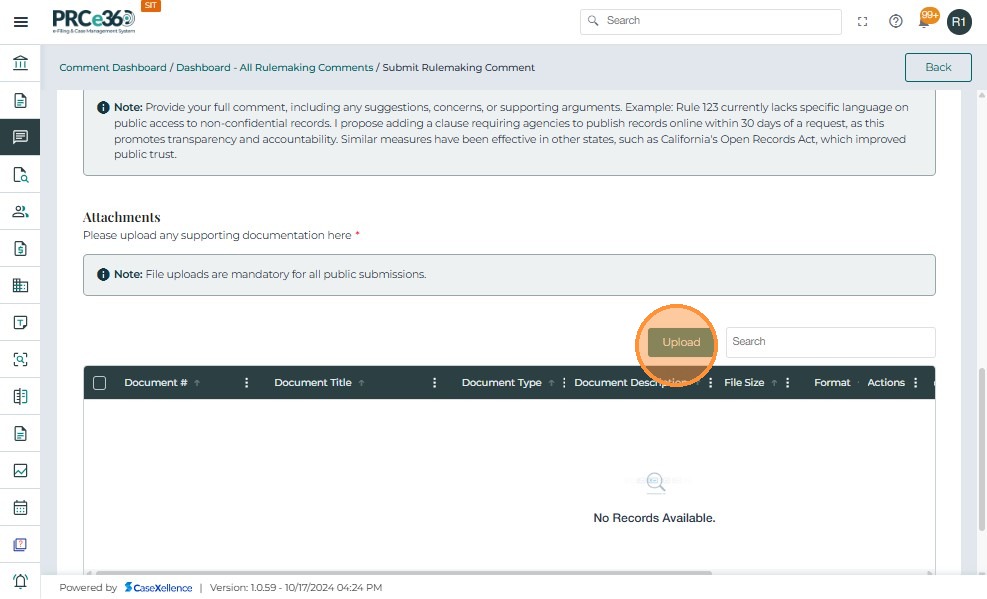
If you have additional documents to support your comment (such as reports, letters, or references), you can upload them in this section.
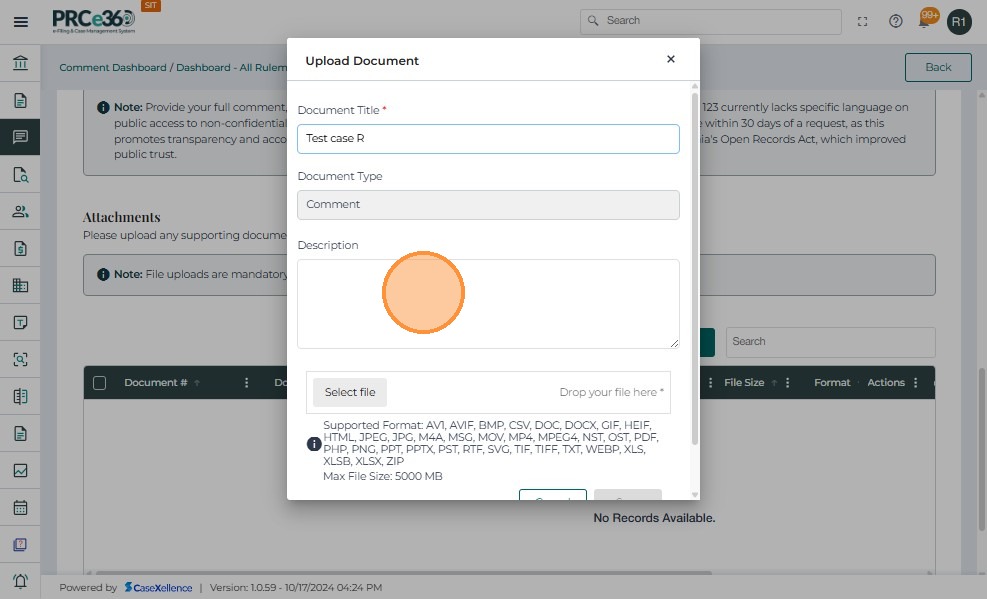
- Click the Upload button.
- This opens the Upload Document pop-up window.
-
Enter Document Information:
-
Document Title (Required) – Provide a clear name for the document.
-
Document Type (Required) – Select from the dropdown (default: Comment).
-
Description (Optional) – Add extra details about the document’s content.
-
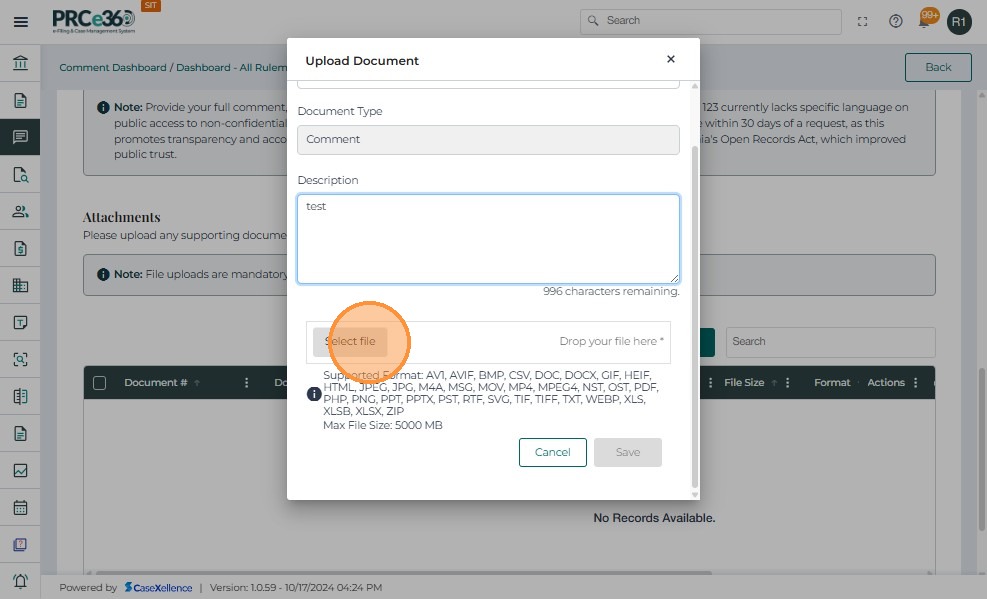
Attach the File:
- Click Select File to browse your computer.
-
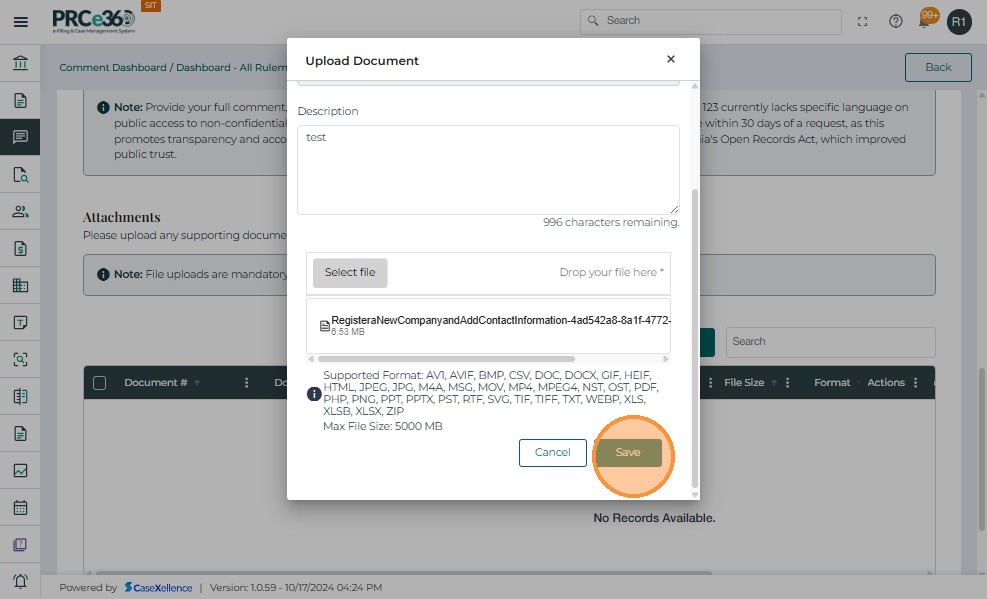
Save the Document
- Click Save to complete the upload.
-
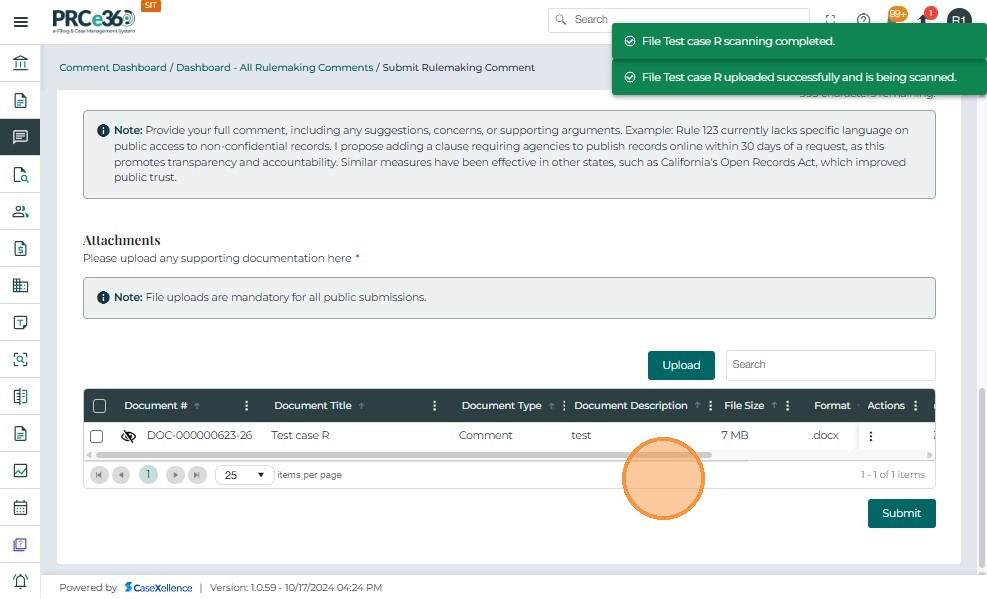
- If the user wants to delete the document , Click on the actions button and select Delete.
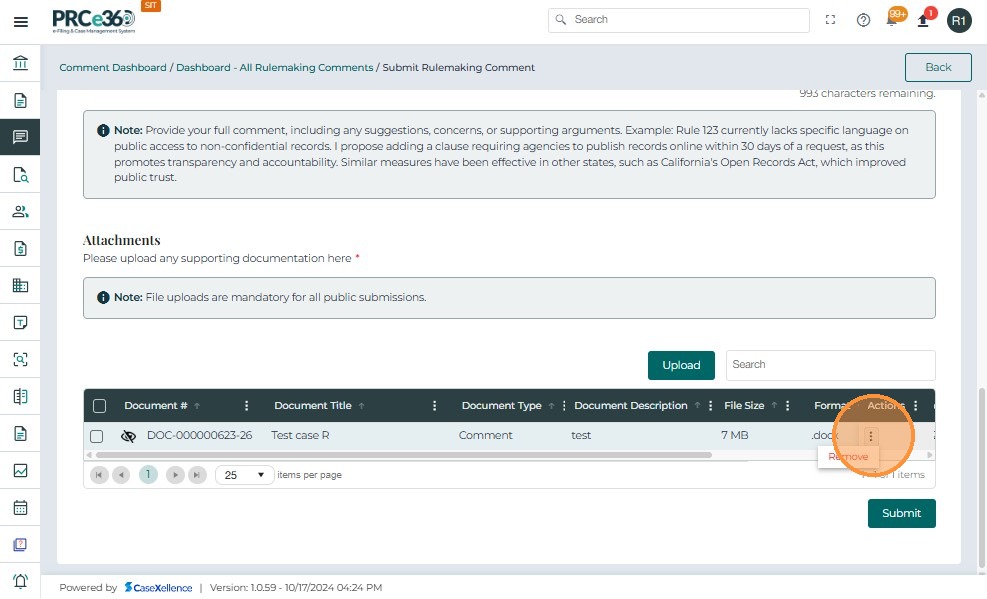
Once all required fields are completed and any supporting documents are uploaded, the filer can finalize the submission.
- Review all entered information (Company/Individual details, Contact Information, Docket Number, Subject, and Comment text).
- Verify that any necessary attachments have been uploaded.
- Click the Submit button at the bottom-right of the screen.
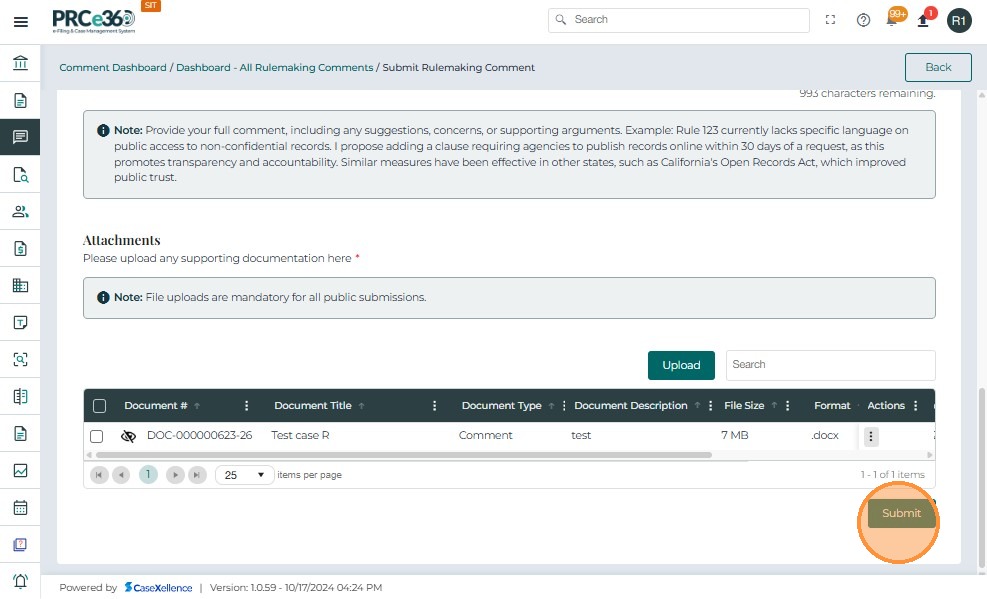
After successfully submitting the Rulemaking Comment, the system displays a confirmation screen.
- The system generates a unique Confirmation Number.
- This number is critical for tracking, inquiries, or follow-up regarding the submitted comment.
- Records staff, Legal Division, and OGC will use this number for tracking and reviewing submissions.
- Without this confirmation, the submission is not considered complete.
At this stage, the Rulemaking Comment submission process is complete.
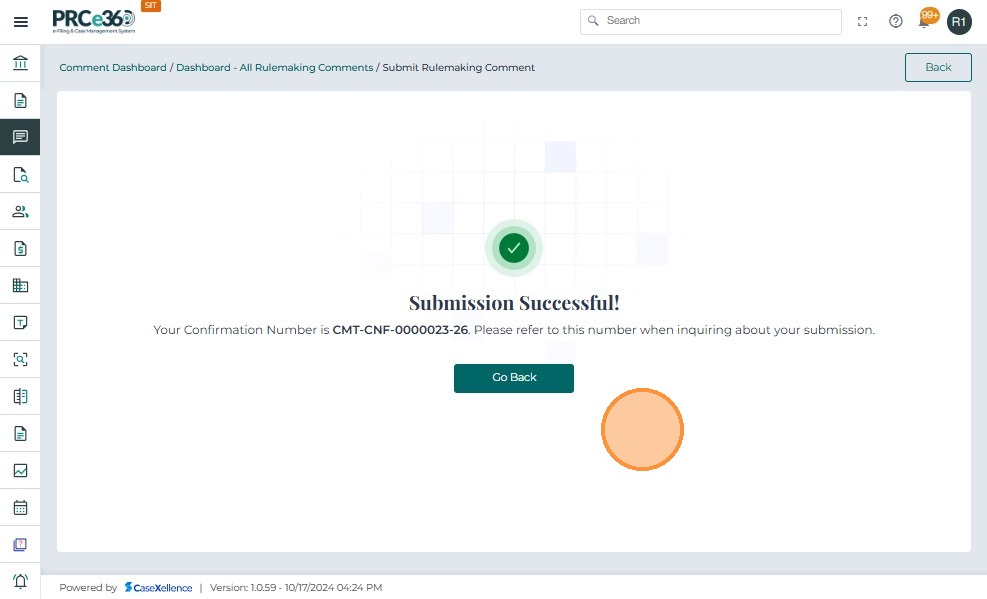
After submission, the new Rulemaking Comment is visible on the Comments Dashboard of the Records user. Legal and OGC will not have this option as their submissions will also move to the Records queue for approval.
Dashboard Updates
- The tile New Rulemaking Comments now shows 1 (or higher, depending on submissions).
- Initially, the comment will show under New Rulemaking Comments until it is reviewed.
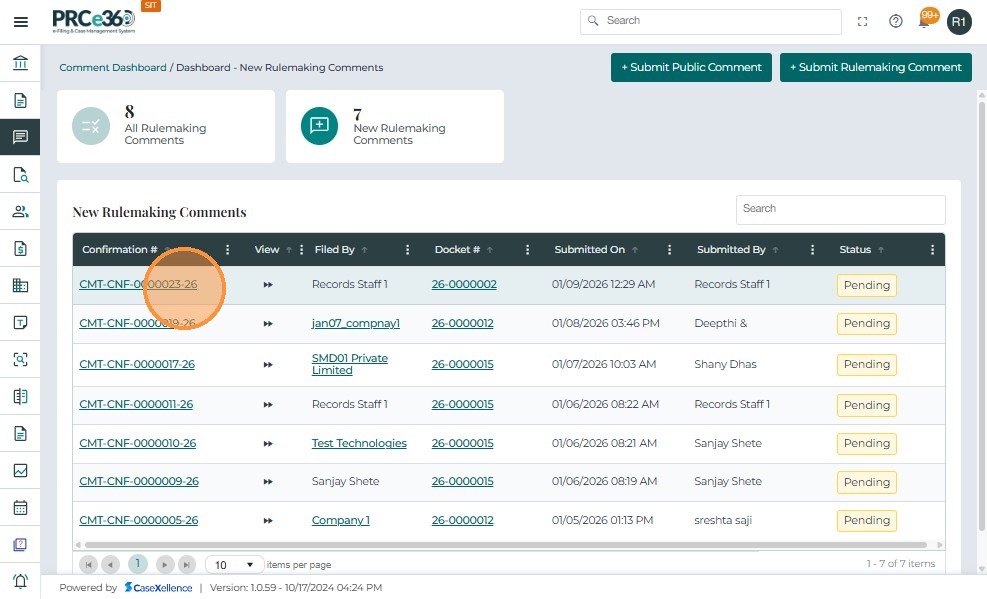
After a Rulemaking Comment is submitted, it is displayed in a table format under New Rulemaking Comments. Each column in the table provides important tracking details.
Table Fields
- Confirmation # – A unique system-generated identifier for each comment submission. This number is used for all inquiries, tracking, and internal reference. It is clickable and opens the detailed record of the comment.
- Docket # – Displays the docket number of the rulemaking proceeding associated with the comment. Links the comment directly to its relevant rulemaking case.
- Company – Shows the company/organization name if the comment was submitted on behalf of a company.
- Submitted On – Date and time when the comment was logged into the system.
- Submitted By – Identifies the user who submitted the comment.
Could be: Records / Legal / OGC, or an external user name (if submitted via the public portal). - Status – Shows the current processing state of the comment:
- New → Awaiting review by Records.
- Accepted → Approved and linked to the docket.
- Rejected → Rejected with a reason provided.
- Reviewed On – Date and time when the comment was reviewed by the division. Blank until review occurs.
- Reviewed By – Displays the reviewer’s name or role. Blank until review is complete.
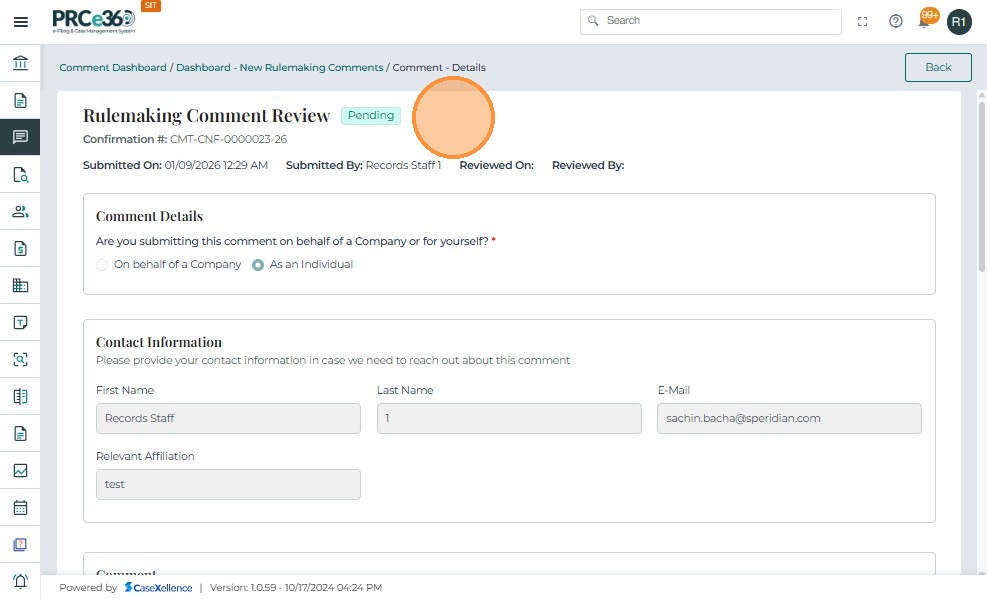
When a reviewer clicks a Confirmation # in the Rulemaking Comments table, the system opens the Rulemaking Comment Review screen.
This page provides full details of the submitted comment along with options for review and decision.
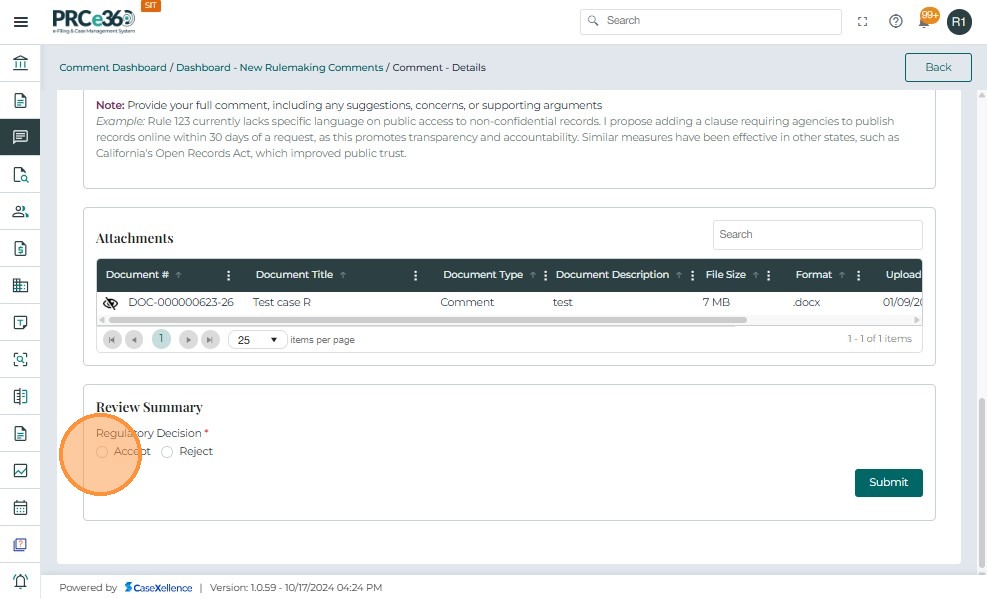
After reviewing the details of a submitted rulemaking comment, the reviewer must record the final decision in the Review Summary section.
-
Select the appropriate action based on your review:
-
Accept – Approves the comment.
The comment is linked to the corresponding Rulemaking Docket and becomes visible in the All Rulemaking Comments queue. -
Reject – Rejects the comment.
A rejection reason must be provided by the reviewer.
The comment status updates to Rejected, and the filer is notified automatically.
-
- Click Submit to finalize the decision.
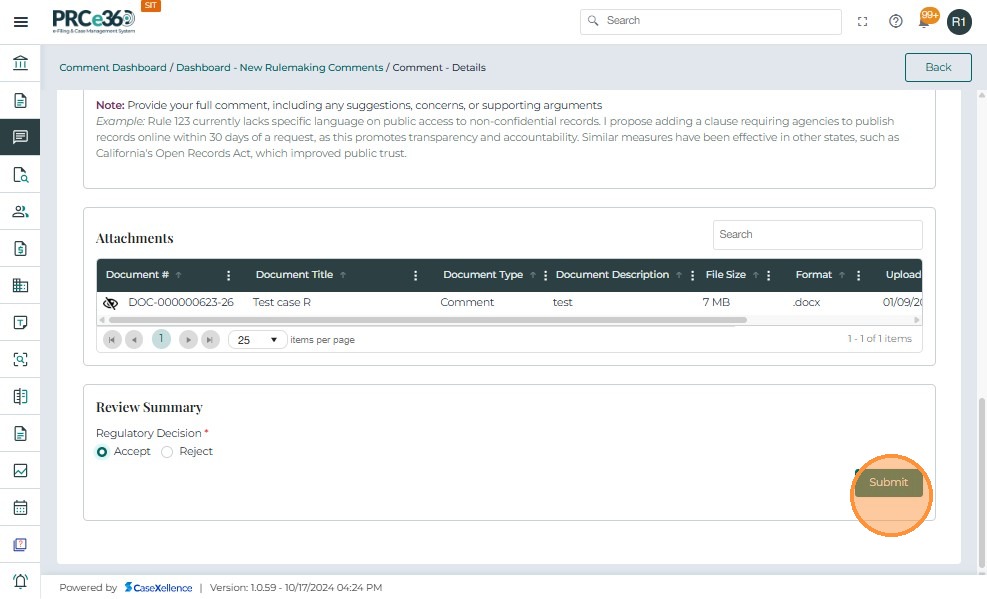
Once the reviewer makes a decision and clicks Submit, the system updates the review status.
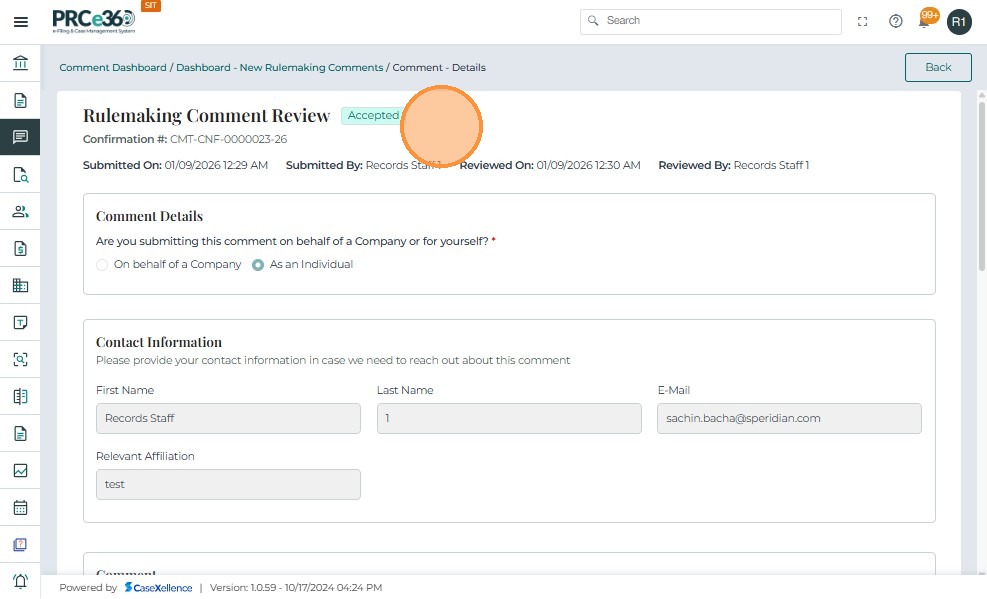
- Click Back to navigate back to dashboard.
Once a Rulemaking Comment is submitted, it progresses through the review process. Records Staff can track its status from the Comments Dashboard. Legal and OGC users can track it from the All Rulemaking Comments view in the Comments Dashboard.
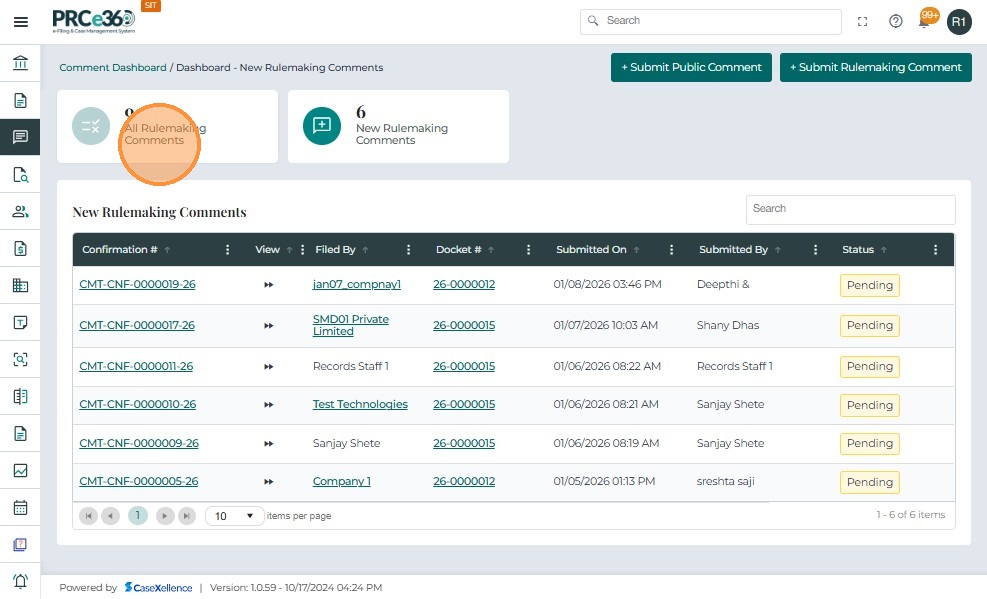
- From the Comments Dashboard, click on All Rulemaking Comments.
- Go to All Rulemaking Comments.
- This view displays all comments that have been reviewed and finalized.
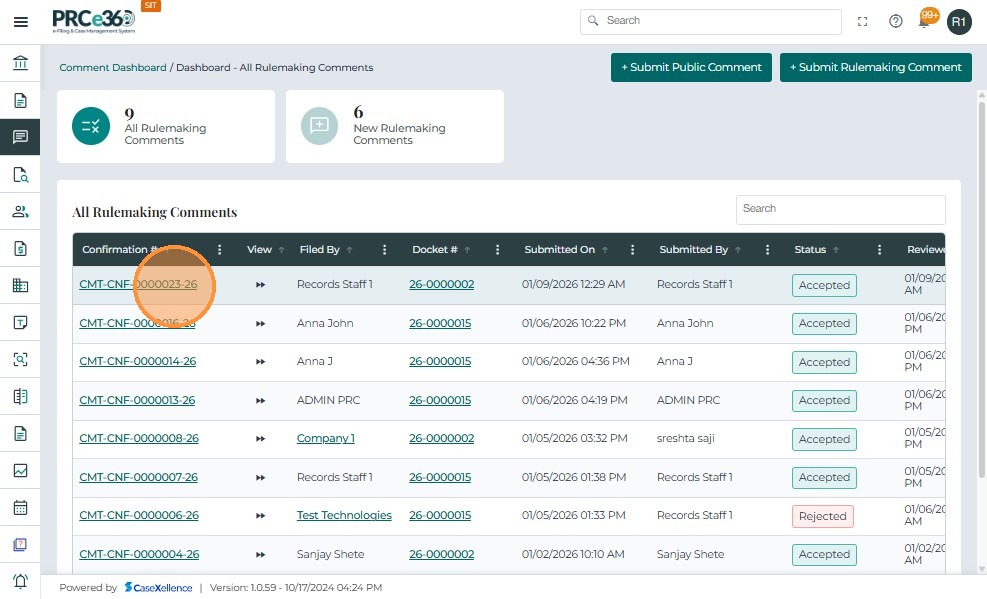
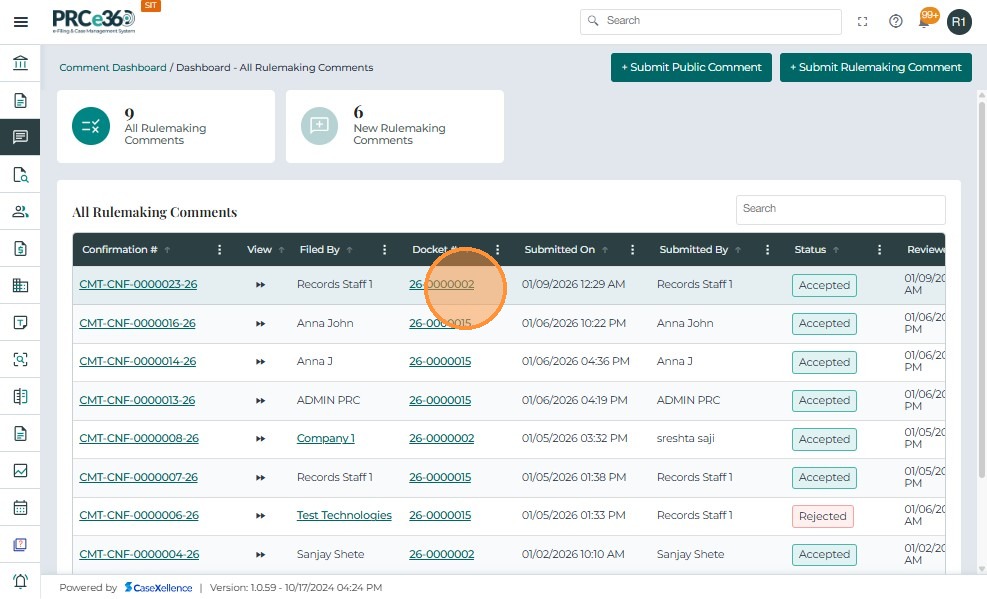
Once a rulemaking comment is submitted and approved, it is automatically linked to the relevant docket. The Records, Legal, and OGC divisions can view the details as follows:
- Navigate to All Rulemaking Comments.
- Click on the Docket Number.
-
This will open the Case 360 View for that docket.
-
Access the Comments section in the case file.
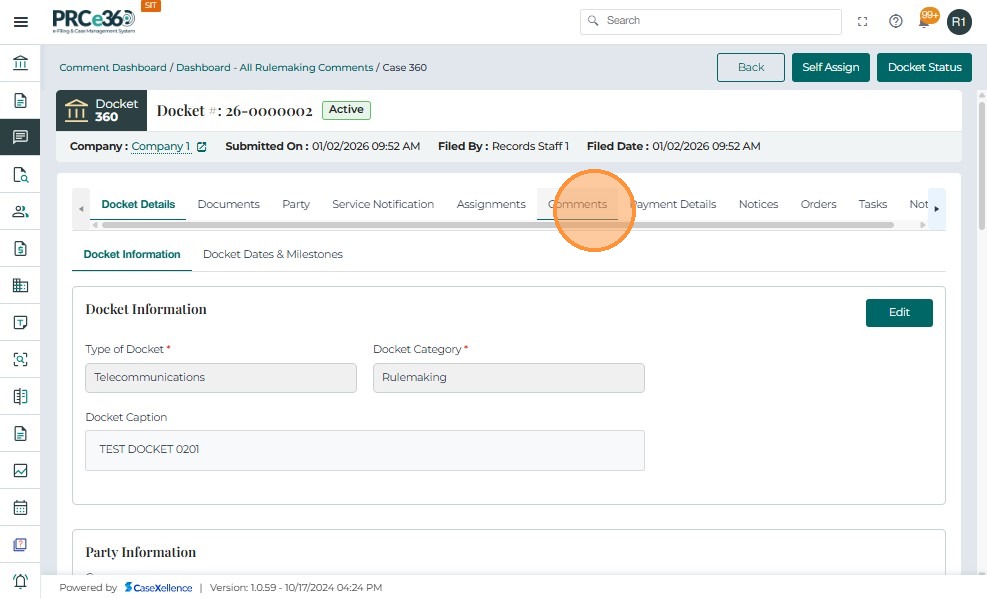
- Within the Case 360 View, navigate to the tabs displayed at the top.
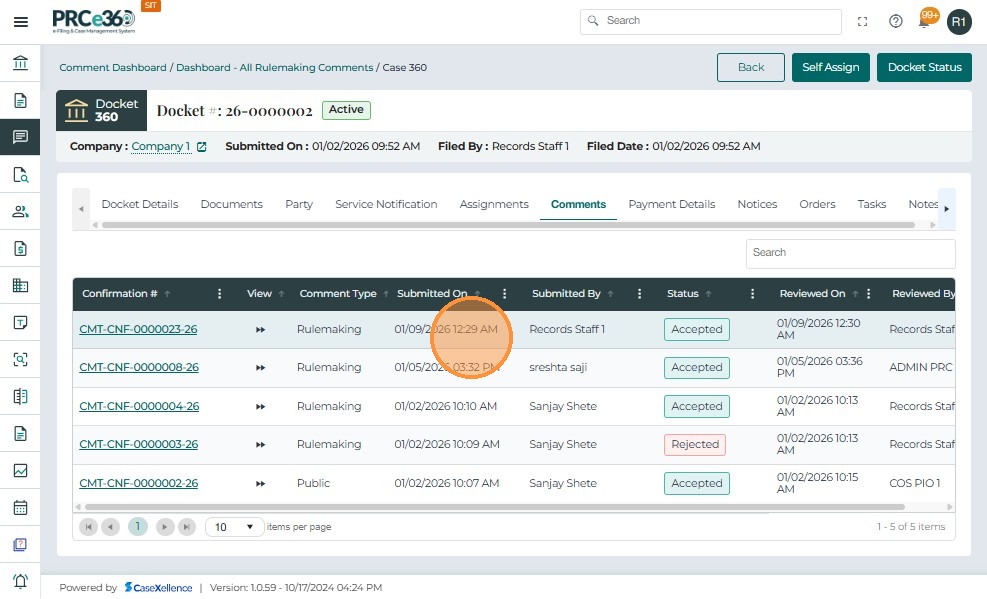
- Select the Comments tab to view all comments associated with this docket.
- The system will display:
- The submitted rulemaking comment details.
- The submitter information.
- The date and time of submission.
- Any linked attachments.
The Rulemaking Comment process allows the agency to capture, review, and link comments to the correct docket. Accepted comments become part of the official record, while rejected ones are logged with reasons. This ensures all comments are handled fairly and consistently.