IPRA Production
Production Documents (Partial and Full Production)
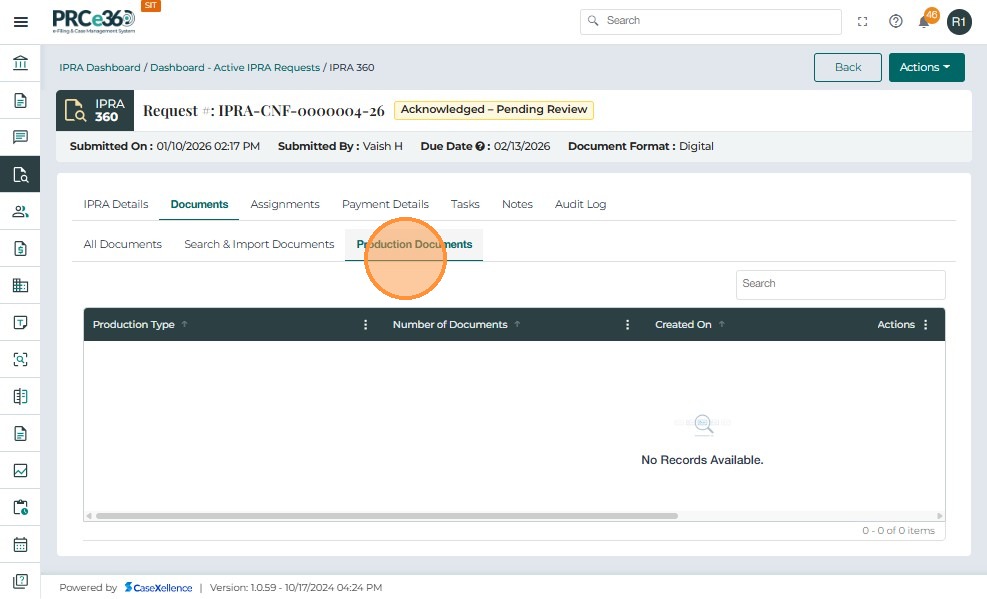
The Production Documents tab allows authorized users to manage production activities for an IPRA request.
It is used during fulfillment to identify which documents are being released:
-
As a Partial Production – only some responsive documents.
-
As a Full Production – all responsive documents.
Production Documents Tab
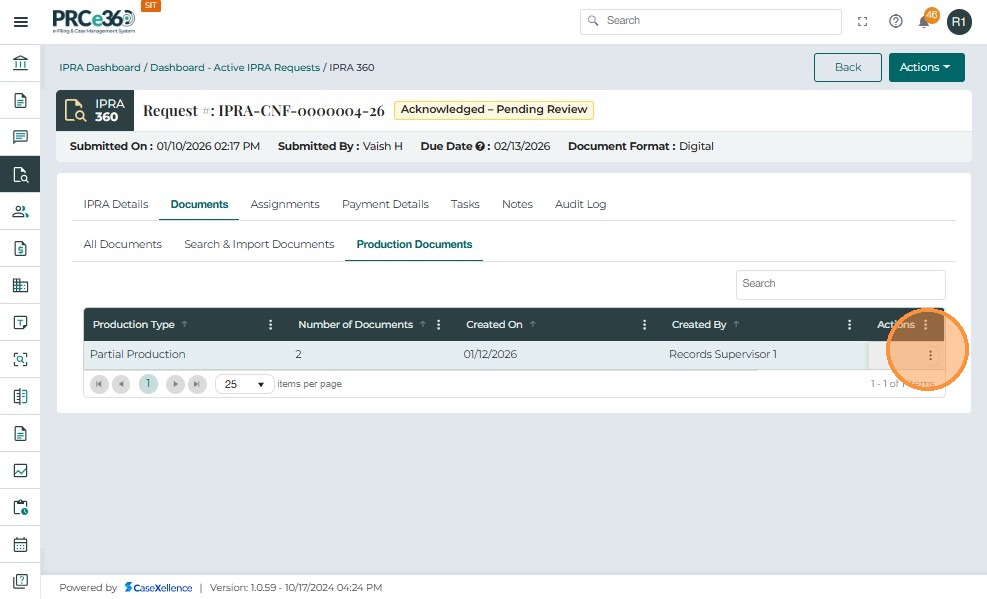
Columns include:
-
Production Type – Partial or Full.
-
Number of Documents – Count of documents included in the production.
-
Created On – Date and time the production was created.
-
Created By – User who submitted the production.
-
Actions – View or download production packages.
-
If no production has been submitted, the list is empty.
-
Once a production form is submitted, it appears automatically with its details.
Submitting Partial Production
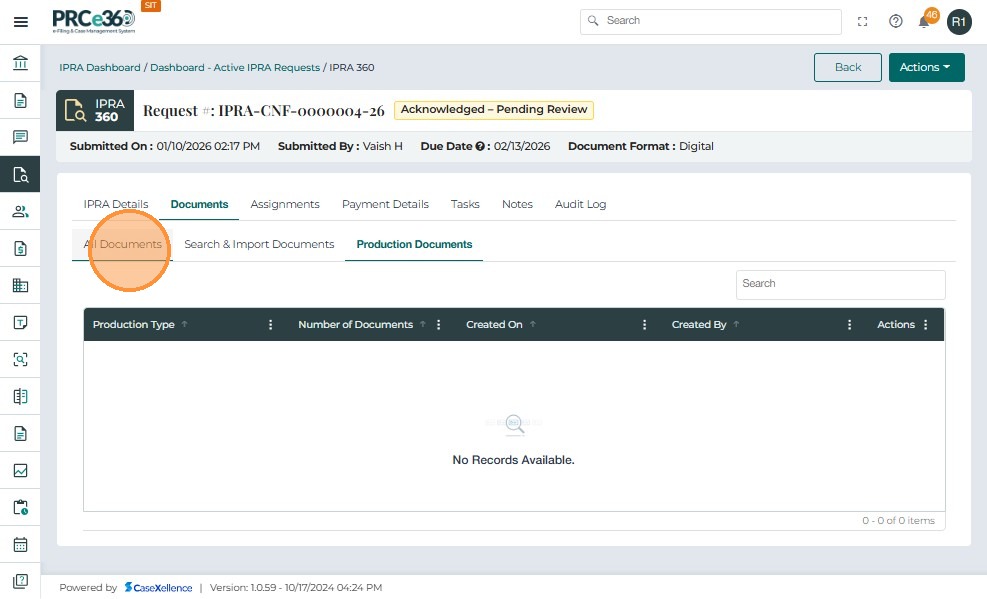
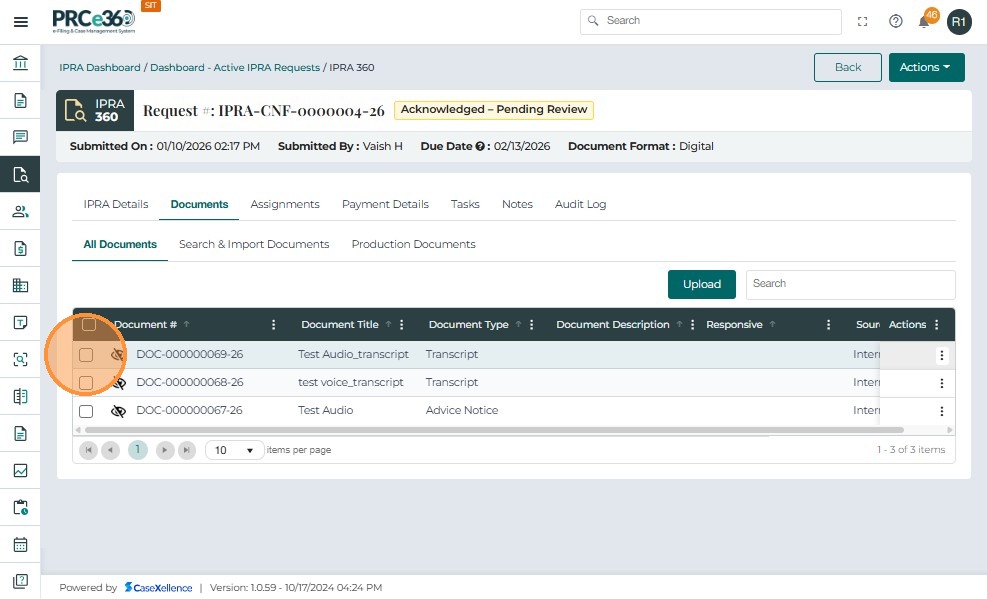
- In the All Documents tab, select the documents to be released by checking their checkboxes.
-
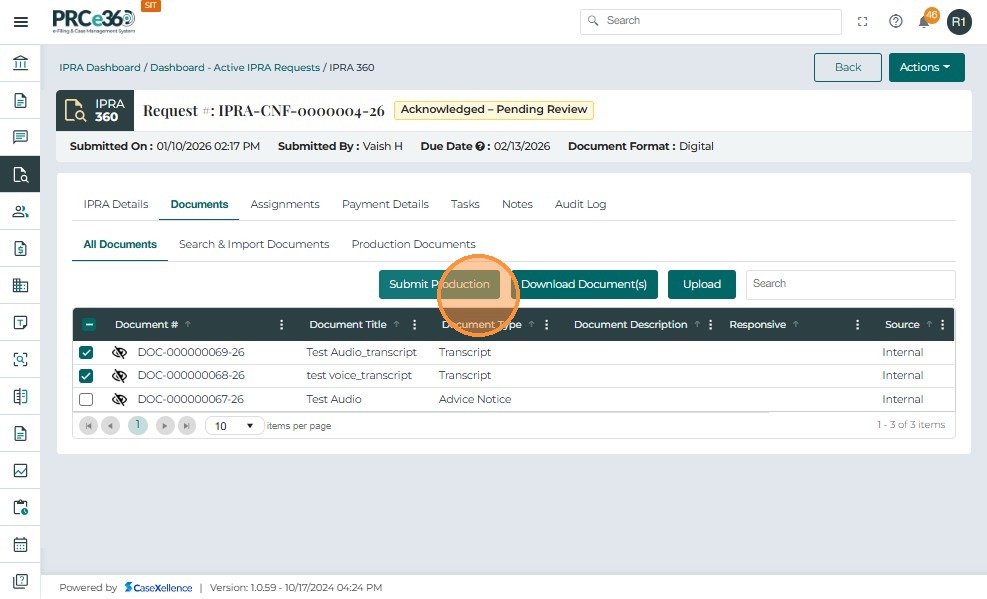
Click the Submit Production button.
-
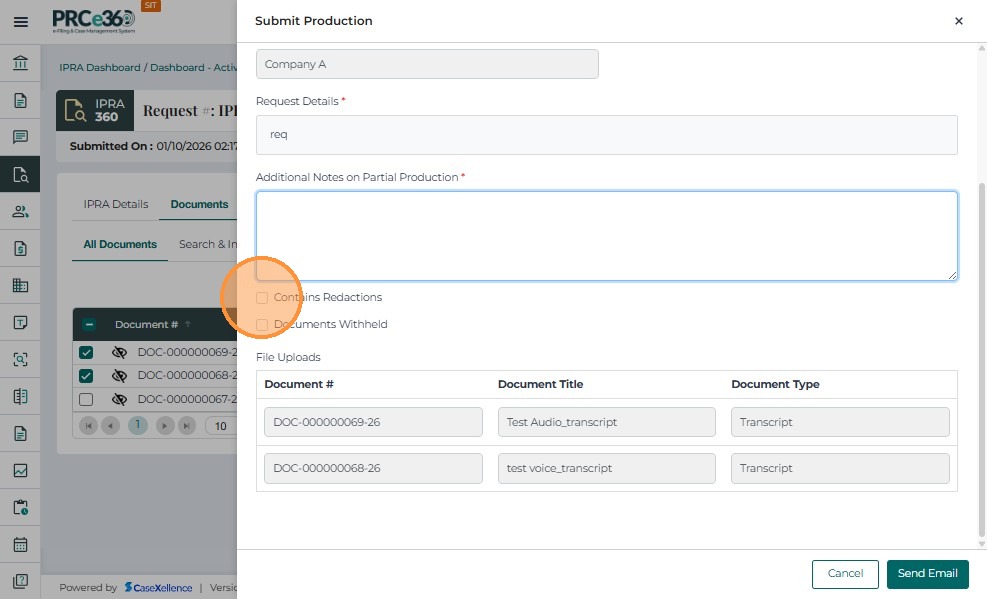
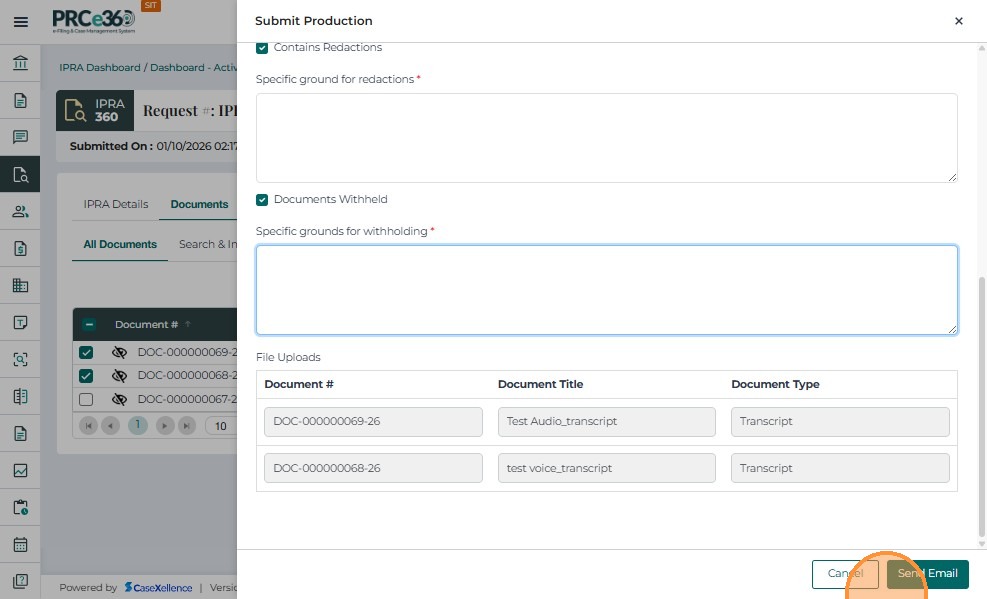
The Submit Production window opens.
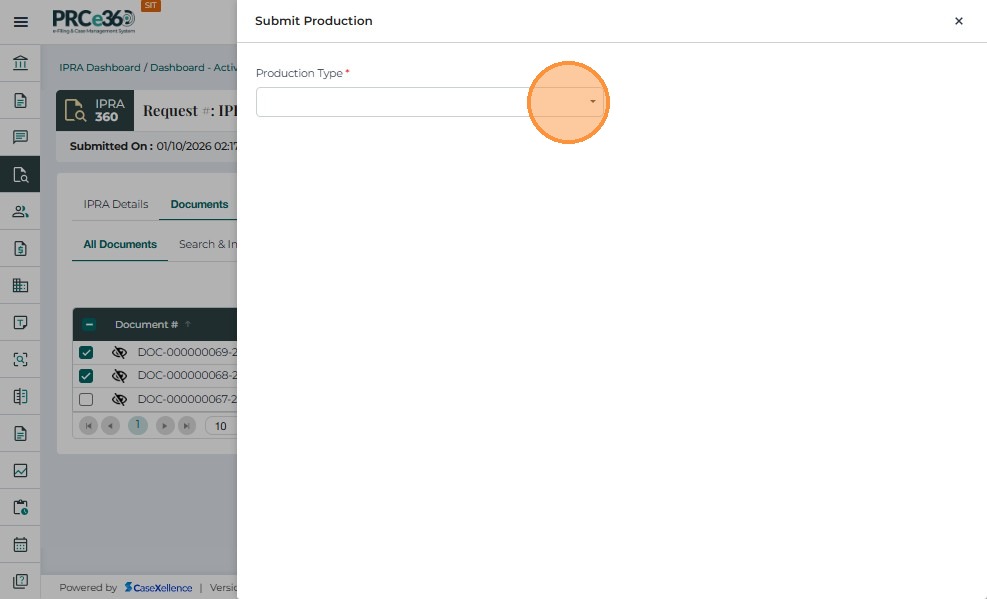
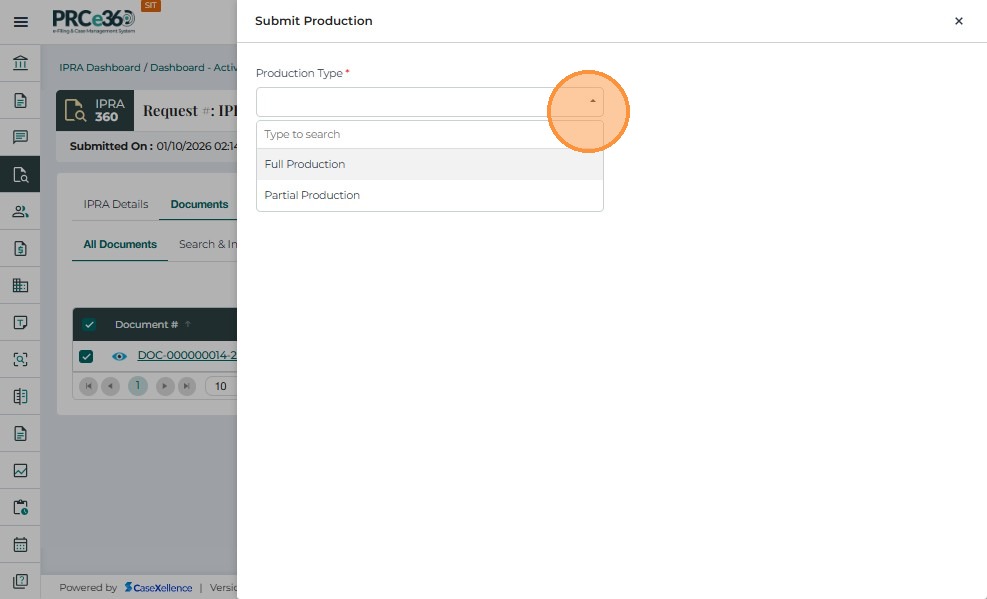
- Manually select the production type - Choose either Full Production or Partial Production based on your needs. The selection does not depend on the number of documents you have selected. You can select all documents and still choose Partial Production, or select some documents and choose Full Production. The system will use your selection to determine the production type.
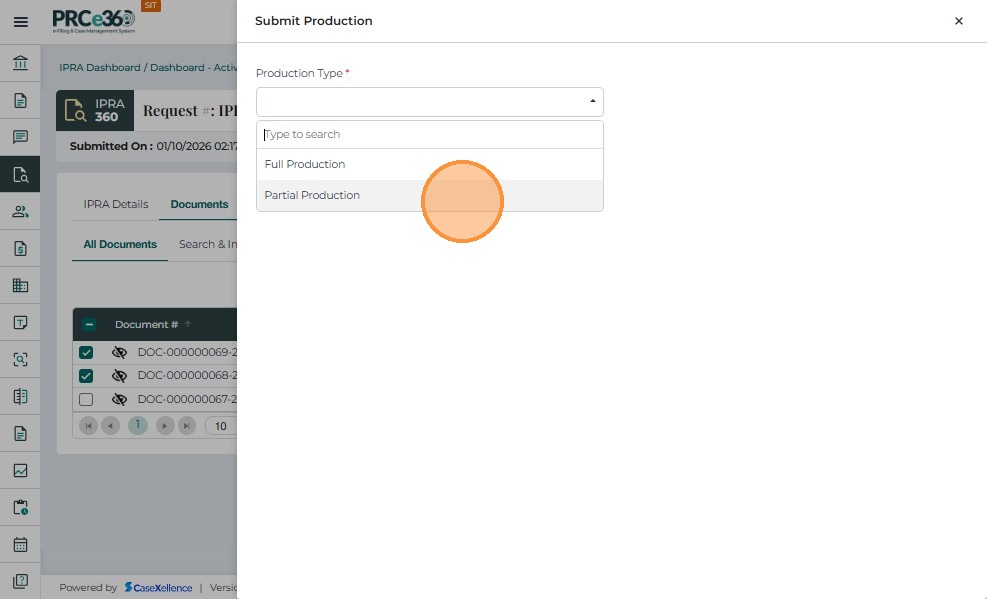
- Enter the Cutodian title.
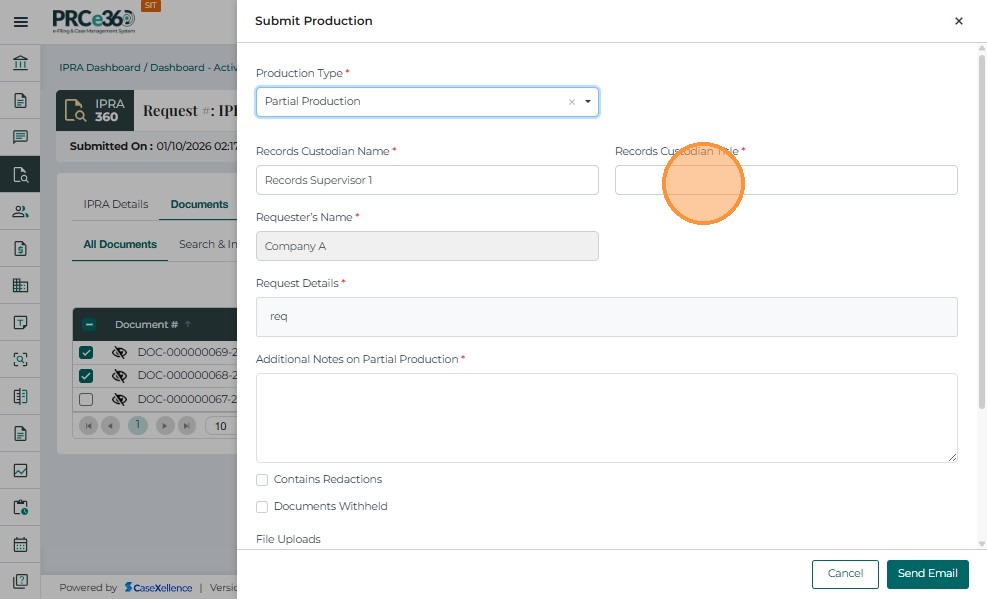
- Enter the "Additional Notes on Partial Production" field.
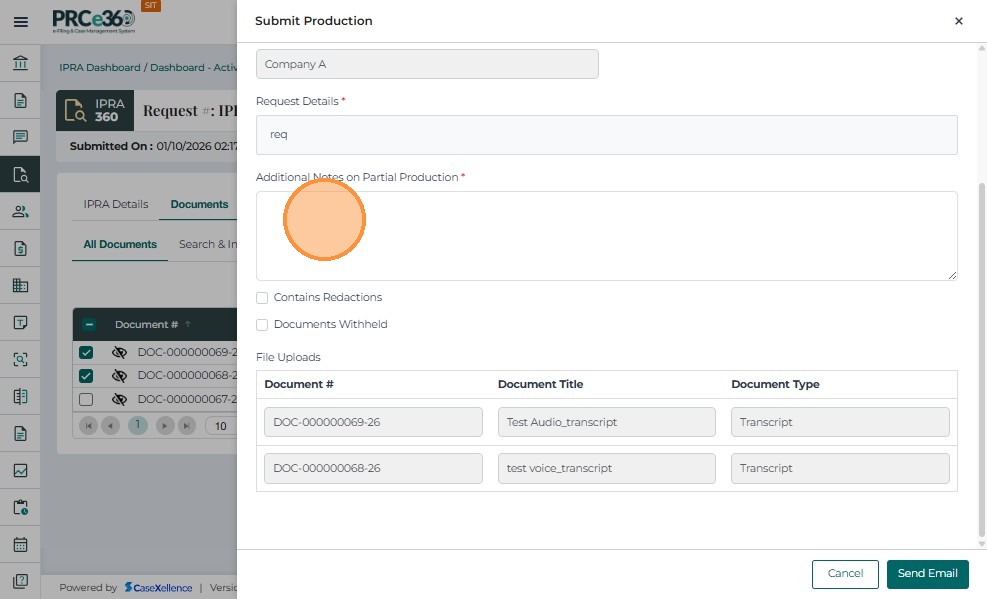
-
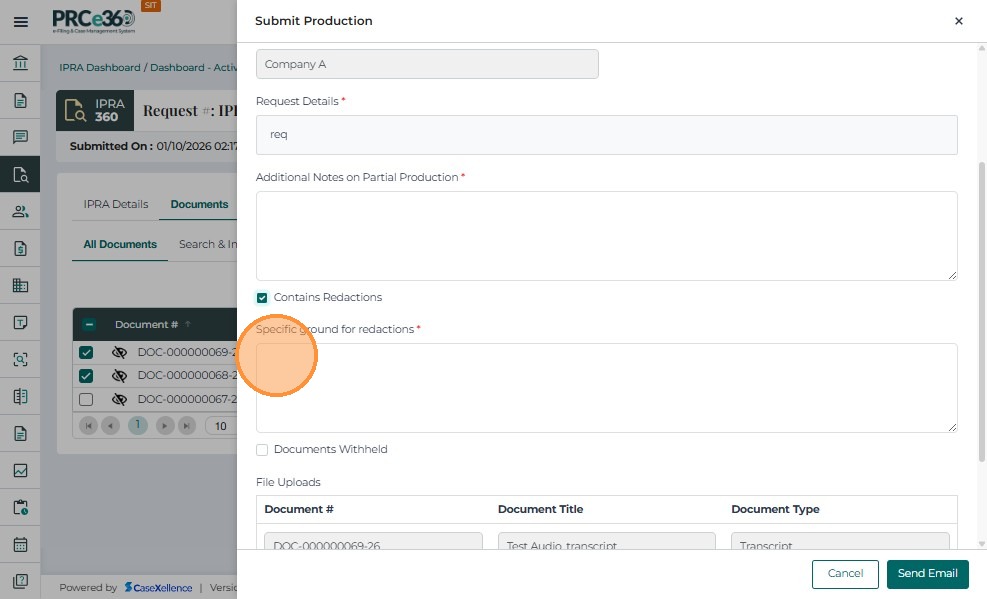
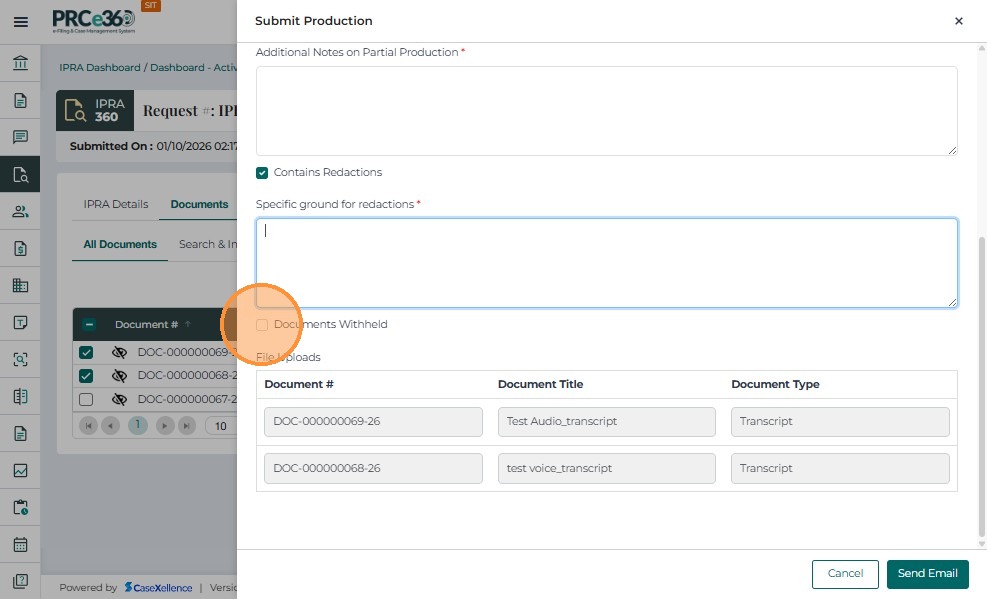
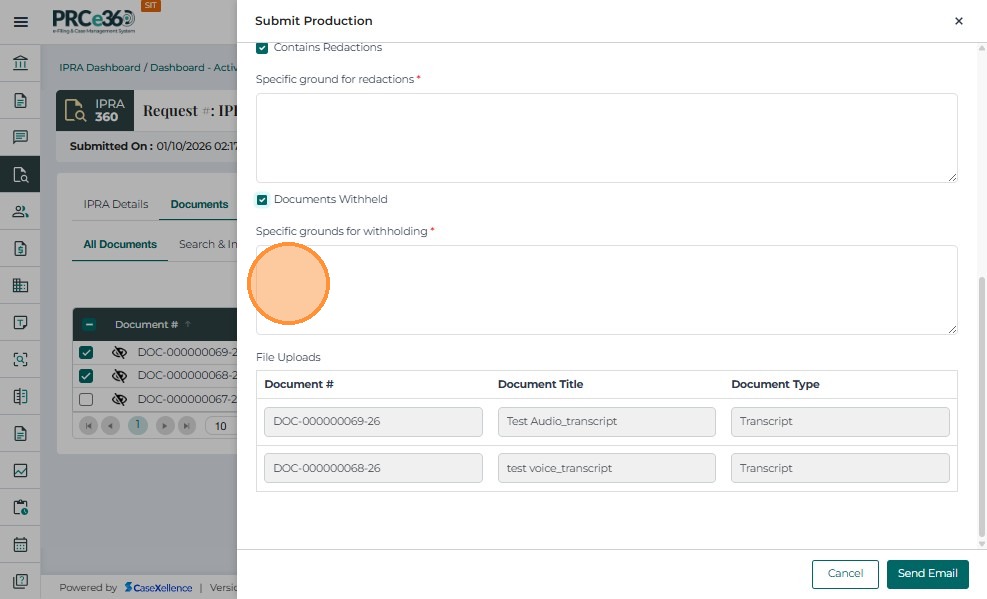
If applicable, select:
-
Contains Redactions – and provide the specific legal grounds.
-
Documents Withheld – and provide the grounds for withholding.
-
- Click Submit to complete the production.
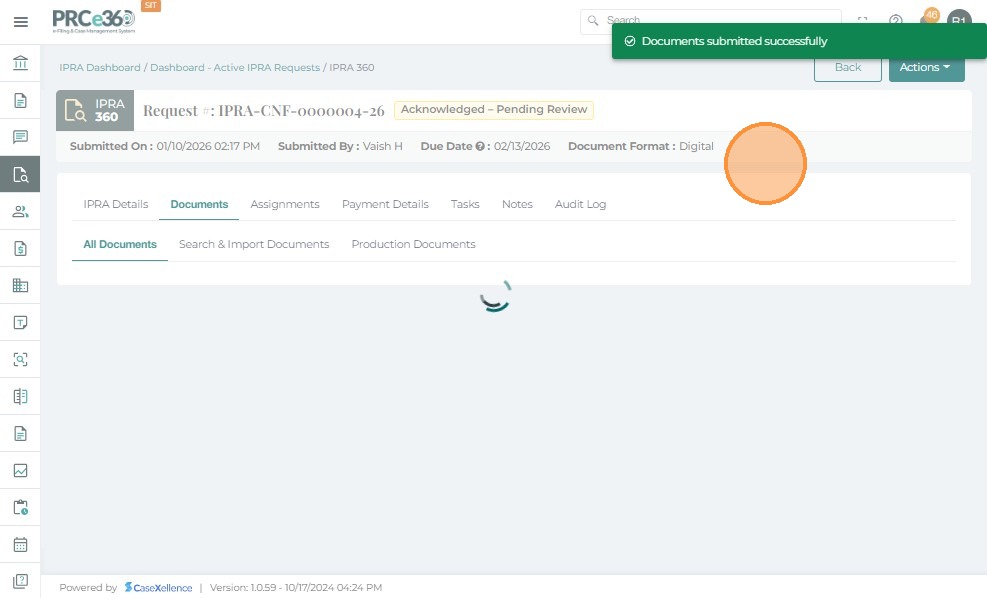
- A confirmation message appears: "Documents submitted successfully."
View Submitted Productions
-
Once a Partial or Full Production is submitted, its details appear automatically under the Production Documents tab in Case 360.
-
Click the Actions (three-dot) icon for a production.
-
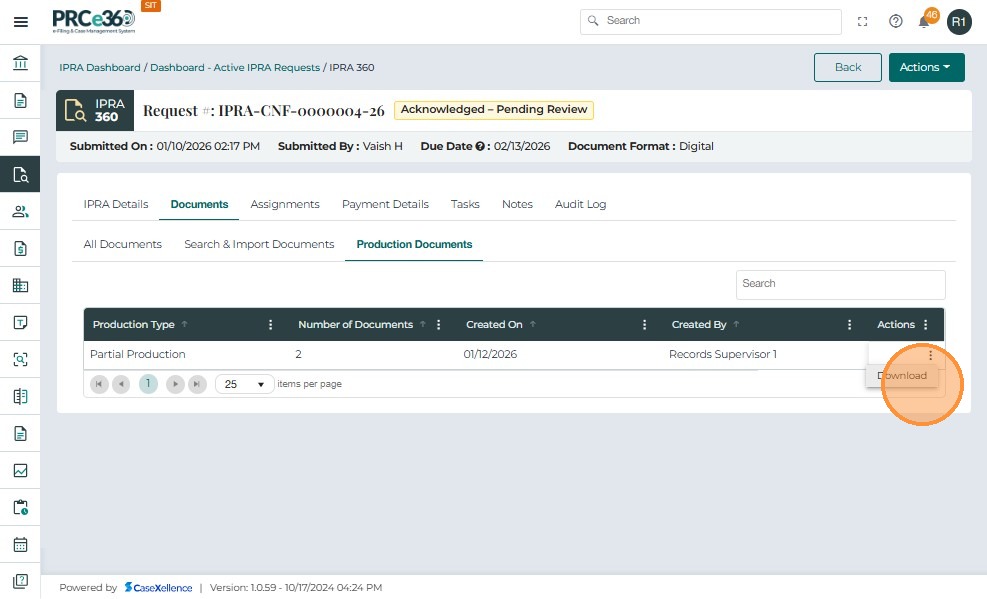
Select Download to download the production package.
-
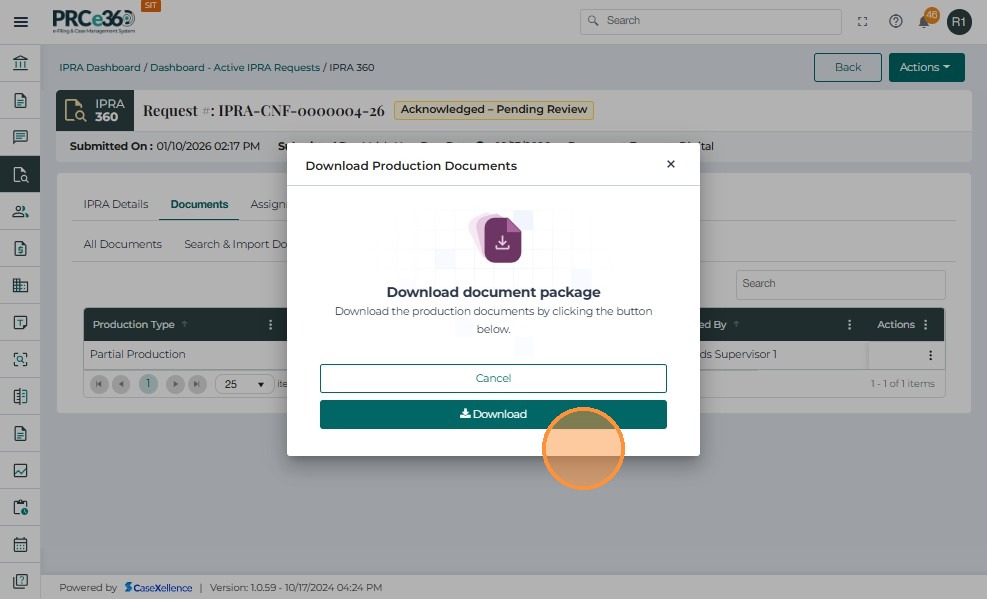
In the confirmation popup, click Download to save the package locally.
-
The system displays: "Download document package successfully."
-
Each production record is system-generated and is read-only once created.
-
Both Partial and Full productions remain visible for audit and tracking.
Submitting Full Production.
The Full Production action can also automatically close the IPRA request.
-
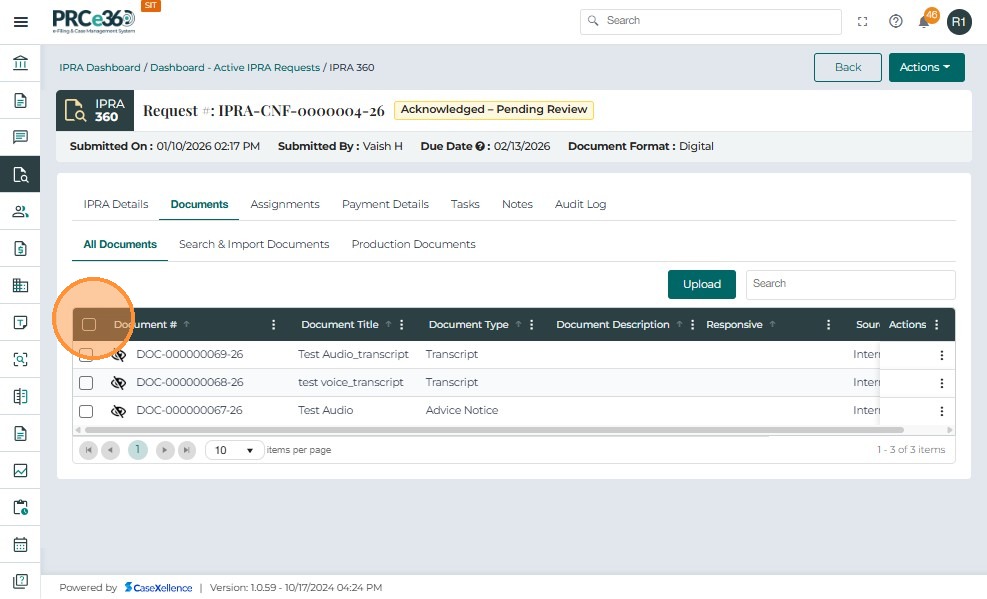
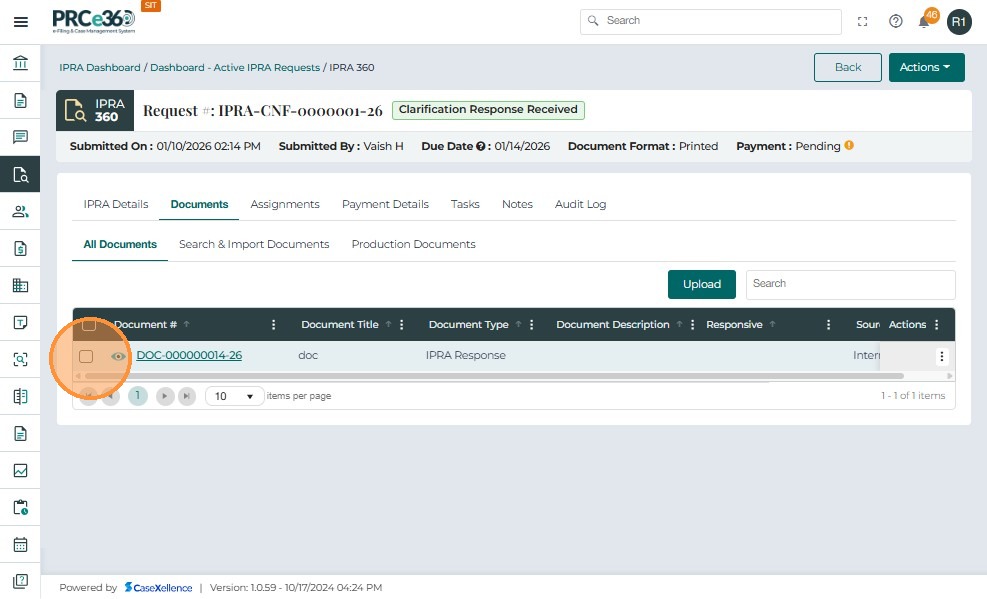
Select one or more documents using the checkboxes on the left.
-
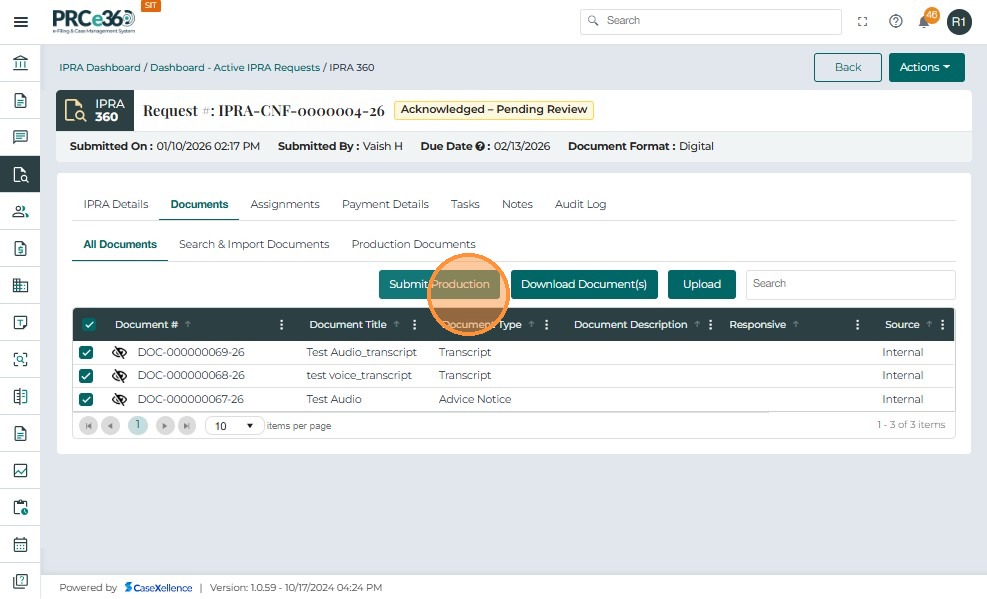
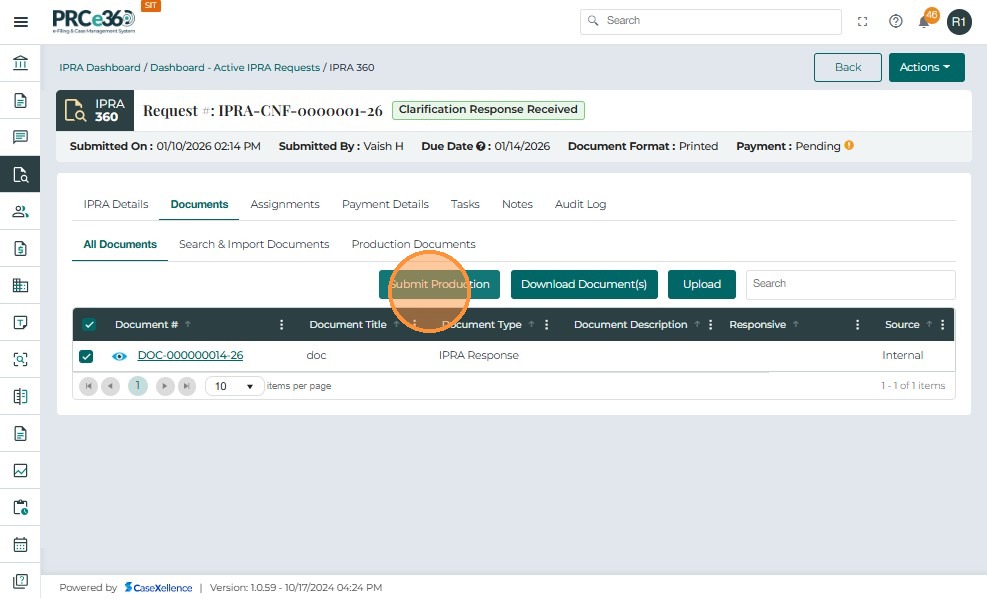
Once documents are selected, additional action buttons appear at the top, including Submit Production.
-
Click Submit Production.
-
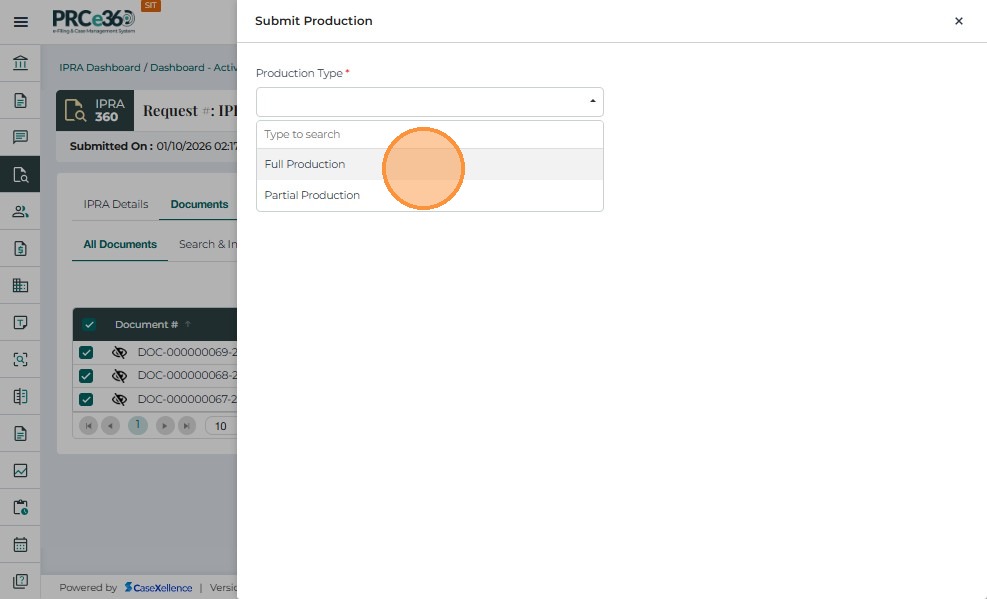
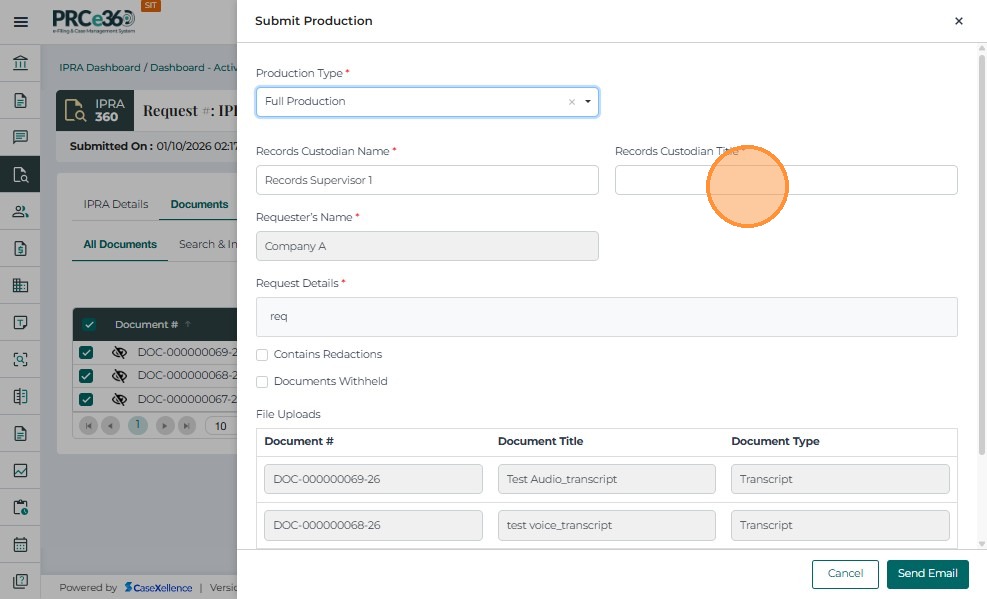
A right-side panel opens requesting additional production details.
Manually choose the production type from the two options:
-
Full Production – All responsive documents are being provided. This option automatically closes the IPRA request after submission.
-
Partial Production – Only some documents are provided; additional updates may follow.
-
Select Full Production to proceed.
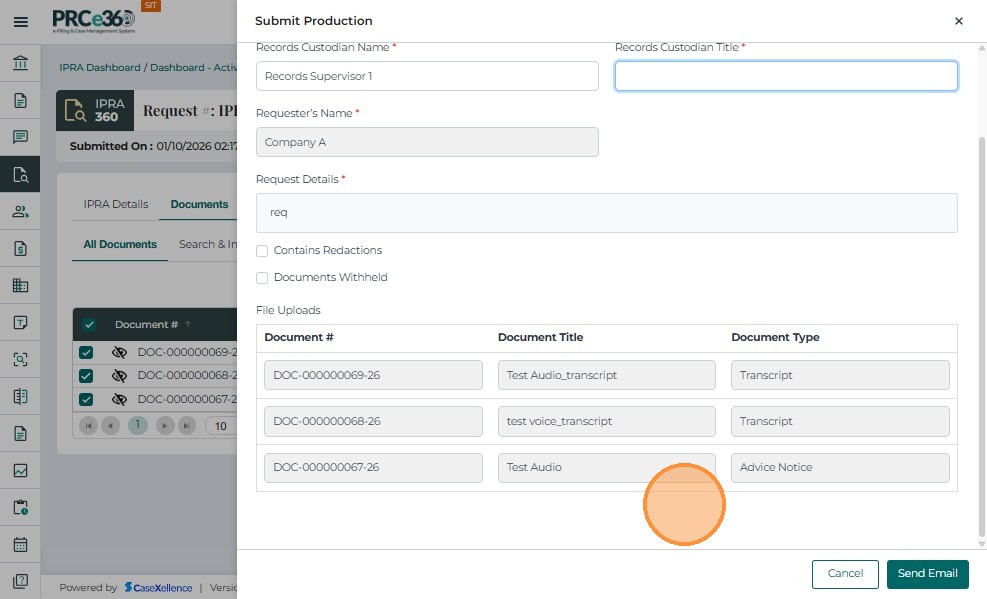
- Fill the required fields
-
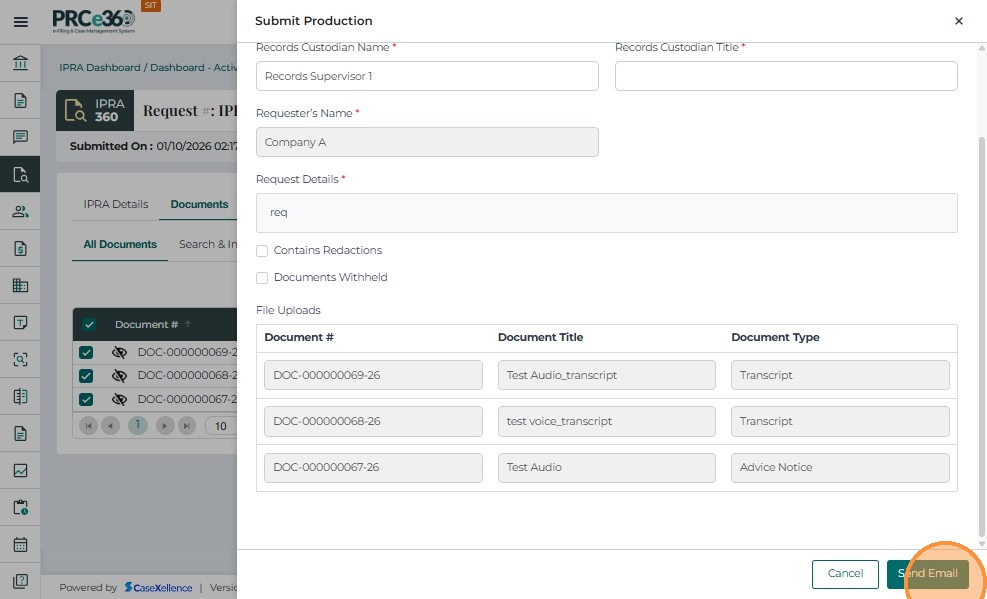
Click Submit to complete the action.
-
A confirmation message appears: "Documents submitted successfully."
-
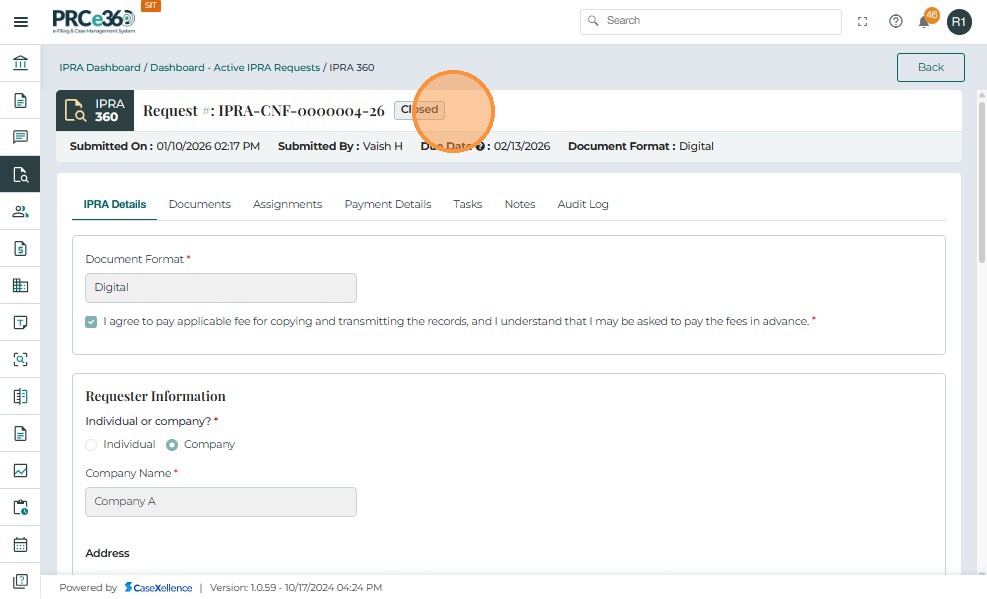
For Full Production, the system automatically changes the IPRA status to Closed.
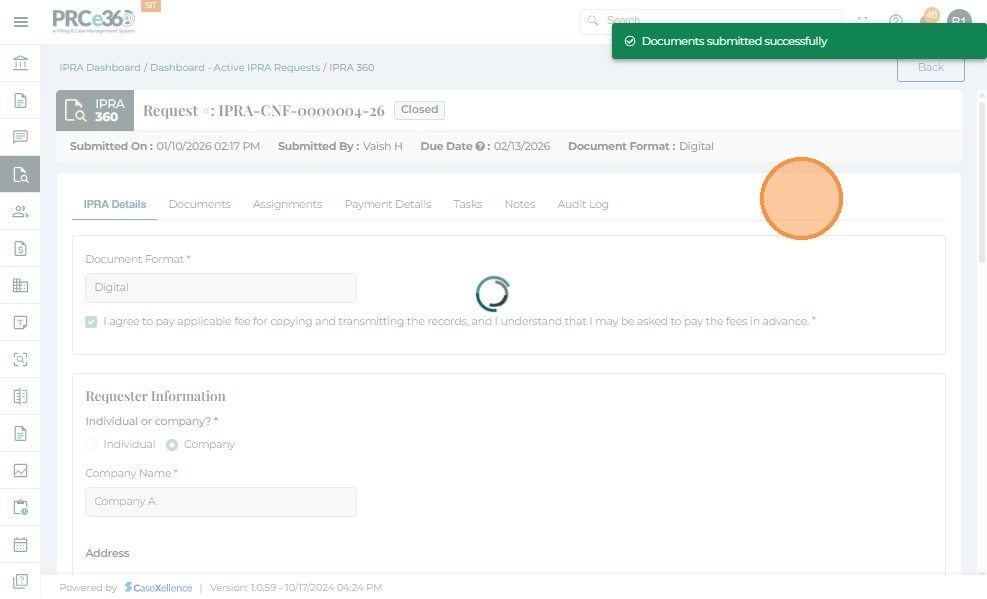
- The request header shows Status: Closed.
-
A Closure Details section appears in the IPRA Details view.
-
The system lists:
-
Closed On date
-
Closed By username
-
Reason: Auto closed as part of Full Production
-
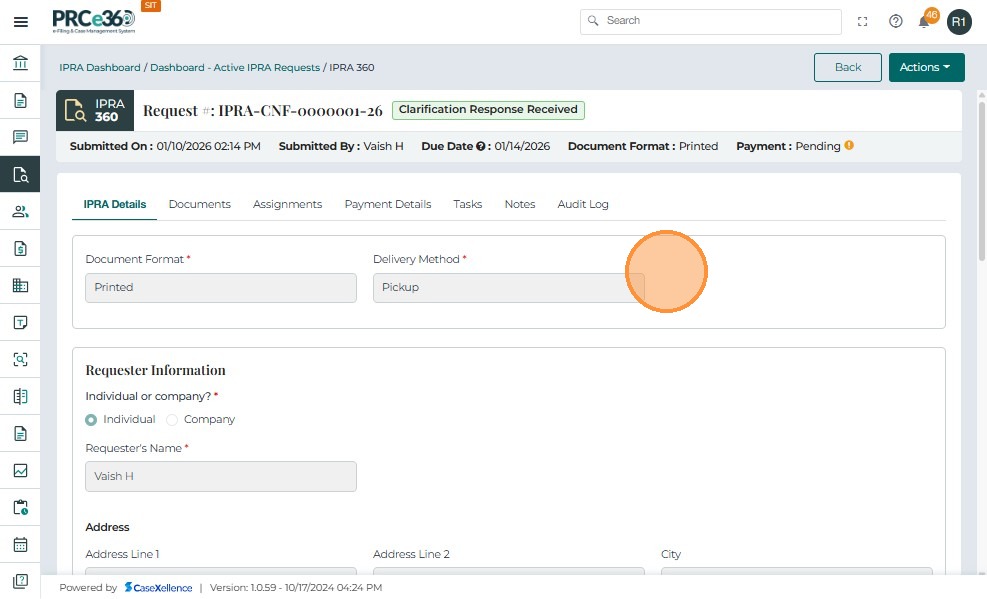
Submitting Production when Document Format is Printed
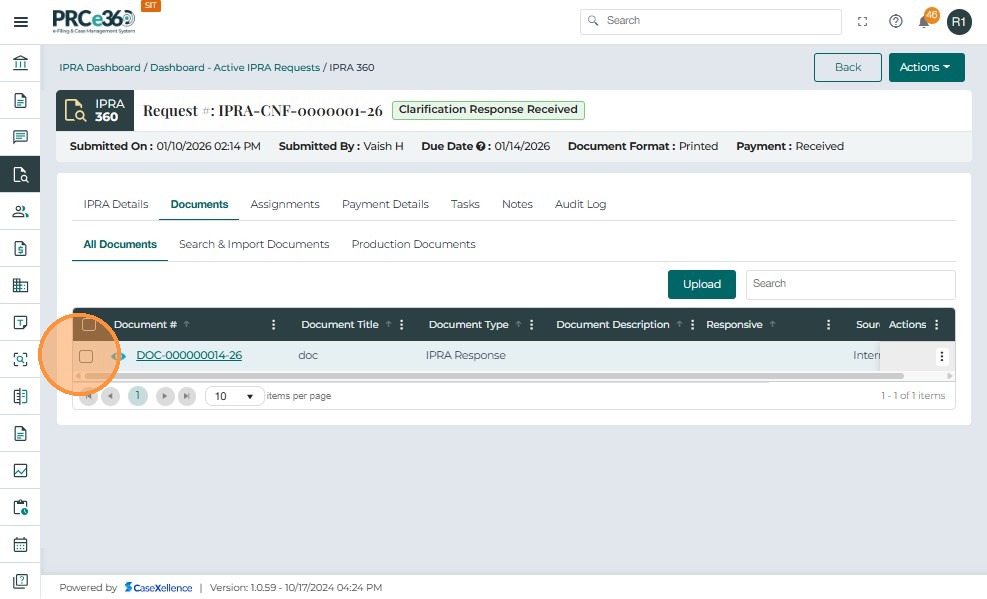
In the below screenshot while submitting the IPRA Request the Document format preferred was Printed.
- Select one or more documents using the checkbox.
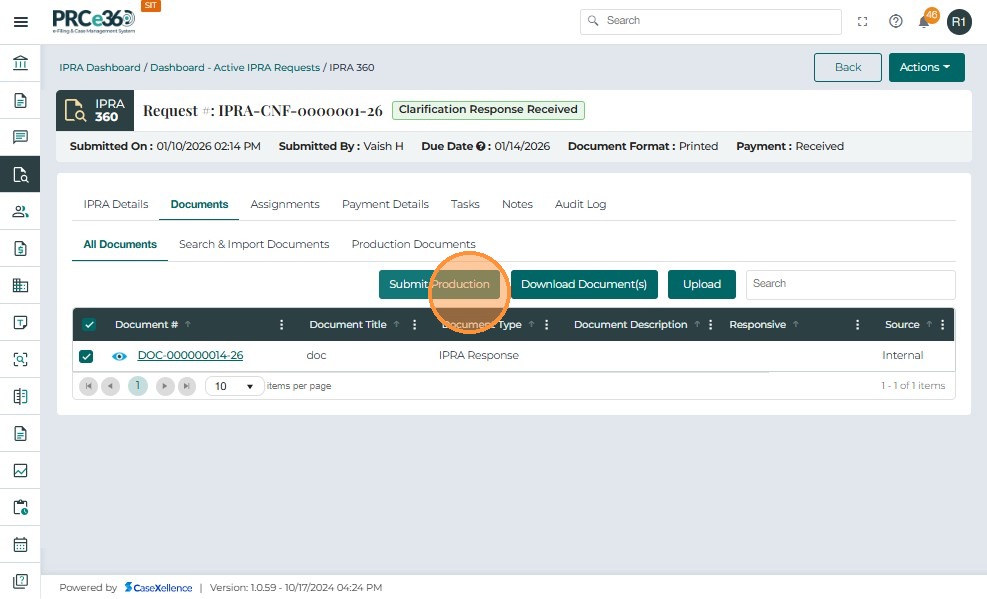
- Click Submit Production.
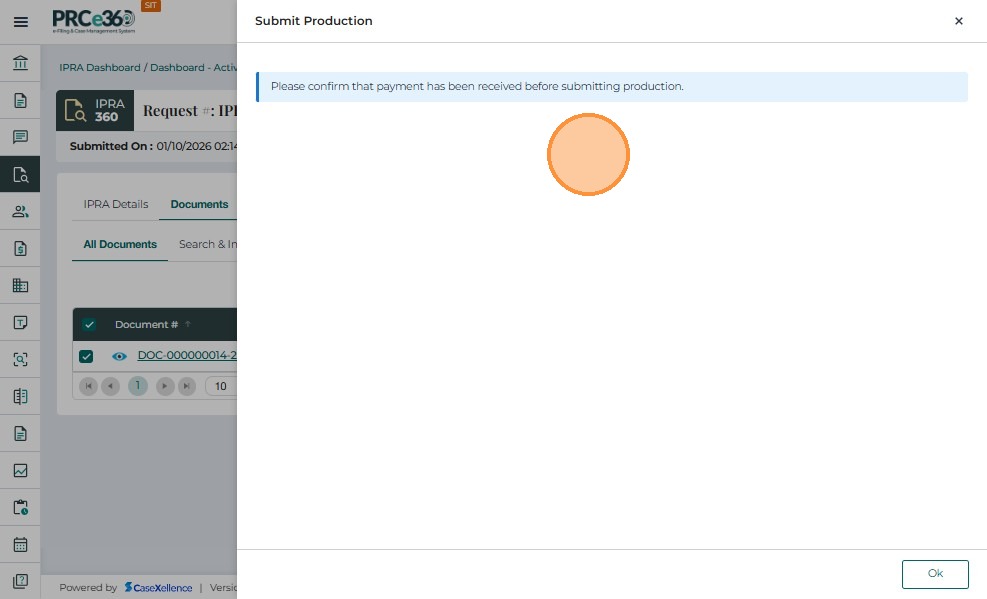
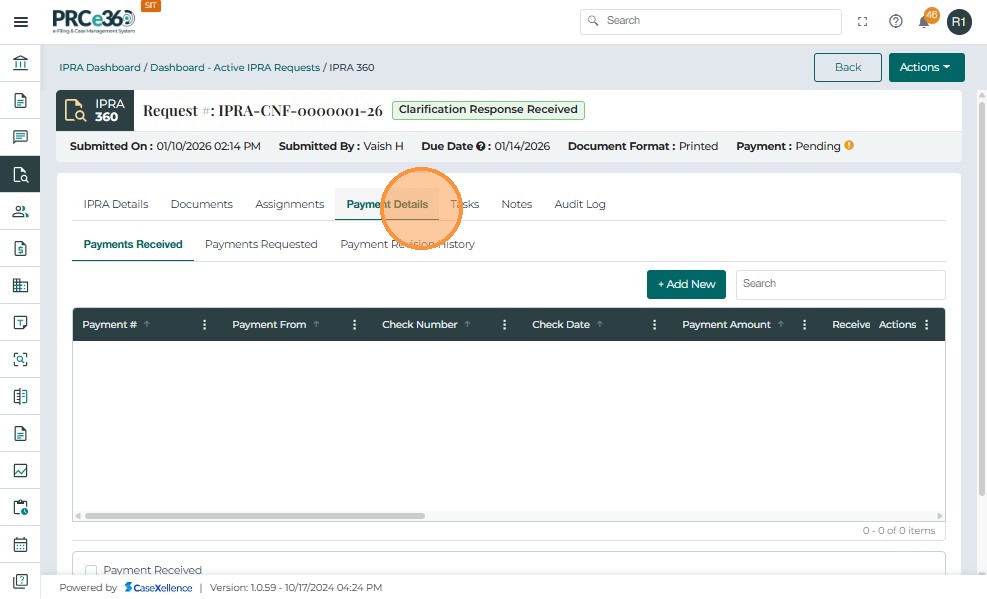
- Open the Payment Details tab, which contains three sections:
Payments Received
Payments Requested
Payment Revision History
-
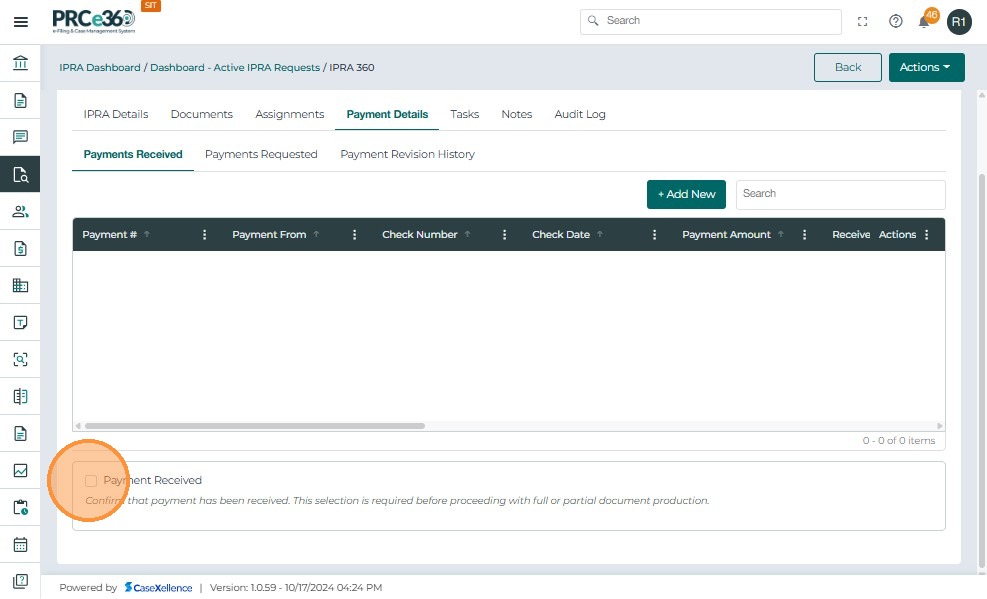
Scroll to the Payment Received confirmation checkbox at the bottom.
-
Check Payment Received.
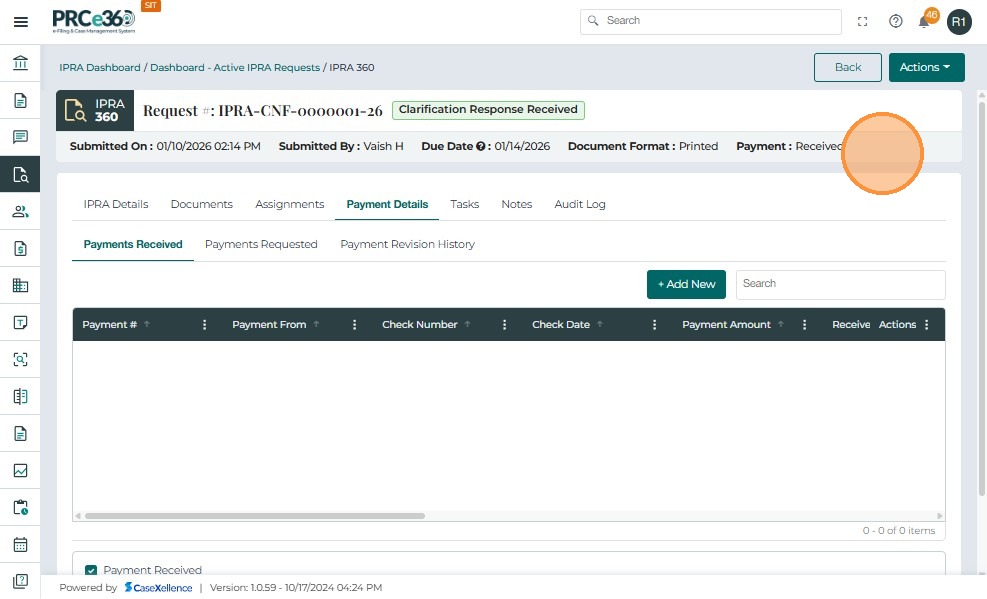
- This action updates the request header to: Payment: Received
-
Go back to Documents → All Documents
-
Select one or more documents using the checkboxes.
- Now that payment is confirmed, clicking Submit Production will open the Production dialog.
- Choose either Full Production or Partial Production
Common Issues & Troubleshooting
Issue: Cannot submit production
Possible Causes:
- No responsive documents are selected
- Payment has not been confirmed (for paid requests)
- Required fields are missing
Solution:
- Ensure at least one document is marked as responsive
- Confirm payment in Payment Details tab if required
- Complete all required fields in the production form
Issue: Production type is incorrect
Solution:
- You must manually select the production type (Full Production or Partial Production) when submitting the production form
- The production type selection is independent of the number of documents you have selected
- You can select all documents and choose Partial Production, or select some documents and choose Full Production
- Review your selection before submitting to ensure it matches your intent
Issue: Cannot download production
Possible Causes:
- Production is still being generated
- File corruption or system error
Solution:
- Wait a few moments and try again
- Contact system administrator if issue persists