IPRA Payments and Notes
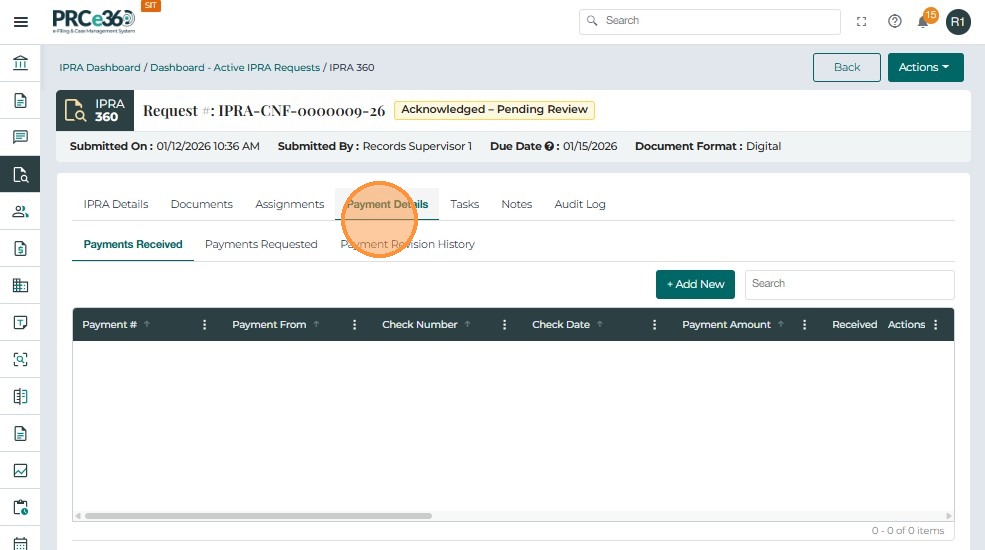
Payment Details Tab
The Payment Details tab is used to record, track, and review all payments associated with an IPRA request. It ensures that no records are released until payment has been received and verified, in compliance with IPRA regulations.
Sub-tabs:
-
Payments Received – All payments recorded for the request.
-
Payments Requested – Any fee requests issued to the requester.
-
Payment Revision History – A log of all changes or corrections to payment records.
Requesting Payment (Payments Requested)
-
Navigate to the Payment Details tab.
-
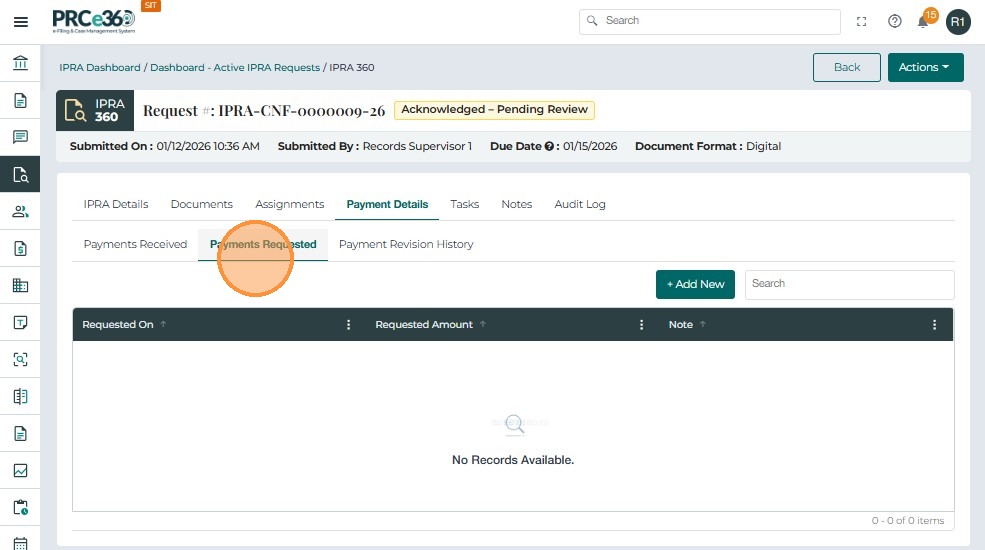
Click the Payments Requested sub-tab.
-
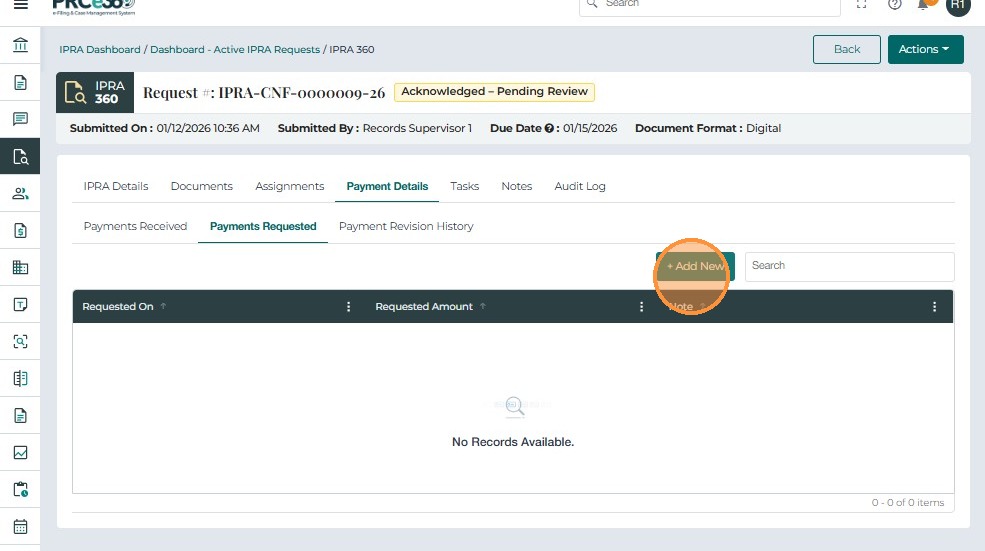
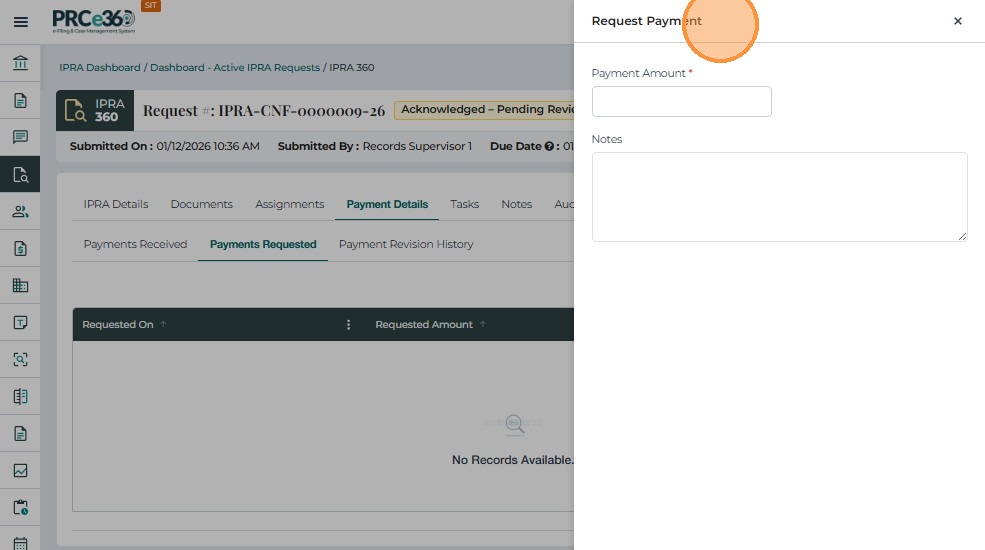
Select + Add New to open the Request Payment form.
-
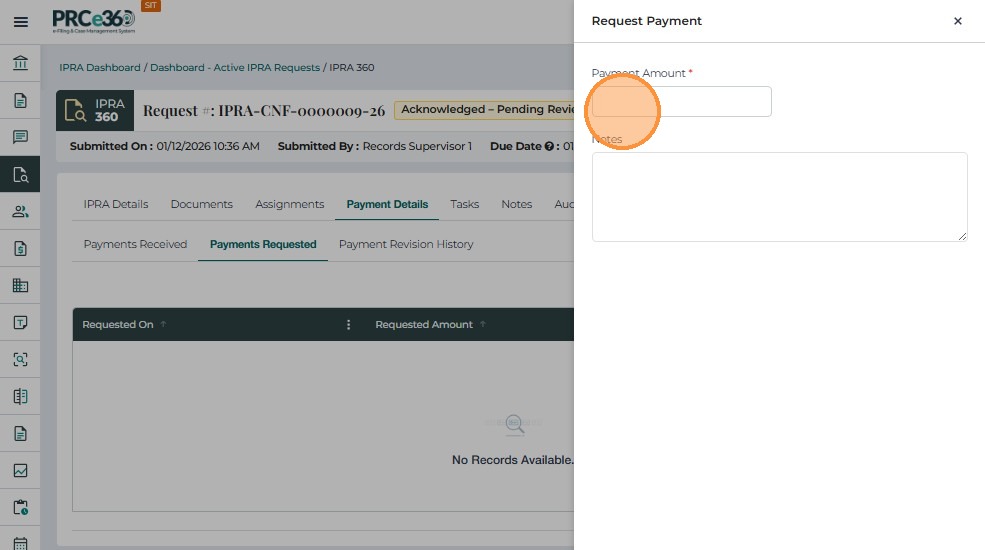
Fill in required details:
-
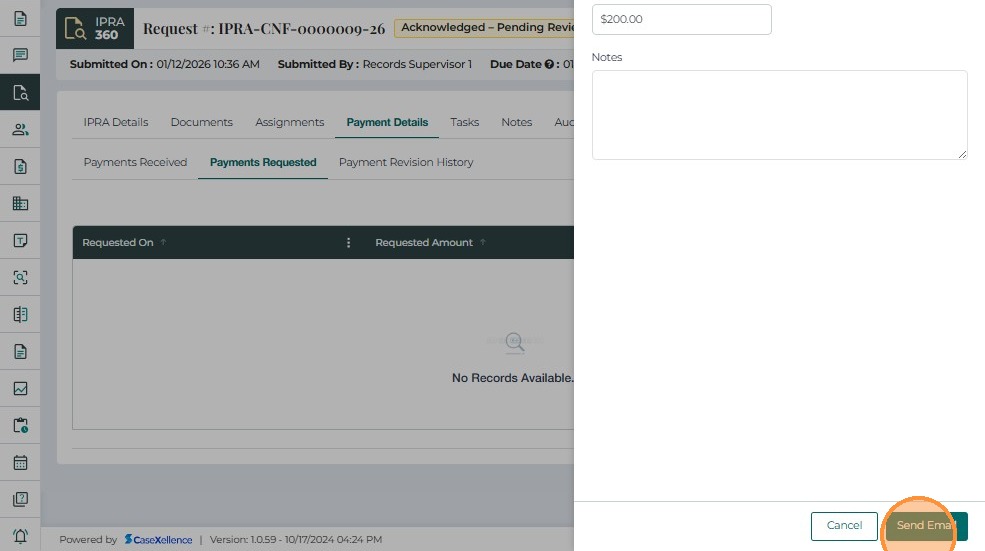
Payment Amount – The fee amount to be charged (required).
-
Notes – Optional explanation of how the fee was calculated.
-
-
Click Send Email to save the payment request.
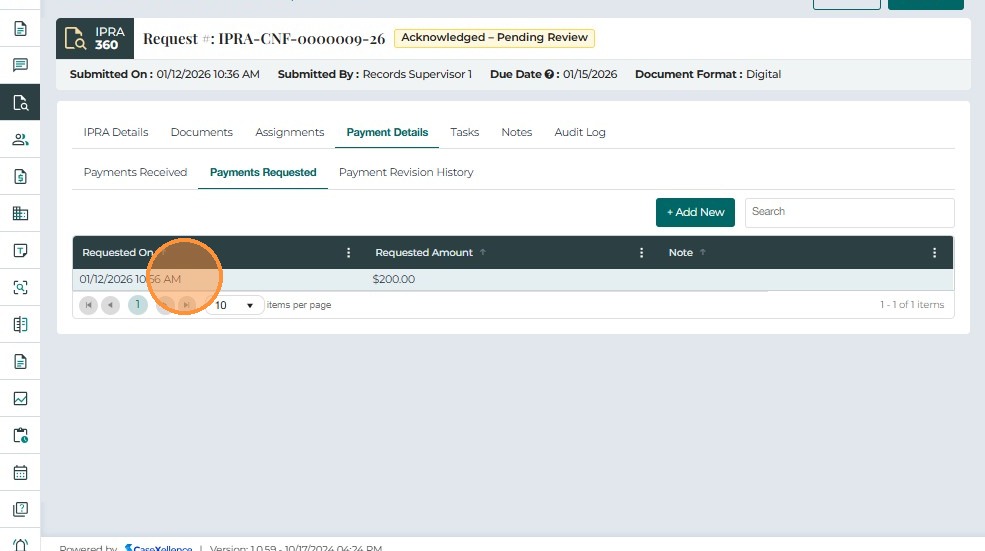
Payments Requested Table Fields
| Field Name | Description |
|---|---|
| Requested On | Date and time when the payment request was created. |
| Requested Amount | Total amount requested for IPRA fulfillment. |
| Note | Additional details or clarifications about the payment request. |
-
Once submitted, the payment request is part of the IPRA case record and can be used for tracking and reporting.
-
The requester is notified of the fee amount through external communication (e.g., email).
Recording Payments Received
The Payments Received and Payment Revision History sub-tabs work together to maintain a complete financial audit trail.
-
Navigate to the Payment Details tab.
-
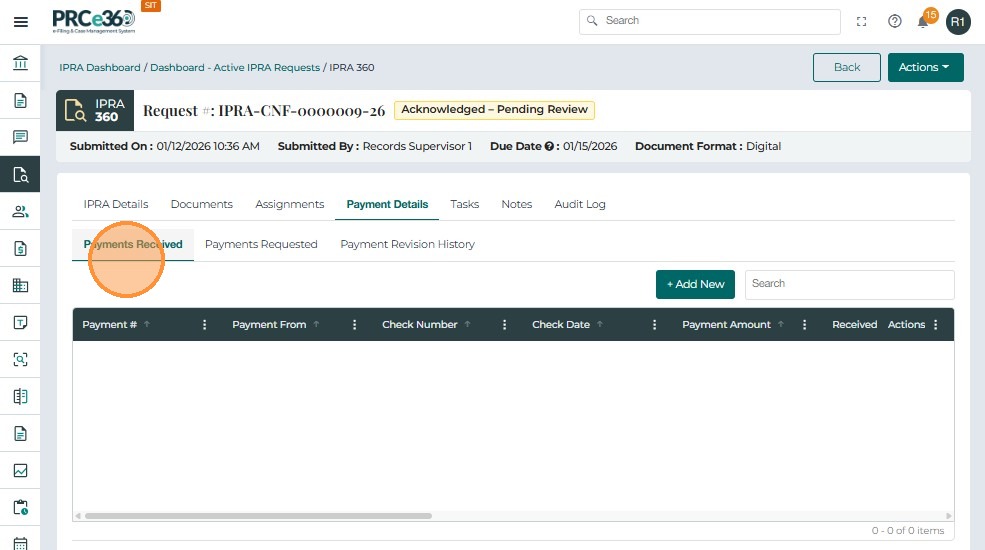
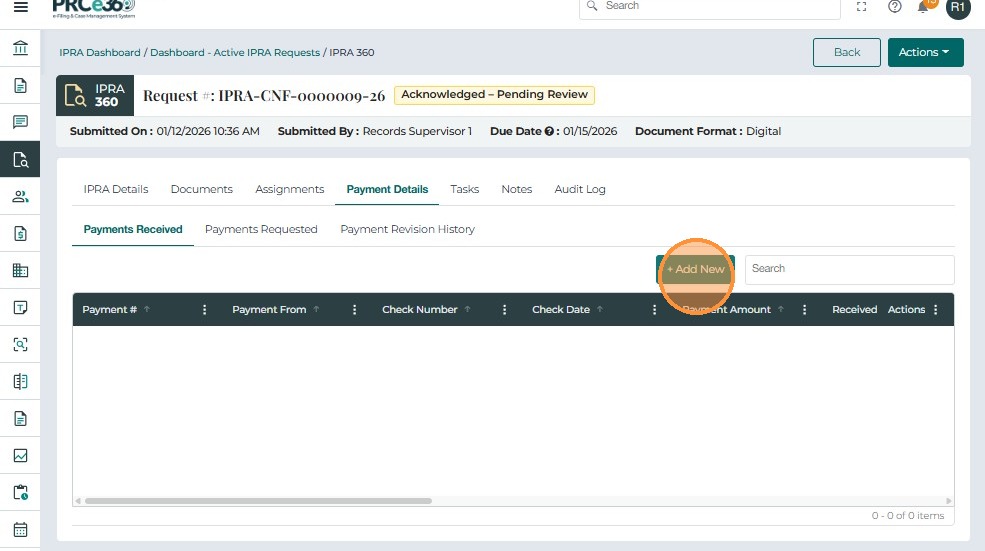
Under Payments Received, click + Add New.
-
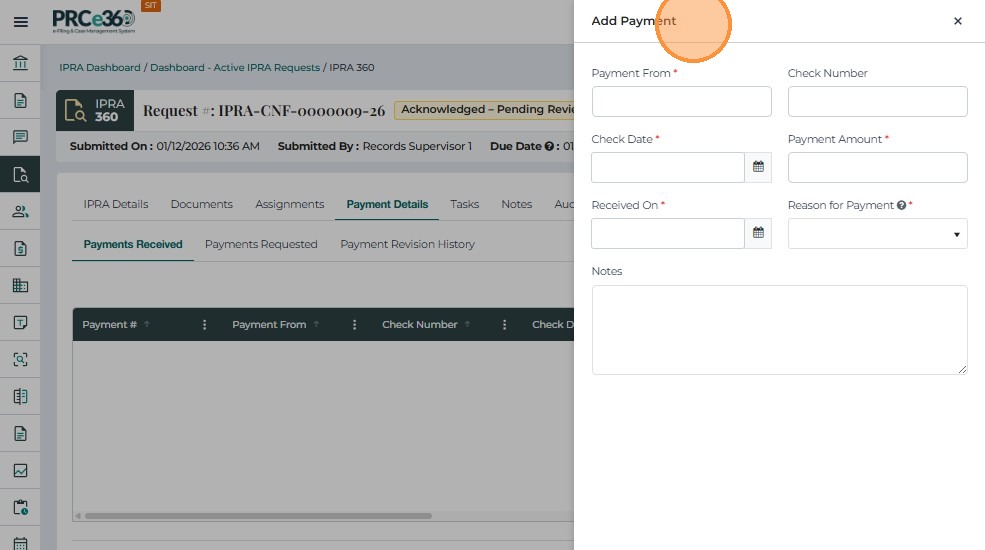
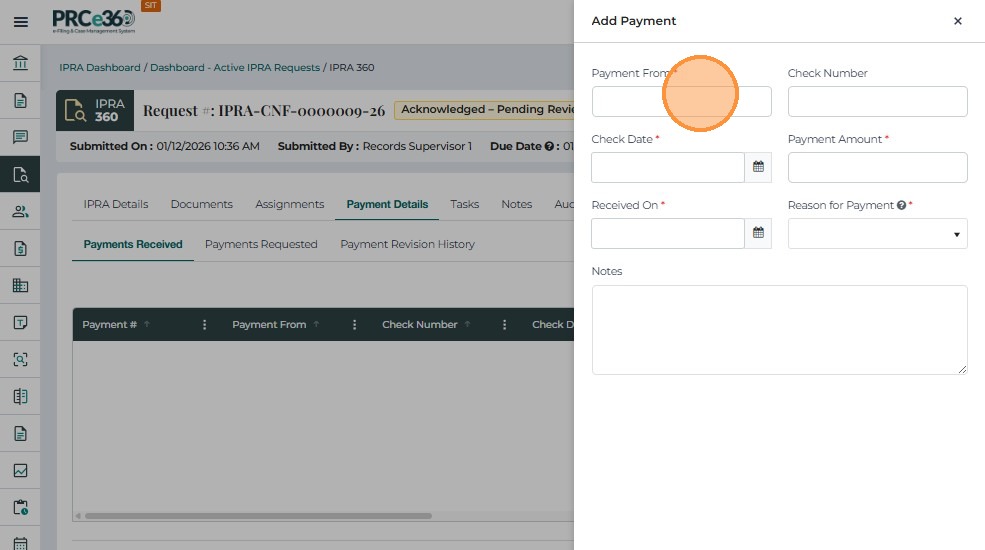
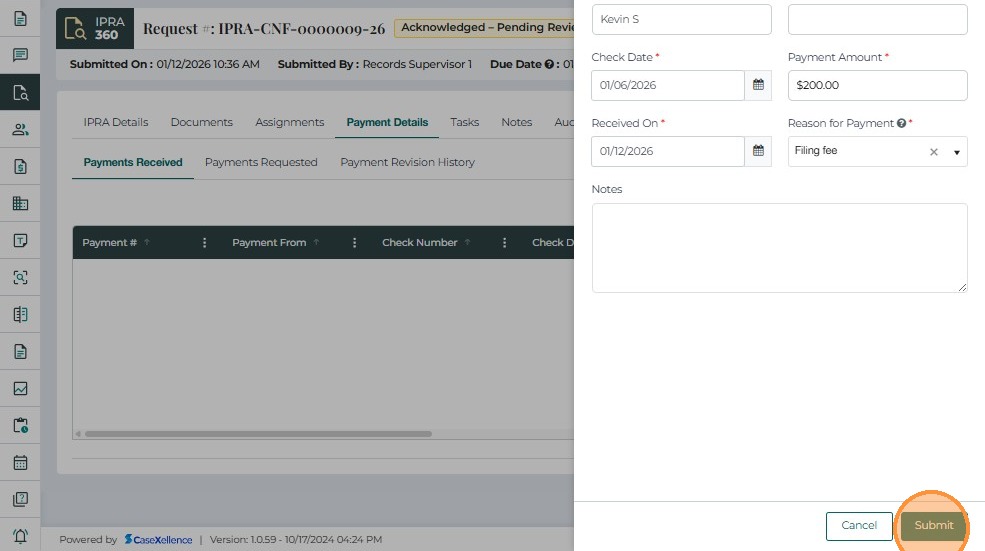
Fill in the payment details:
-
Payment From – Name of the payer (required).
-
Check Number – Reference or check number (optional).
-
Payment Amount – Amount received (required).
-
Received On – Date of payment (required).
-
Notes – Optional remarks (e.g., payment method).
-
-
Click Submit to record the payment.
- Once saved, the payment appears in the Payments Received table.
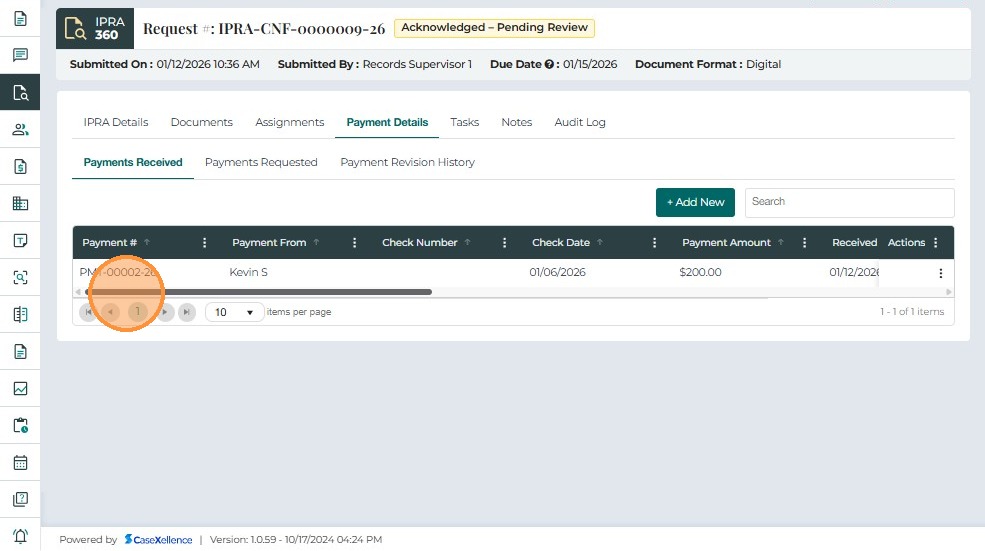
Payments Received Table Fields
| Field Name | Description |
|---|---|
| Payment # | System-generated unique identifier for the payment. |
| Payment From | Name of the individual or organization that made the payment. |
| Check Number | Check or reference number associated with the payment. |
| Payment Amount | Total amount received. |
| Received On | Date when payment was received and recorded. |
| Notes | Additional payment-related information. |
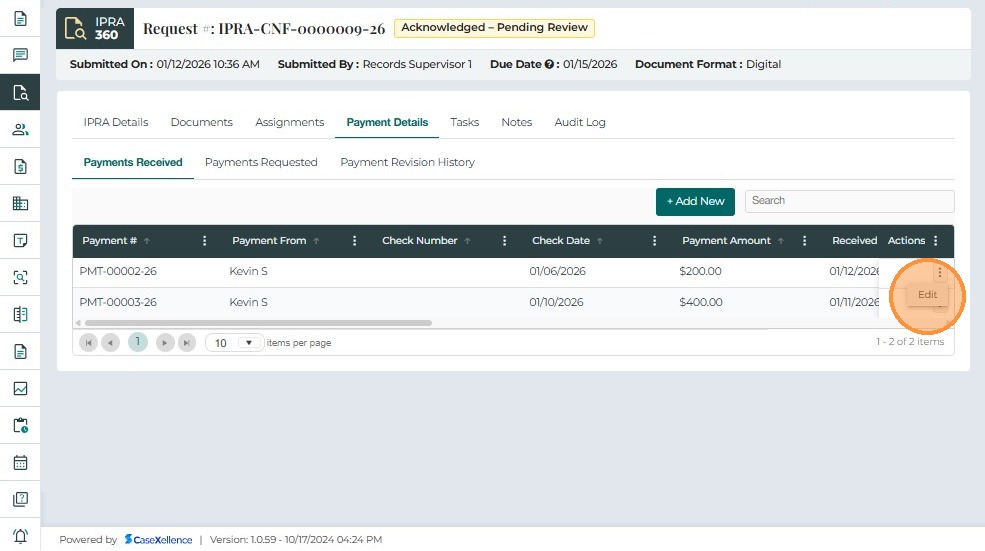
| Actions | Option to Edit a payment entry. Edits are logged in Payment Revision History. |
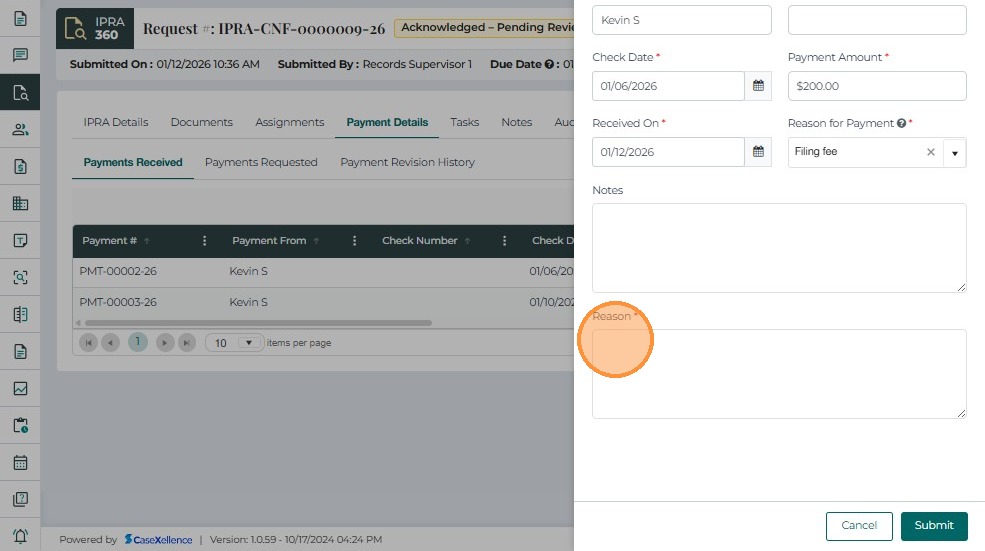
To modify a payment:
-
Click Edit under the Actions column.
-
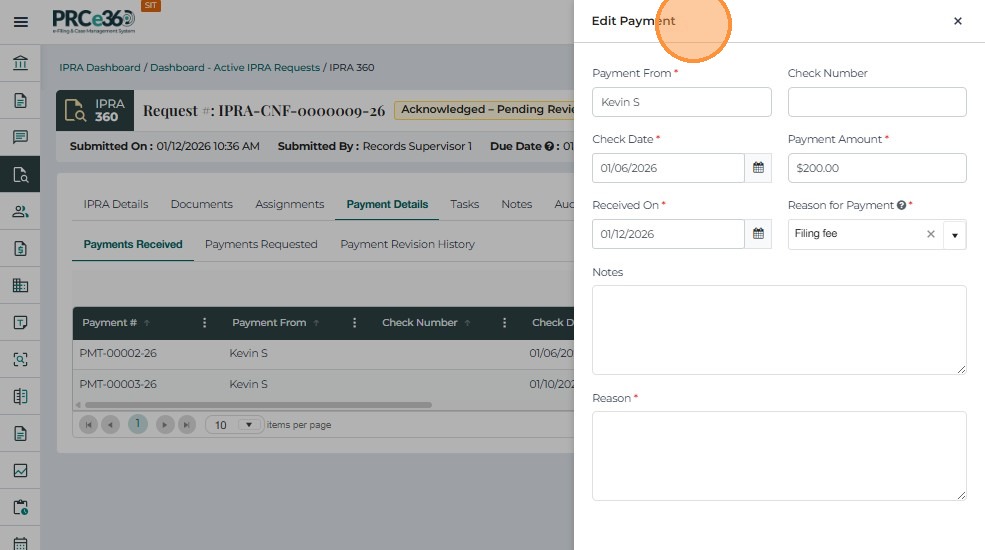
Update required fields (e.g., amount, notes, date).
-
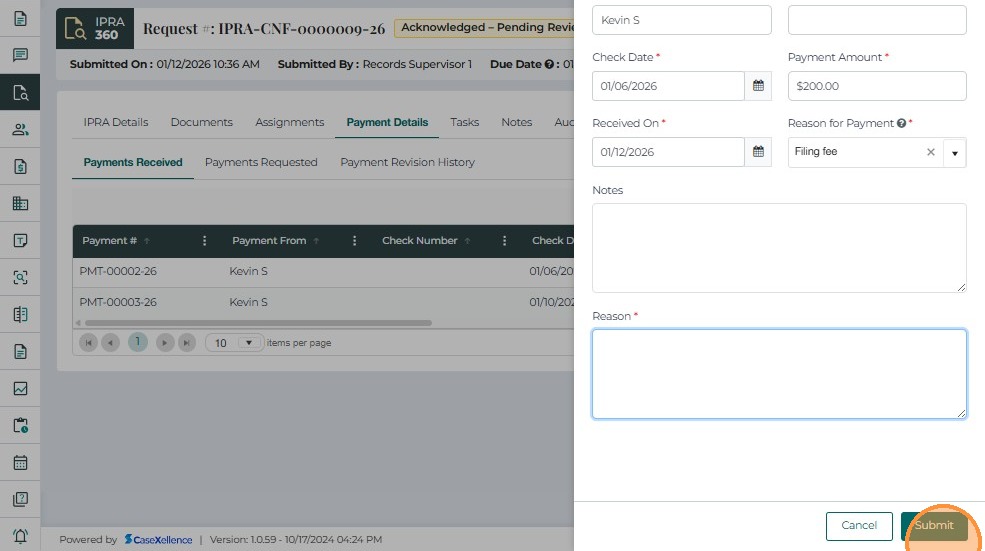
Enter a Reason for the update (mandatory for audit purposes).
-
Click Submit.
-
The change is logged automatically in the Payment Revision History tab.
Payment Revision History
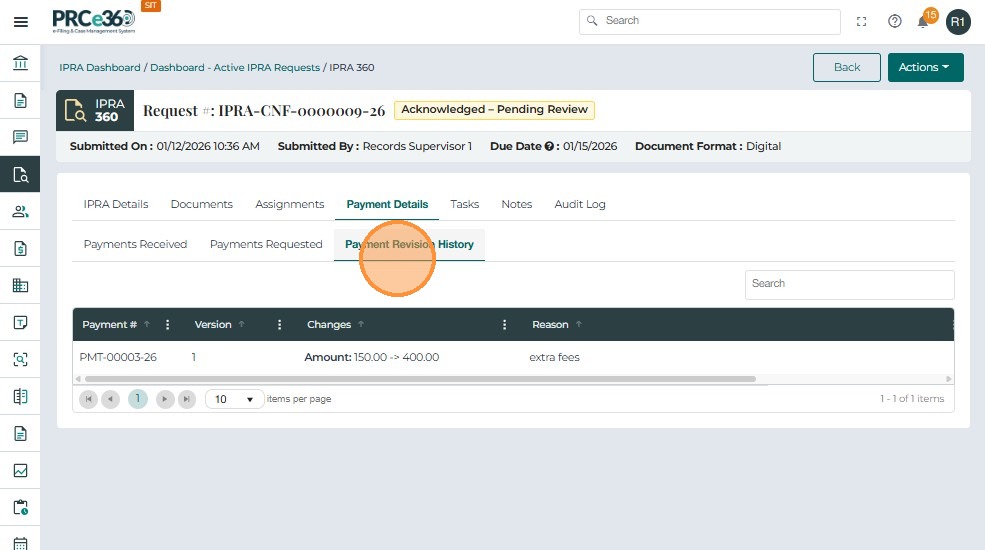
The Payment Revision History tab maintains a complete audit trail of all updates to payment entries.
Each edit creates a new revision entry.
Payment Revision History Fields
| Field Name | Description |
|---|---|
| Payment # | Unique identifier of the payment record that was modified. |
| Version | Revision number (e.g., Version 1, Version 2). |
| Changes | Summary of updates (amount, date, notes, etc.). |
| Reason | Explanation provided by the user when editing the payment. |
| Revised On | Date and time when the edit was made. |
| Revised By | User who made the modification. |
Notes Tab
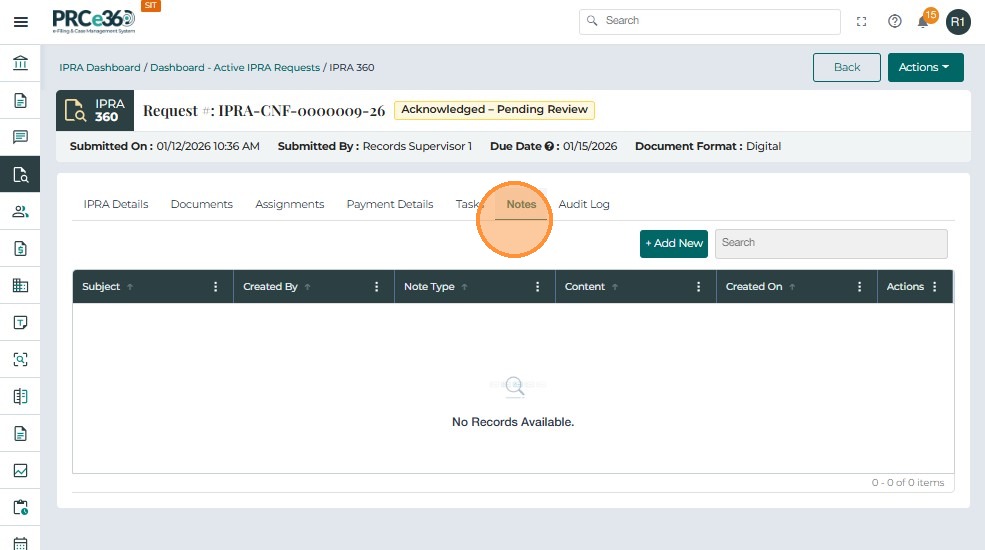
The Notes tab allows users to record comments, updates, and internal communication related to an IPRA request. This supports transparency and provides a complete historical record of decisions and actions.
-
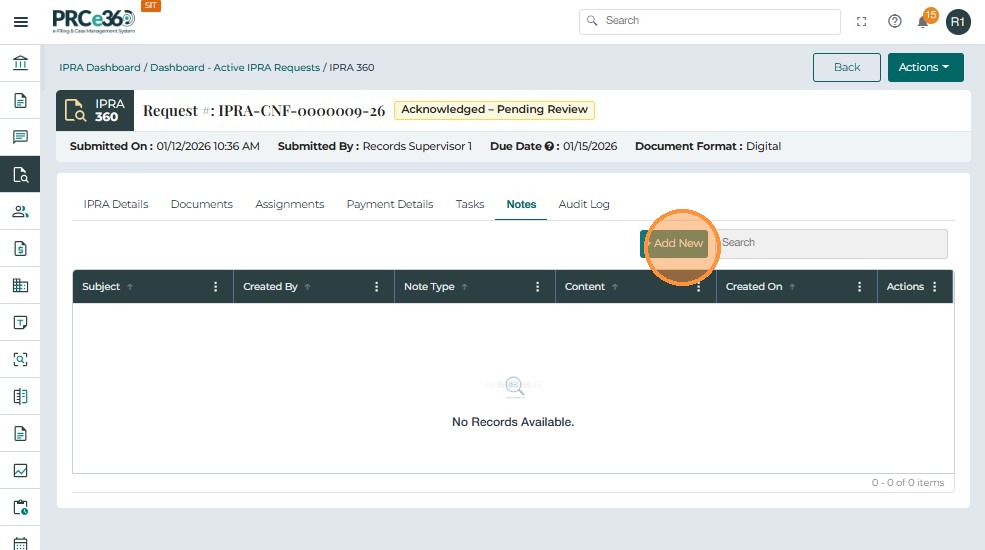
Navigate to the Notes tab in Case 360.
-
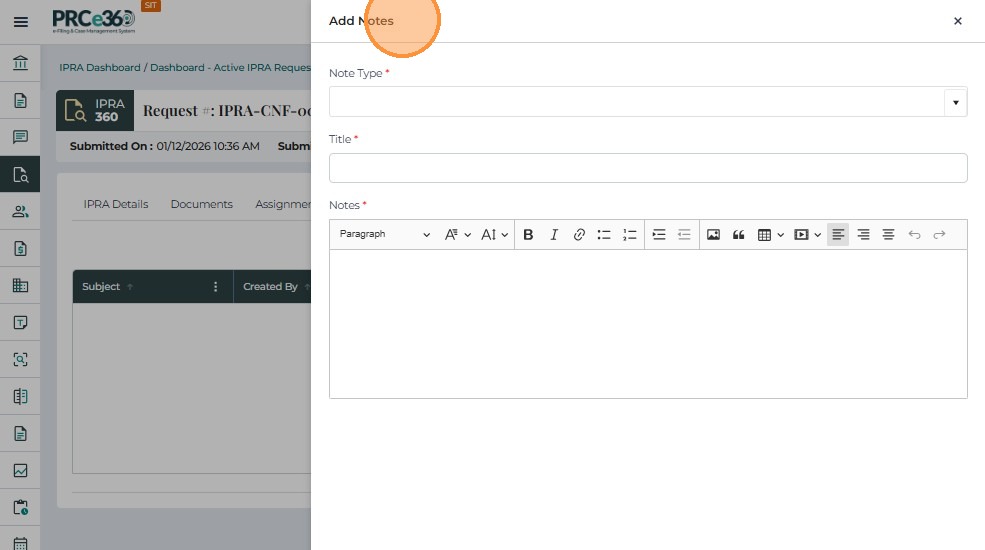
Click + Add New to open the Add Notes popup.
-
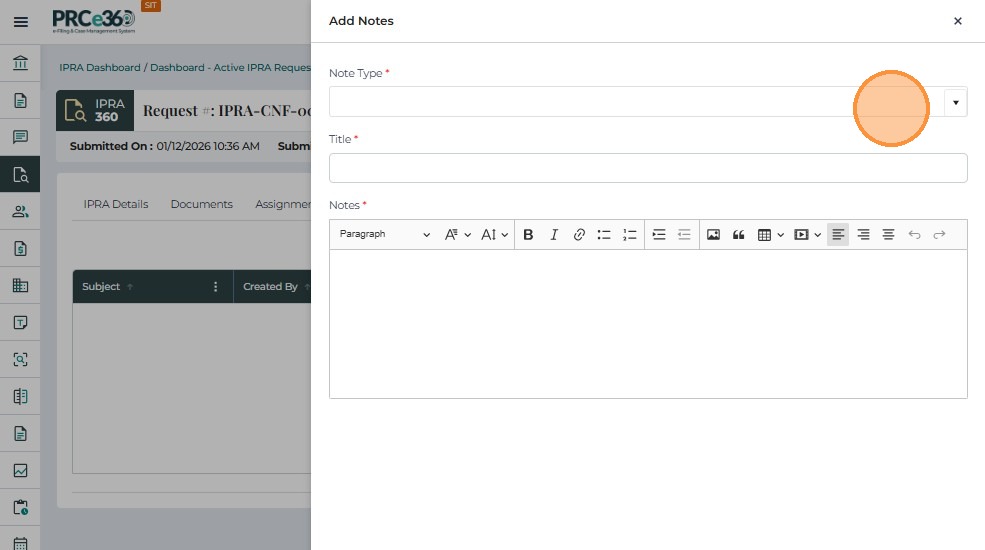
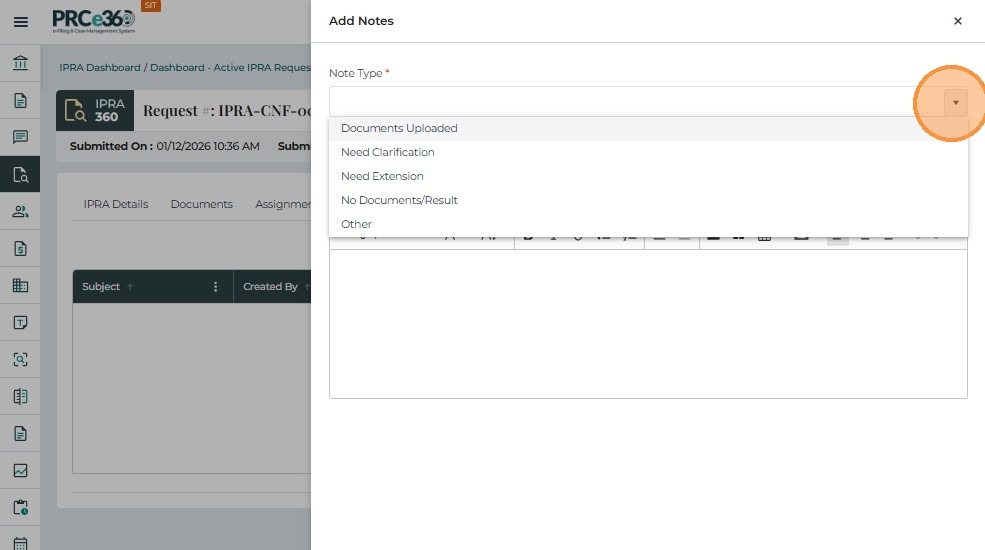
Fill in the fields:
-
Note Type – Purpose or category (e.g., Documents Uploaded, Need Clarification, Need Extension etc.)
-
Title – Short descriptive title (e.g., "Awaiting Payment Confirmation").
-
Notes – Detailed content of the note.
-
- Click Submit to save.
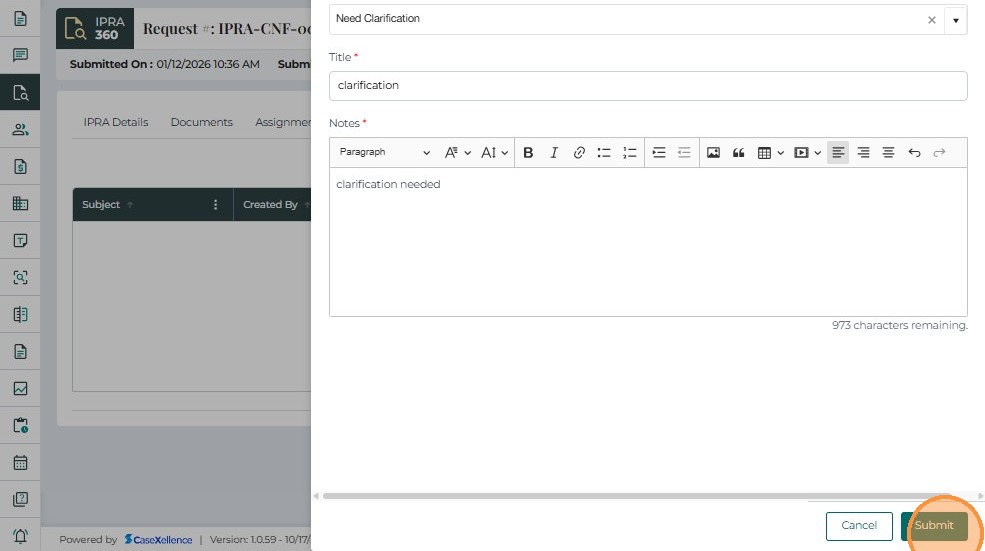
- The note appears in the Notes table, along with creator and timestamp.
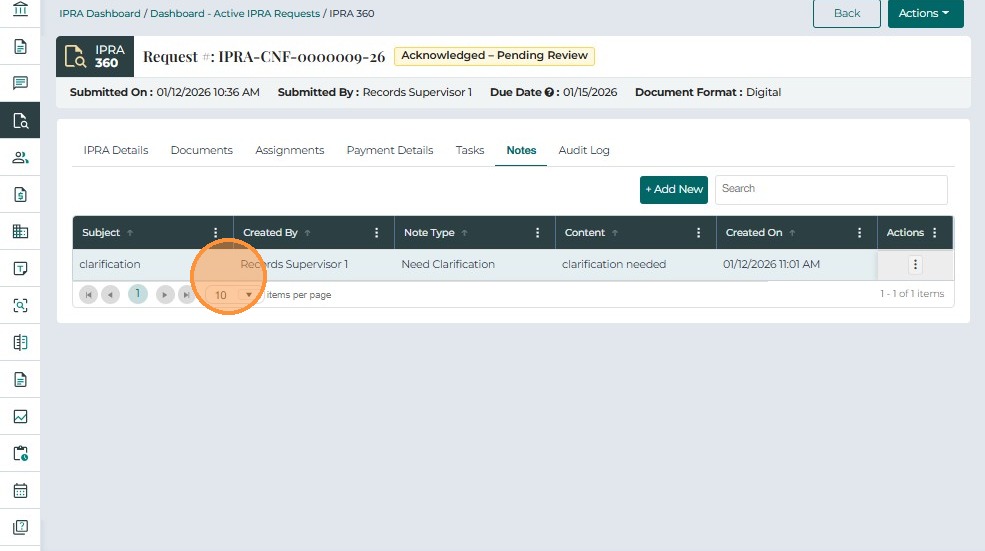
Notes Table Fields
| Field Name | Description |
|---|---|
| Subject | Title or topic of the note. |
| Created By | User who added the note. |
| Access Type | Visibility (e.g., Internal or Public). |
| Content | Detailed note text. |
| Created On | Date and time the note was added. |
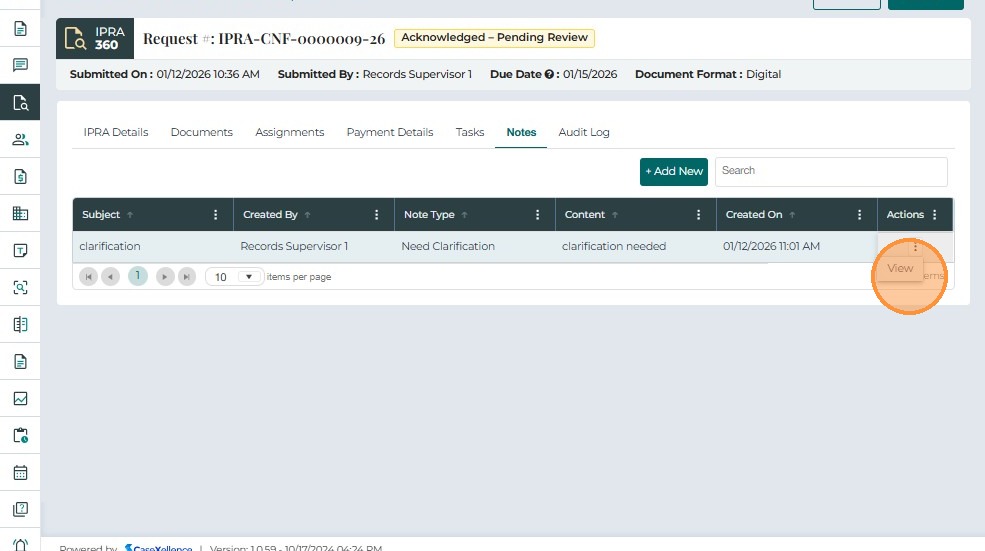
| Actions | Options to edit or delete a note (based on permissions). |
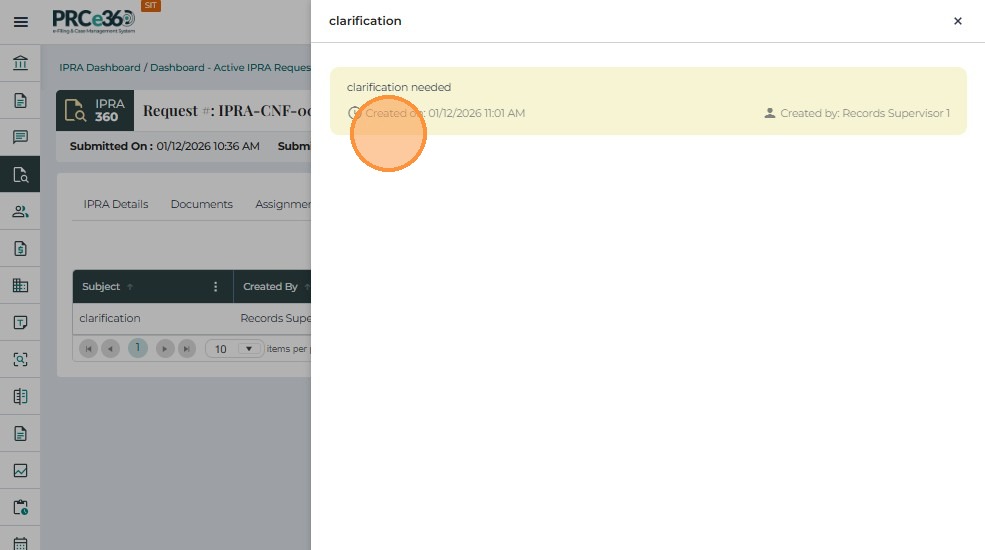
Click on View in Actions button to view the note
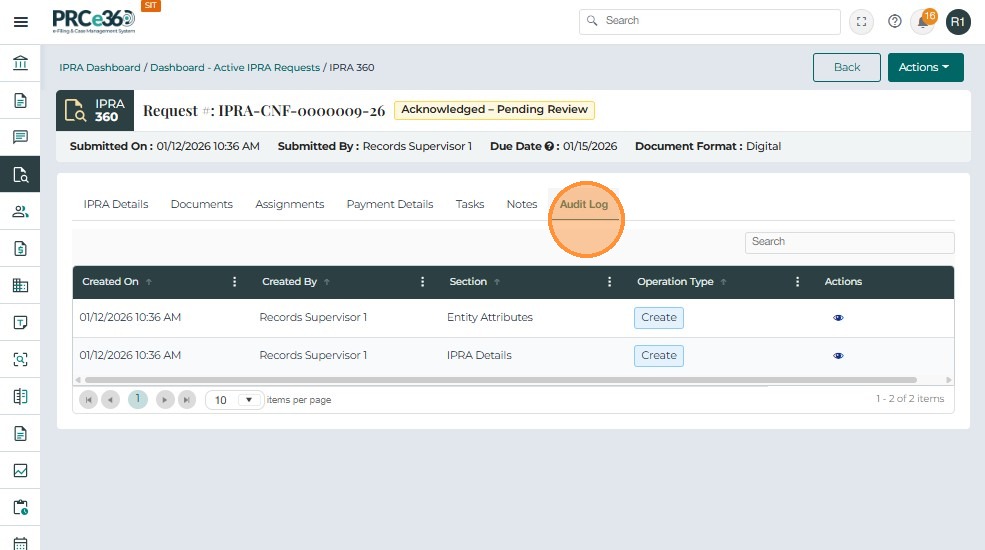
Audit Log
- The Audit Log data can be seen in this tab. To know more details on Audit logs, see Audit Logging and Monitoring.