IPRA Records Supervisor
Legal Supervisor (Assigned Staff)
Once the IPRA Legal Counsel assigns an IPRA request, the Legal Supervisor can log in, access the assigned request, and begin the review process.
-
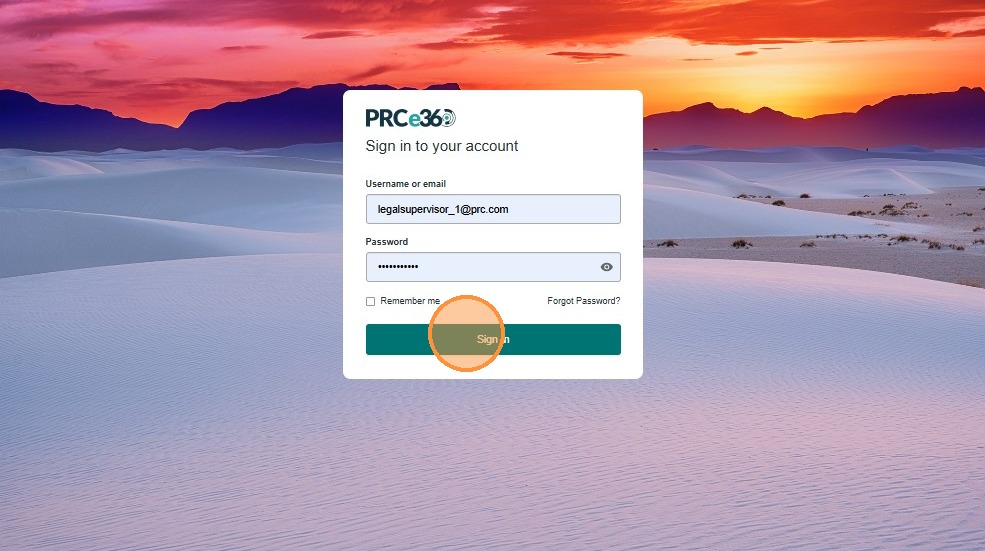
Enter Legal Supervisor credentials
-
Click Sign In.
-
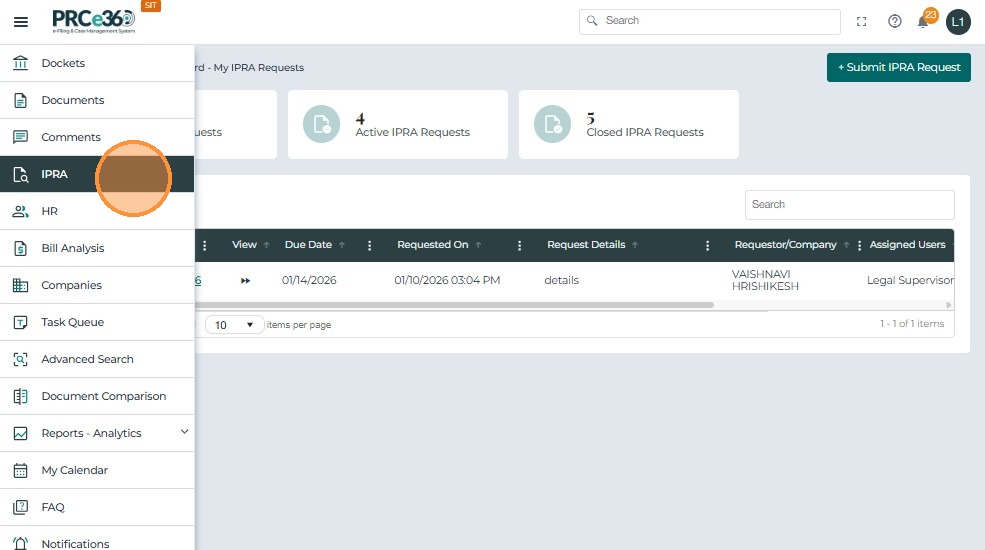
After login, click the IPRA module from the left-side navigation bar.
-
This opens the IPRA Dashboard,
-
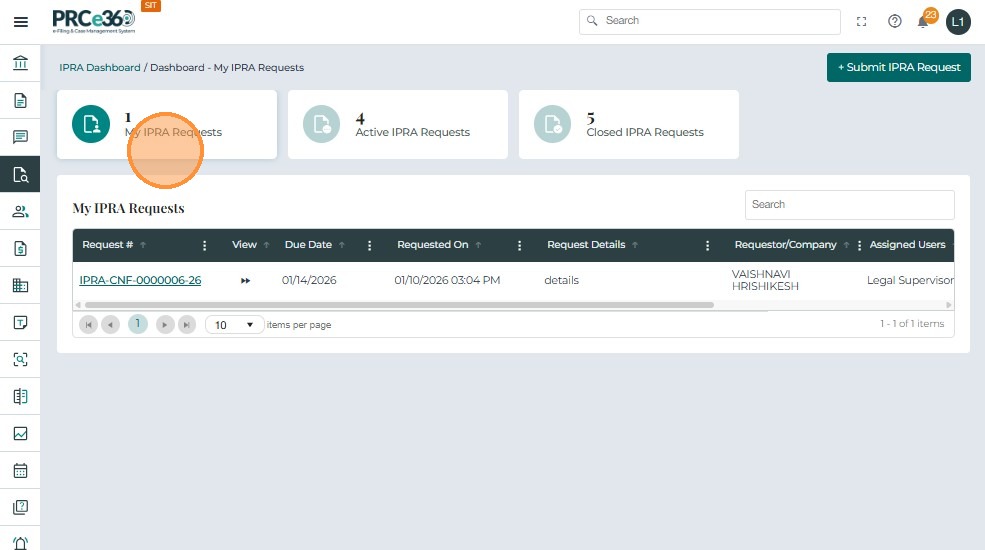
Click the My IPRA Requests card.
-
The system displays all IPRA requests assigned to you by the IPRA Legal Counsel
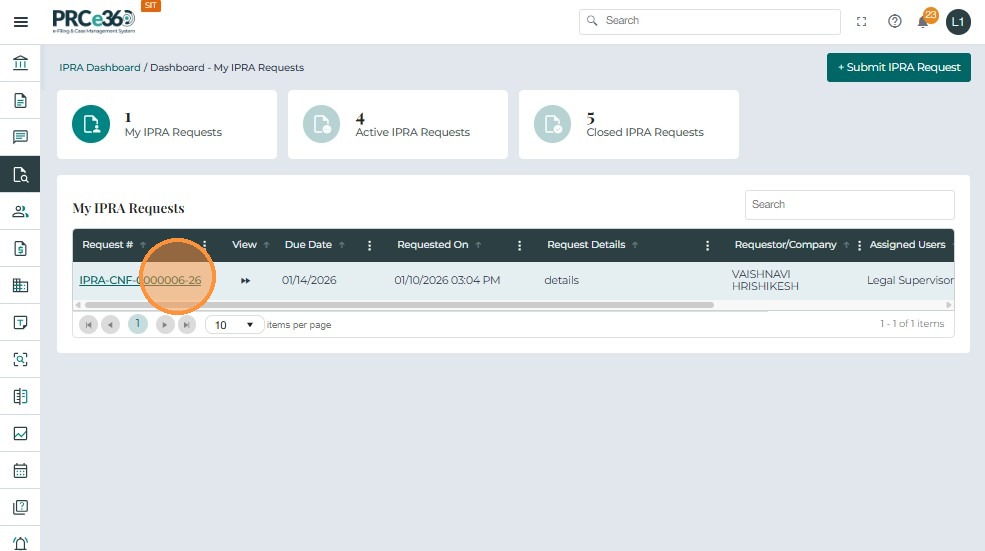
- Click on the Request # link to open the IPRA 360 case view
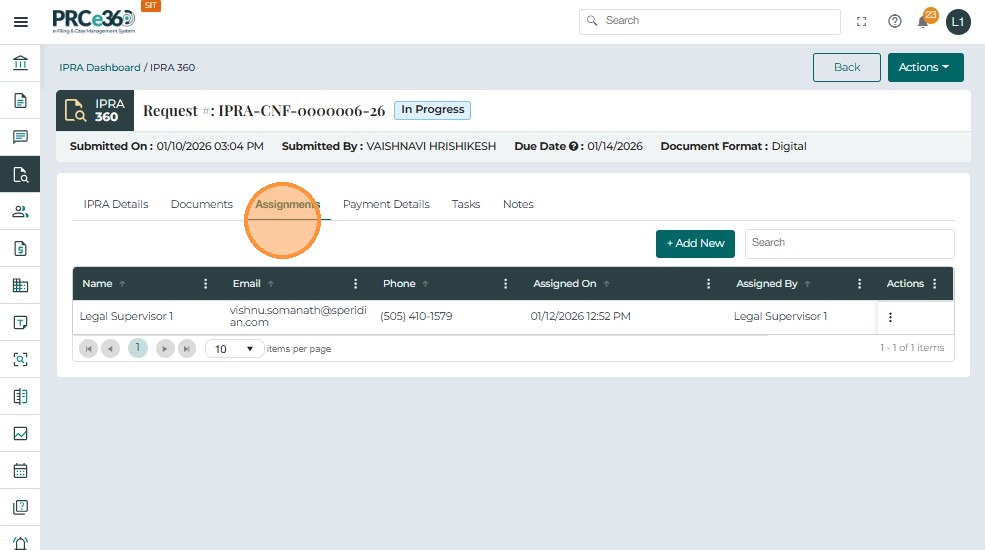
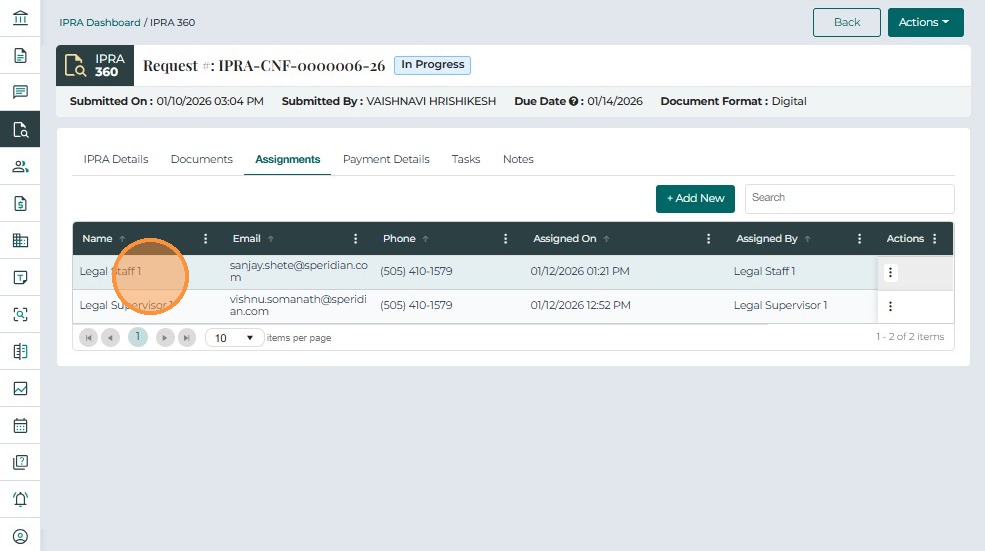
Once the IPRA Legal Counsel assigns the request to the Legal Supervisor, the Legal Supervisor can view and manage the assignment under the Assignments tab.
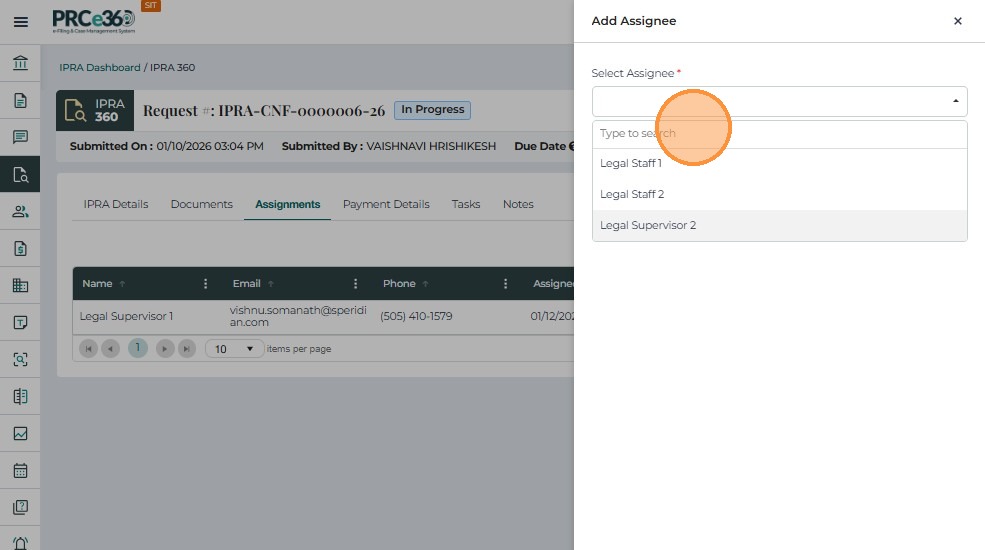
The Legal Supervisor has permission to assign the request further to: Legal Staff,Another Legal Supervisor ,IPRA Legal Counsel.
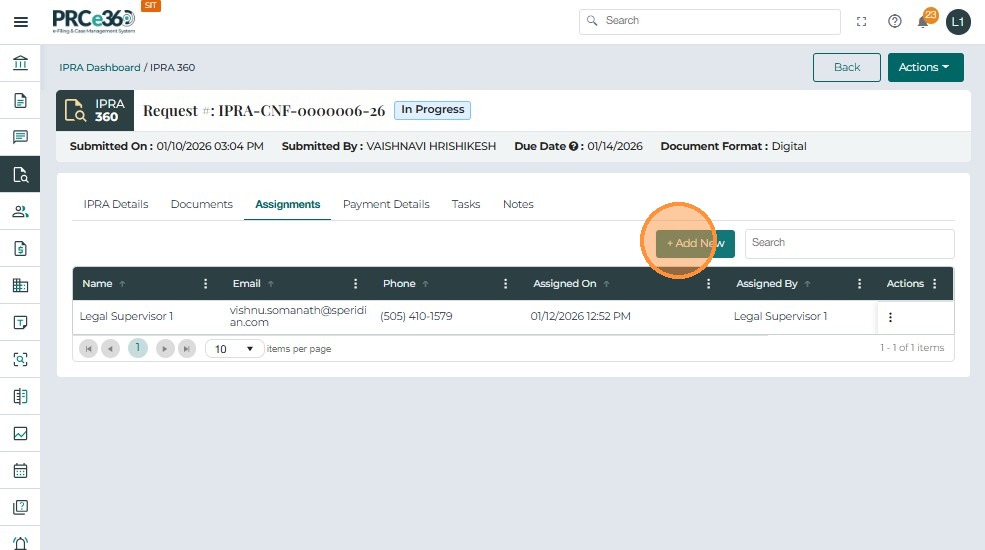
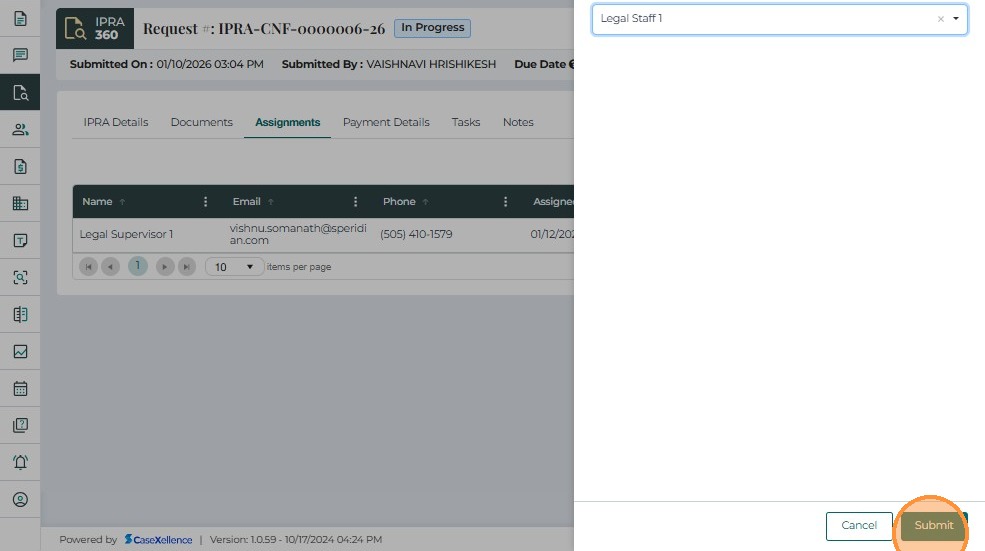
- Click Add New
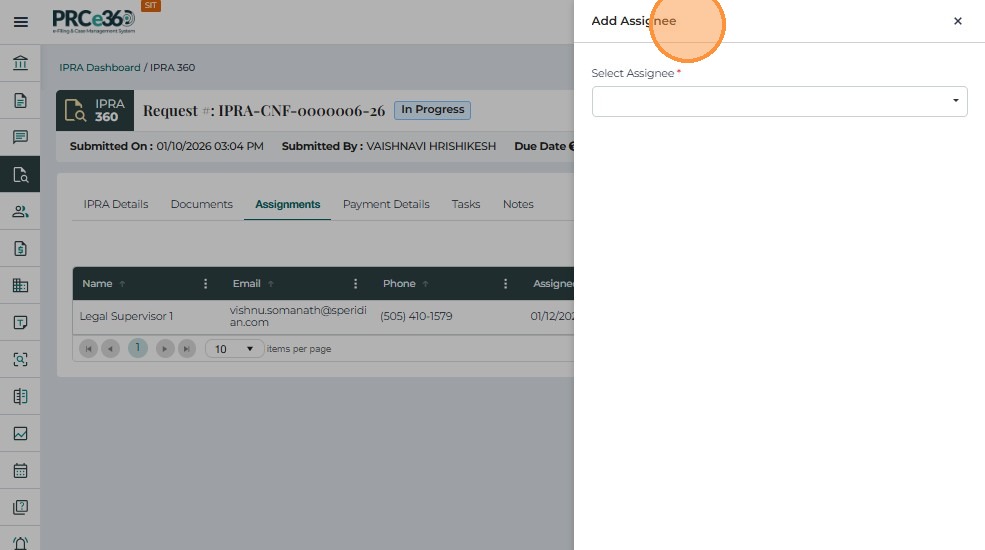
- Choose a user from the dropdown list
- Click Submit to add the selected assignee.
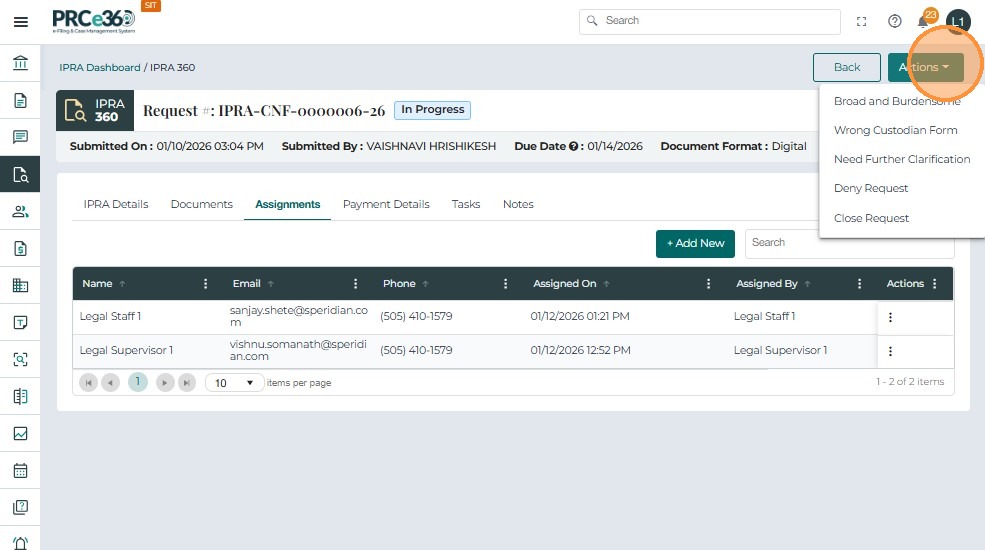
The Actions button at the top right includes the same options available to the Legal Counsel except one.
The Extend Due Date functionality is only available to IPRA Legal Counsel not the legal supervisor as per the IPRA flow
All other tabs — Documents, Tasks, Payment Details, Notes — work exactly the same for the Legal Supervisor as they do for the IPRA Legal Counsel.
There are no changes in functionality except the missing Extend Due Date option under Actions.