HR Job Order Form
Job Order Form
The Job Order Form is the official HR request used to initiate and manage job postings and position approvals at the New Mexico Public Regulation Commission (NMPRC). The form enforces a consistent, auditable workflow by assigning specific pages and fields to the appropriate roles. This ensures that HR, Hiring Managers, and Budget Managers each contribute the information required for a complete and compliant job request.
The Job Order Form is multi-page and role-aware:
- HR Staff and HR Managers complete primary job details and HR contact information.
- Hiring Managers complete position-specific sections and approval fields when assigned.
- Budget Managers complete the budget approval fields on the final page when assigned.
Steps to Submit a Job Order Form
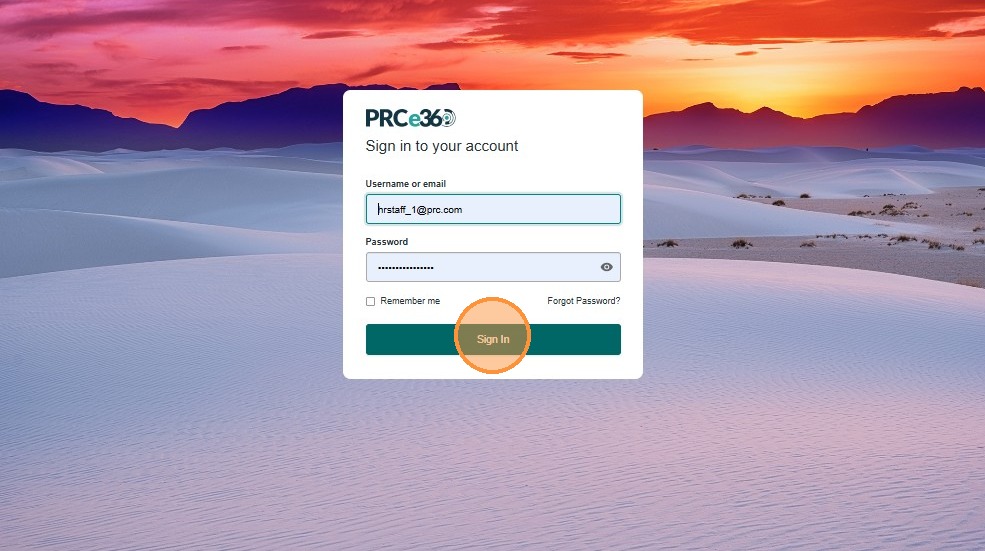
- Enter your username or email.
- Enter your password.
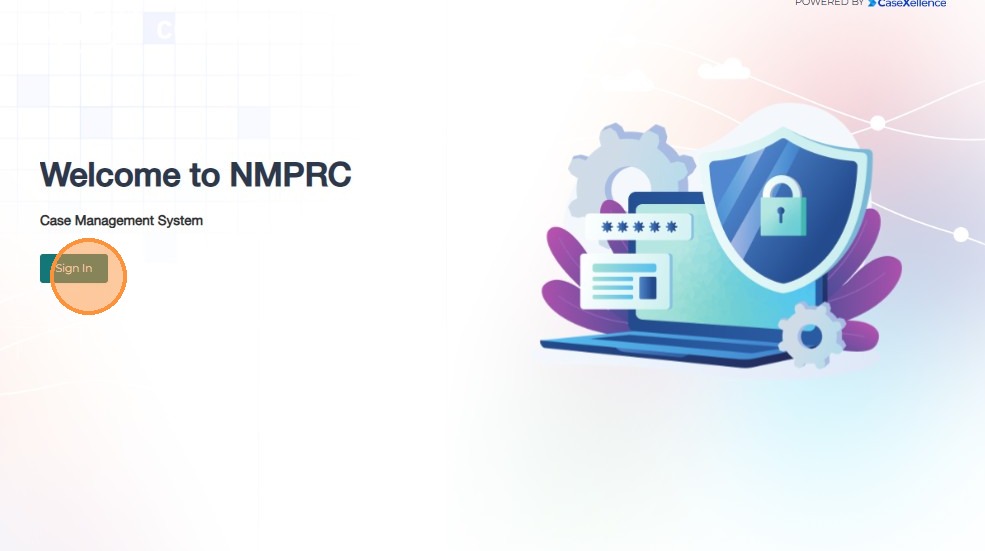
- Click Sign In to access the HR Dashboard.
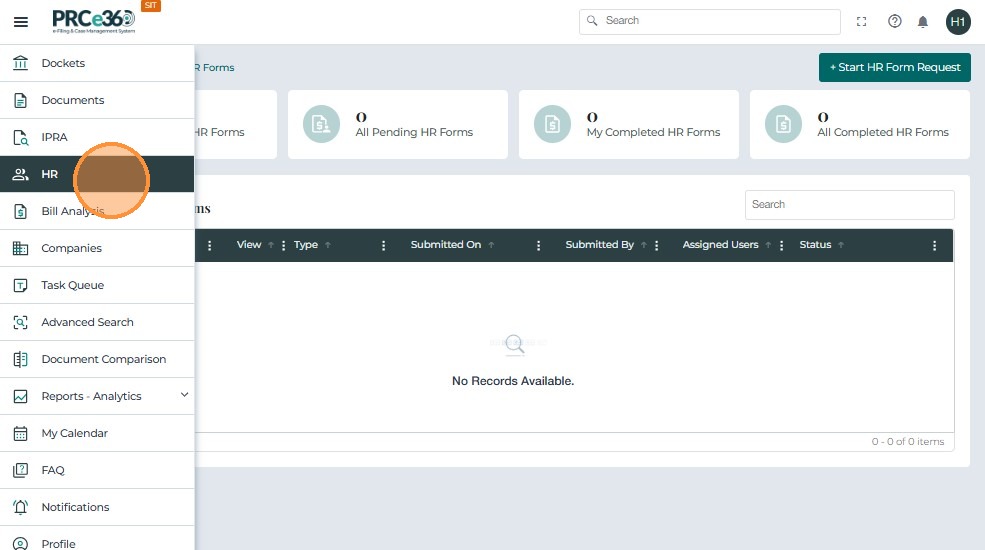
After signing in, open the HR module to access all HR-related forms and queues.
- Click the menu icon on the top-left corner.
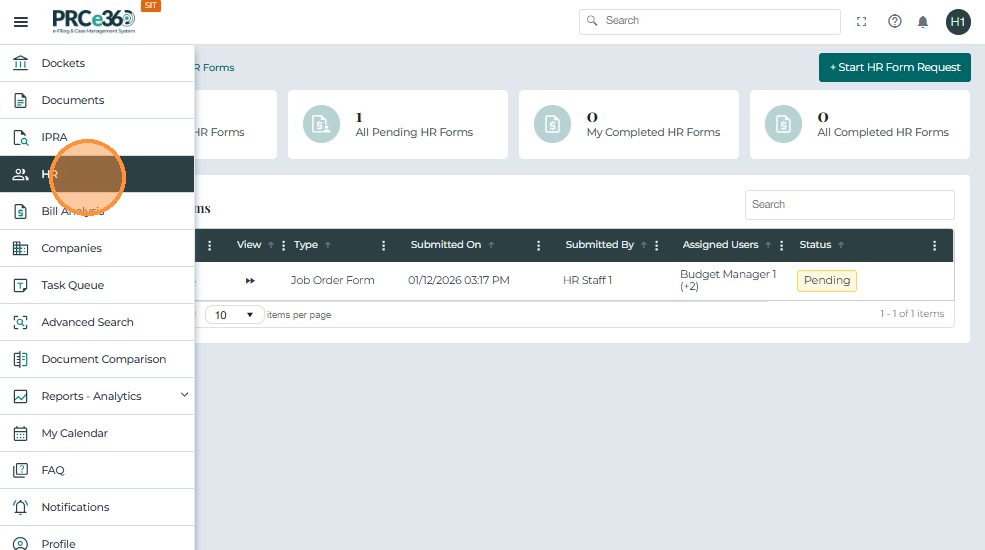
- Select HR from the navigation menu.
- The HR Dashboard will load, displaying:
- My Pending HR Forms
- My Completed HR Forms
- All Completed HR Forms
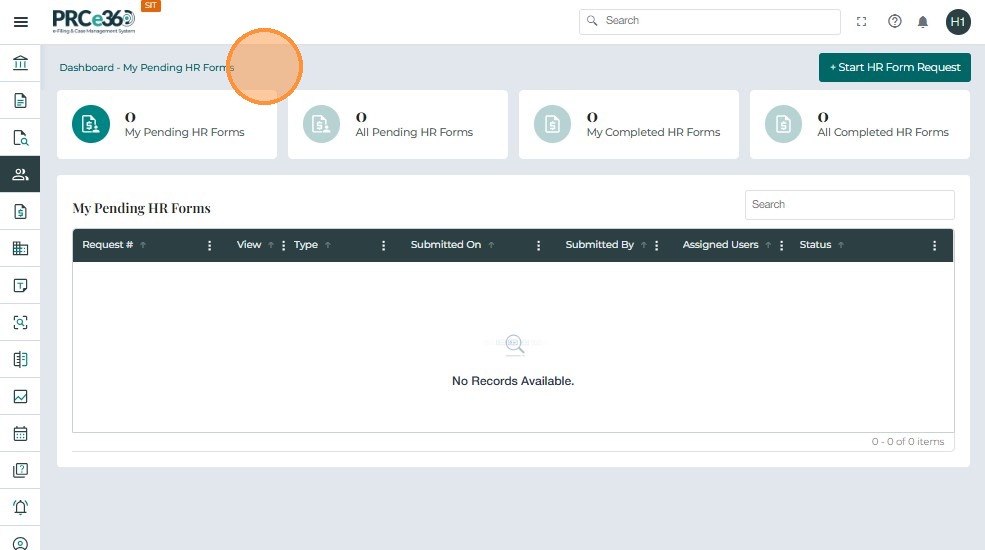
To create a new Job Order Form:
- In the top-right corner of the HR Dashboard, click + Start HR Form Request.
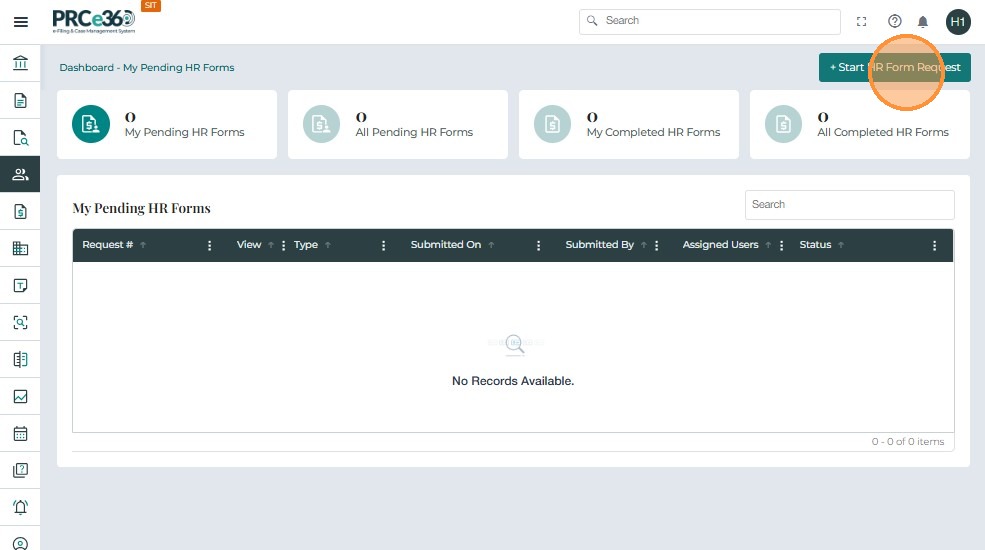
- The HR Forms selection panel will open.
- Click the dropdown under HR Forms to view the full list of available forms.
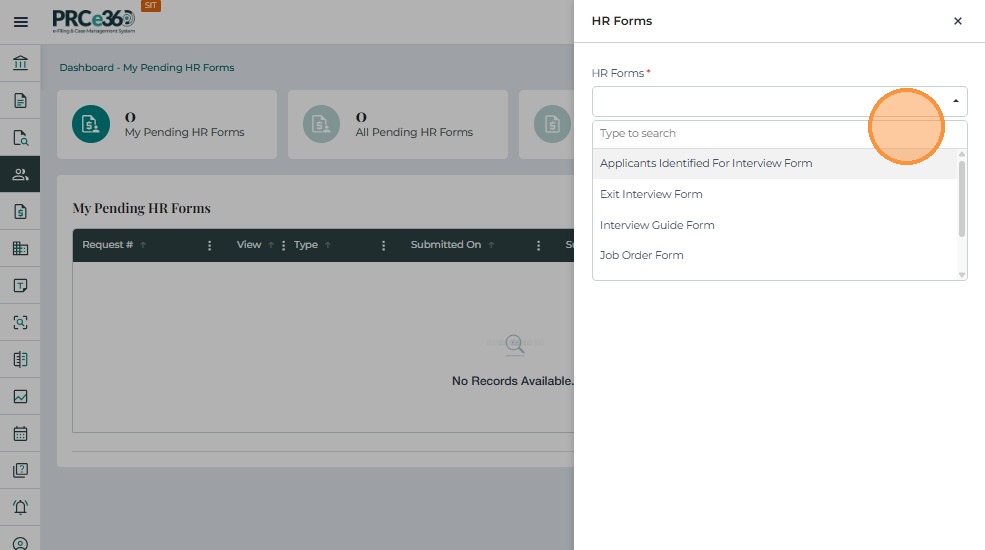
- Scroll through the list.
- Click Job Order Form to select it.
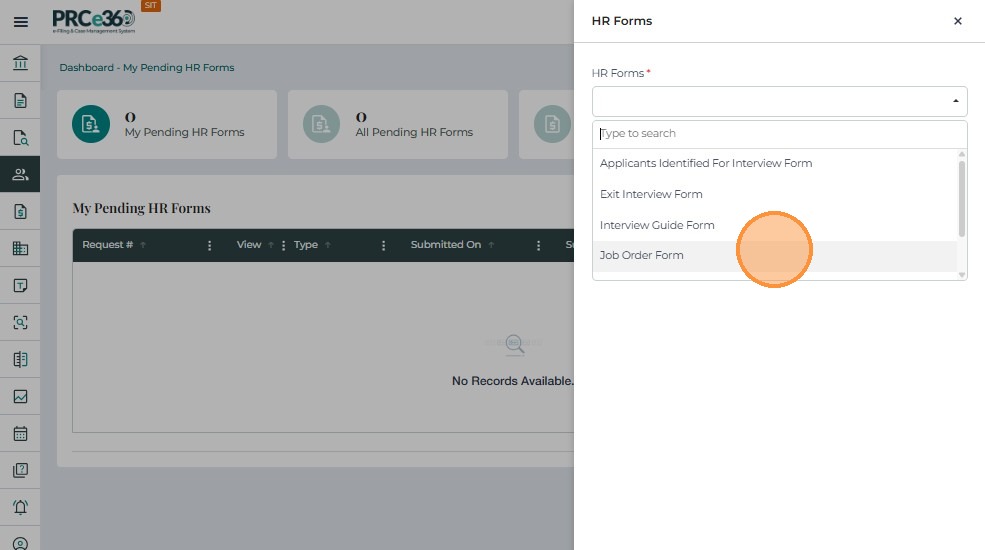
- Verify the selected form displays in the dropdown list.
- Click Submit to open the Job Order Form.
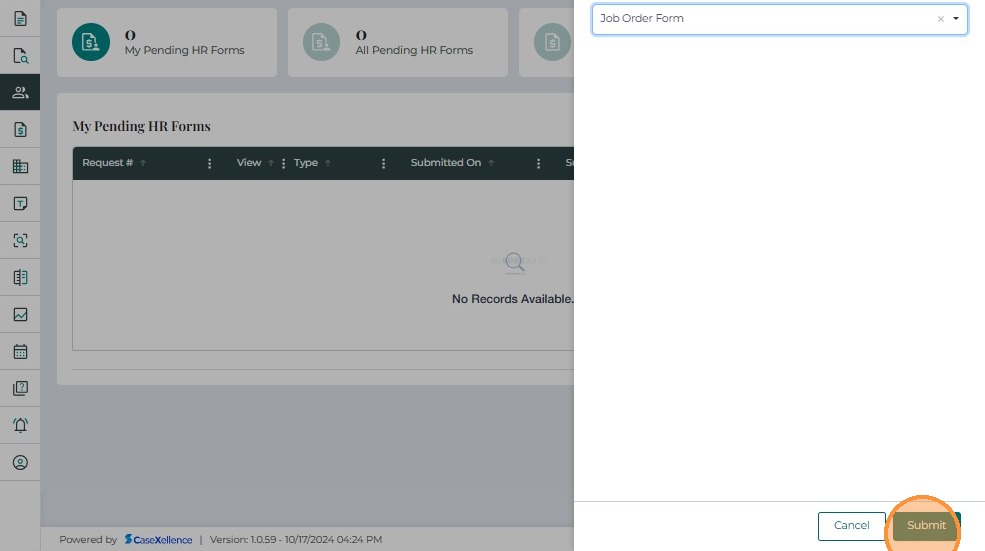
Completing the Job Order Form
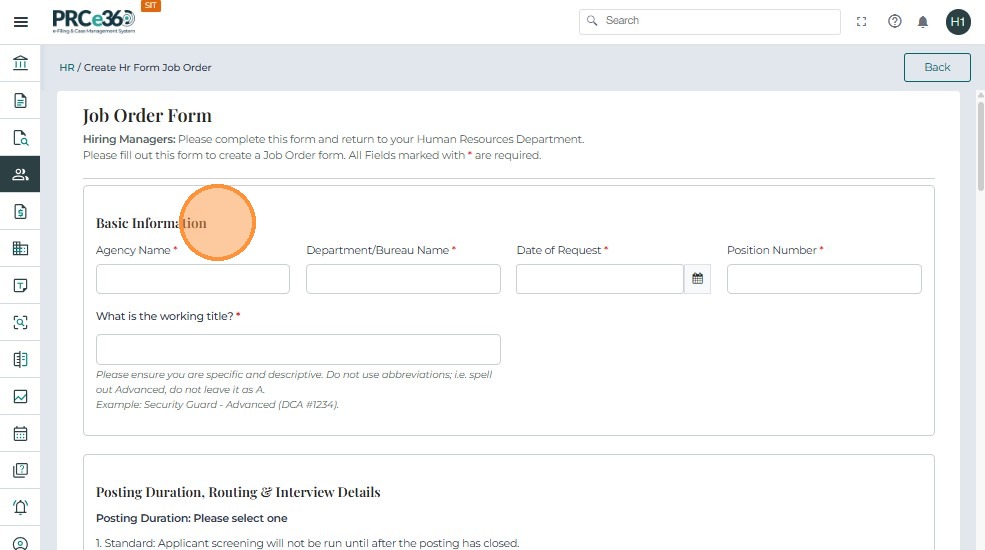
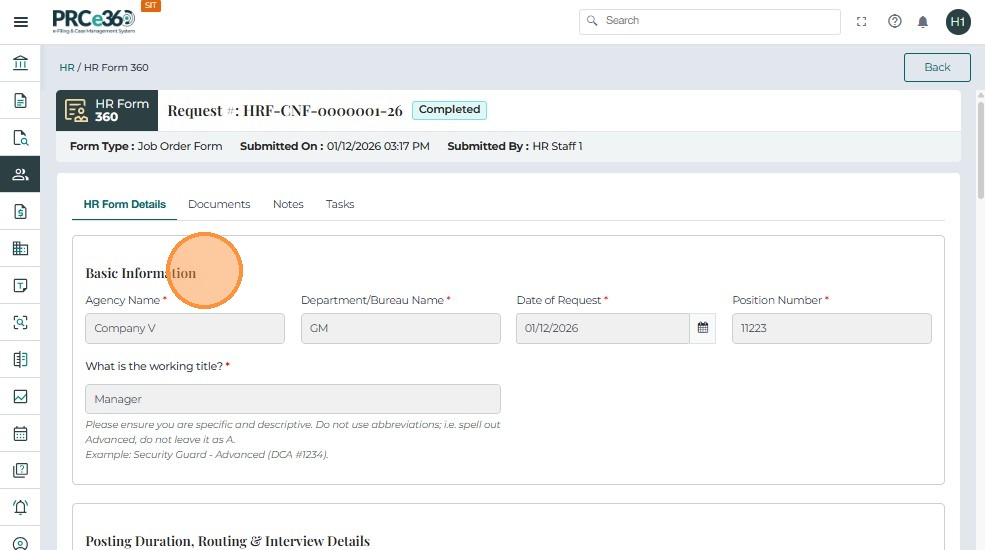
Once the form opens, complete the required fields under Basic Information:
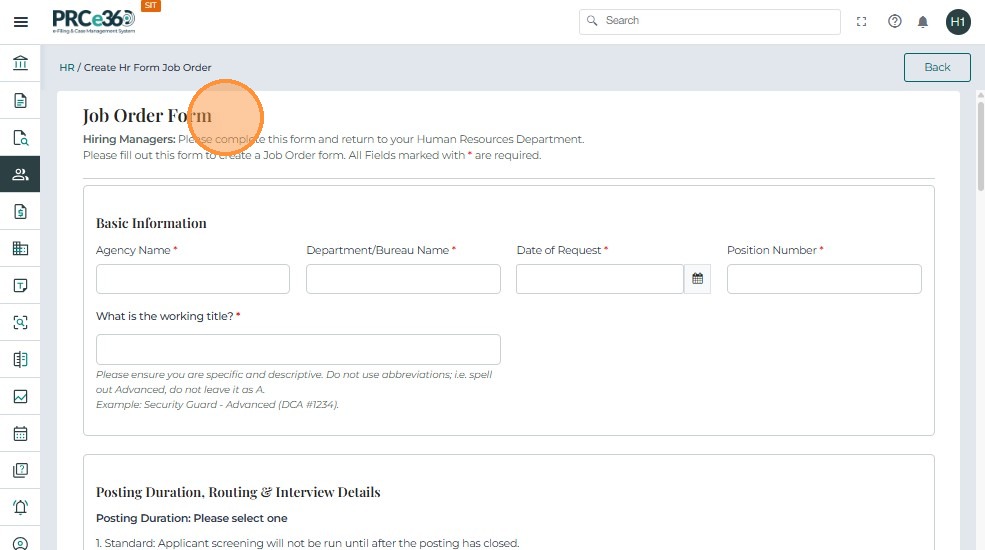
- Agency Name
- Department/Bureau Name
- Date of Request
- Position Number
- Working Title
These fields must be completed by HR Staff or HR Managers.
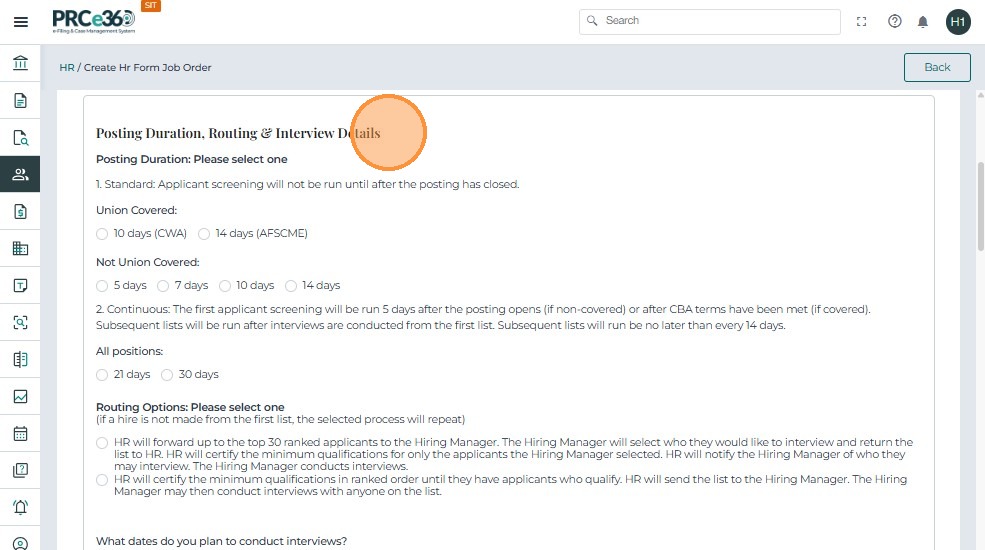
Continue filling out:
- Job Posting Information
- Posting Duration (Union or Non-Union)
- Routing Option for the recruitment process
- Interview Dates (if applicable)
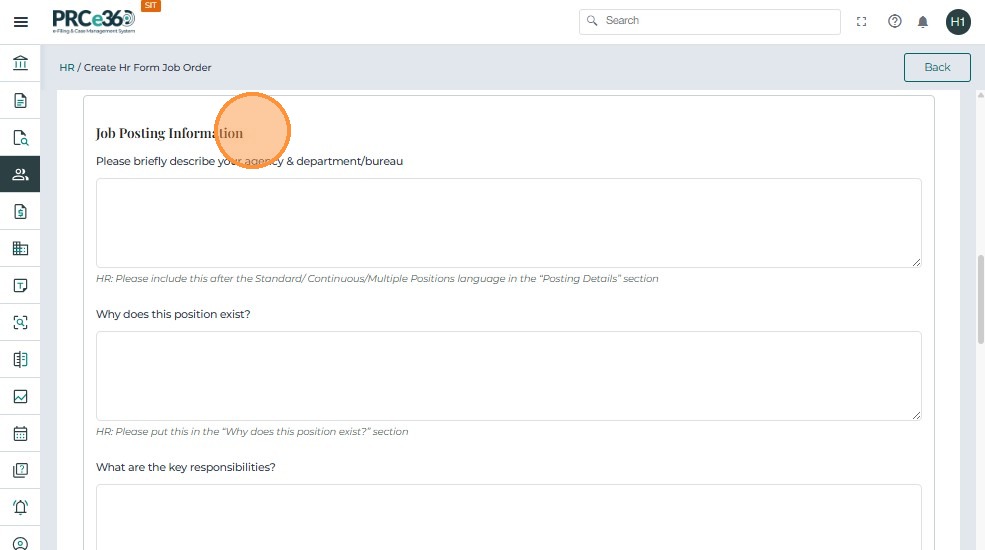
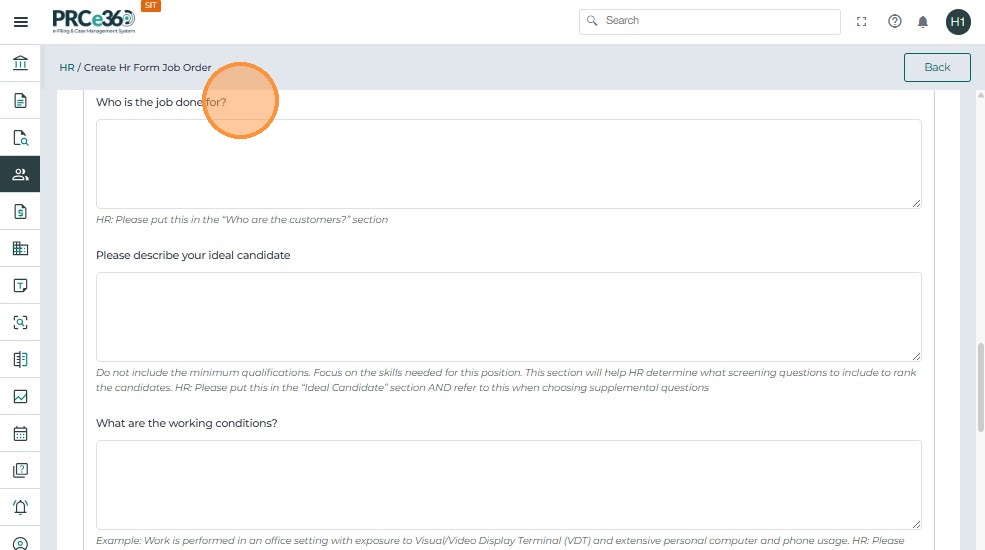
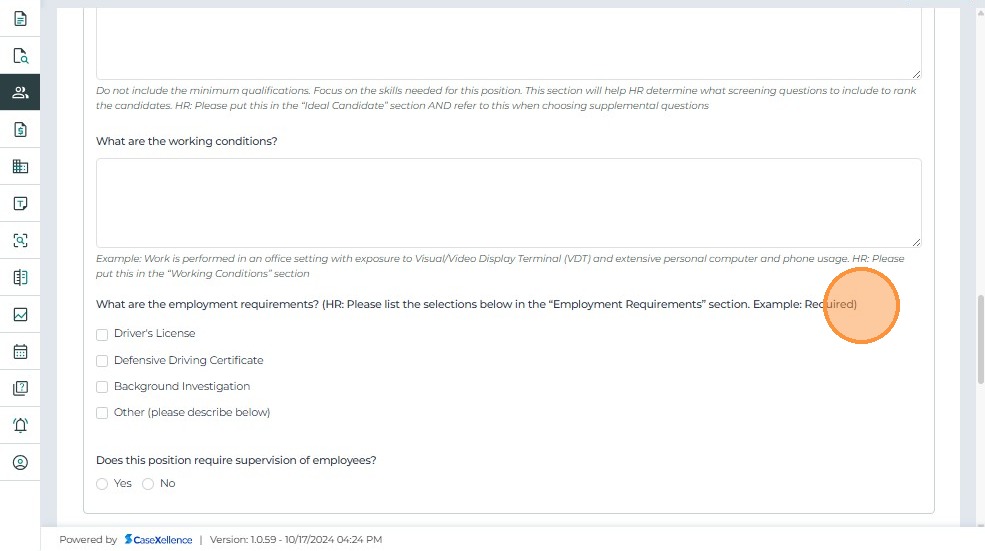
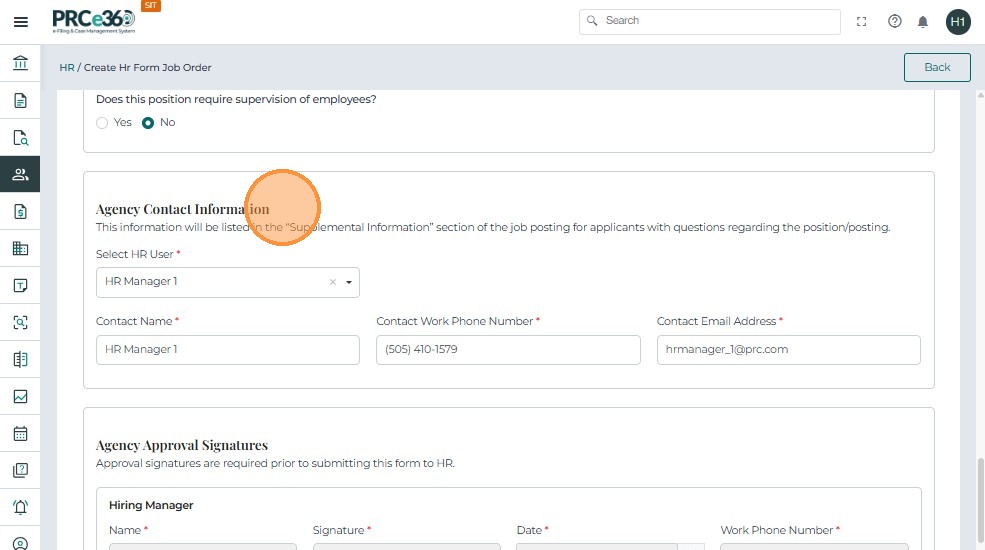
Selecting the HR Contact
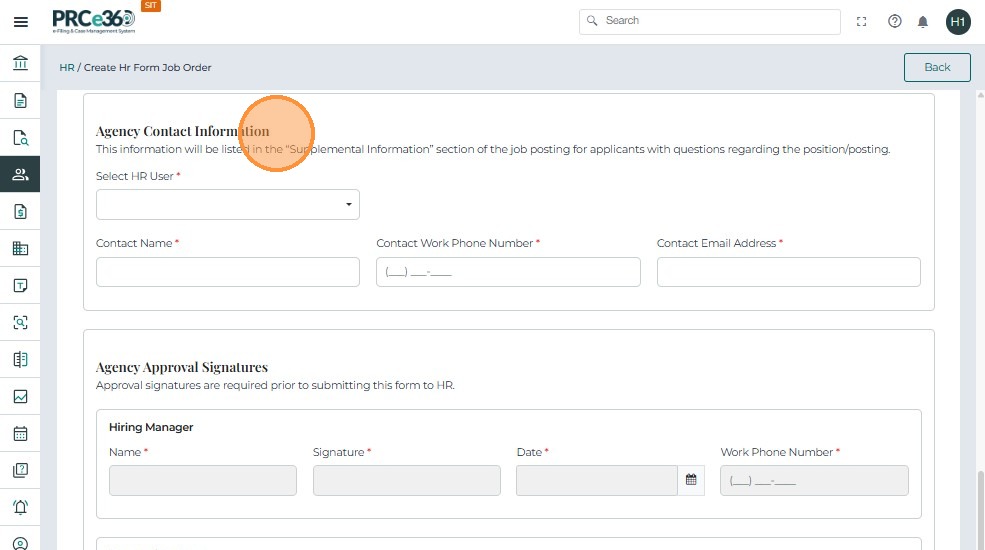
HR Staff or HR Managers must assign an HR contact for the job posting.
- Click the Select HR User dropdown.
- Choose an HR division user from the list.
- The system automatically fills:
- Contact Name
- Work Phone Number
- Email Address
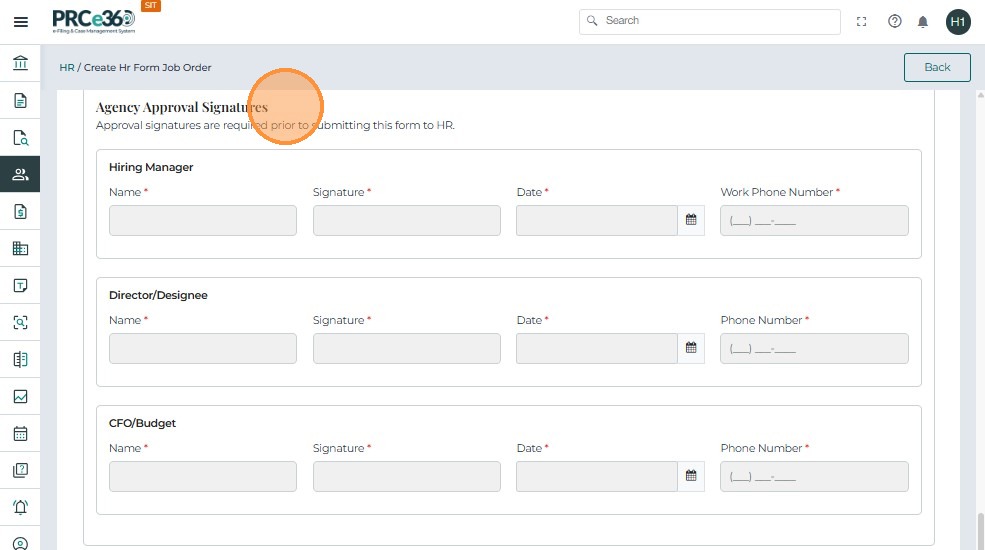
Important Notes
HR Staff or HR Managers cannot complete Hiring Manager (section 5) or Budget Manager (CFO/Budget Approval) sections.
The form cannot be submitted until these sections are completed by the correct users.
If these mandatory sections are incomplete:
- The Submit button will remain disabled.
- HR must Save & Exit and then assign tasks to the correct users.
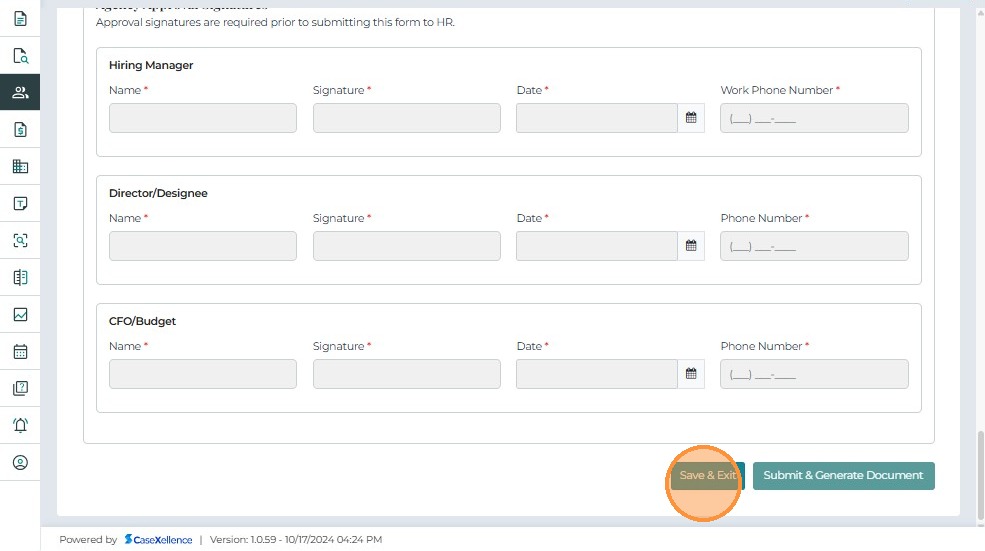
Saving the Form
- Click Save & Exit to save the Job Order Form as a draft.
- The form will appear in My Pending HR Forms.
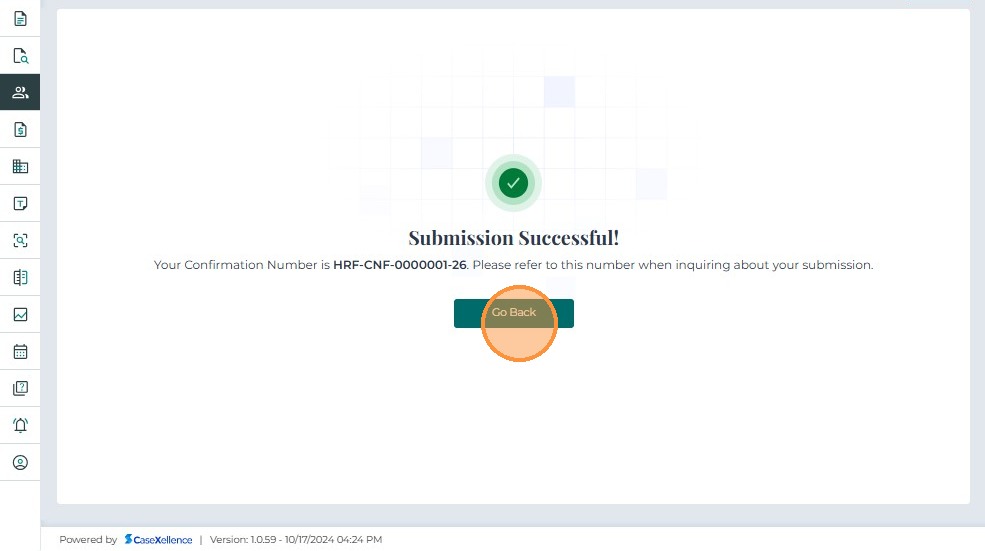
- A unique confirmation number will be generated.
- Click Go Back to return to the HR Dashboard.
Assigning the Form
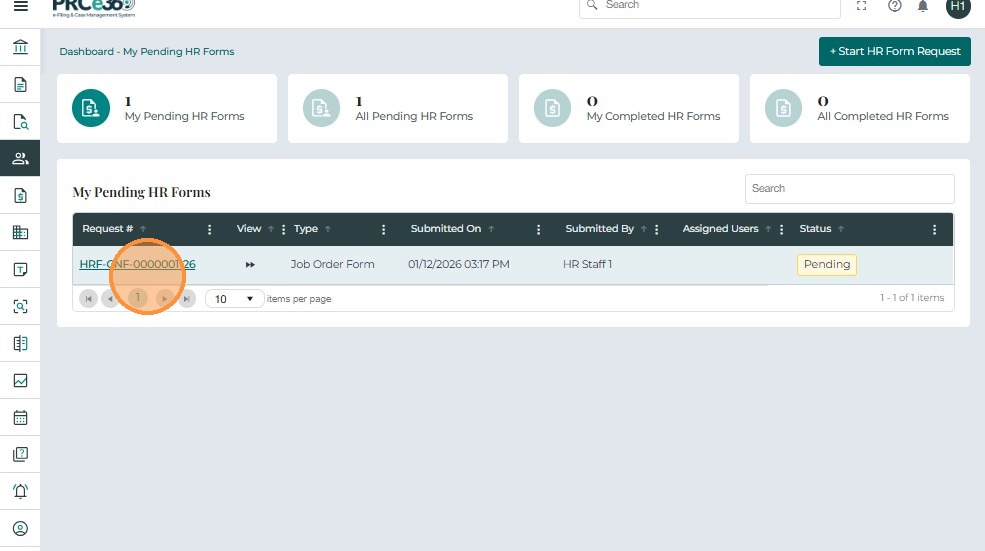
After saving the Job Order Form, it appears in the My Pending HR Forms queue.
- Select My Pending HR Forms.
- Click the Request Number of the Job Order Form you want to assign.
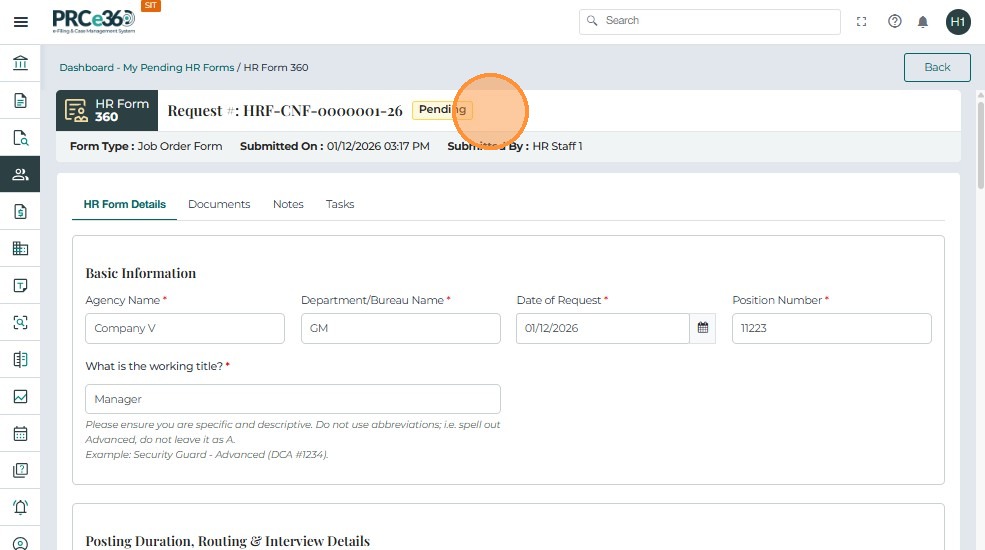
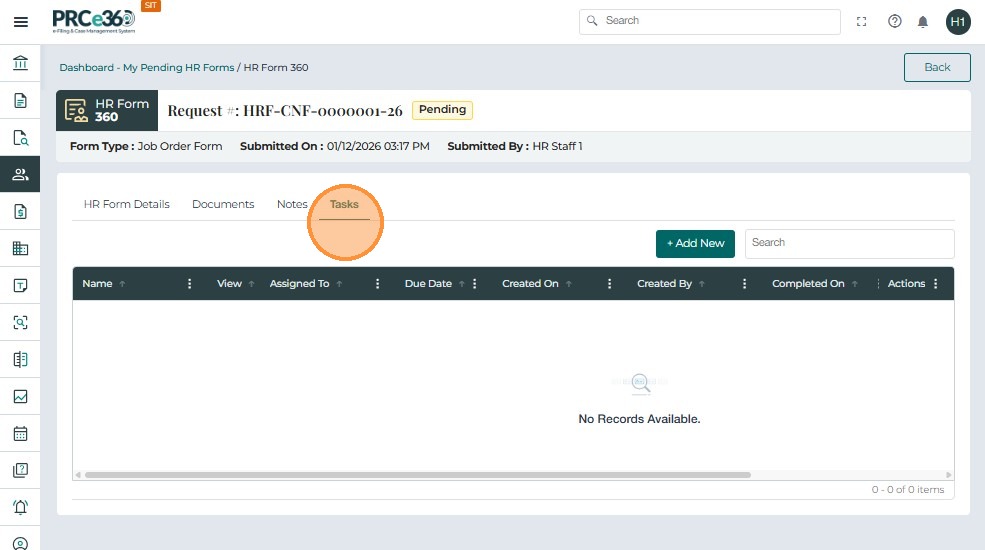
- After opening the Job Order Form, click the Tasks tab.
- This tab is used to assign the form to Hiring Managers and Budget Managers.
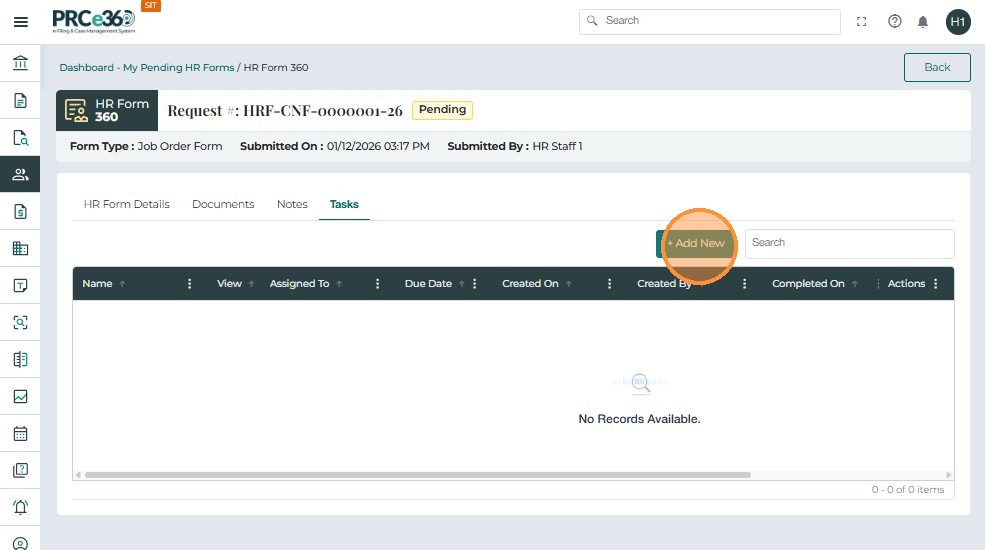
- Click + Add New to assign the form to another user.
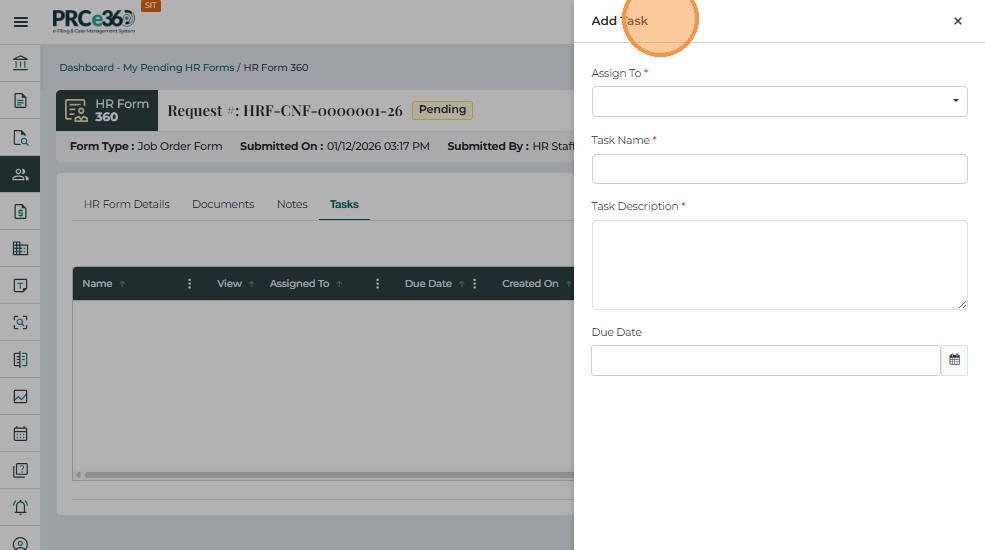
- In the Assign To dropdown, select the user(s) who must complete the remaining fields.
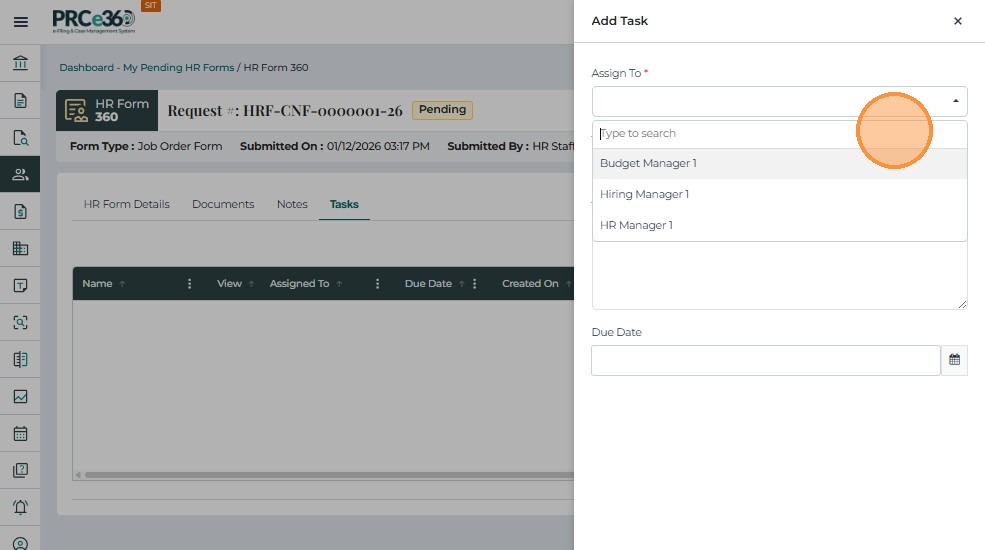
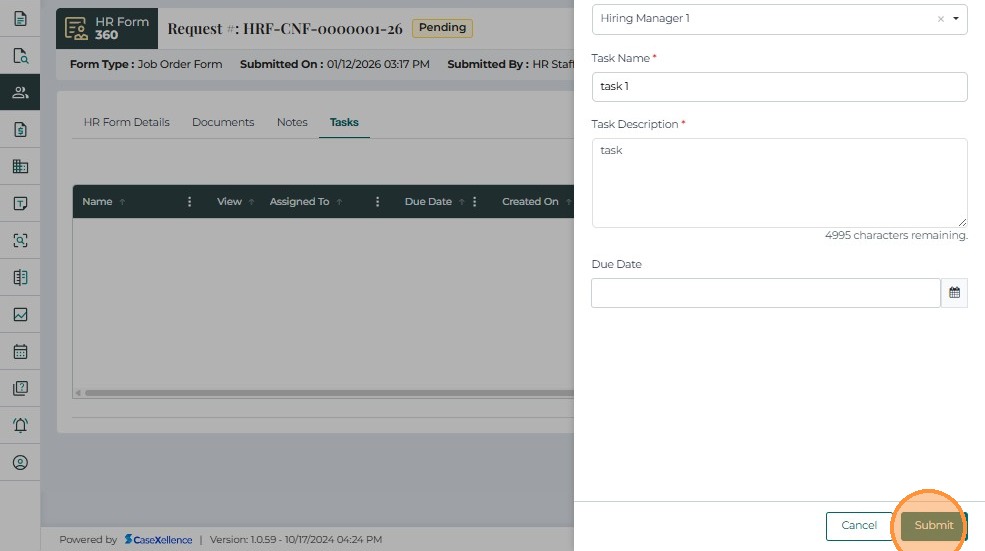
According to the Job Order workflow:
-
The Hiring Manager must complete the Job Posting Information section and their Agency Approval fields.
-
The Budget Manager must complete the CFO/Budget Approval section.
-
After selecting the users, click Submit.
-
The assigned users will receive an in-app notification.
Once the assignment is submitted:
- Assigned users appear in the list with their Name, Email, Phone, Assigned On, and Assigned By.
- This allows HR Staff and HR Managers to track which users must complete the remaining sections.

- If a user was assigned by mistake, click the three-dot menu under the Actions column.
- Select Delete to remove the assignment.

-
Click the Back button at the top-right corner to return to the My Pending HR Forms dashboard.
-
The Job Order Form remains Pending until all required users complete their sections.
-
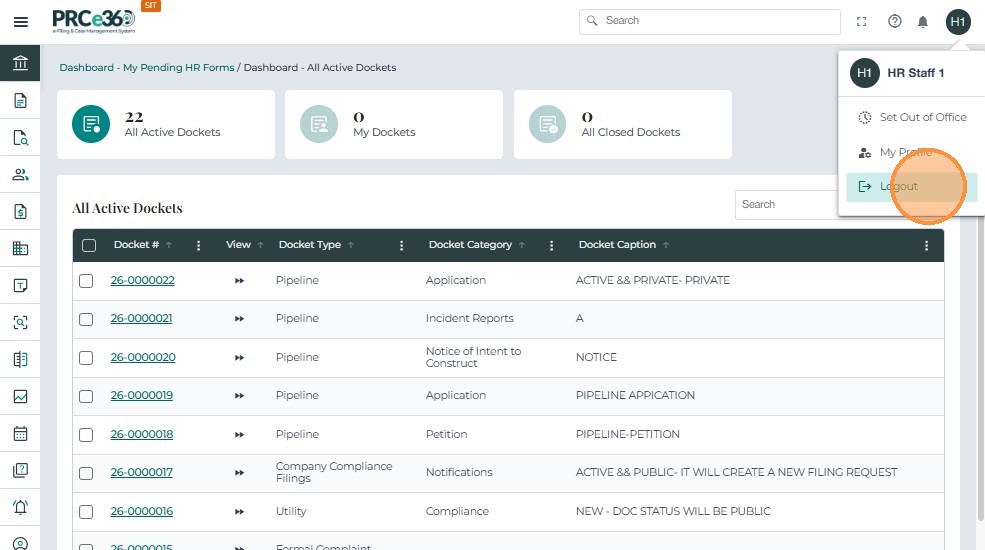
Click your profile icon and select Logout when finished.
Hiring Manager Workflow
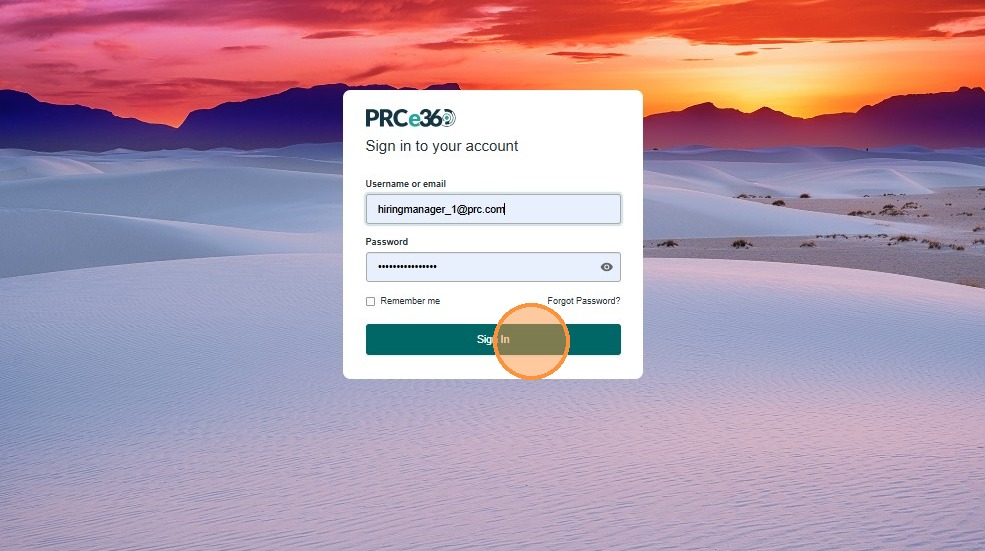
- The Hiring Manager logs in using their credentials.
- After signing in, they will have access to any Job Order Forms assigned to them.
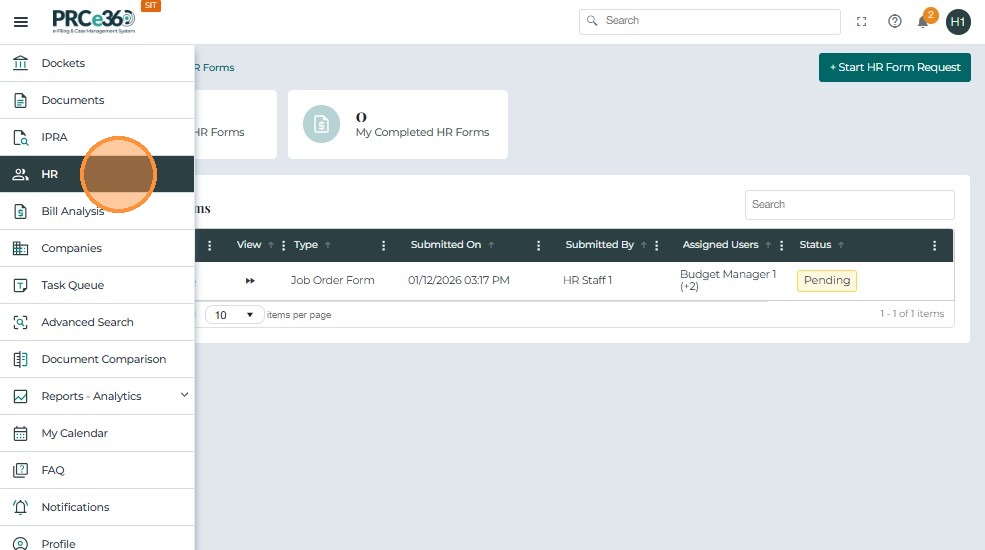
- Open the left navigation menu.
- Click HR to access the HR-related queues.
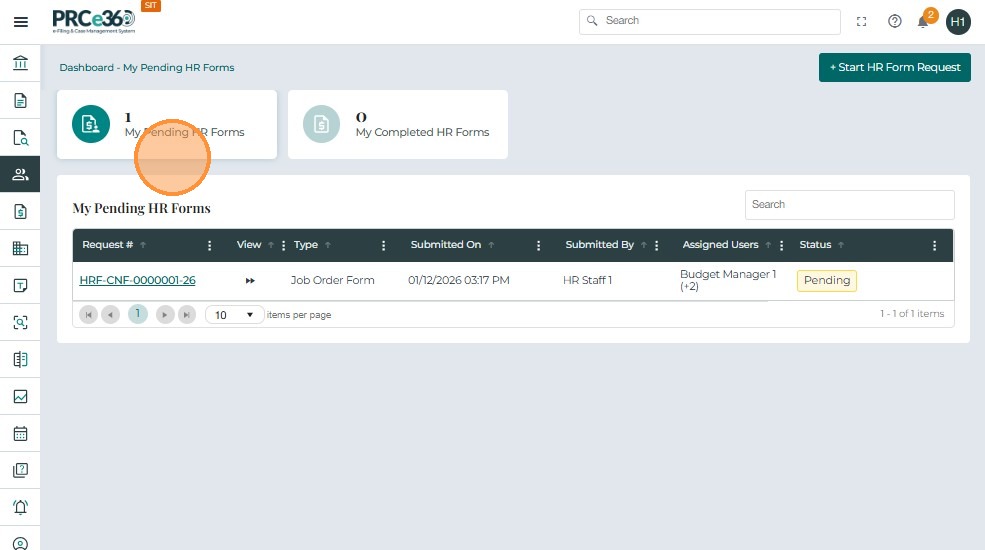
- Under the HR Dashboard, click My Pending HR Forms.
- Any Job Order Forms assigned to the Hiring Manager will appear in this queue.
- Click the Request Number to open the form.
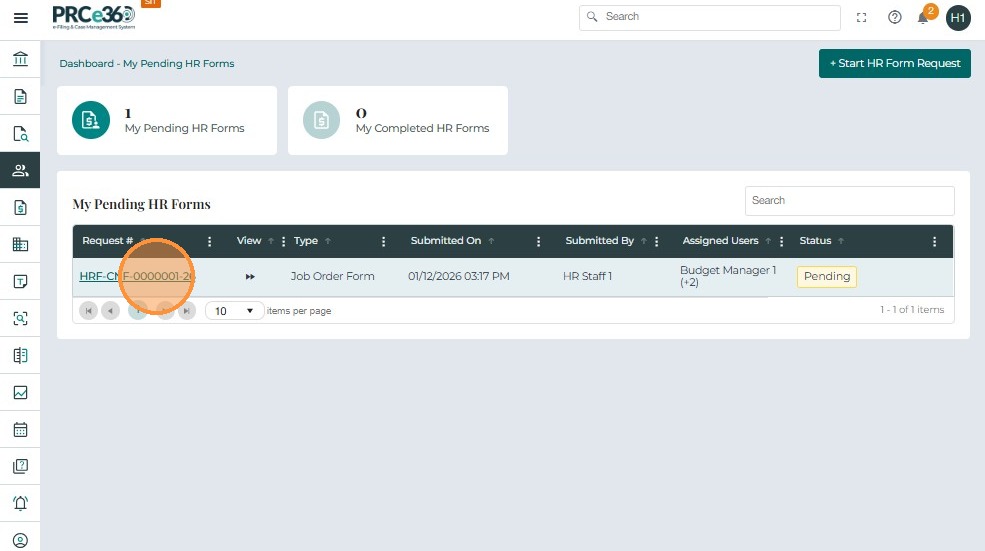
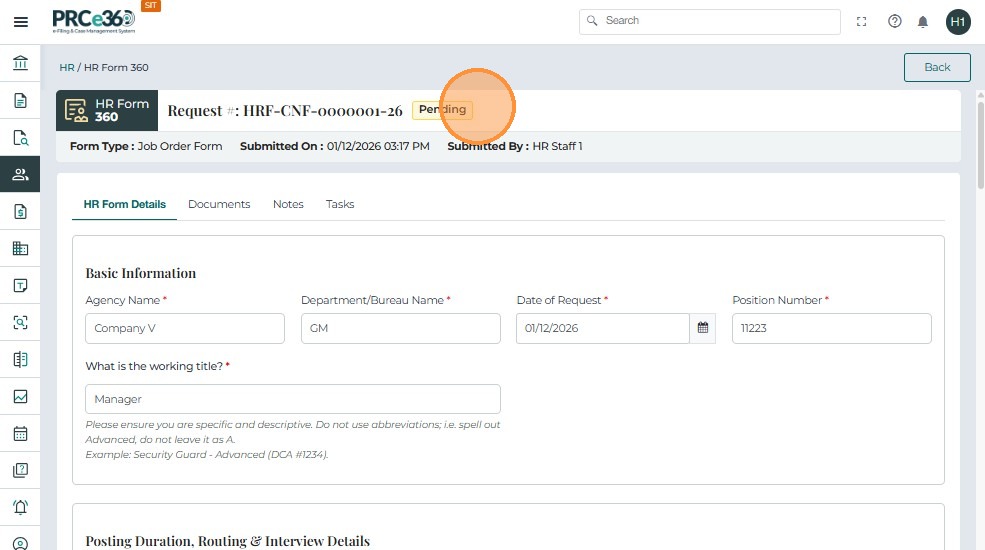
When the form opens in HR Form 360 view, the Hiring Manager can see:
- Form Type
- Submission Date
- Submitted By
- Status (e.g., Pending)
Information previously entered by HR Staff or other managers is read-only for the Hiring Manager.
Fields belonging to the Budget Approver section are also non-editable for the Hiring Manager.
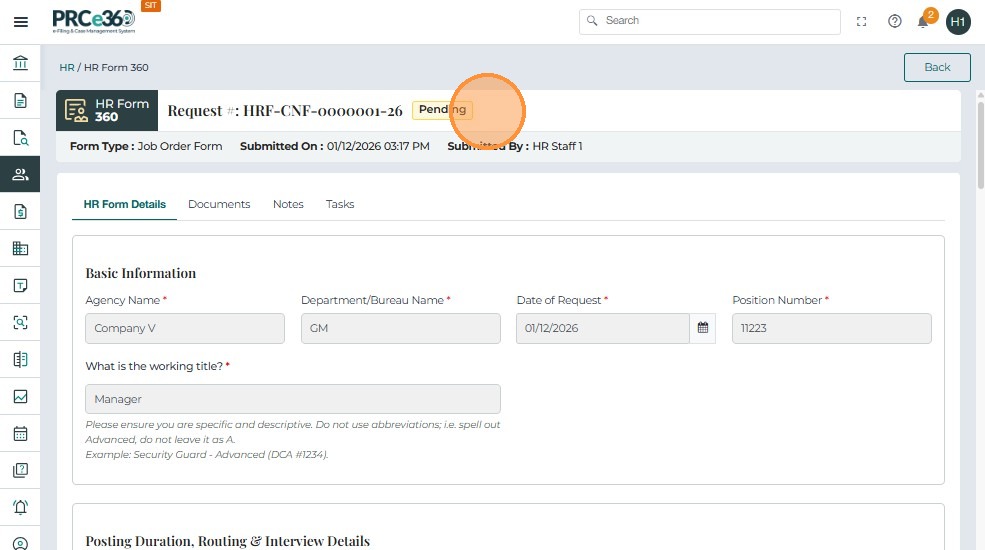
The Hiring Manager can only edit the sections they are responsible for.
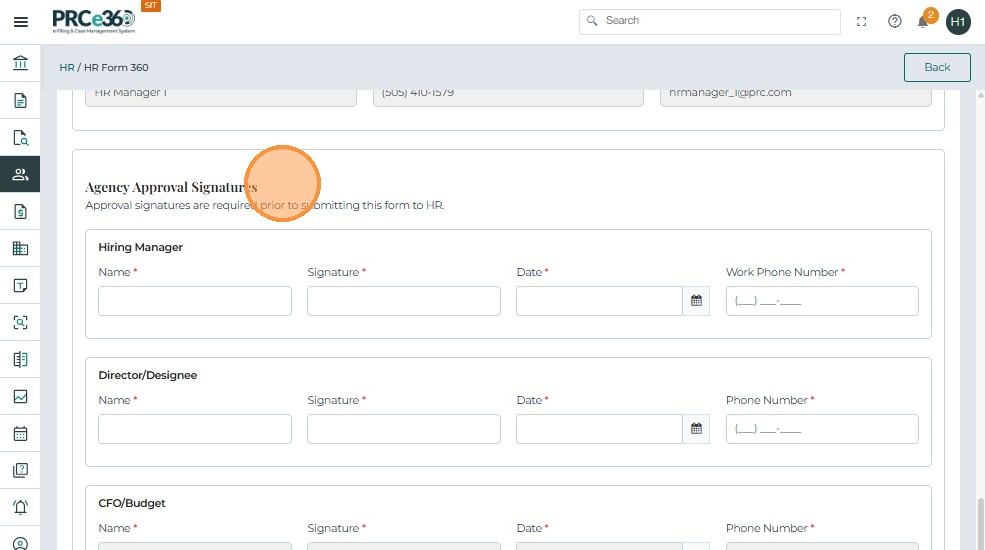
Under Agency Approval Signatures, complete the Hiring Manager section:
- Name
- Signature
- Date
- Work Phone Number
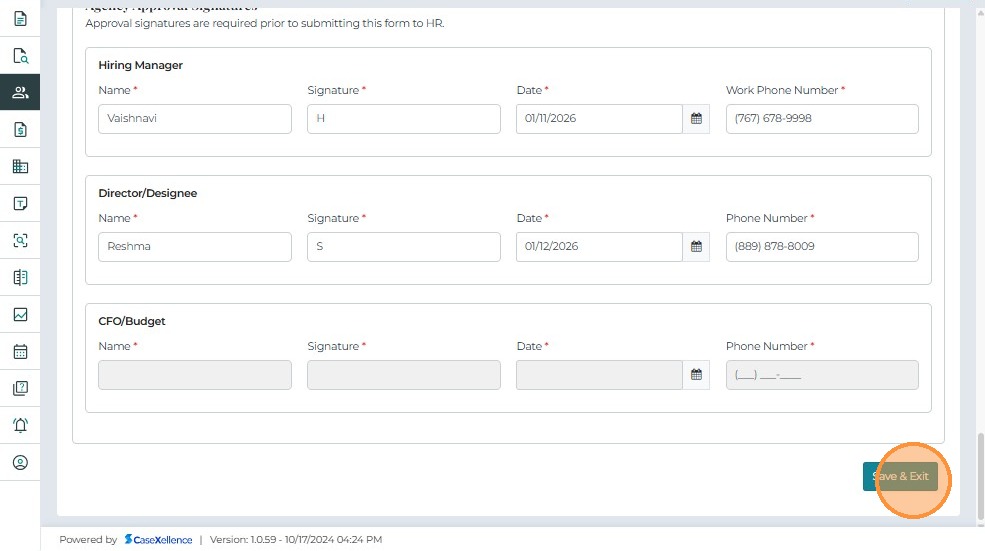
Since additional users (such as the Director and Budget Manager) must still complete their portions:
- Click Save & Exit to save your updates.
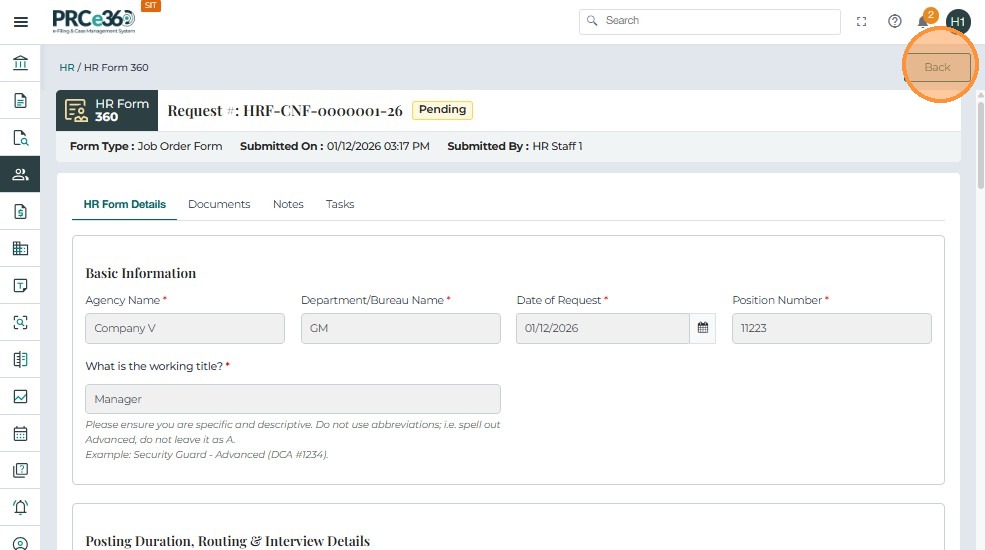
- Click Back at the top-right corner.
- You will return to the dashboard, where the form remains listed as Pending until all assigned users complete their sections.
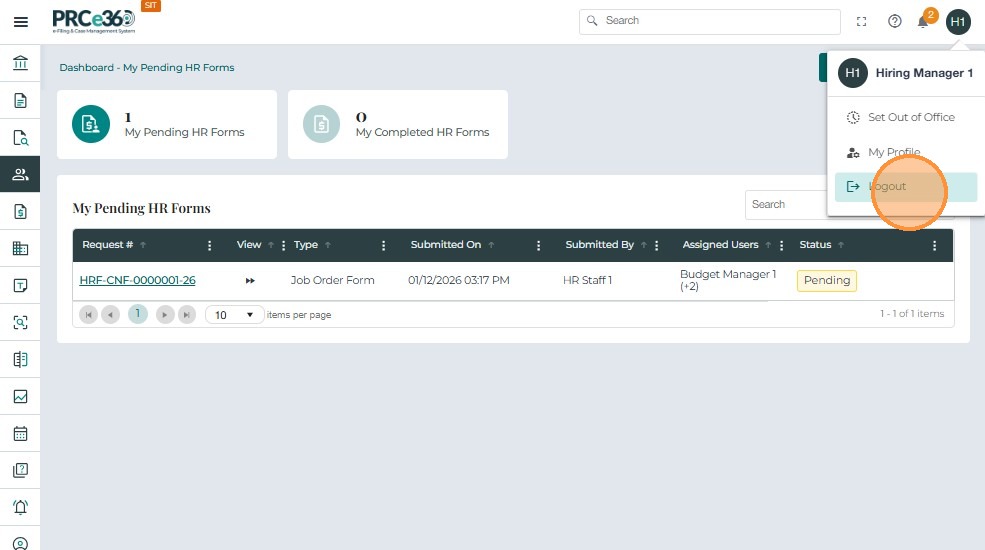
- Click your profile icon at the top-right corner.
- Select Logout to exit the system.
Budget Manager Workflow
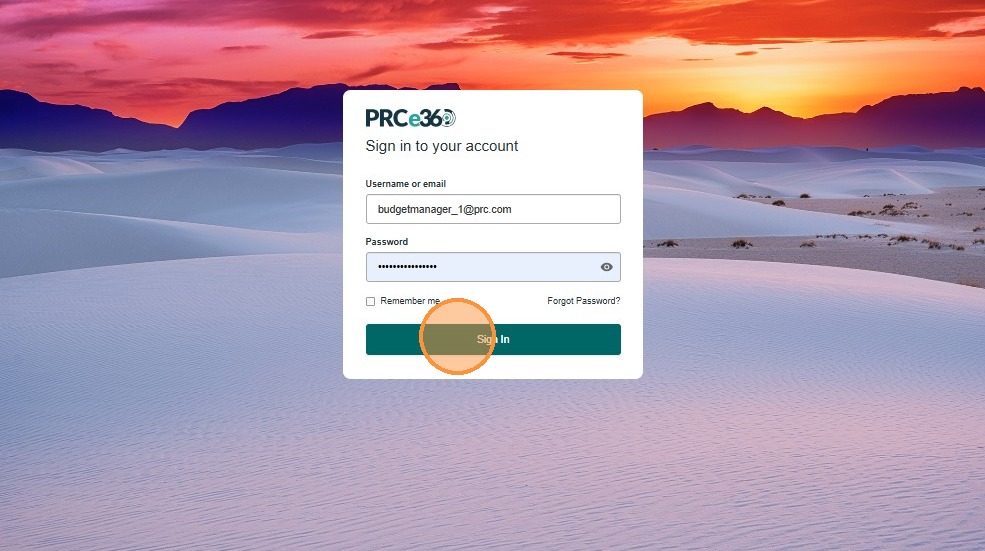
- Enter the Budget Manager username and password.
- Click Sign In to access the system.
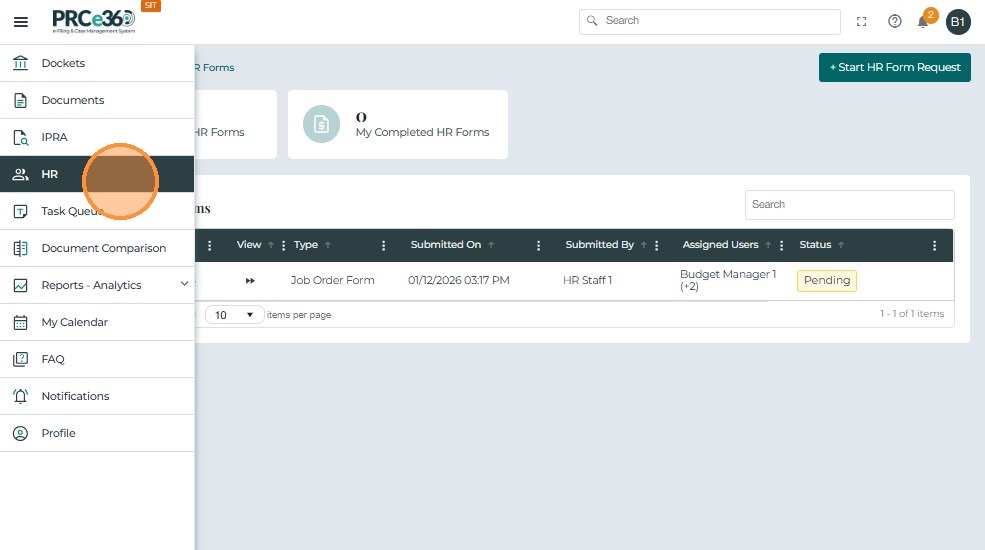
- Open the left navigation menu.
- Click HR to view the list of HR forms assigned to you.
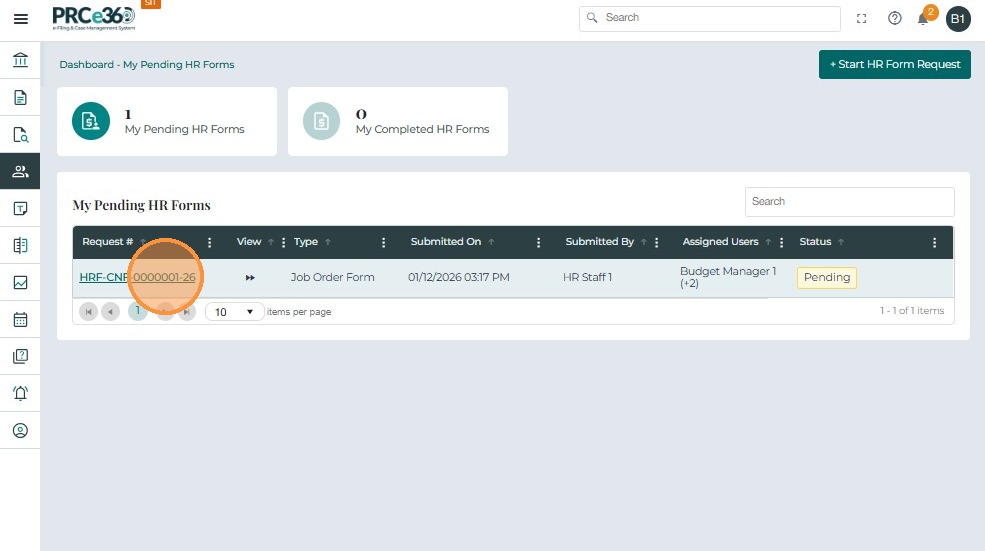
- Under My Pending HR Forms, locate the Job Order Form with Pending status.
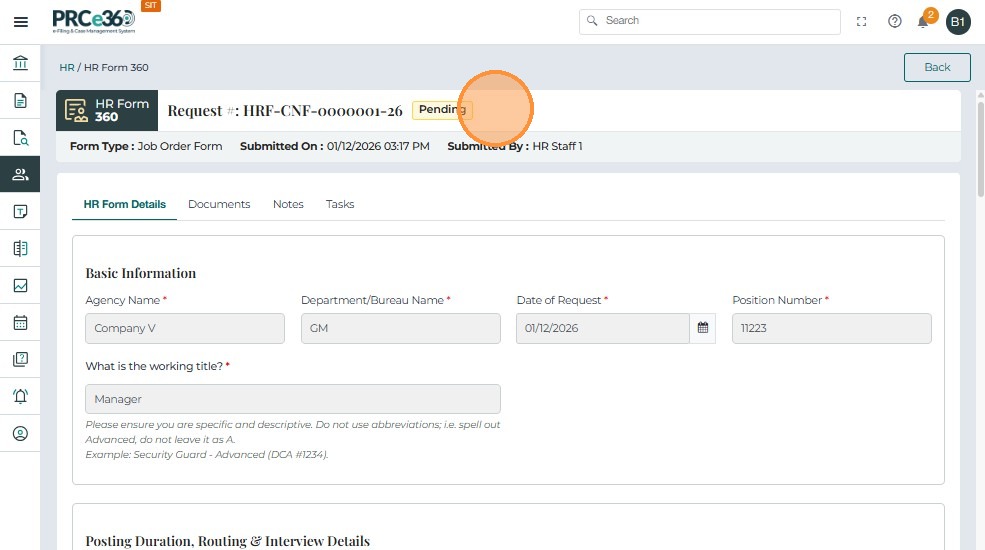
- Click the Request Number (e.g., HRF-CNF-0000020-25) to open the form.
- The form opens in HR Form 360 view.
- Scroll down to review all sections completed by HR Staff and Hiring Manager.
- These sections will appear non-editable, as Budget Managers cannot modify information entered by others.
Completing the CFO/Budget Section
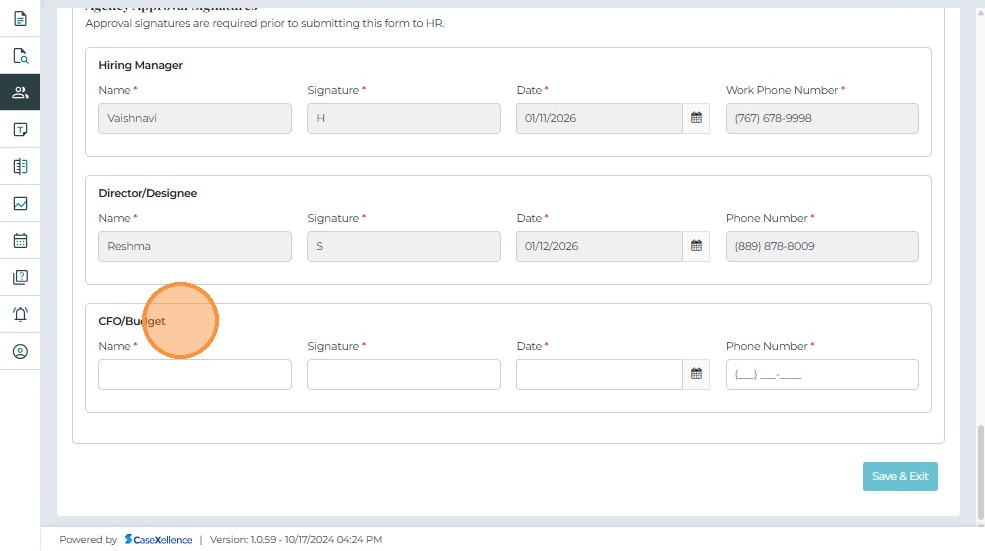
- Scroll to the CFO/Budget Section.
- Enter the following required fields (* indicates mandatory):
- Name
- Signature
- Date
- Phone Number
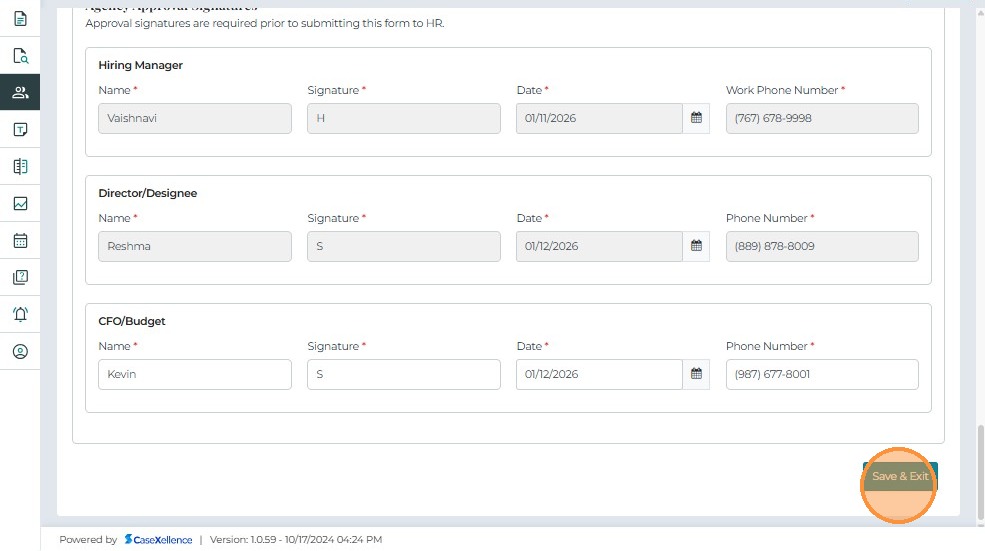
- Click Save & Exit to save your updates.
- The form will remain in Pending until all remaining approvers finalize their sections.
- Click Back to return to the HR Forms Dashboard.
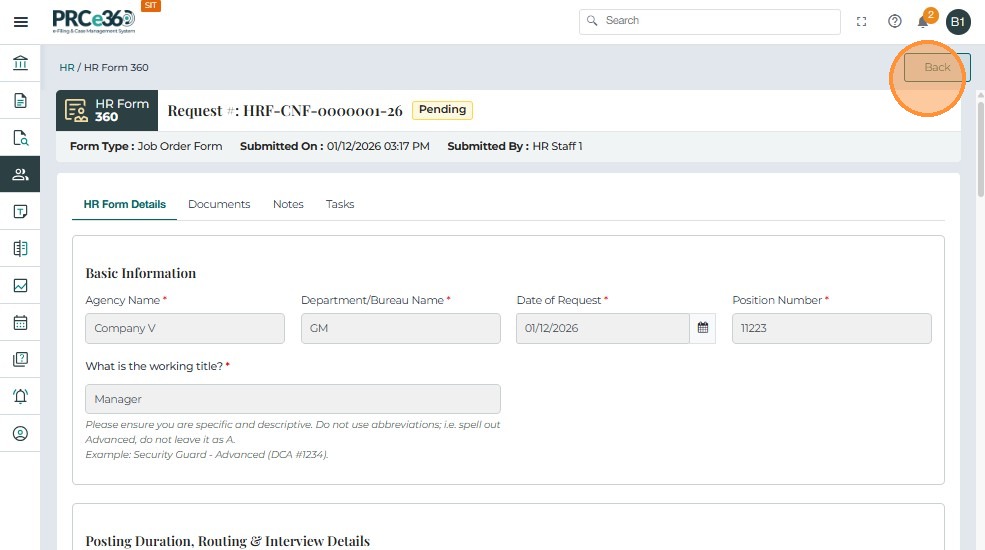
- After saving, the same Job Order Form will appear in My Pending HR Forms until the entire workflow is completed.
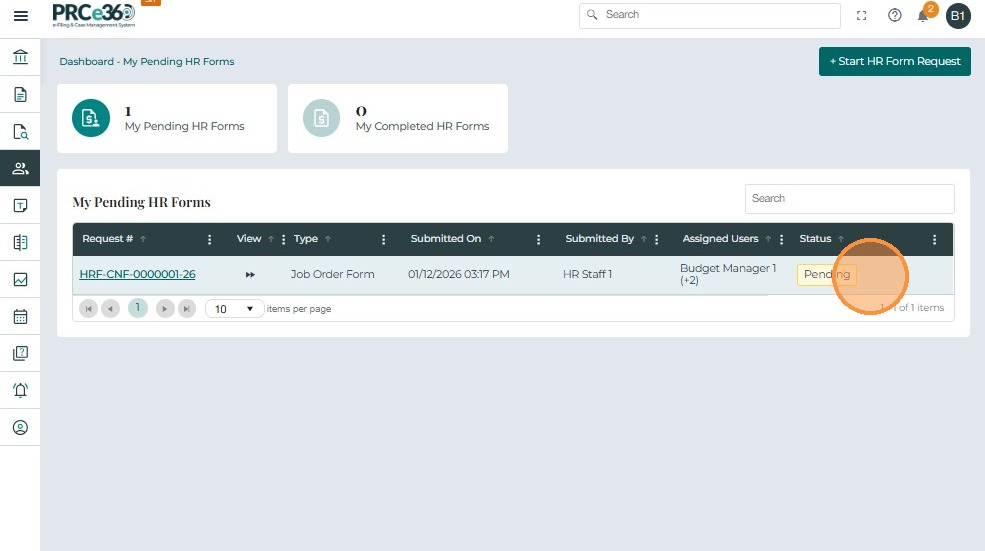
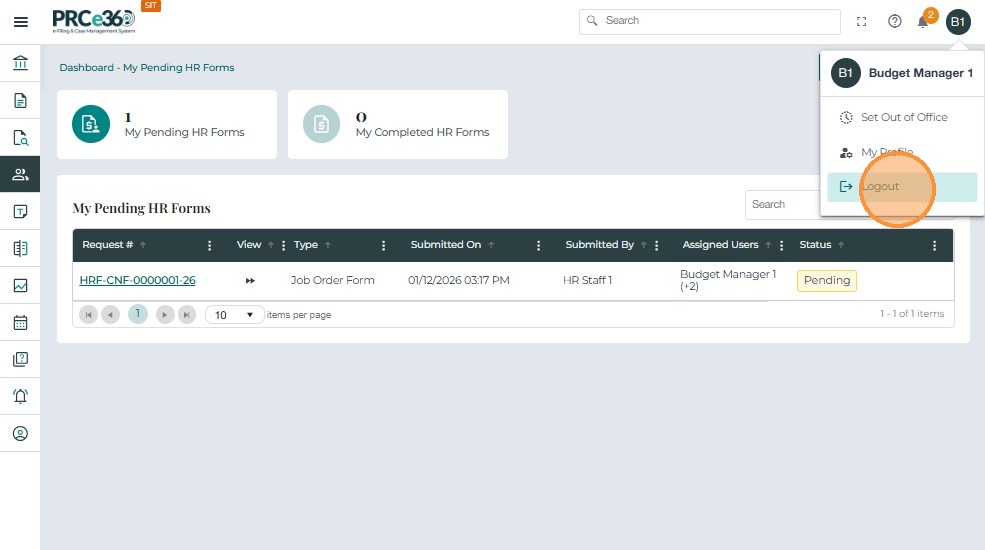
- Click your profile icon.
- Select Logout to exit the system.
HR Staff – Submitting the Completed Job Order Form
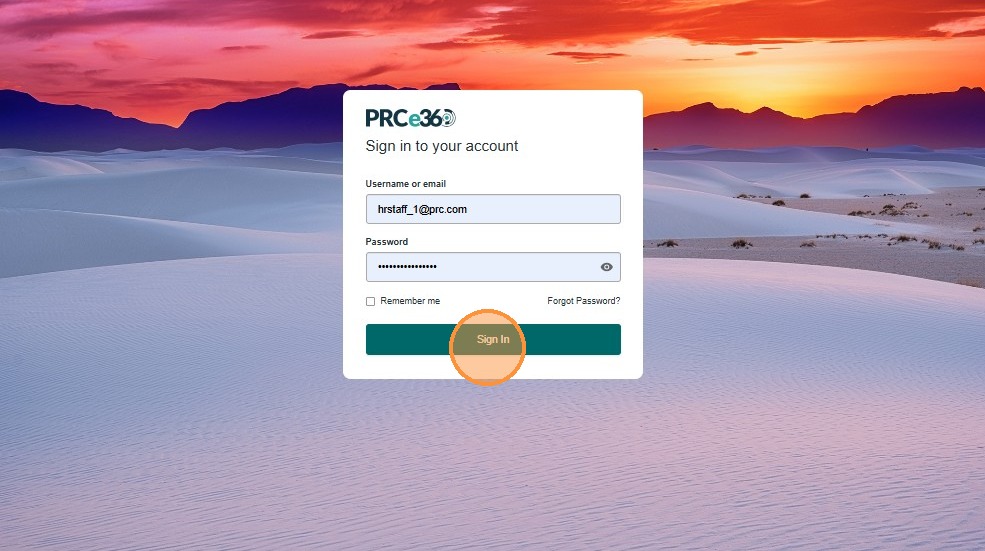
- HR Staff logs in with their username and password.
- Click Sign In to access the system.
- From the left navigation menu, click HR to open the HR dashboard.
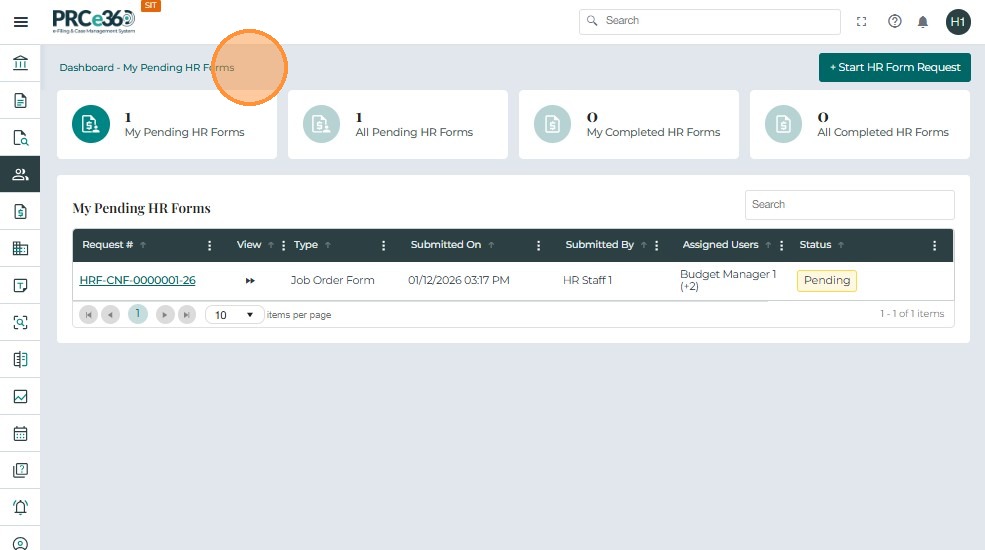
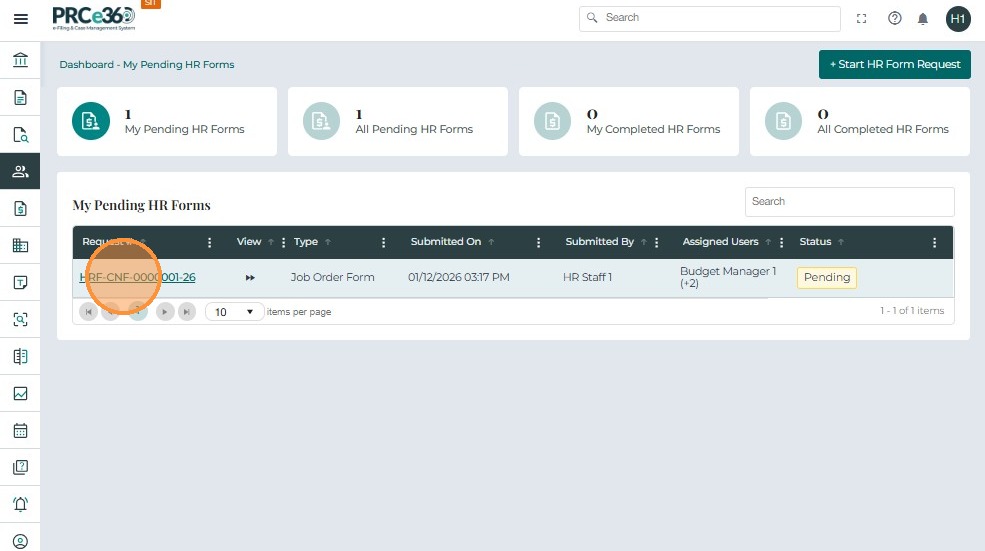
- Under My Pending HR Forms, locate the required Job Order Form.
- Click the Request # to open the form in HR Form 360 view.
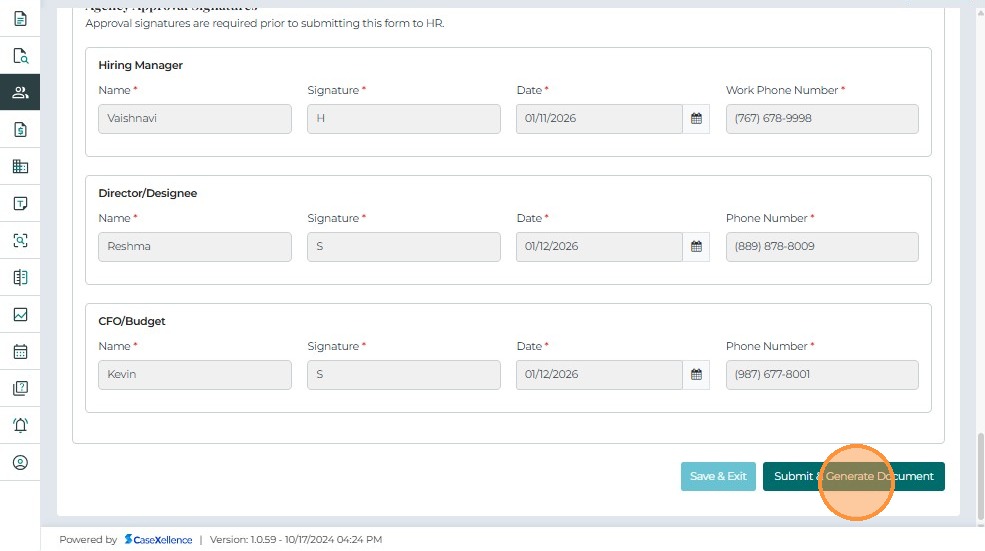
- Scroll to the Agency Approval Signatures section.
- Confirm that all required approvals have been completed by:
- Hiring Manager
- Director/Designee
- Budget Manager
- HR Staff cannot edit information entered by other users.
- Once all approval fields are completed, the Submit & Generate Documents button becomes enabled.
- Click Submit & Generate Documents to finalize and submit the Job Order Form.
HR Form 360
- After HR Staff submits the form, its status changes to Completed.
- In HR Form 360, all fields become read-only.
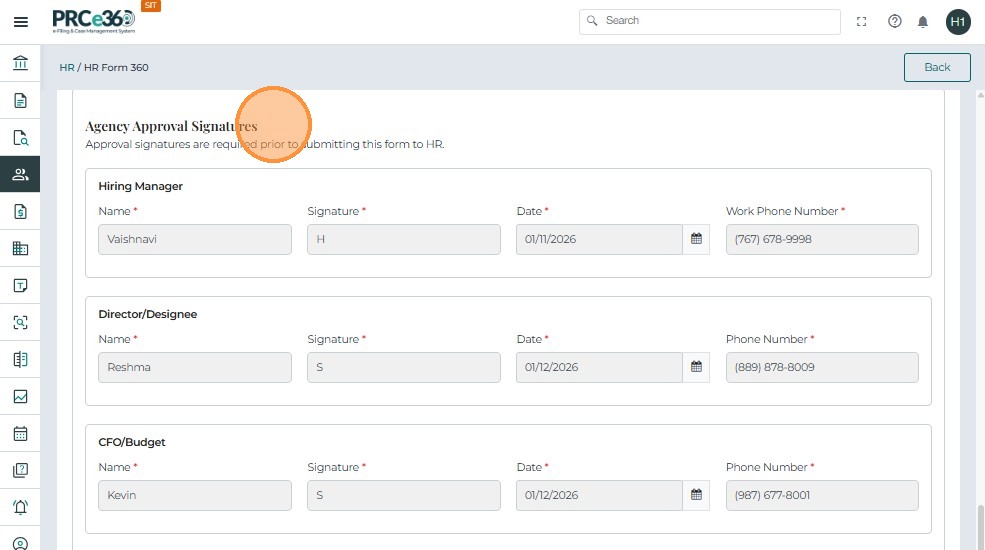
- Users can review details entered by HR Staff, Hiring Manager, Director/Designee, and Budget Manager.
- This screen is used strictly for viewing the final submitted information.
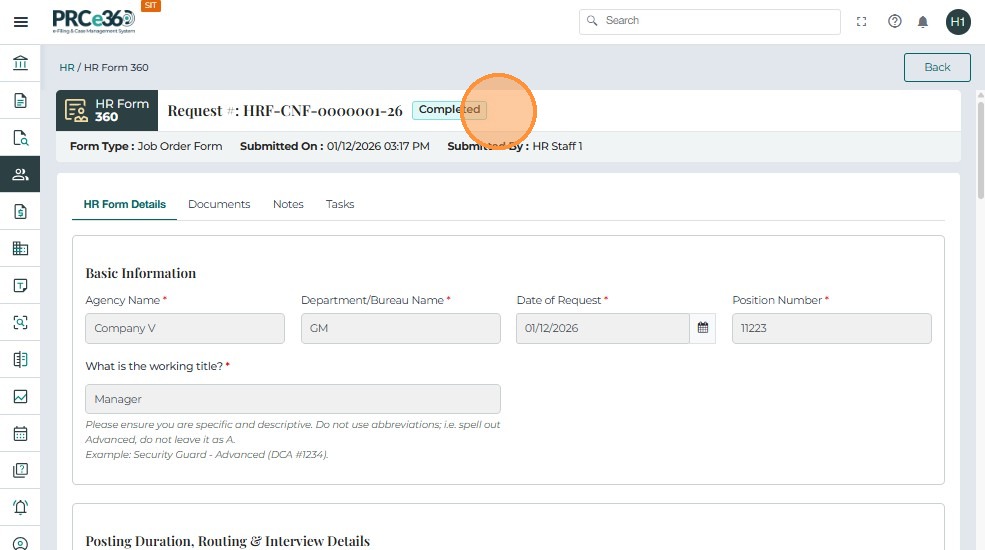
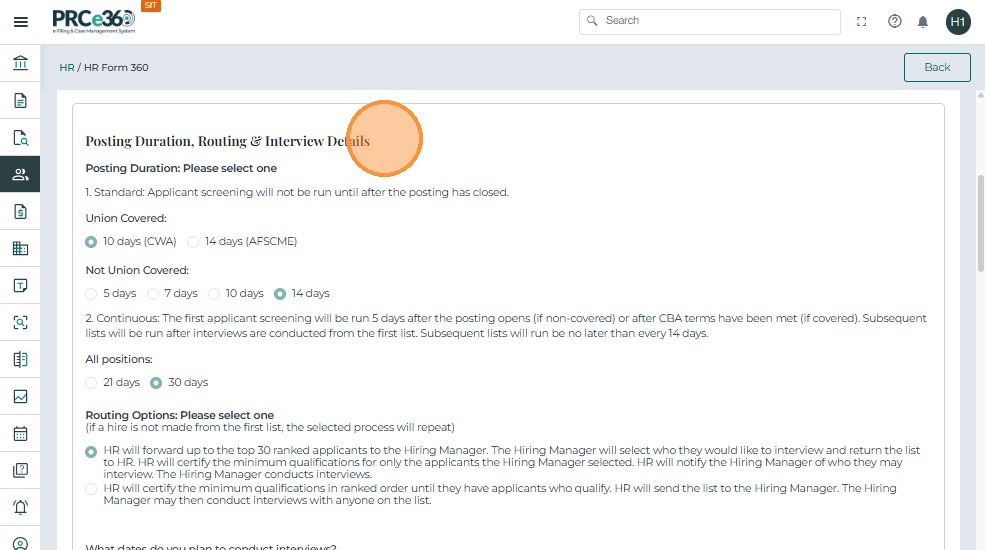
- The system displays the Posting Duration, Routing Options, and Interview Details section in read-only mode.
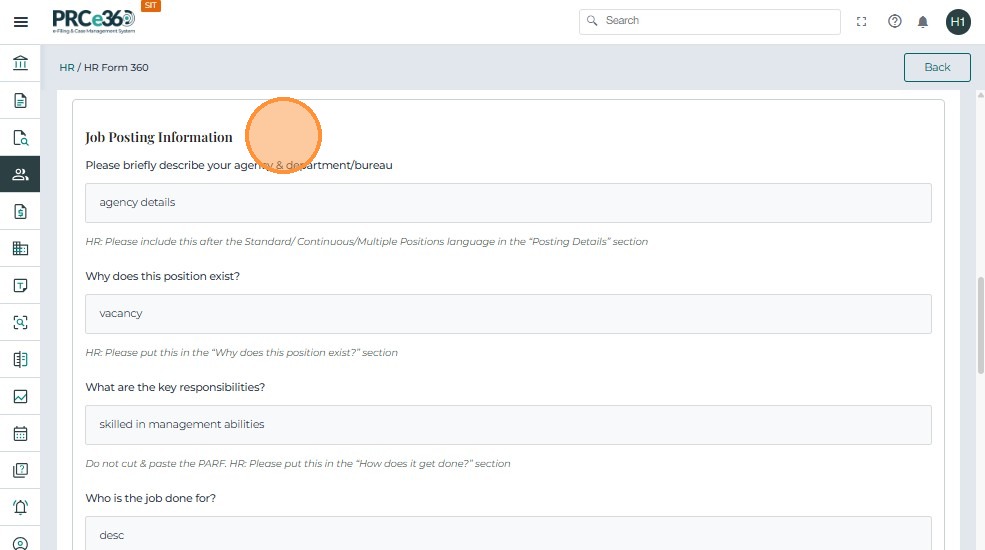
- The Job Posting Information section is shown in non-editable format for review only.
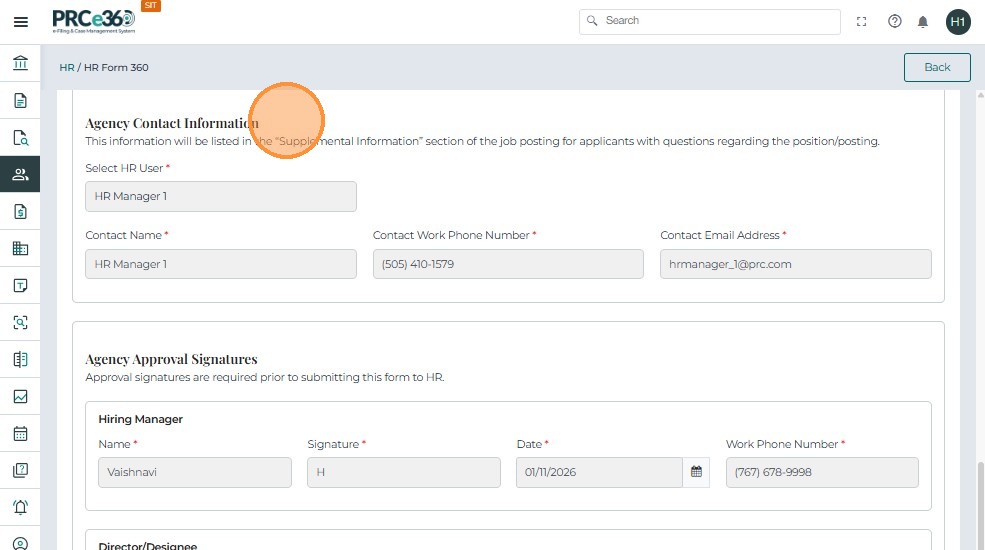
- The Agency Contact Information section is displayed in complete, view-only mode.
- The Agency Approval Signatures section shows all signatures and approval details in locked, view-only mode.
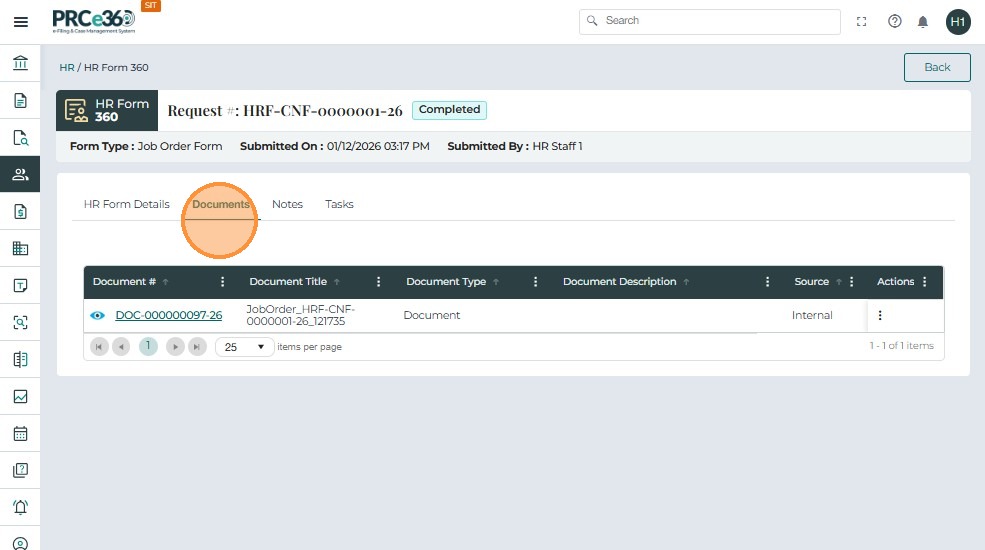
Viewing and Managing the Generated Job Order Form Document
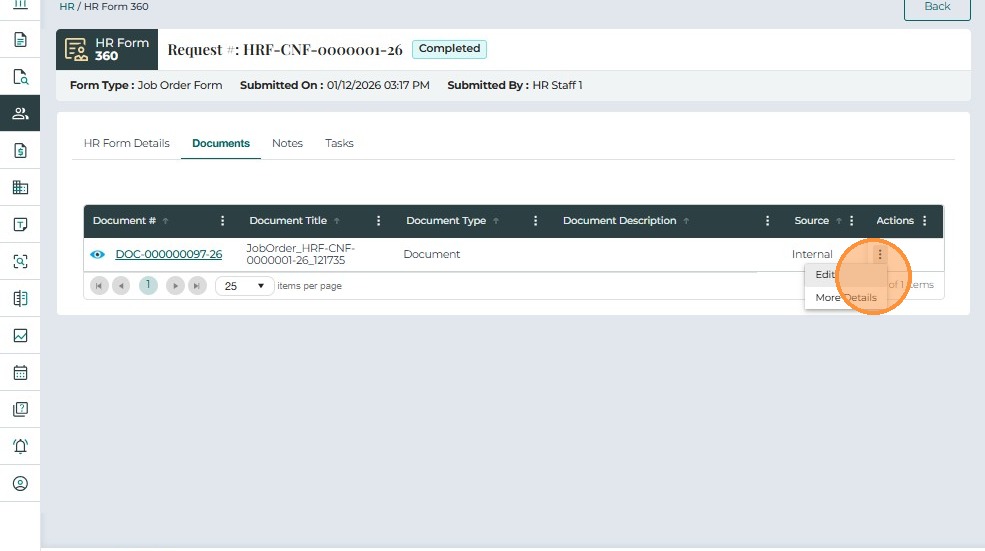
- Click the Documents tab.
- The system displays a single document entry, which contains the compiled Job Order Form PDF.
- Under the Documents tab, click the Document # hyperlink.
- The system opens the document in a PDF preview window.
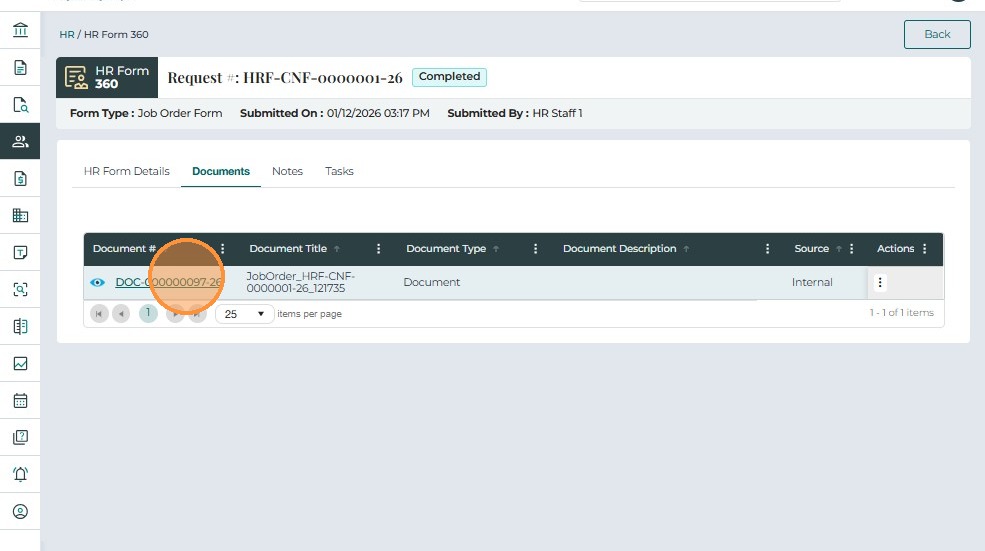
- The PDF preview window shows the complete Job Order Form with all information entered by HR Staff, Hiring Manager, Director/Designee, and Budget Approver.
- Use the scroll bar to review each section of the form.
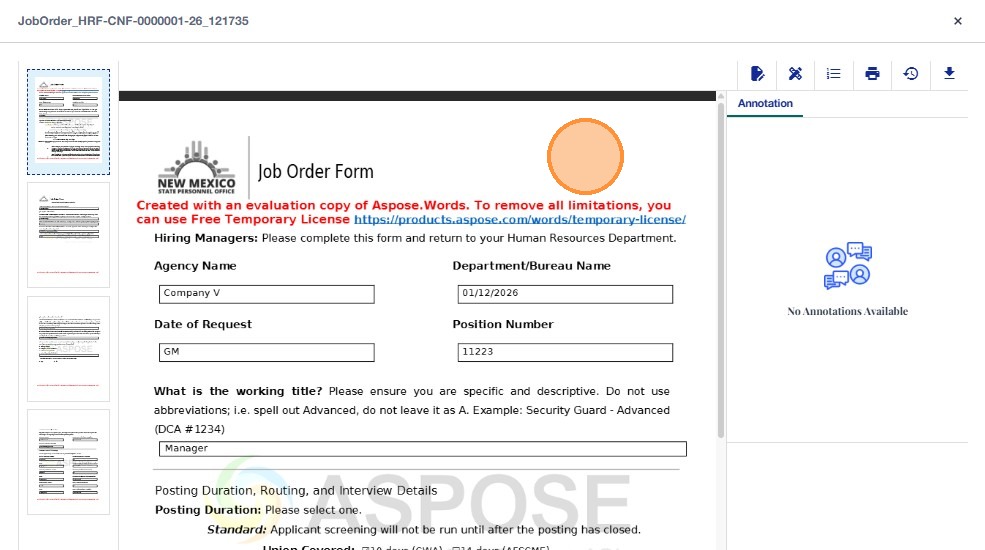
- On the selected page, review the signature details entered by the Director/Designee and CFO/Budget Approver.
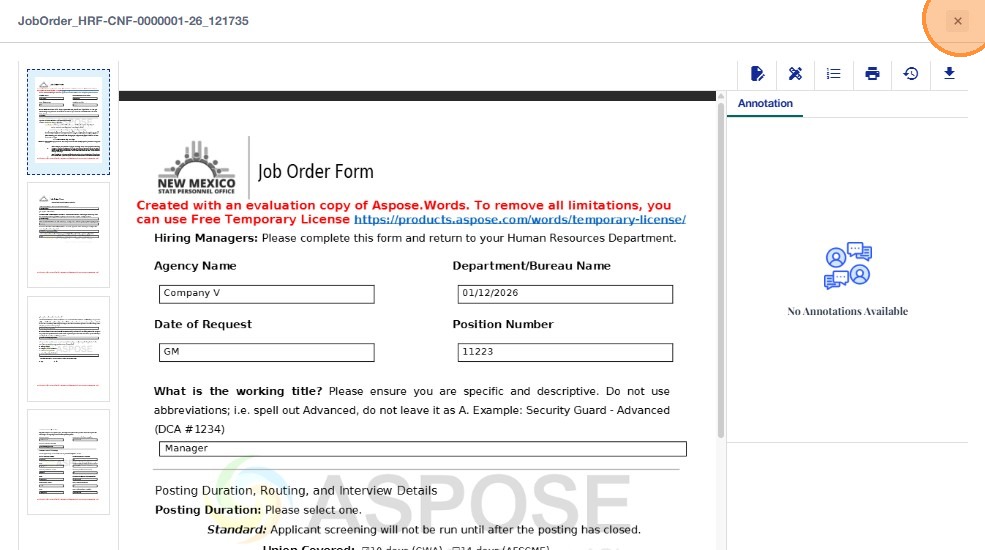
- Click the X (Close) icon in the top-right corner to exit the PDF viewer.
- The system returns you to the Documents tab of the HR Form 360 page.
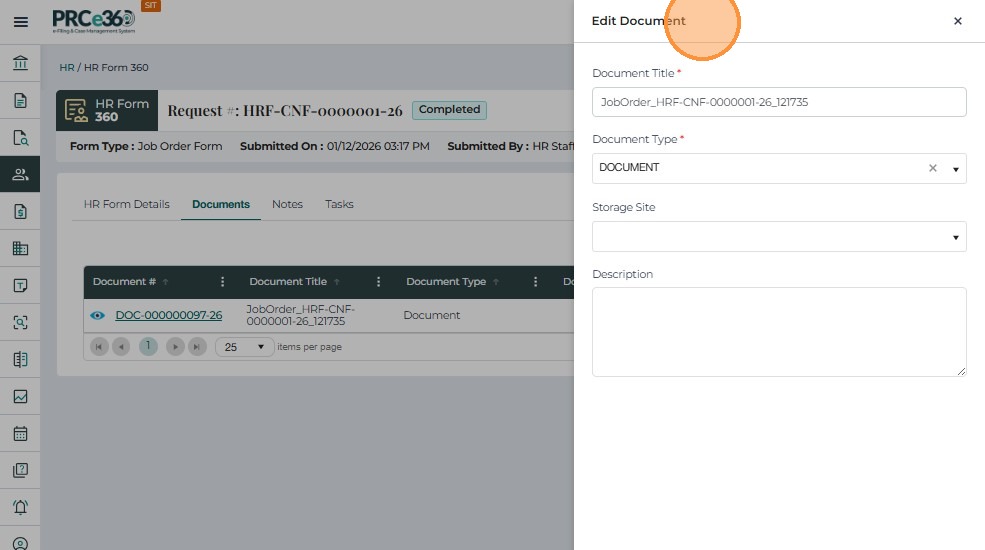
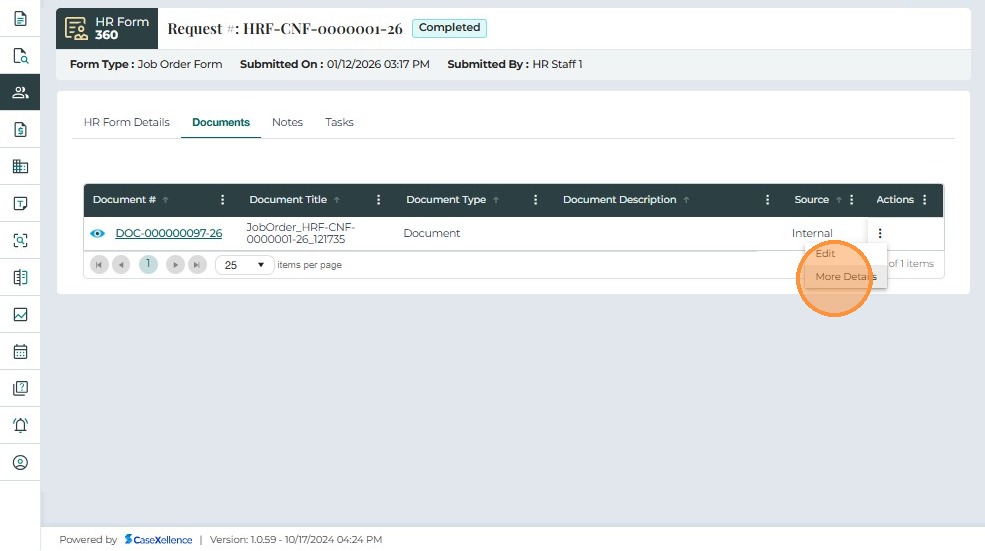
- Open the Actions menu again and select Edit to update the document details.
- Update the document Title, Document Type, Storage Site, or Description fields as needed.
- Click Submit to save the updated document details.
- Click More Details to view the full document information and metadata.
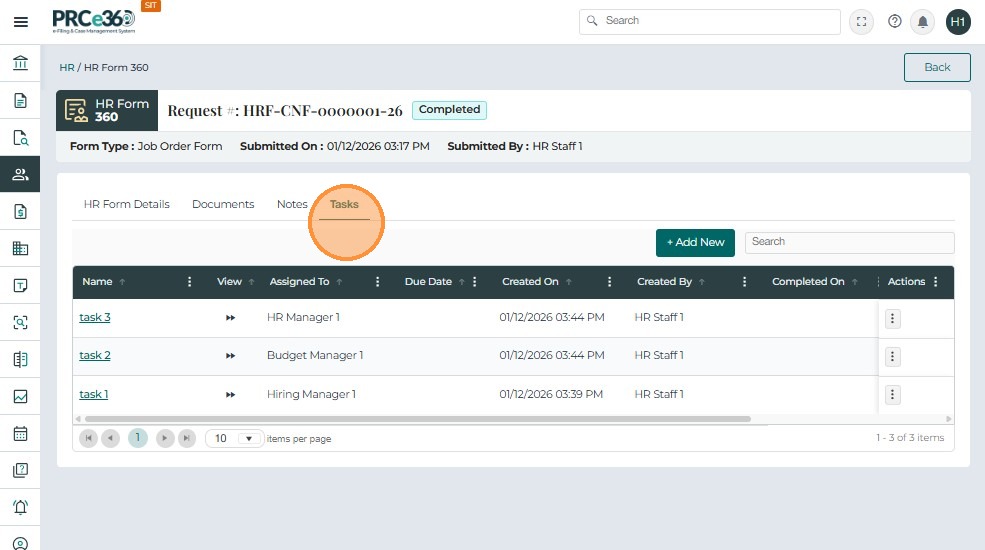
Tasks and Notes on the Completed HR Form
- The Tasks tab displays all users assigned to the HR Form, including their:
- Name
- Phone number
- Assignment date/time
- Staff member who assigned them
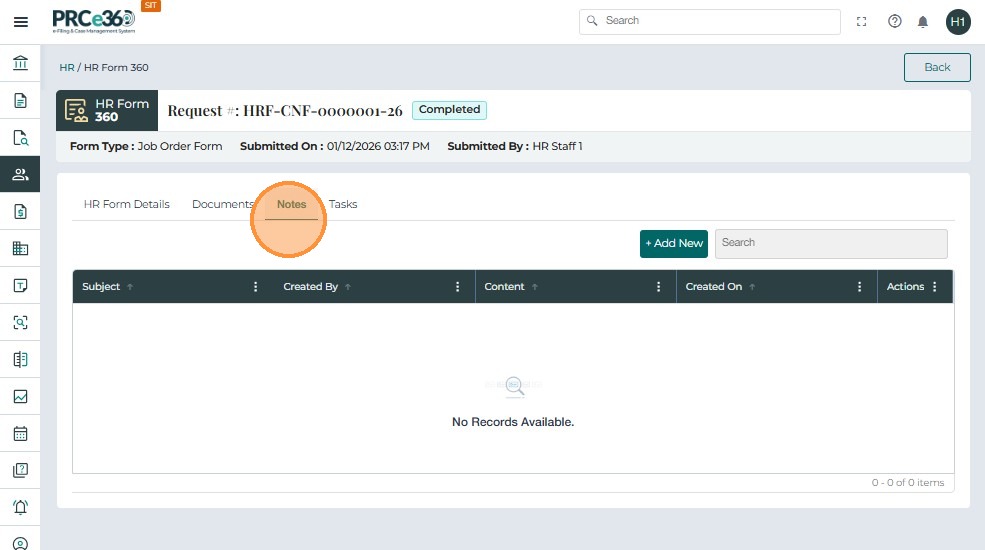
- The Notes section displays all notes that have been added to the completed HR Form 360.
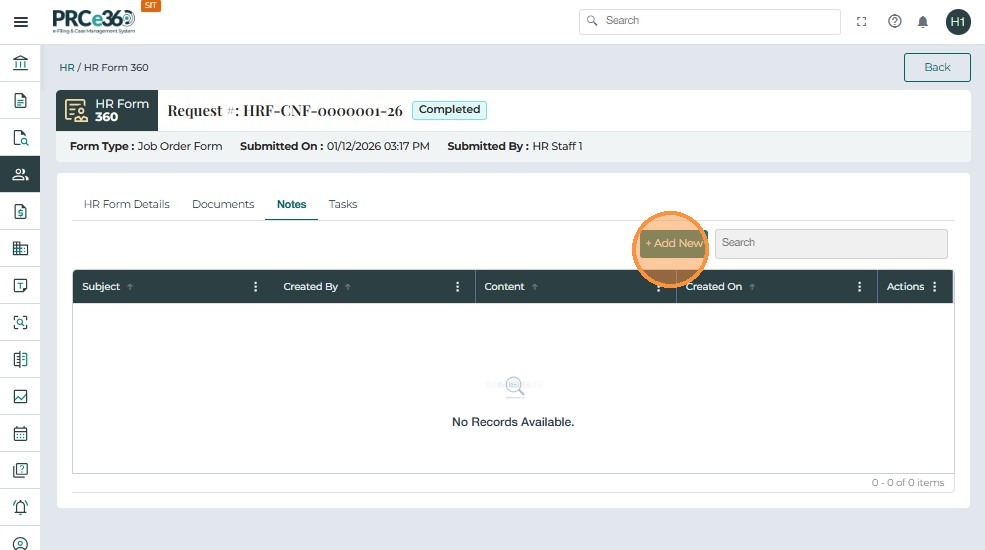
- Click the + Add New button to create a new note for the HR Form.
- The Add Notes window opens, allowing you to enter a Title and Note content.
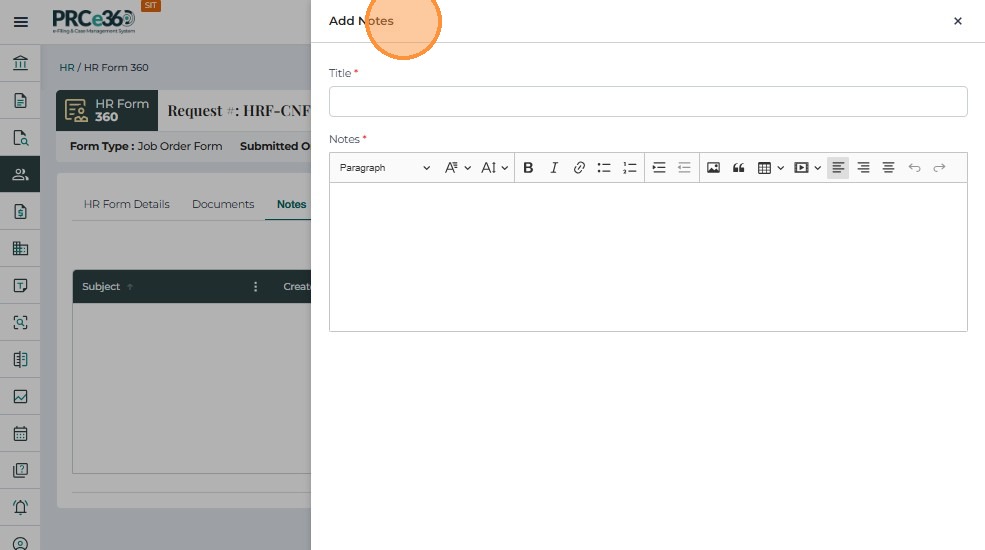
- After entering the Title and Note text, click Submit to save the new note to the HR Form.
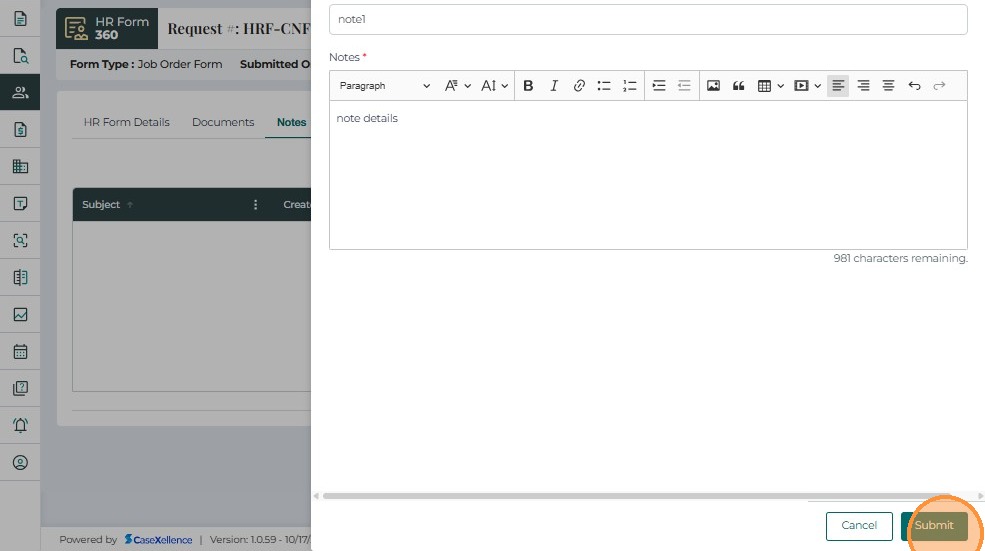
- Open the Notes tab in the completed HR Form to view the list of all notes added to the form.
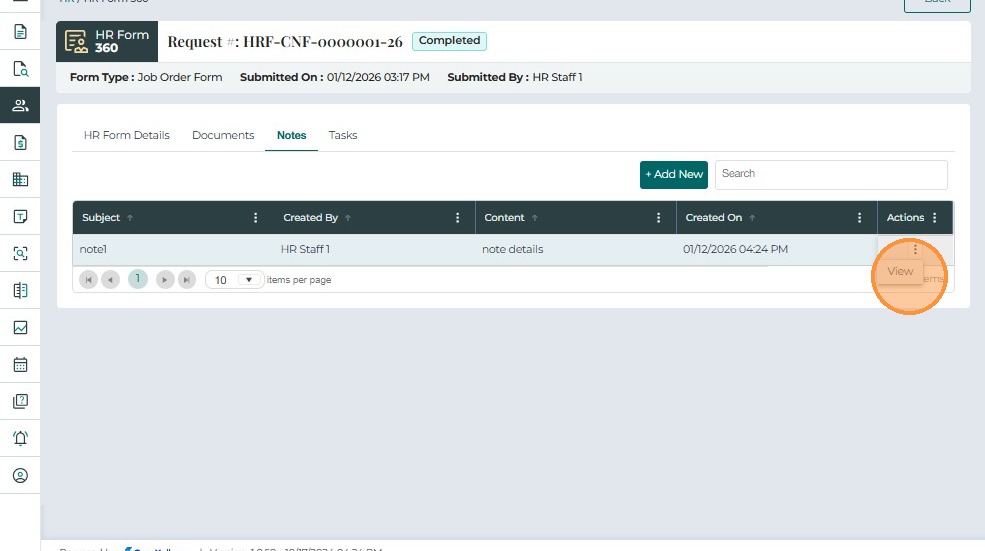
- Click the Actions menu on a note and select View to open a specific note.
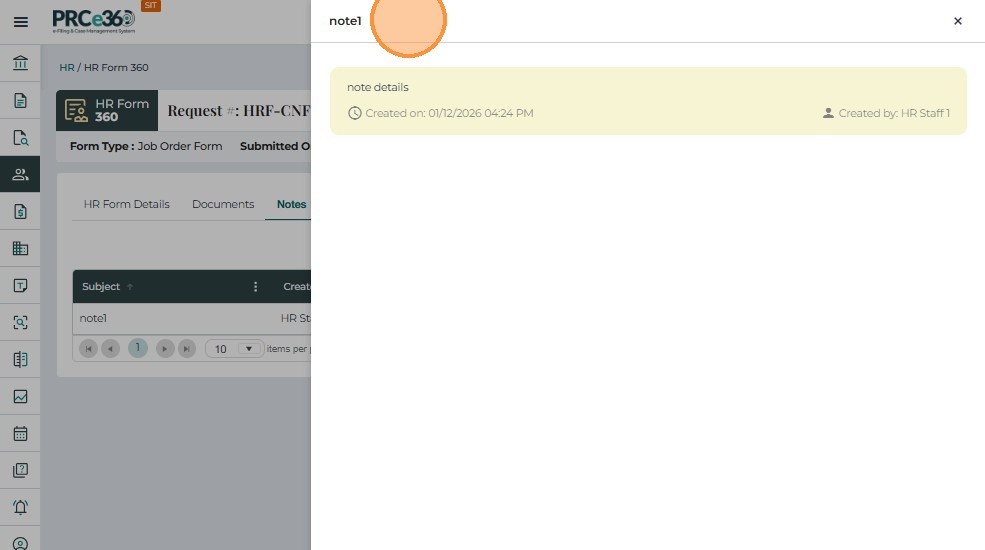
- The selected note opens in a read-only pop-up, showing:
- Note details
- Creator
- Created date
- Click Cancel to close the pop-up and return to the dashboard.
Viewing Completed HR Forms
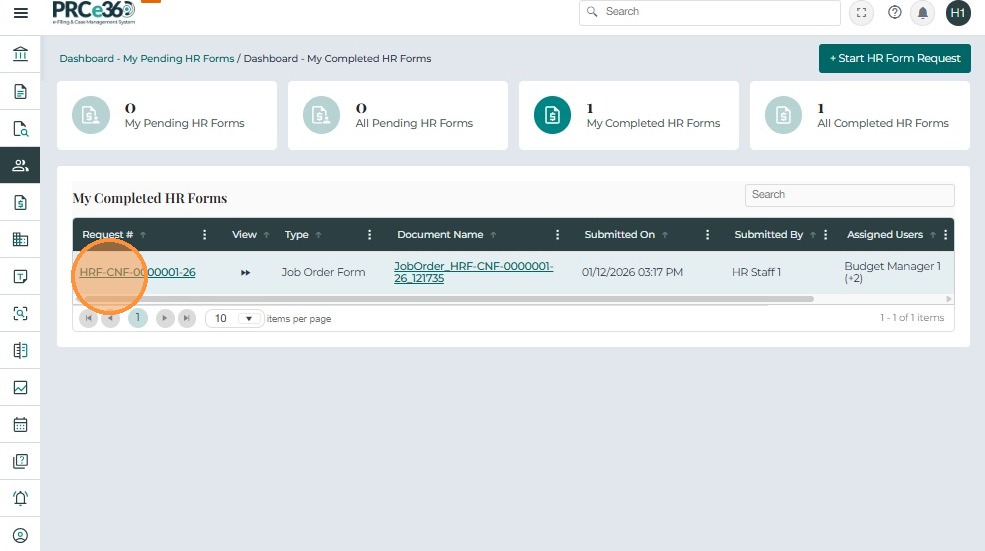
- On the HR dashboard, click My Completed HR Forms to view all HR form requests that have been processed and completed for the logged-in HR Staff user.
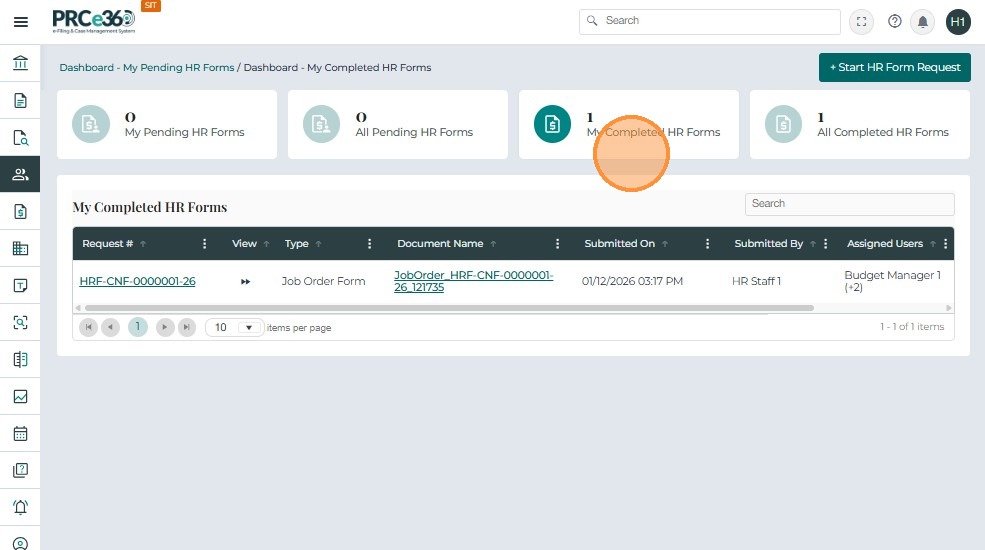
- Select the completed request number (e.g., HRF-CNF-0000020-25) from the My Completed HR Forms list to open and review the completed Job Order Form in read-only mode.