Selection Action Request Form
The Selection Action Request Form is used by the HR Division and Hiring Managers to document the selected candidate(s) for a position, record justification details, and capture approval steps based on user roles.
This form requires entering Top Three Candidates, identifying a Recommended Candidate, and completing approval sections depending on the user’s role in the hiring process.
Users Involved
| User Role | Functionalities |
|---|---|
| HR Manager | Can complete all fields except Division Director & Chief of Staff approval; can submit the form. |
| HR Staff | Can complete all fields except Division Director & Chief of Staff approval; can submit the form. |
| Hiring Manager | Can fill all sections except Chief of Staff approval; cannot submit the form. |
| Chief of Staff Supervisor (COS) | Task-assigned user who can only complete the Chief of Staff approval fields. |
Submit a Selection Action Request Form
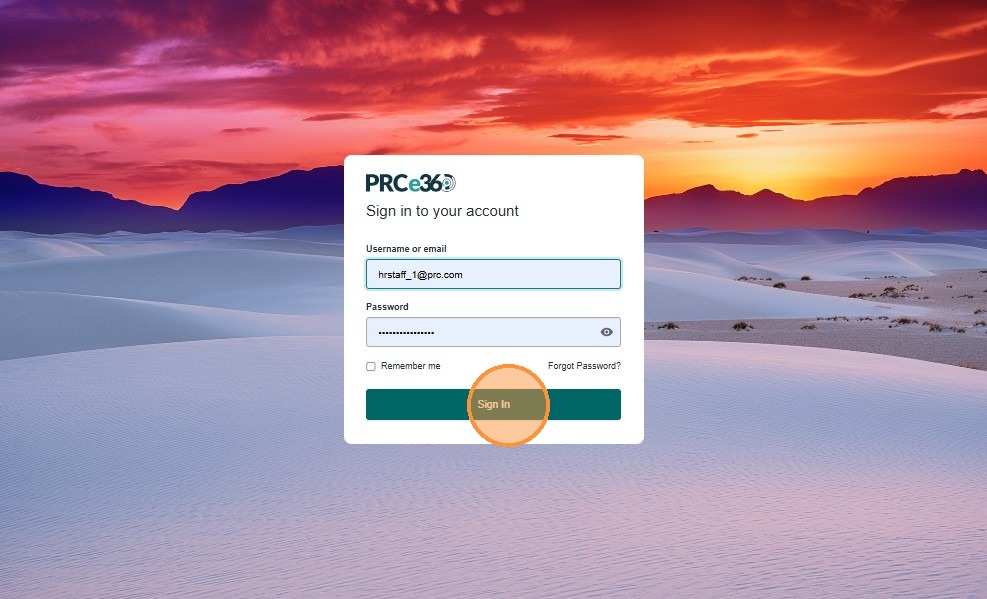
1. Sign In
- Enter your Username/Email and Password.
- Click Sign In to access the system.
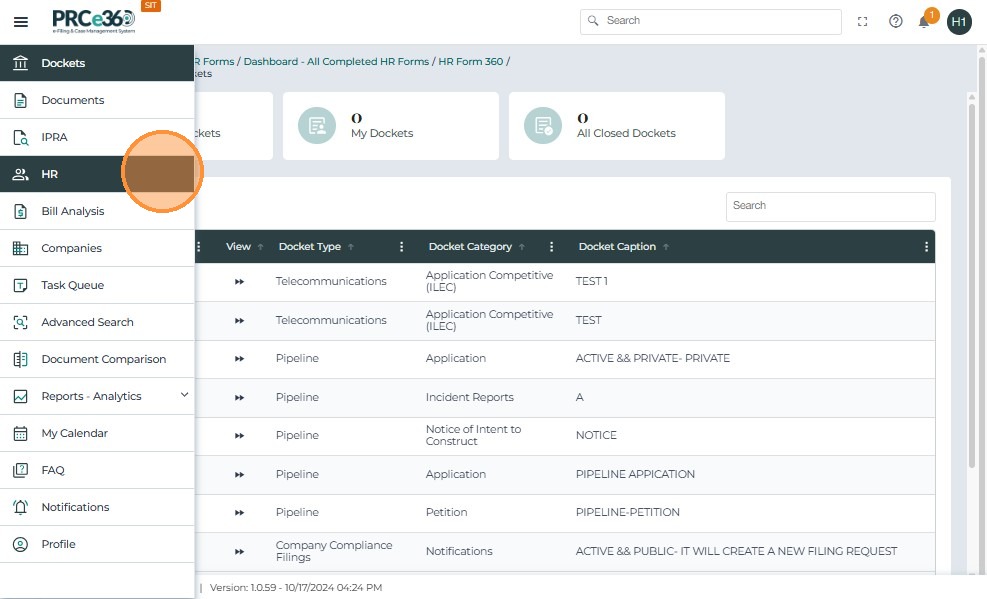
2. Open the HR Forms Dashboard
- From the left-side navigation panel, click HR to open the HR forms dashboard.
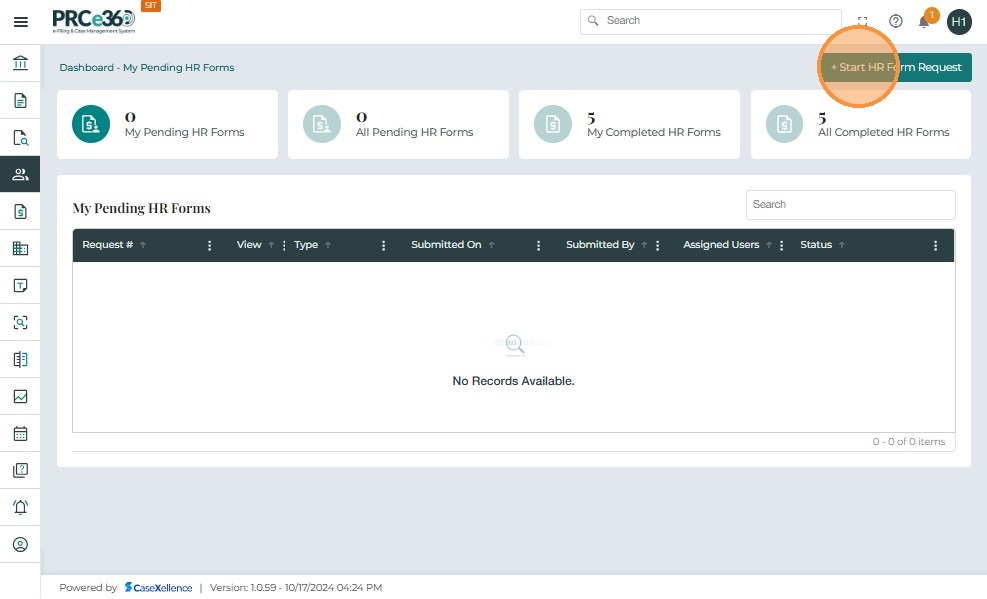
3. Start a New HR Form Request
- On the top-right corner of the dashboard, click Start HR Form Request.
- The HR Form selection panel opens.
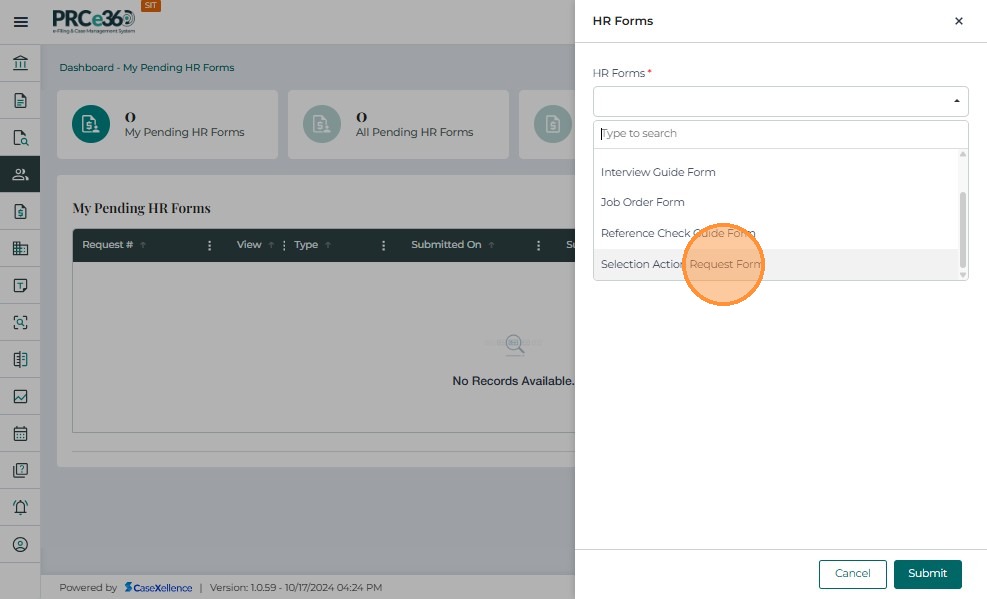
In the HR Forms dropdown:
- Scroll or type to search for the form name.
- Select Selection Action Request Form.
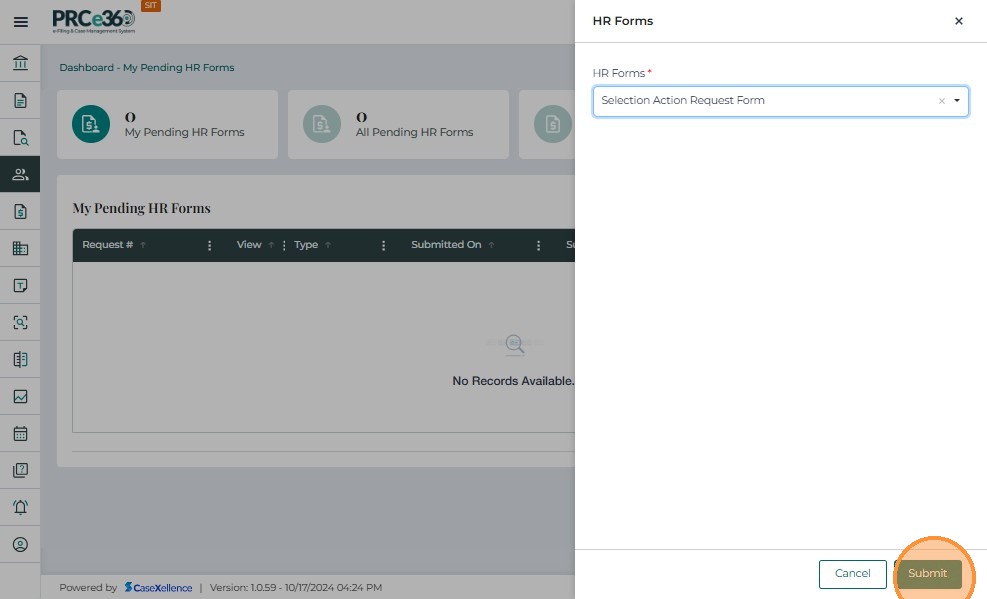
- After selecting the form, click Submit to proceed.
- The system opens a new Selection Action Request Form for completion.
Complete the Selection Action Request Form (HR Staff / HR Manager)
HR Staff or HR Manager have access to all fields except the Division Director Approved and Chief of Staff Approved sections, which must be completed by those roles later.
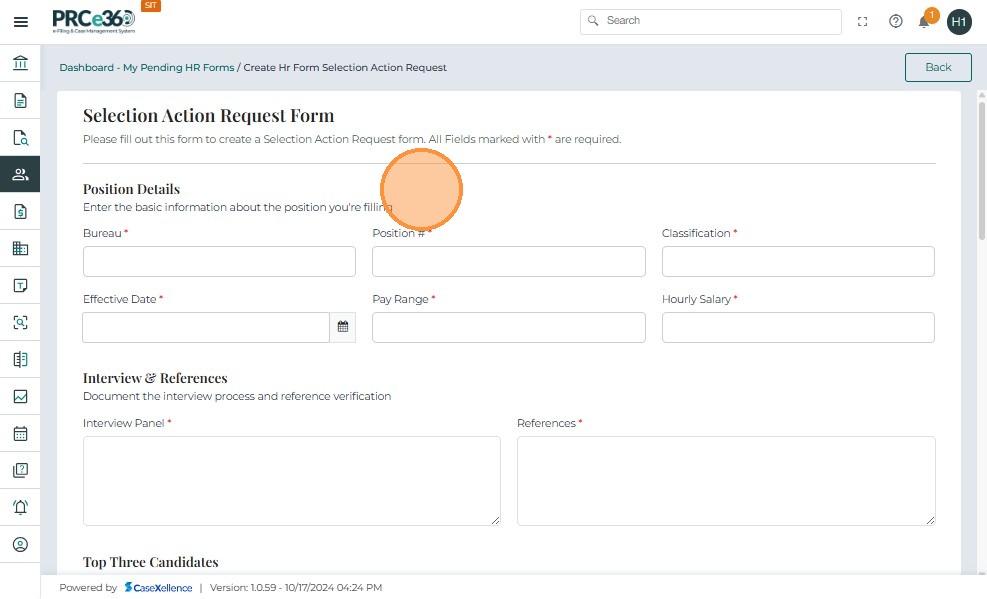
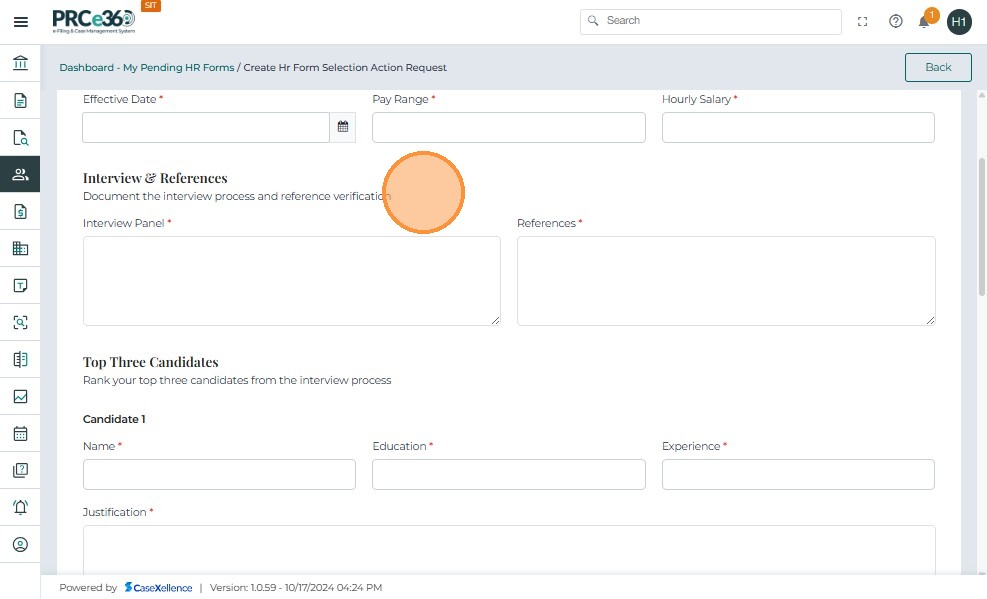
1. Fill Position and Interview Details
- Fill in required position details.
- Complete the Interview & References section.
2. Enter Top Three Candidates
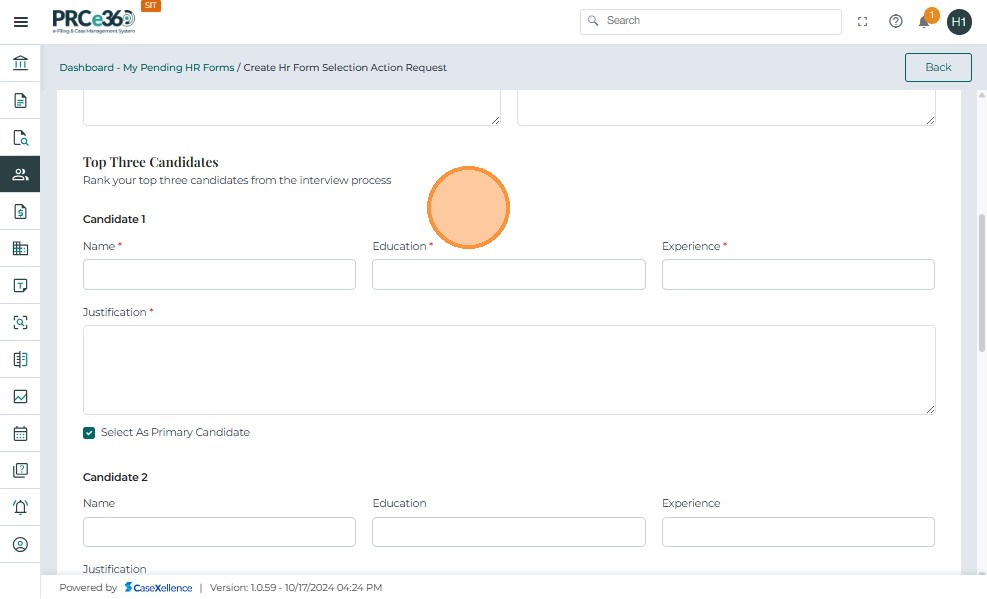
- Enter details for Candidate 1, Candidate 2, and Candidate 3.
3. Recommended Candidate
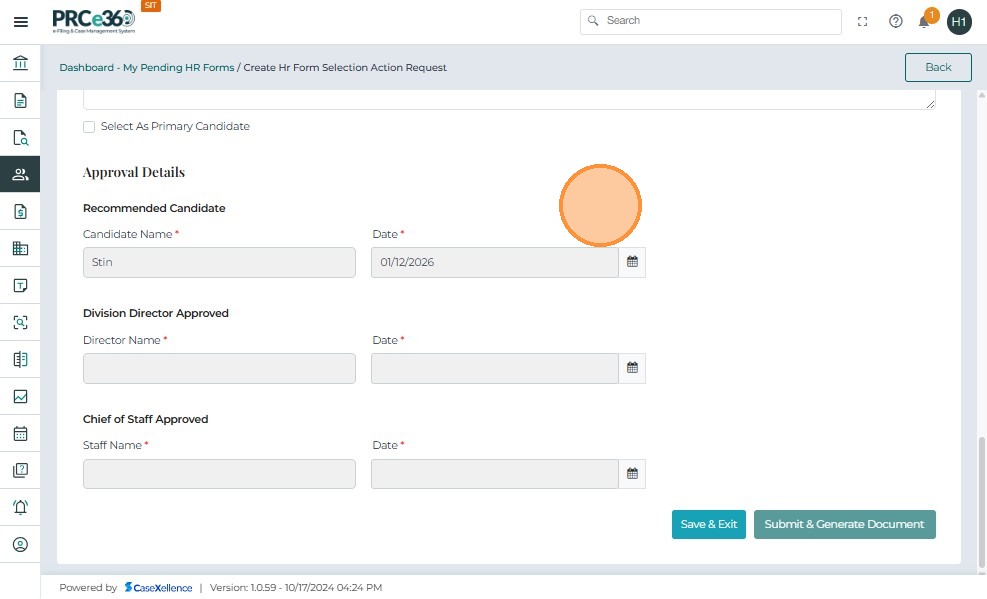
- The system automatically selects Candidate 1 as the primary candidate unless the user changes it.
- After selecting a primary candidate, the Recommended Candidate section auto-populates with:
- Candidate Name
- Date
Important:
The Division Director Approved and Chief of Staff Approved fields remain blank and are editable only for their respective roles.
HR Staff/HR Manager should not fill these sections.
4. Save the Form as Pending
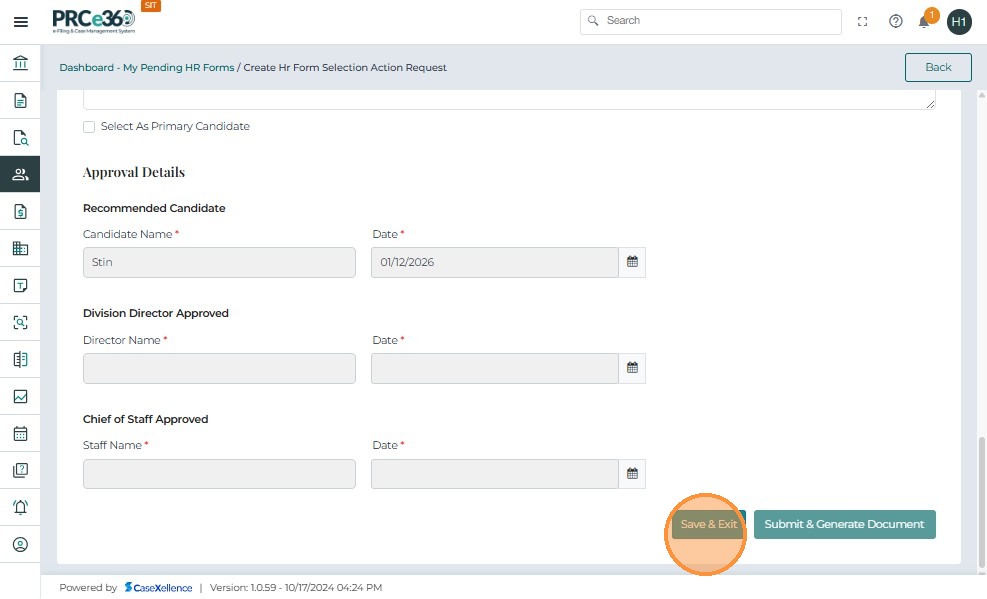
- Click Save and Exit to save the form for later completion.
The form is saved under My Pending HR Forms.
When saved:
- A unique confirmation number is generated.
- The form is stored under My Pending HR Forms.
- The form status remains Pending.
- No PDF is generated at this stage.
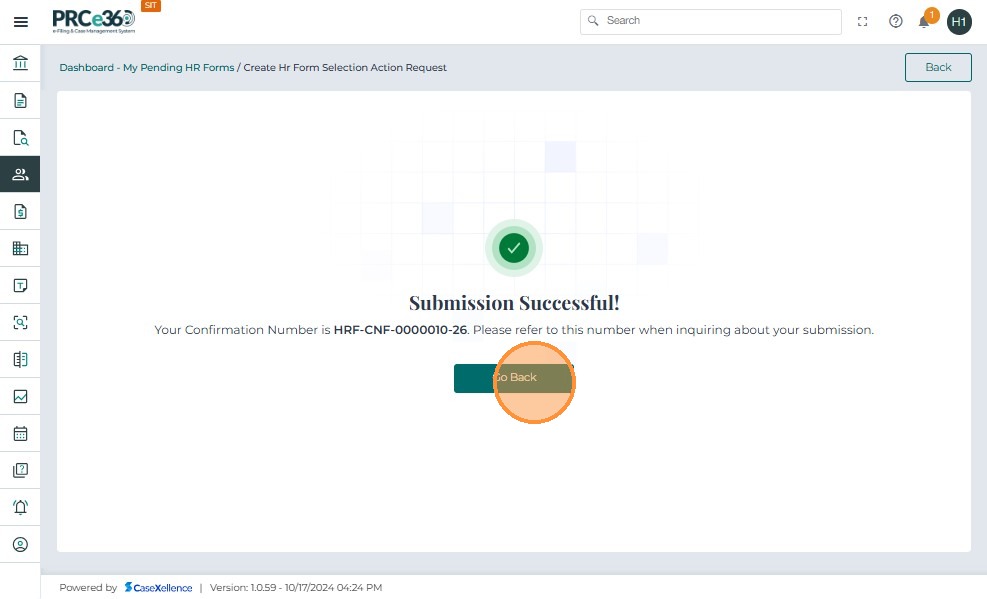
Accessing Pending Selection Action Request Forms
After saving the form, it appears in the My Pending HR Forms queue.
- Navigate to My Pending HR Forms.
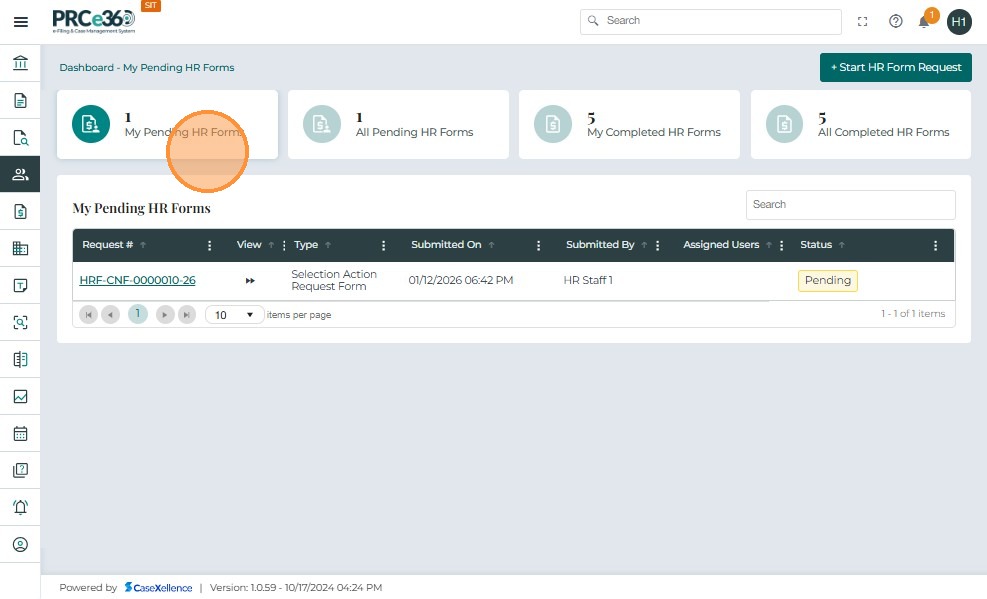
- Select the Selection Action Request Form with Pending status.
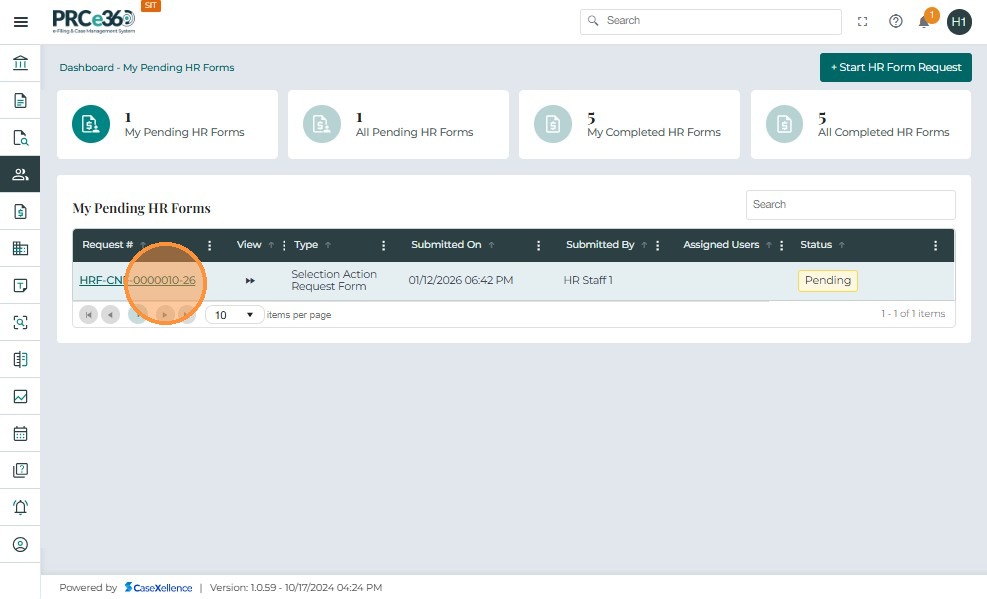
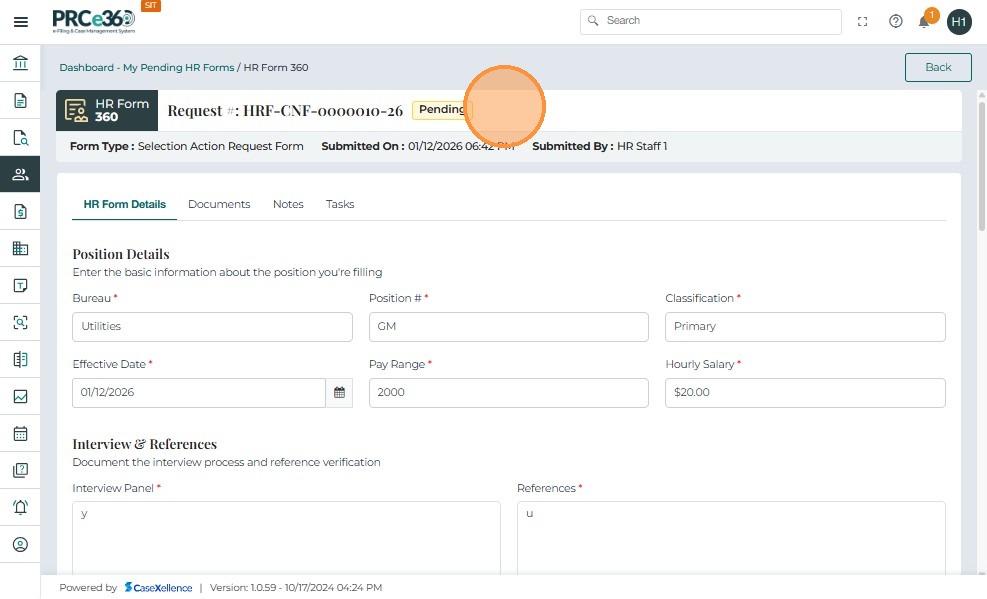
- The HR Form 360 view opens for the selected form.
Assigning the Form to Other Users
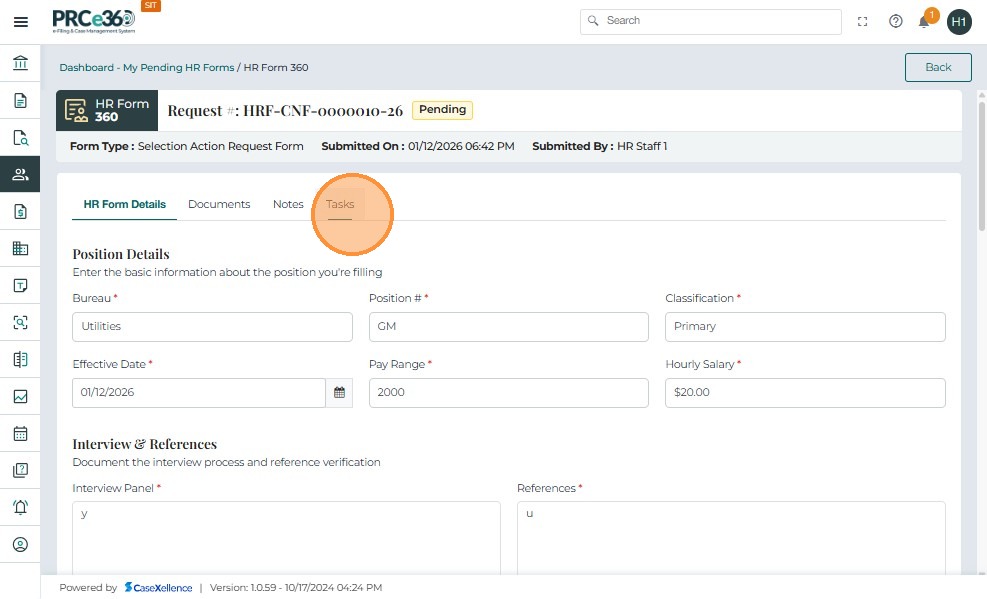
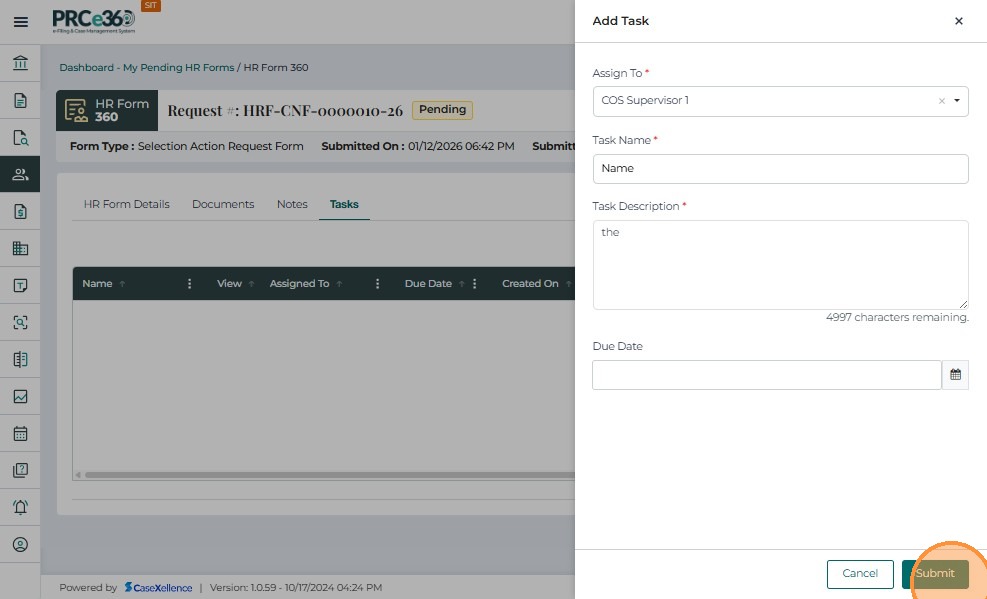
1. Open Task Tab
- Click the Task tab to view or add form assignees.
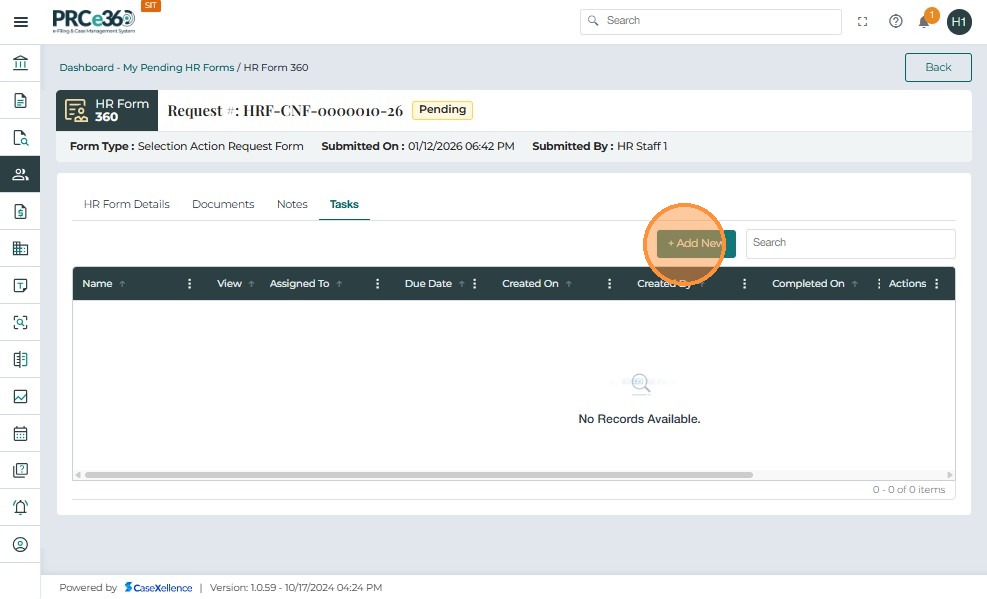
- Click + Add New.
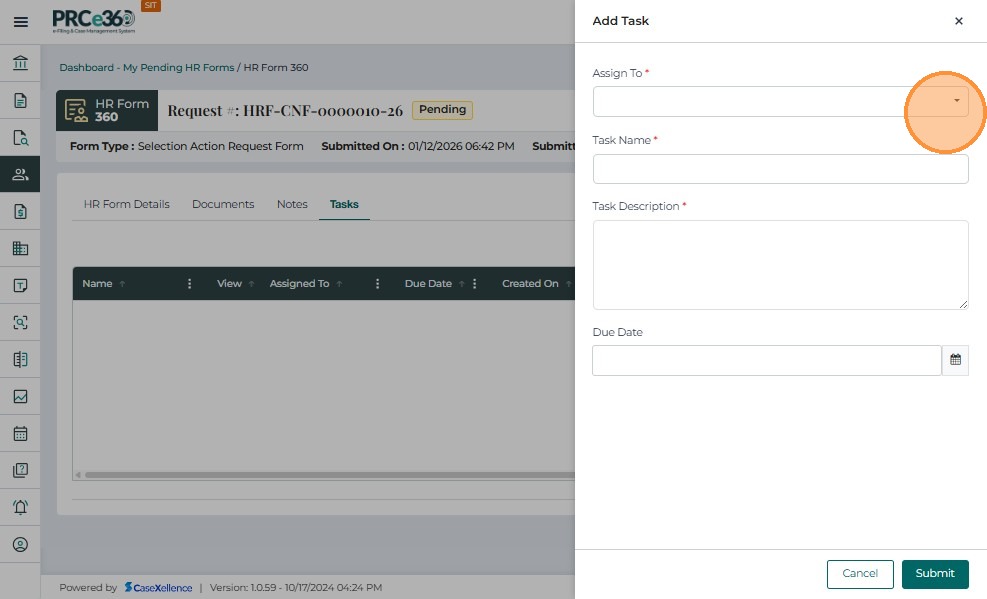
2. Assign to HR / Hiring Manager / COS Users
- From the dropdown, assign the form to:
- HR users
- Hiring Manager users
- COS Supervisor users
- Multiple users can be selected.
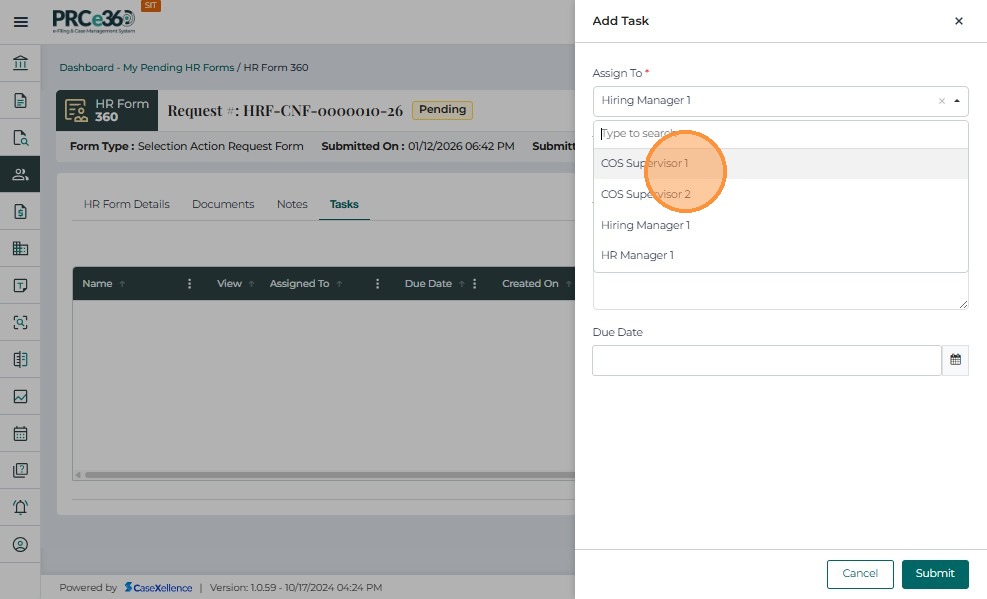
- Click Submit to save the assignments.
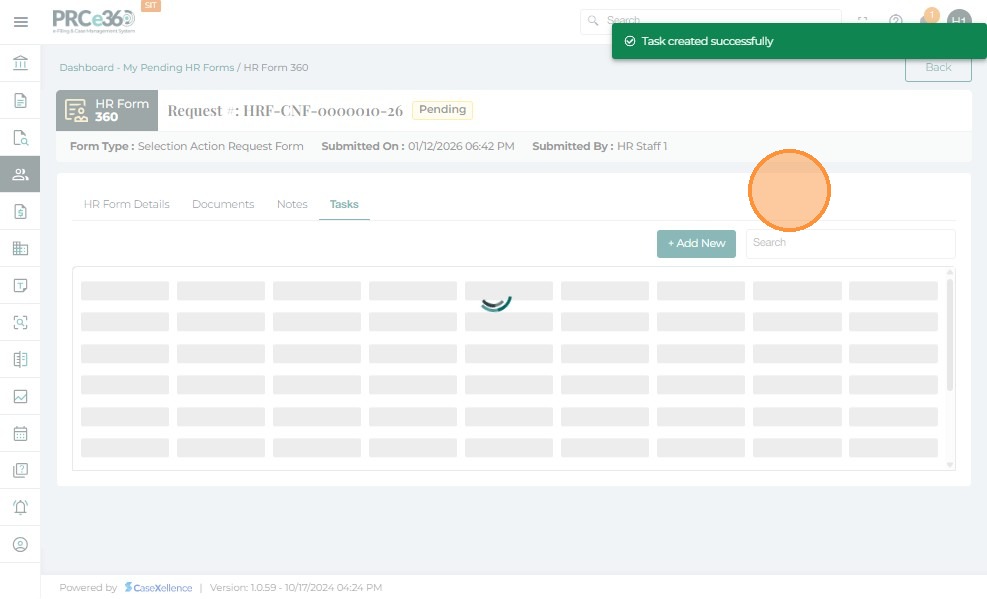
After assignment:
-
A success message appears:
"HR Form successfully assigned". -
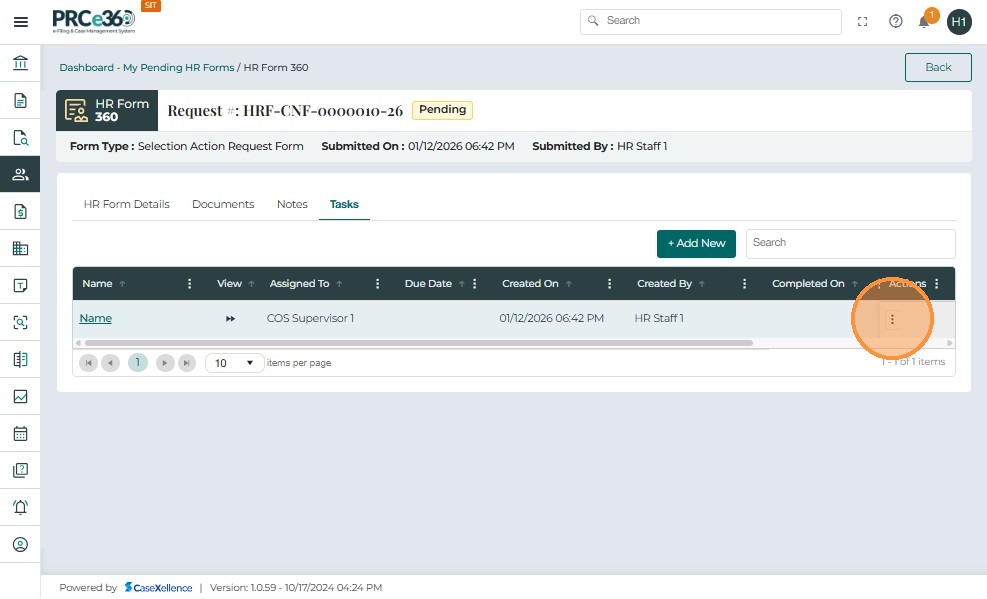
Assigned users are listed with:
- Name
- Phone
- Assigned On (date and time)
- Assigned By
-
The form status remains Pending.
-
Assigned users can open and fill only the fields permitted by their role.
-
Assigned Hiring Managers or COS Supervisors will not see the Submit & Generate Document button.
They will only have Save & Exit, which saves the form but does not route it.
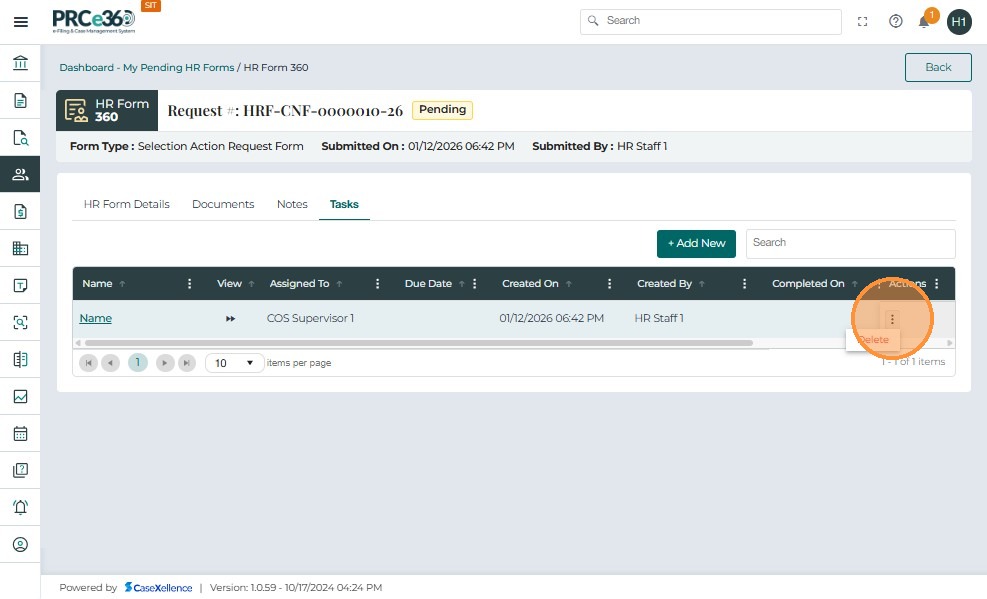
3. Remove an Incorrect Assignment
If an assignment was added incorrectly:
- Click the three-dot menu under Actions.
- Click Delete to remove the assignment.
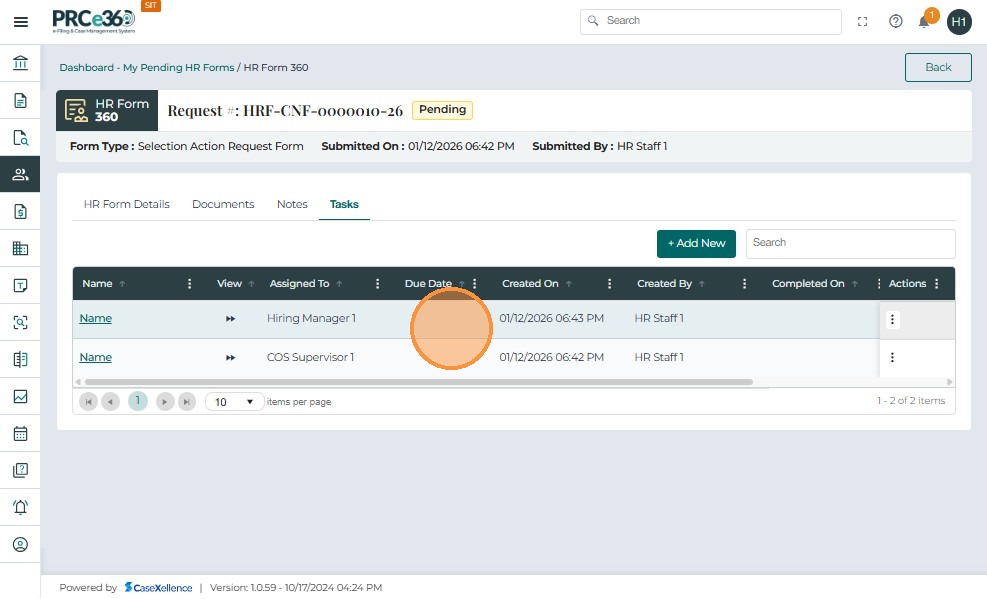
- Click Back at the top right to return to My Pending HR Forms.

-
The assigned Selection Action Request Form remains in My Pending HR Forms with Pending status until all required users complete their sections.
-
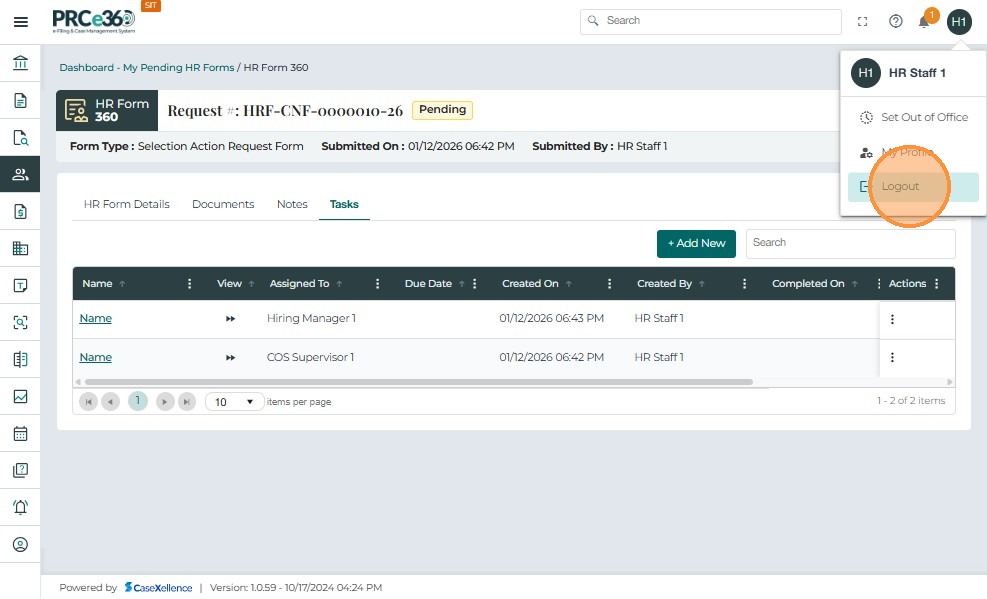
To log out:
- Click your profile icon (top-right).
- Select Logout.
Hiring Manager Workflow
Once the Selection Action Request Form is created by HR Staff and assignments are added, the Hiring Manager receives the form under My Pending HR Forms and can complete only the fields allowed for their role.
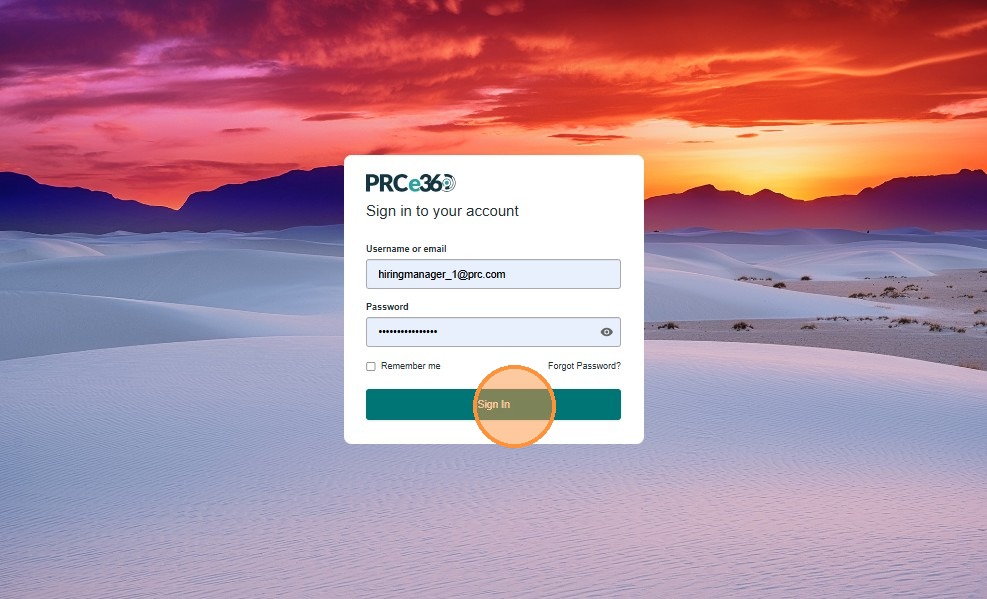
1. Hiring Manager Logs In
- The Hiring Manager logs in using their credentials.
2. Access Pending Forms
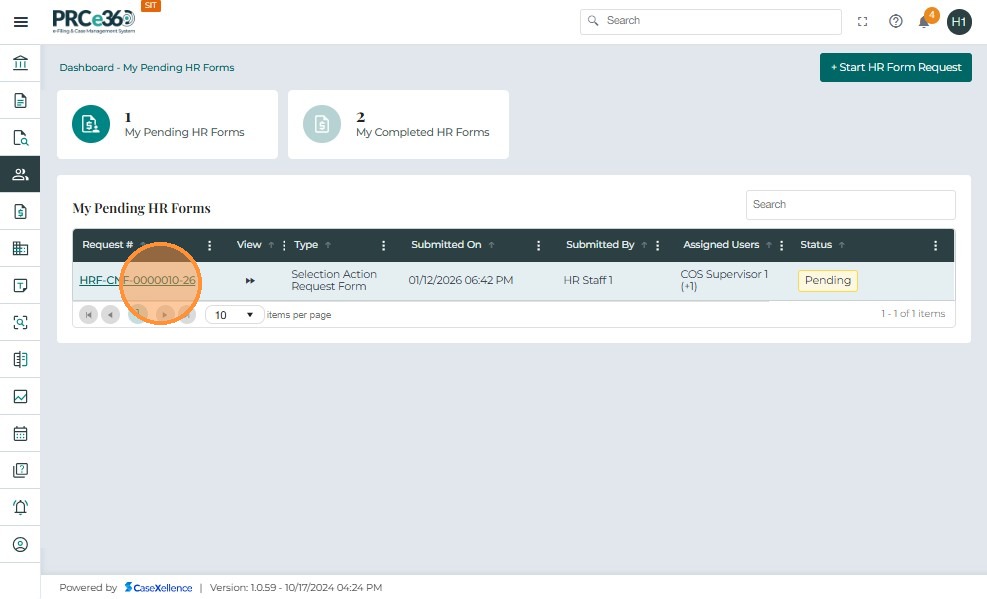
- From the dashboard, click My Pending HR Forms.
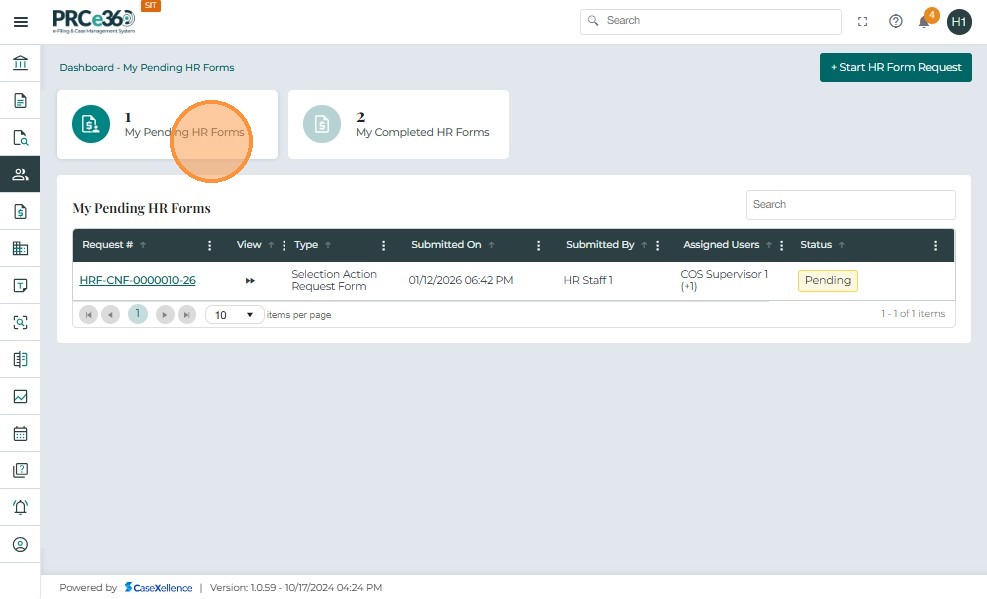
- Locate the form with type Selection Action Request Form and click the Request # link.
3. Complete Allowed Sections
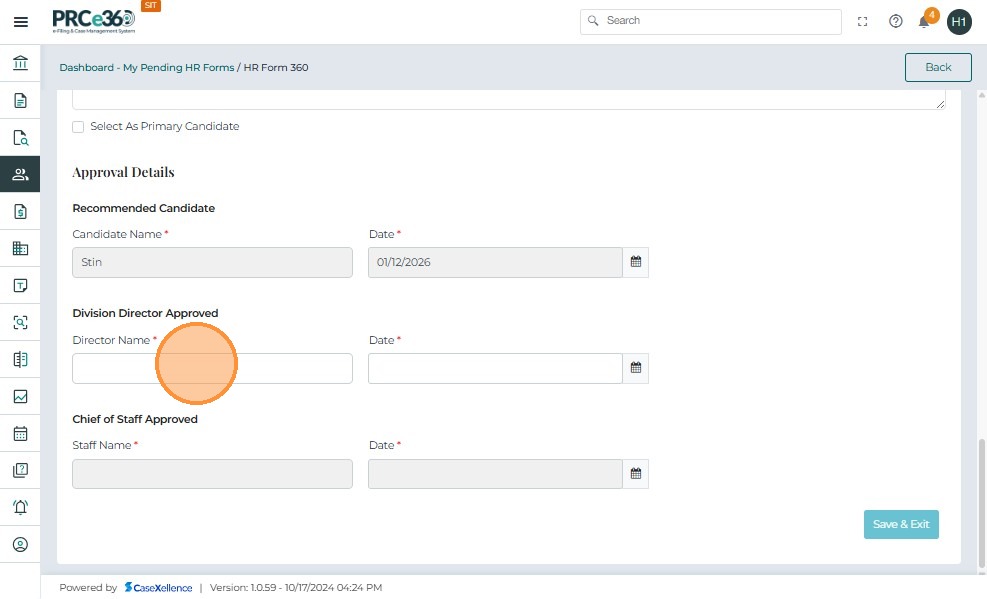
- The form opens in HR Form 360 view with status Pending.
- The Hiring Manager primarily works in the HR Form Details tab.
They can:
- View previously entered details (Position Details, Interview & References, Candidate ranking).
- Complete the fields enabled for their role under Approval Details.
Note:
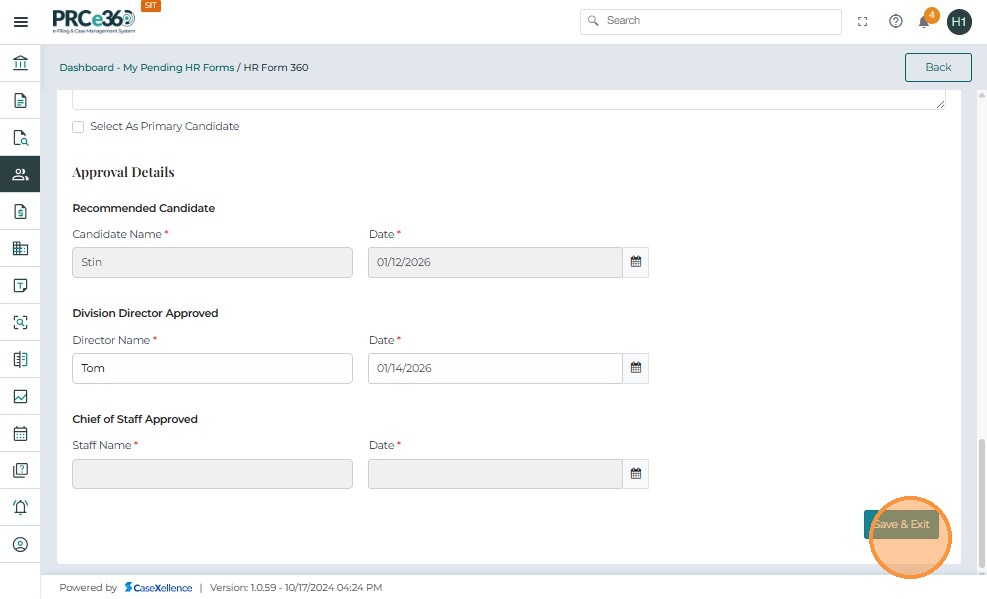
The Hiring Manager cannot submit the form.
The Submit & Generate Document button is disabled/not applicable.
Only Save & Exit is available.
- After entering their section, the Hiring Manager clicks Save & Exit.
-
The form remains in Pending status.
-
The form stays in the workflow for the next assigned user.
-
Click Back (top-right) to return to My Pending HR Forms.
-
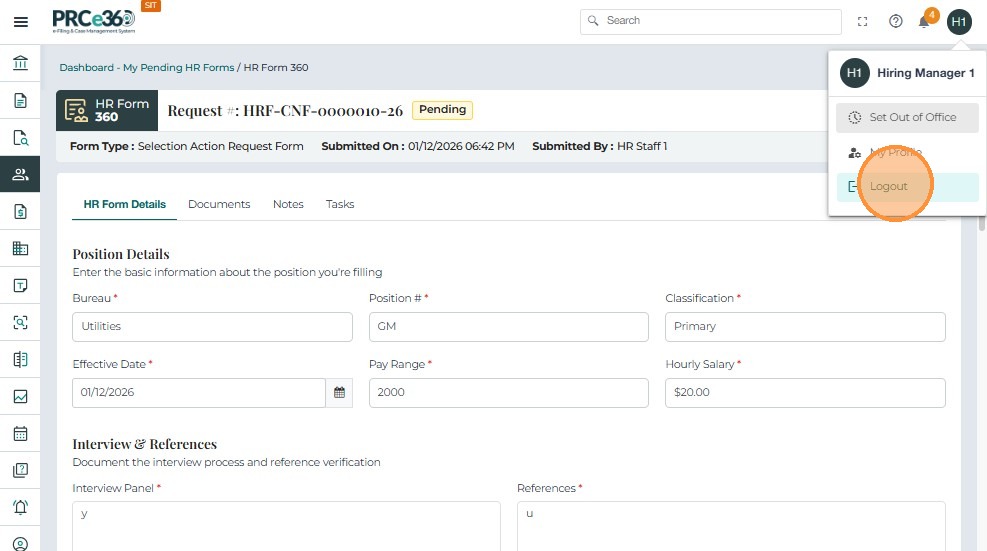
To log out, click your profile icon and select Logout.
COS Supervisor Workflow (Chief of Staff Approval)
Once the Selection Action Request Form is assigned to the COS Supervisor, the next step is for the COS Supervisor to review and complete their portion of the Chief of Staff Approved section.
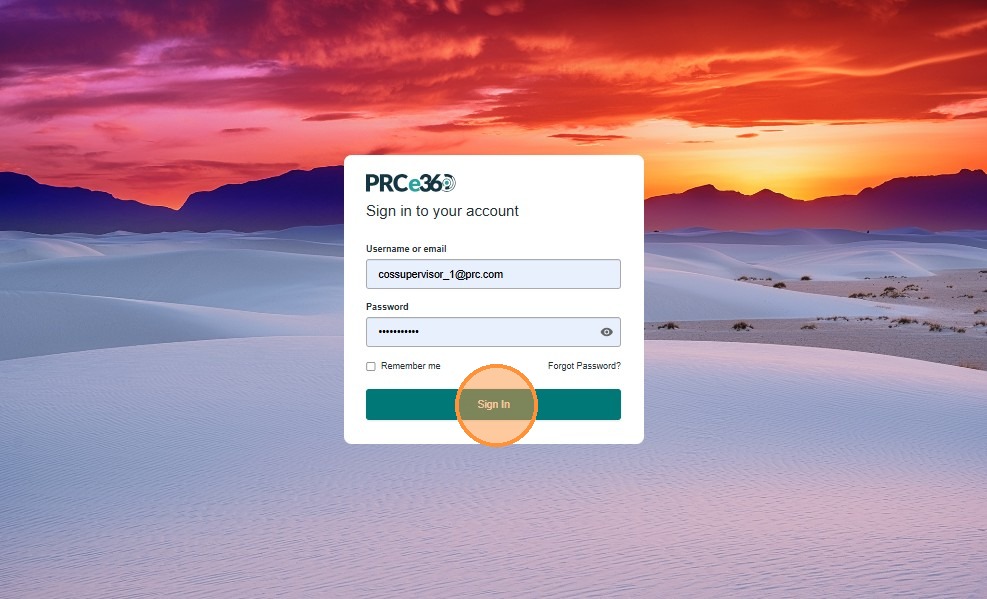
1. COS Supervisor Logs In
- The COS Supervisor logs into the system with their email/username and password.
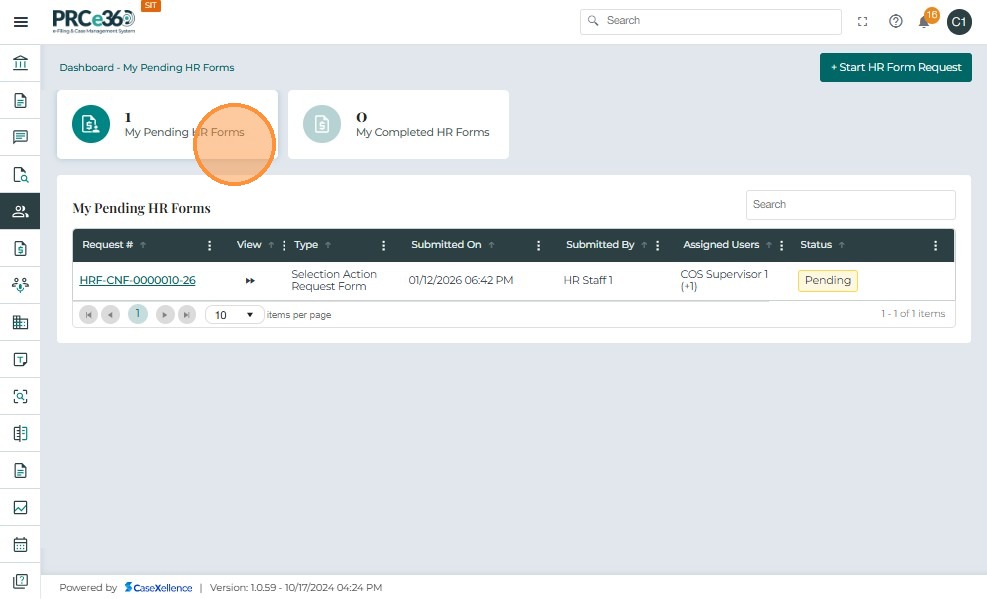
2. Access Pending Forms
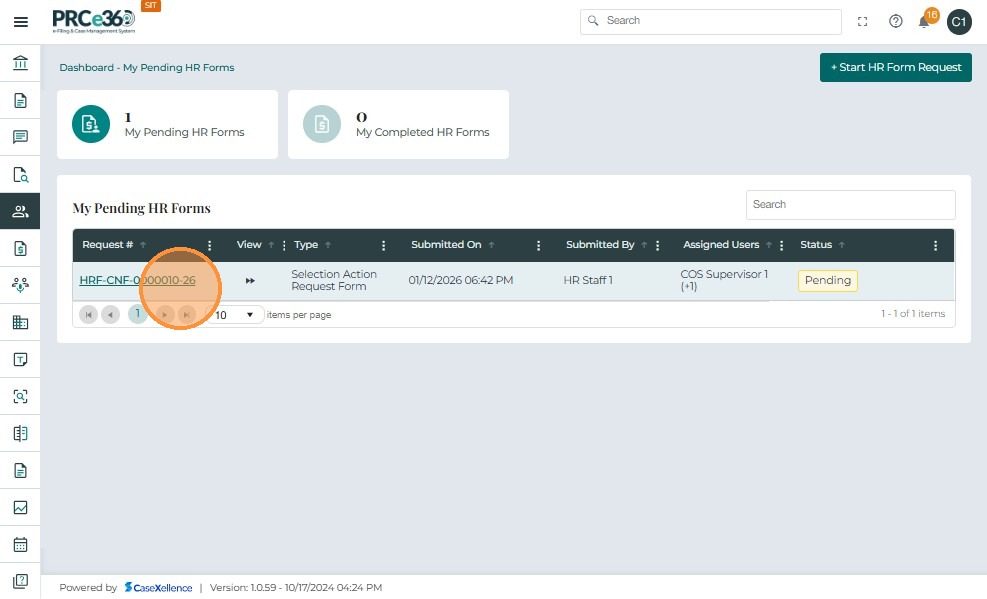
- Navigate to HR → My Pending HR Forms.
- Click the Request Number to open the form.
3. Review Read-Only Sections
The COS Supervisor can view the following sections in read-only mode:
- Position Details
- Interview & References
- Top Three Candidates
- Recommended Candidate
- Division Director Approved Section

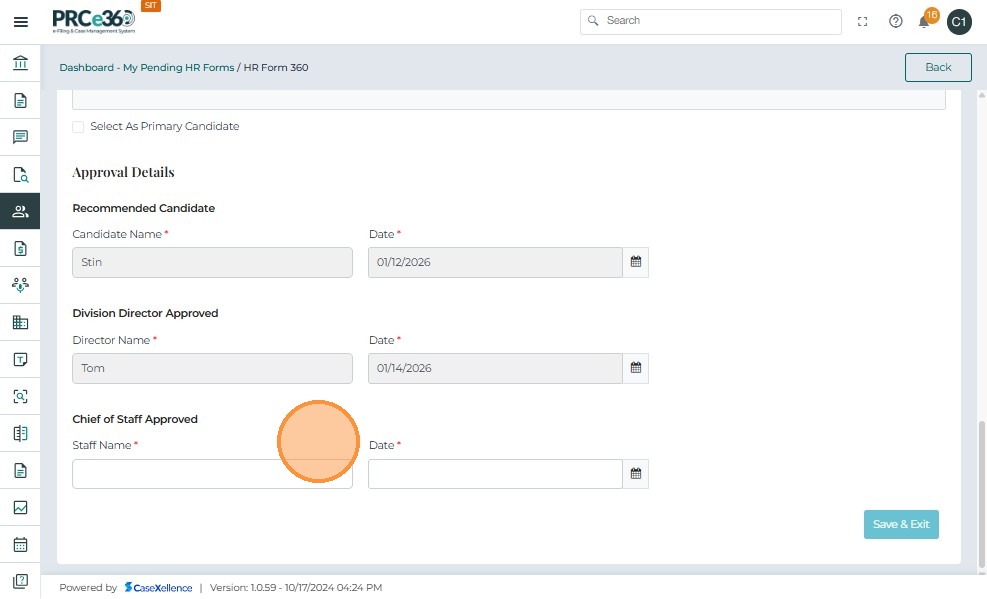
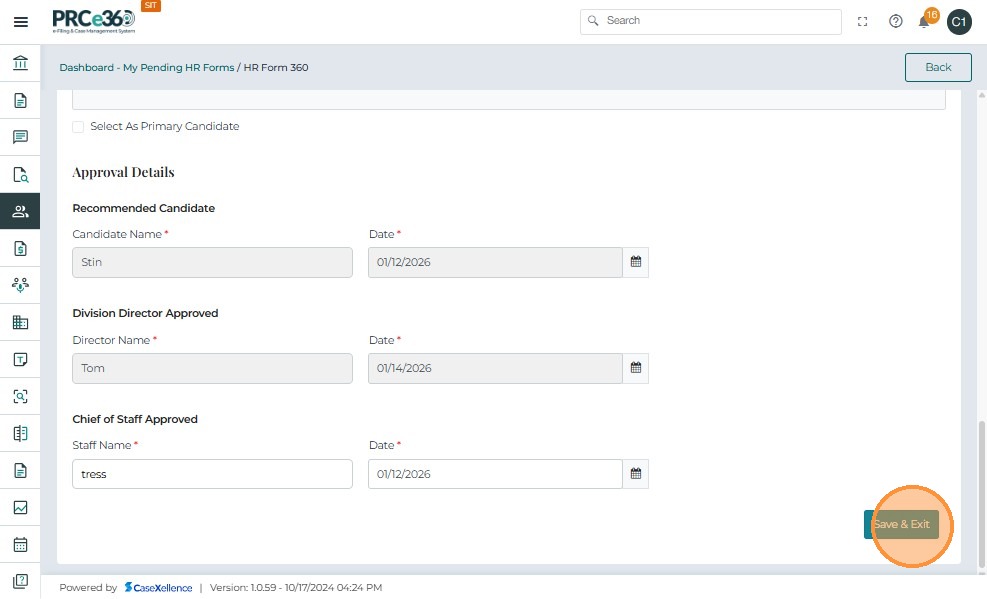
4. Complete Chief of Staff Approval
The COS Supervisor is responsible only for the Chief of Staff Approved subsection.
| Field | Description |
|---|---|
| Staff Name | Enter the Chief of Staff’s name approving the selection. |
| Date | Enter the approval date using the date picker. |
Note:
For the COS Supervisor, the Submit button is not available.
Only Save & Exit is allowed.
-
The form remains in Pending status and moves forward to the next assigned user or routing step in the workflow.
-
Click Back (top-right) to return to the dashboard.
-
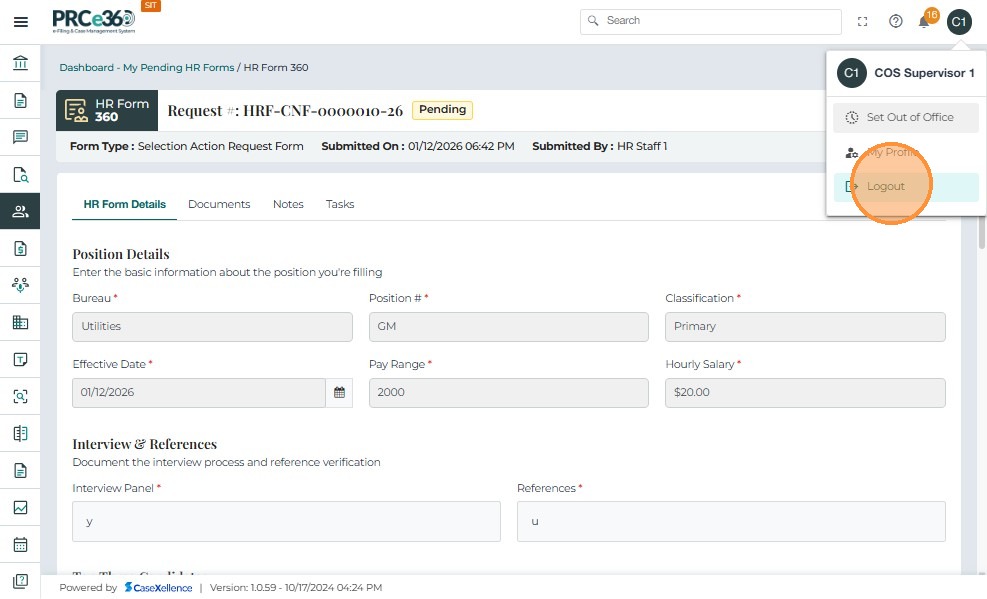
To log out, click your profile icon and select Logout.
Final HR Staff Submission and PDF Generation
After the Hiring Manager and COS Supervisor complete their parts, the HR Staff returns to finalize the form and generate the official document.
1. HR Staff Logs In
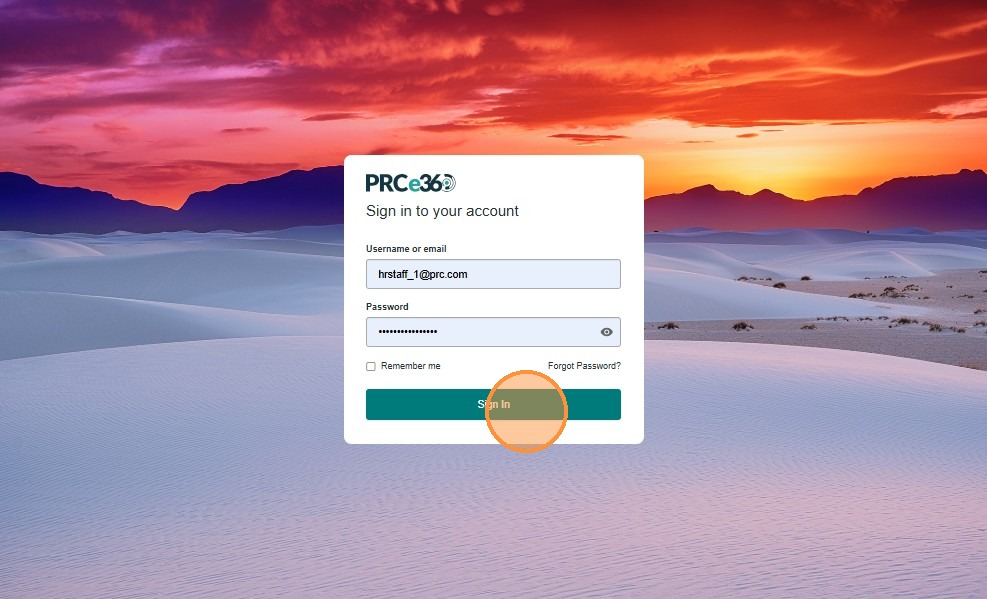
- The HR Staff enters valid credentials and clicks Sign In.
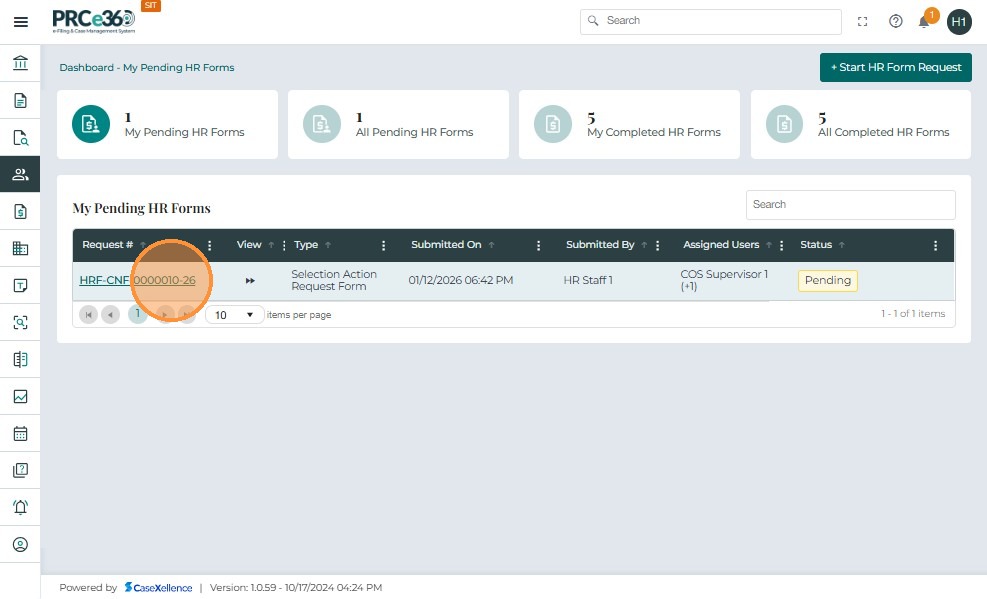
- Navigate to HR → My Pending HR Forms.
- Locate the specific Selection Action Request Form with status Pending and click the Request # link.
2. Review Approval Details
- The form opens on the HR Form Details tab.
- HR Staff reviews all information entered earlier by:
- Hiring Manager (Division Director section)
- COS Supervisor (Chief of Staff section)
- All required fields in the Approval Details section should now be completed.
3. Submit & Generate Document
Since this is the final stage and all approvals are complete, the HR Staff now has access to the Submit & Generate Document button.
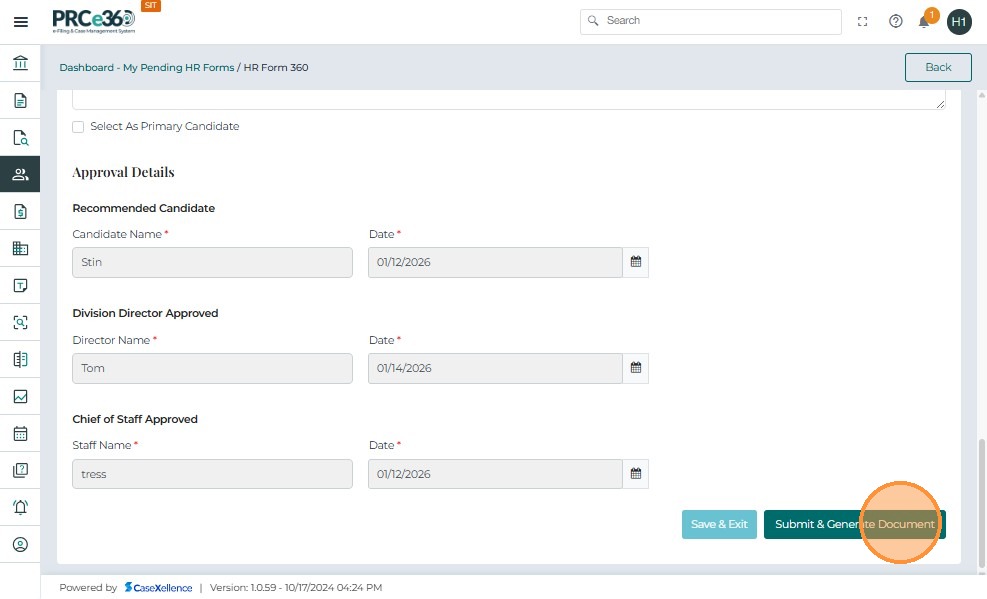
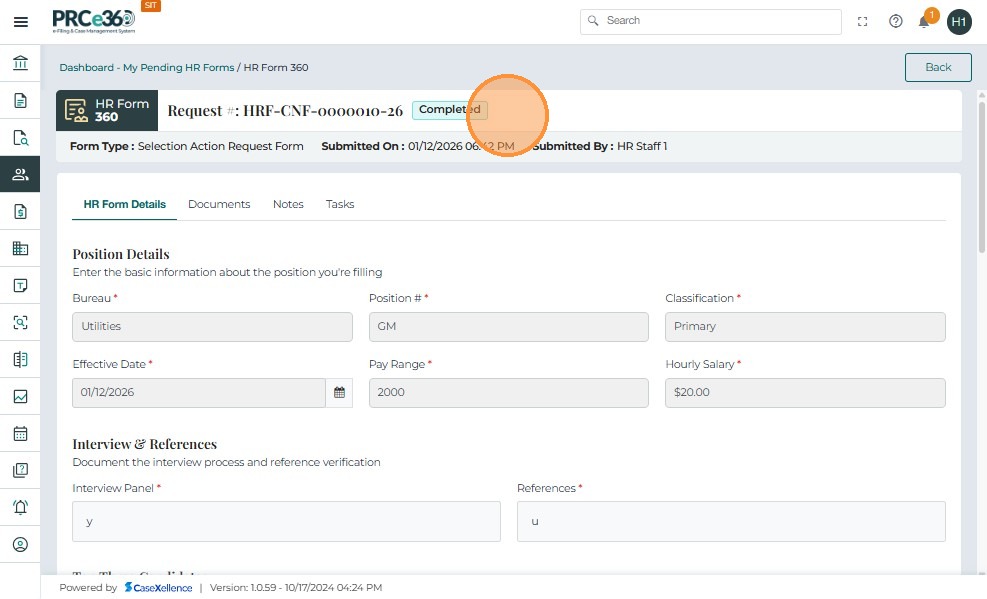
- After successful submission:
- The form header updates to show Completed status.
- All workflow actions are finished.
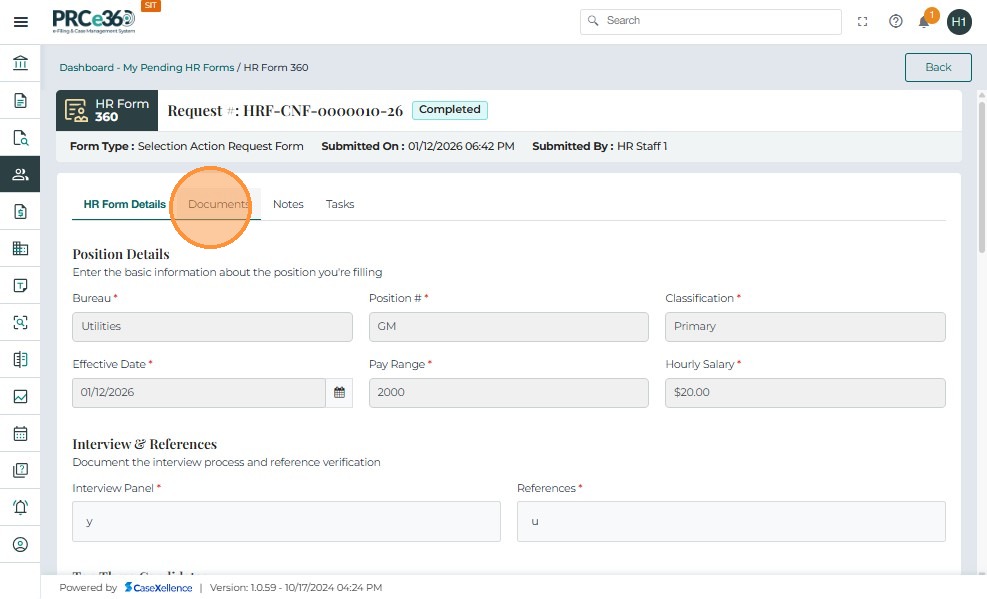
4. Generated PDF in Documents Tab
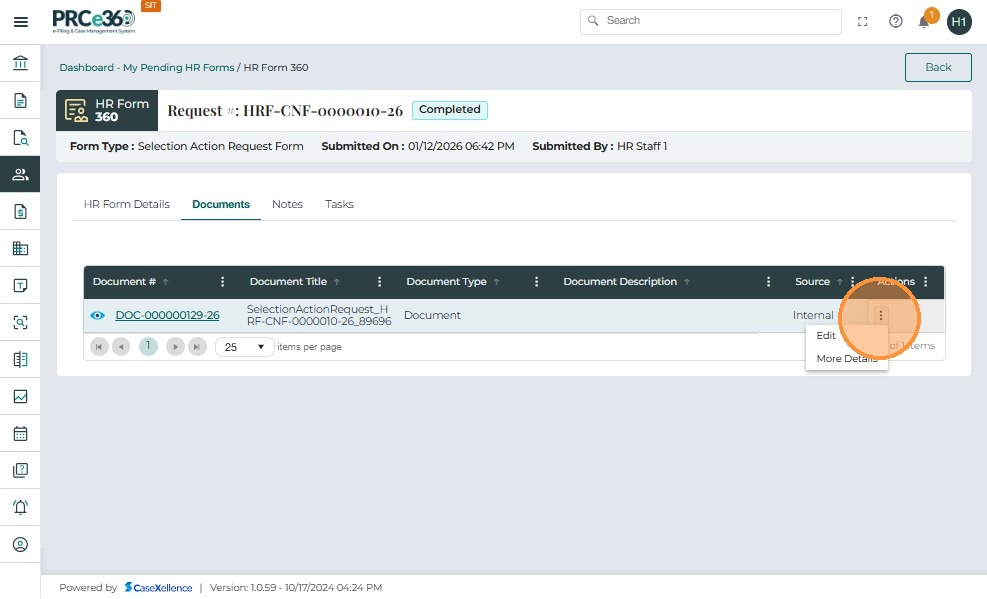
- Switch to the Documents tab.
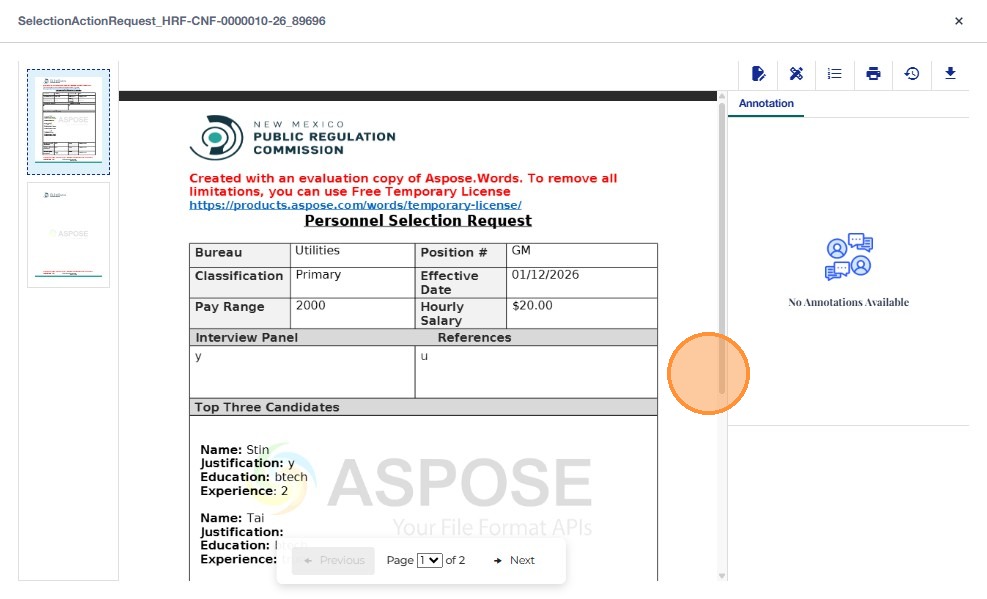
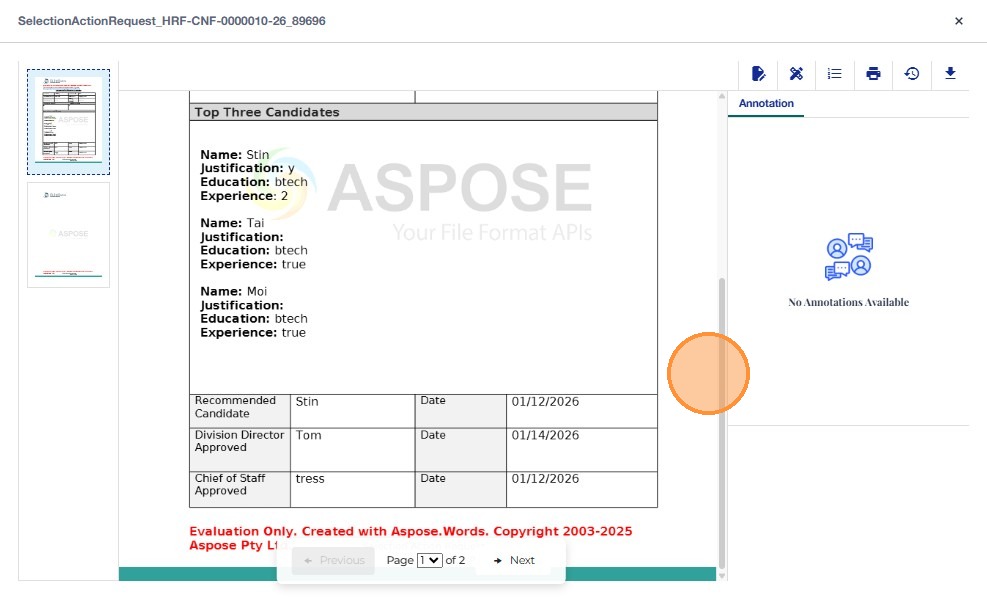
- The system-generated PDF appears with Document # and Document Title.
- Click the document link to open the PDF preview.
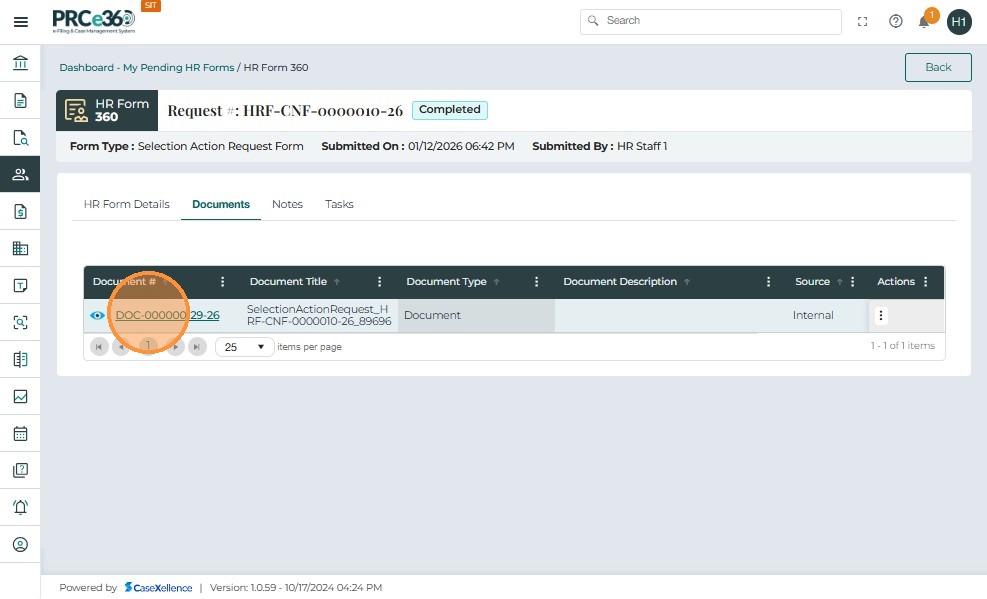
- The generated Personnel Selection Request PDF includes all entered values and represents the final official output of the Selection Action Request process.
From the document list, HR Staff can use standard document actions (as in other HR workflows):
- Check Out
- Edit
- More Details
These functionalities behave identically to the Actions menu used in previous HR forms.
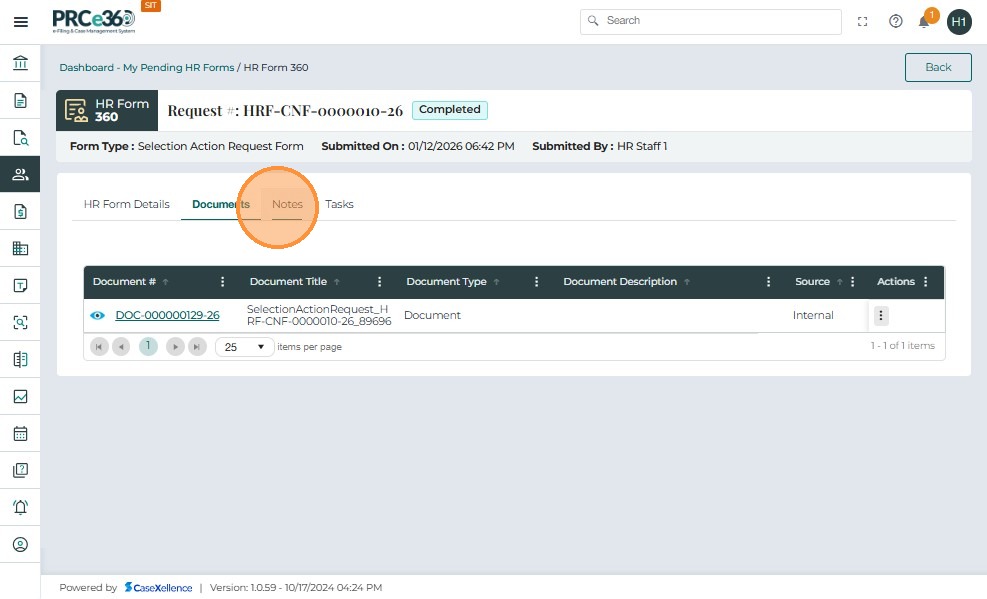
Notes Tab
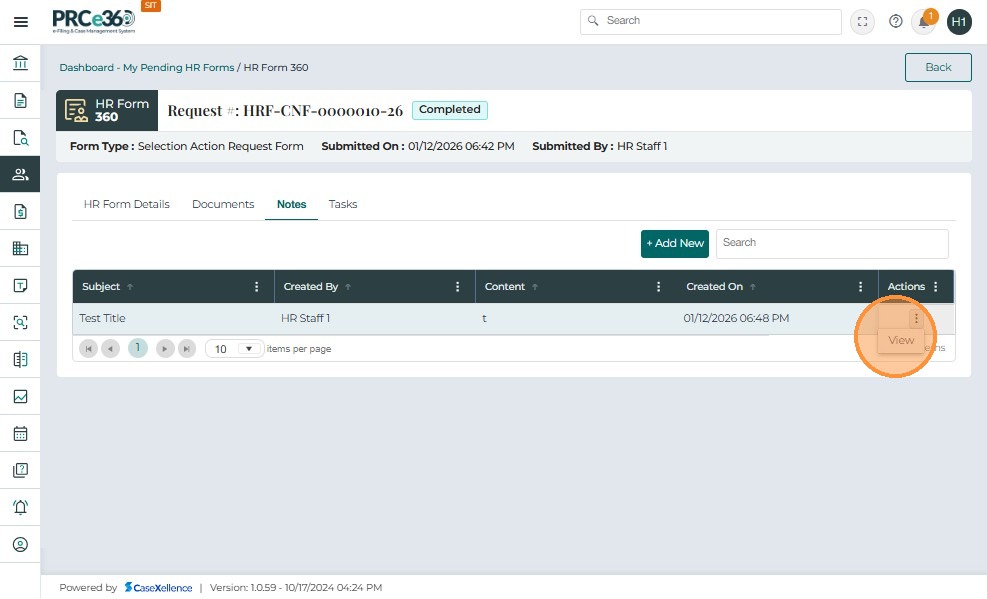
The Notes tab allows users to add additional comments or supporting information related to the HR Form. These notes act as internal remarks and do not affect the form’s workflow or status.
1. View Notes
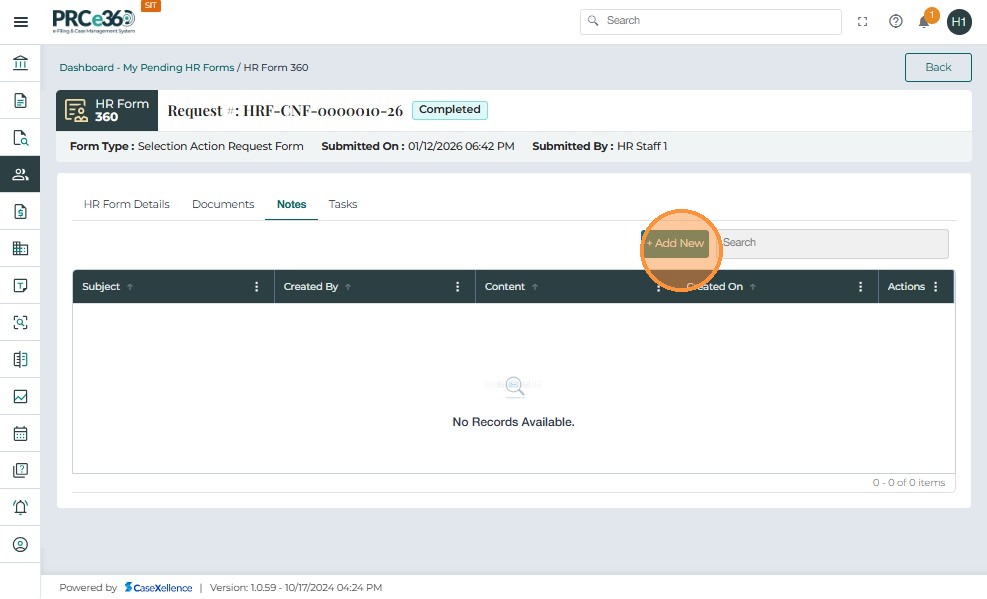
- Click the Notes tab in the HR Form 360 view.
- The system displays a list of all notes added to this form.
- If no notes exist, the grid will show “No Records Available.”
2. Add a New Note
- Click + Add New on the right side of the Notes tab.
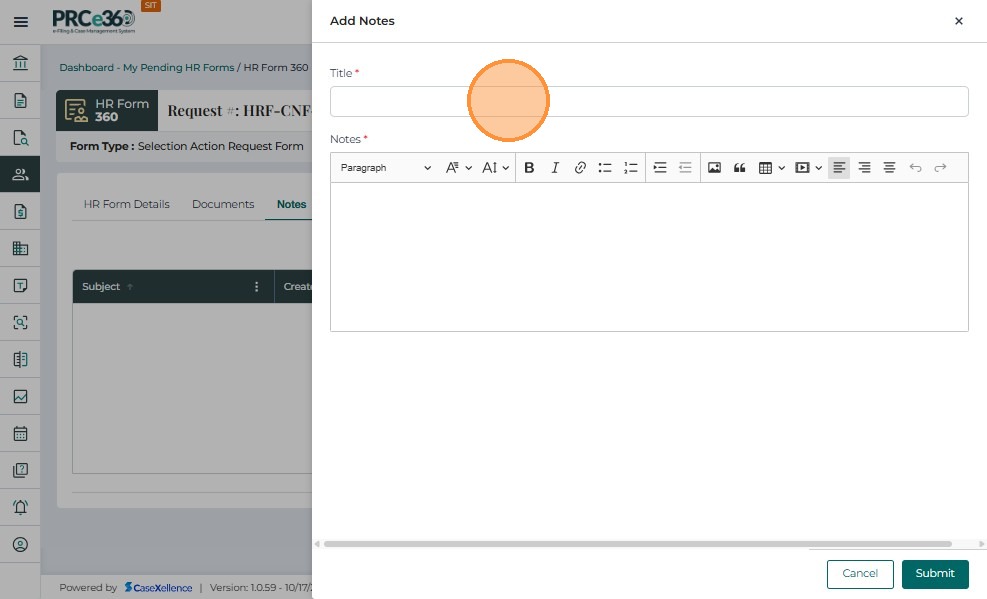
A popup window appears with:
-
Title* – Short subject line summarizing the note.
-
Notes* – Detailed comments or information.
-
Enter the required details and click Submit.
The note will be added to the Notes table and displays:
- Subject
- Created By
- Content
- Created On
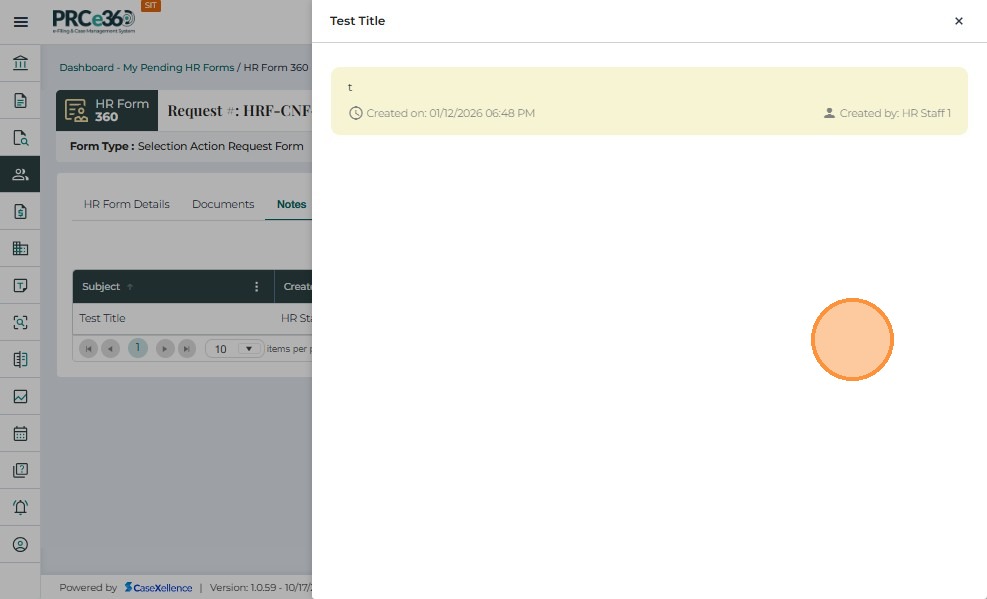
- Actions (e.g., View)