IT Approval Flow
In the Public Portal, only Tier 2 user registrations require approval by the PRC IT/Admin team. When a user indicates during registration that they will be filing items other than public comments with the Commission (by answering Yes to the designated registration question), the system identifies them as a potential Tier 2 user. Their account is then set to Pending Approval and routed to the Account Access queue for review.
Once approved by PRC IT/Admin, the user's account is activated as a Tier 2 account, granting access to enhanced portal functionalities such as filing new cases and submitting formal complaints.
Steps for IT Team Approval of Tier 2 Users
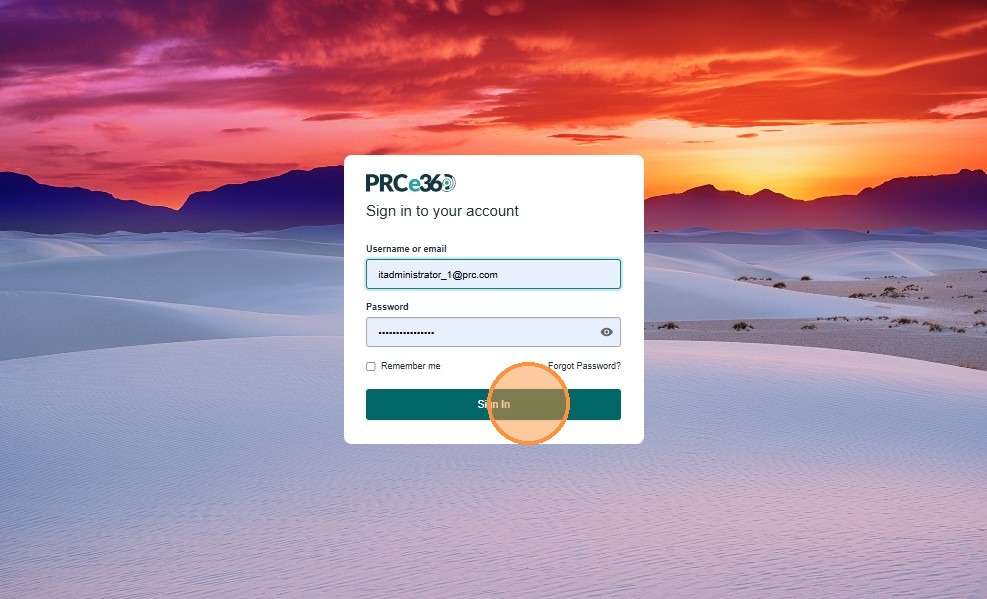
- In the Username or Email field, enter your assigned administrator email (e.g.,
itadministrator_1@prc). - Enter your password in the Password field.
- Select the Sign In button to access the IT/Admin dashboard.
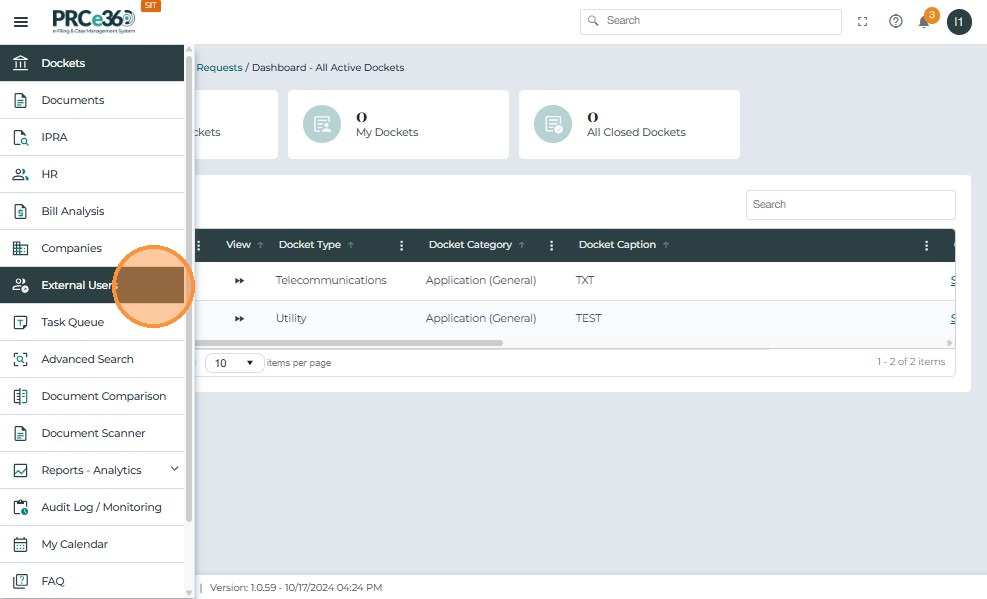
After signing in, locate the main navigation panel on the left side of the screen.
- Click External Users from the menu options.
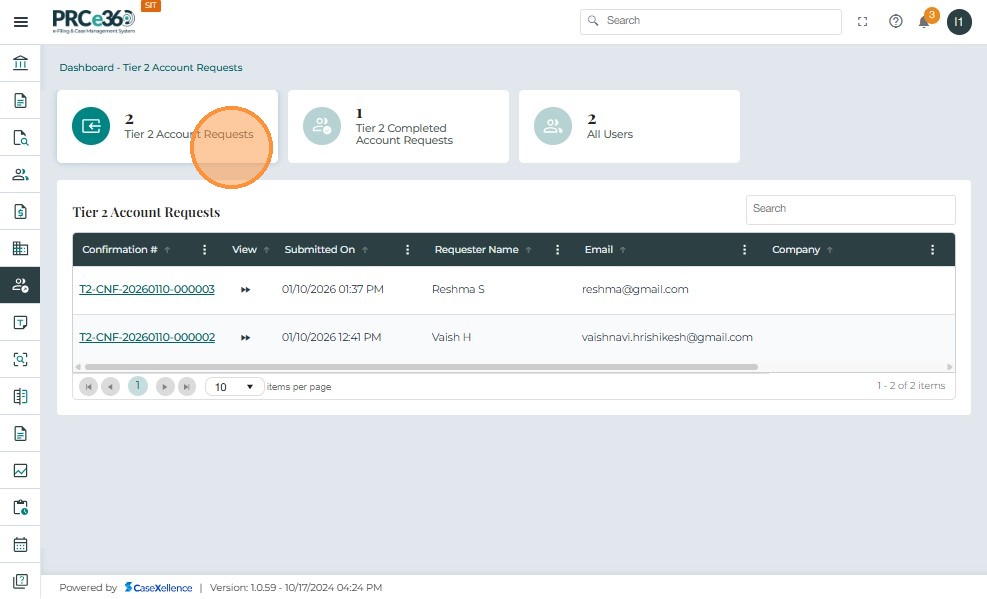
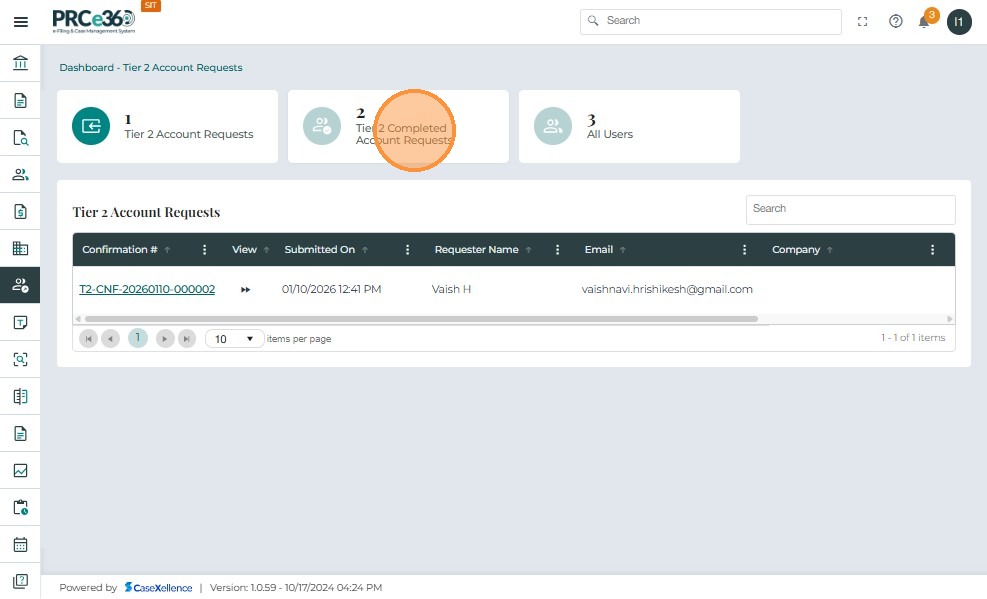
After selecting External Users, the system displays the Tier 2 Account Requests dashboard. This screen shows a summary of all pending and completed Tier 2 registration requests.
At the top of the dashboard, the following statistics are displayed:
- Tier 2 Account Requests – Number of pending Tier 2 registrations requiring approval.
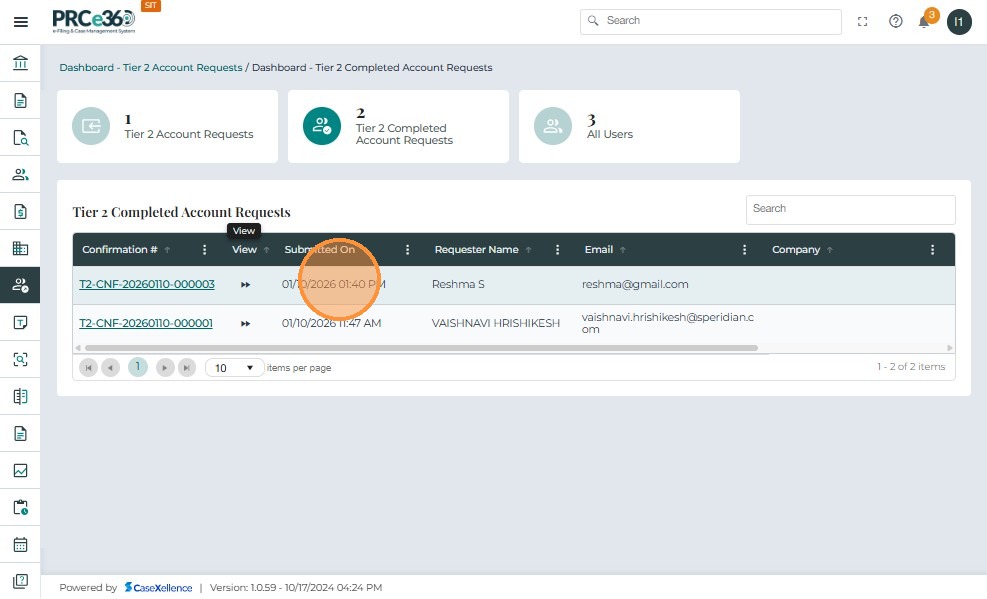
- Tier 2 Completed Account Requests – Number of requests already reviewed and processed.
- All Users – Total number of external users registered in the system.
- Use the Search field (top-right) to locate a user or confirmation number.
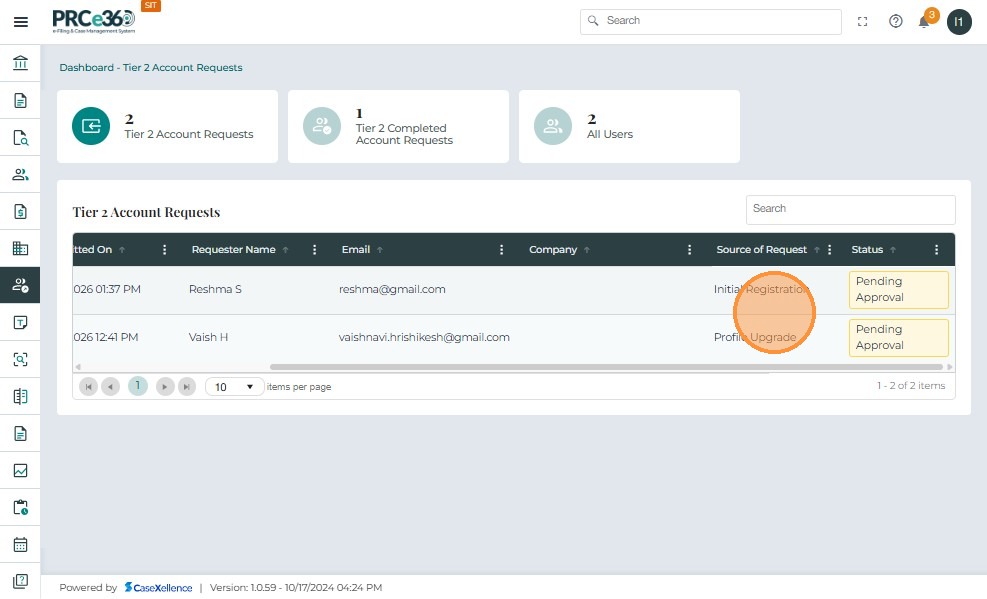
Tier 2 Account Request – Field Descriptions
| Field Name | Description |
|---|---|
| Confirmation # | Unique ID for the Tier 2 request; click to open details. |
| Submitted On | Date and time the request was submitted. |
| Requester Name | Name of the user requesting Tier 2 access. |
| User’s registered email address. | |
| Company | User’s organization, if provided. |
| Source of Request | How the request originated (e.g., Initial Registration). |
| Status | Current status of the request (e.g., Pending Approval). |
Reviewing a Tier 2 Account Request
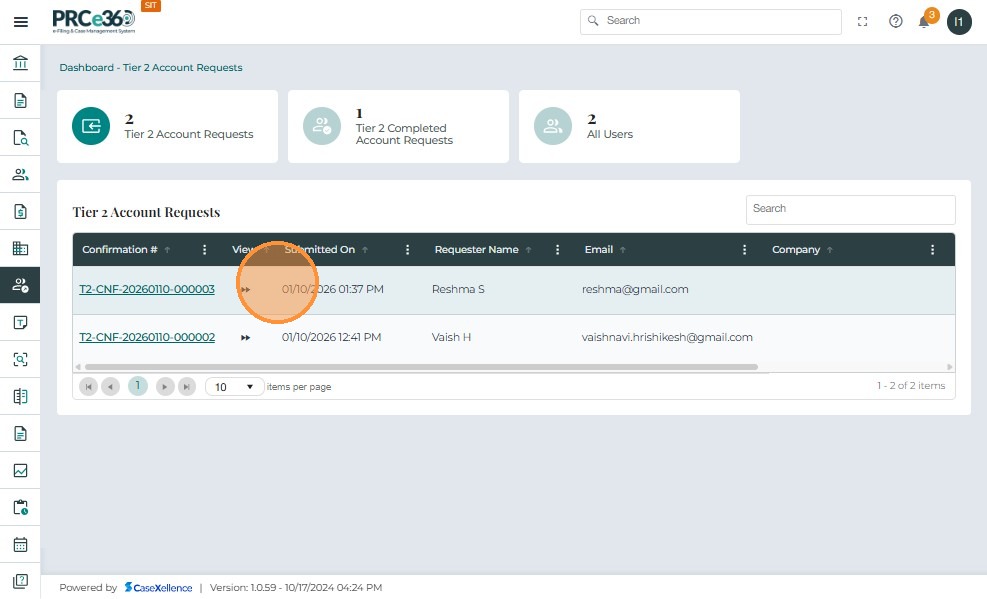
In the Tier 2 Account Requests table, browse the list of pending submissions.
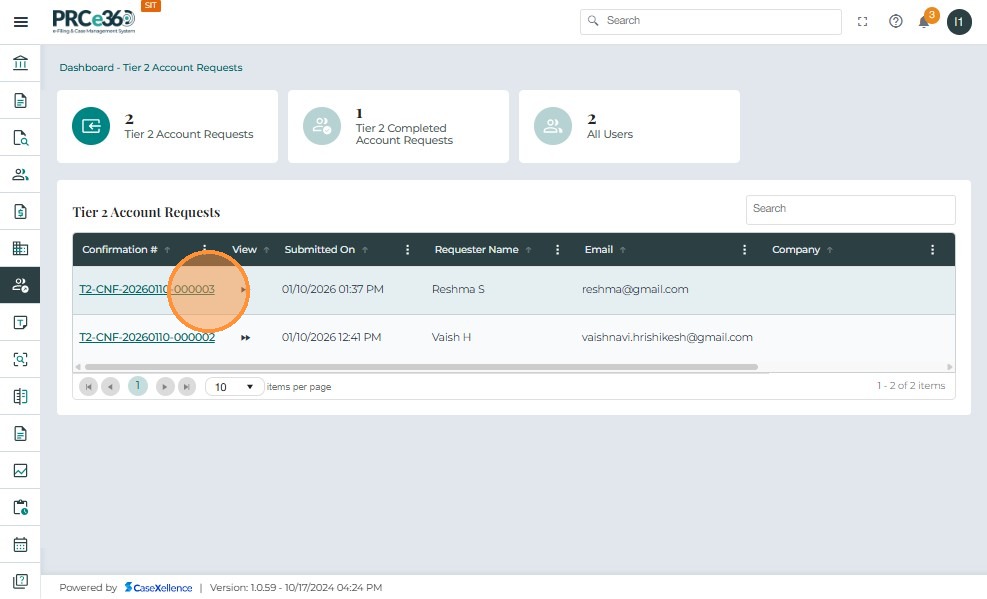
- Select the Confirmation # (e.g.,
T2-CNF-20251105-000003) to open request details. - This opens the User Account Review page for verification.
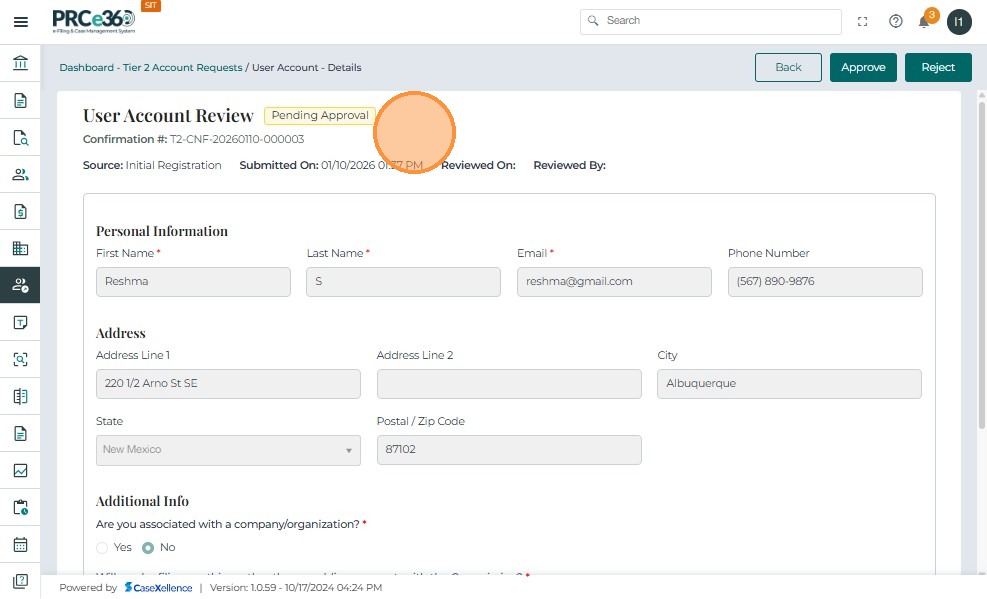
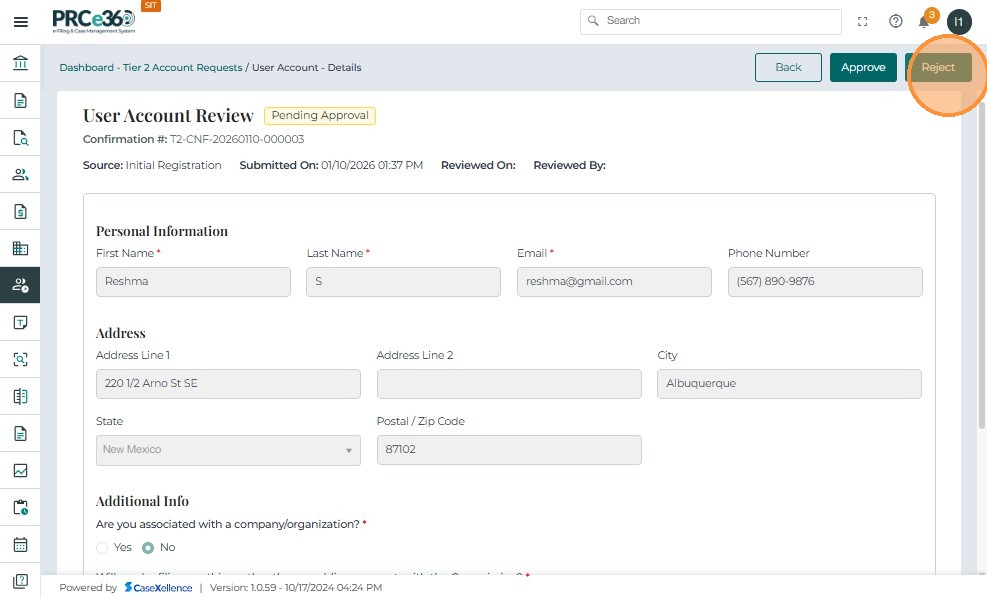
On the User Account Review screen:
- Verify Submission Details
- Review Personal Information
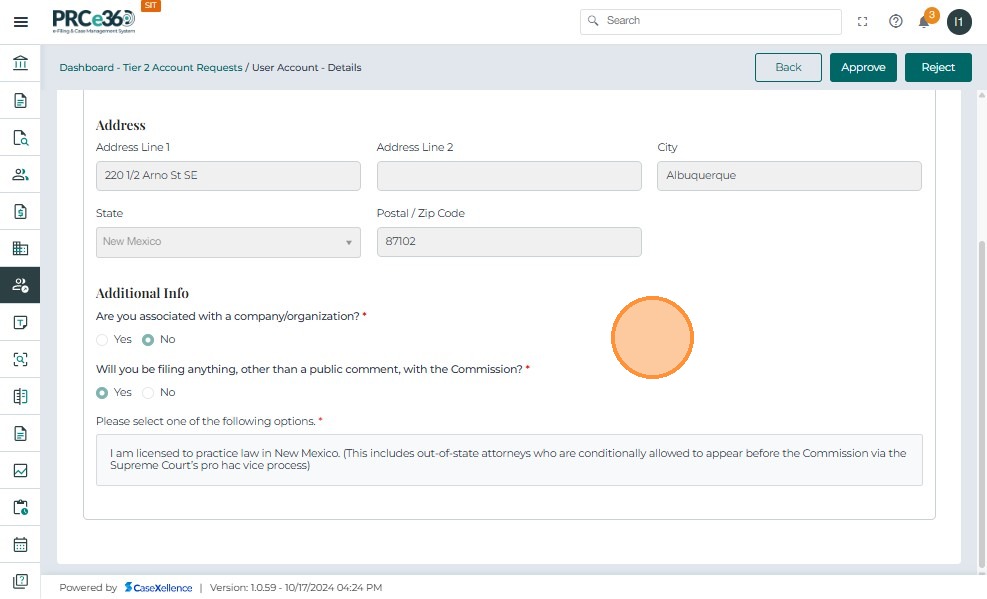
- Review Additional Information
- Confirm Tier 2 Eligibility
Approving or Rejecting the Request
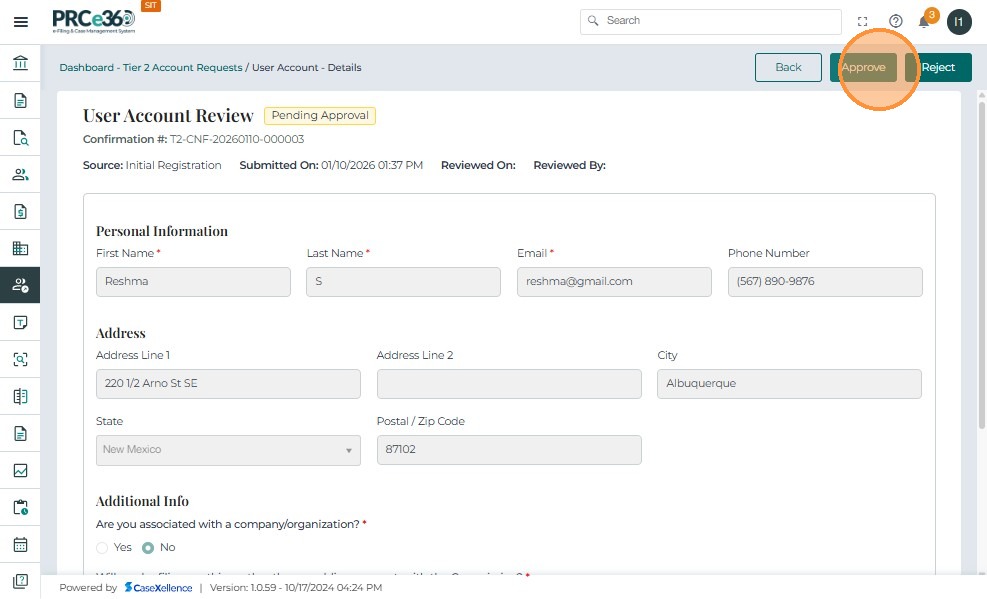
- Click Approve if the requester is eligible.
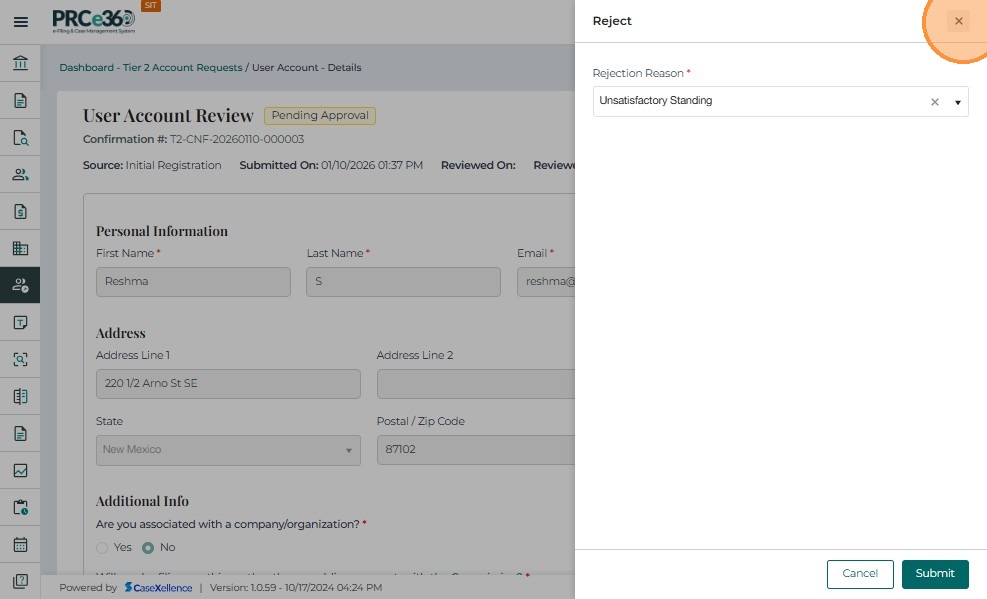
- Click Reject if information is incomplete or invalid.
Rejected requests:
- Are labeled Rejected.
- Trigger an automated email to the user.
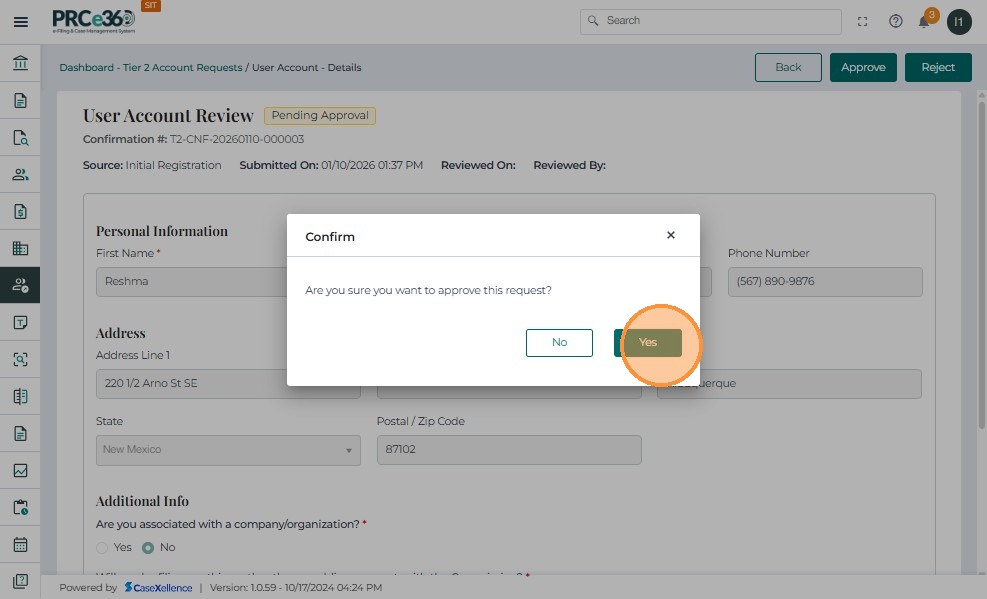
When approving:
- A confirmation popup appears.
- Select Yes to finalize approval.
Once approved:
- A green banner appears: “The Tier 2 account request was approved successfully.”
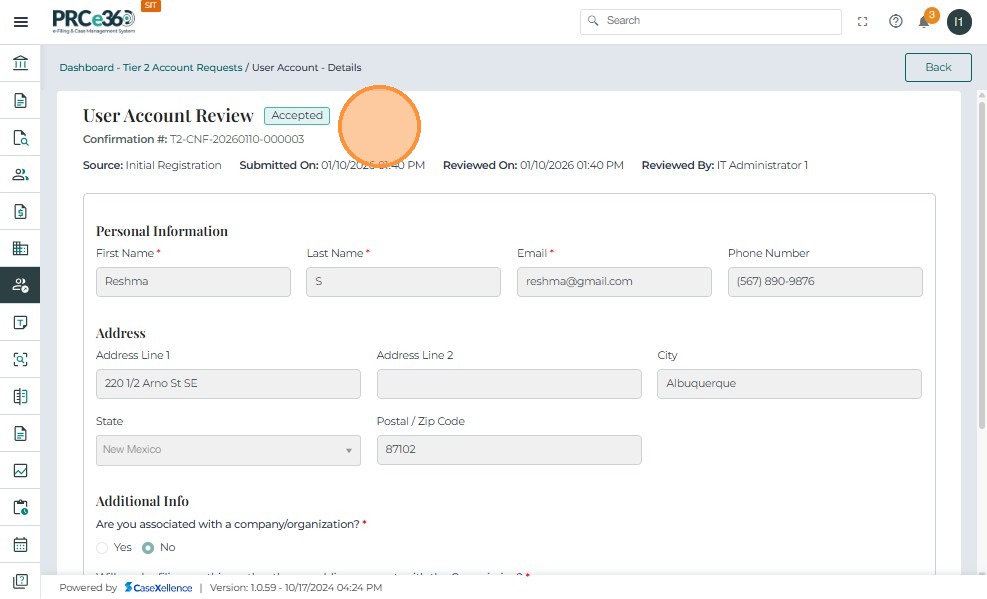
- Status updates to Accepted.
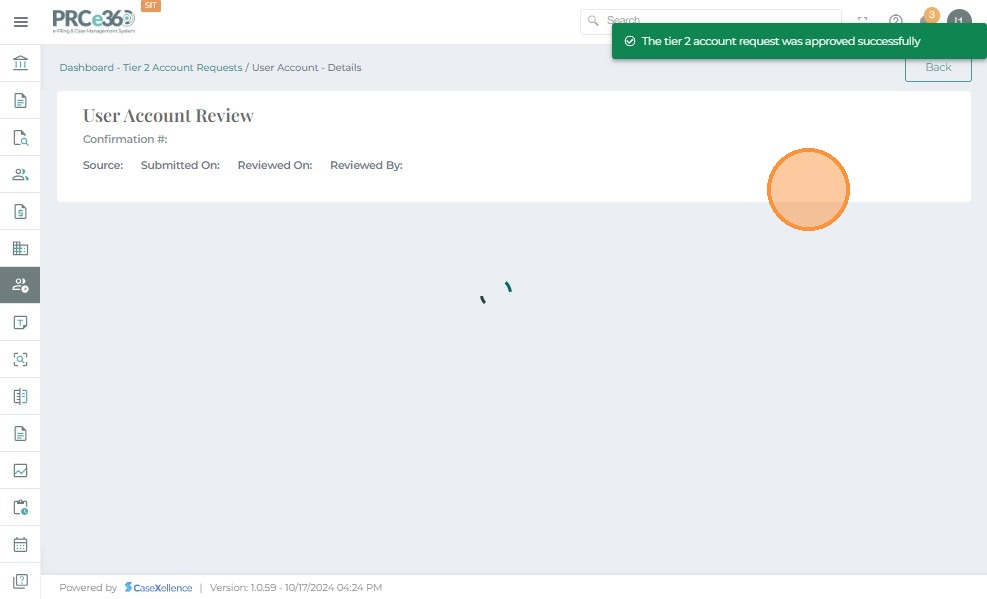
The system automatically:
- Updates Reviewed On
- Records Reviewed By
- Sends confirmation email to the requester
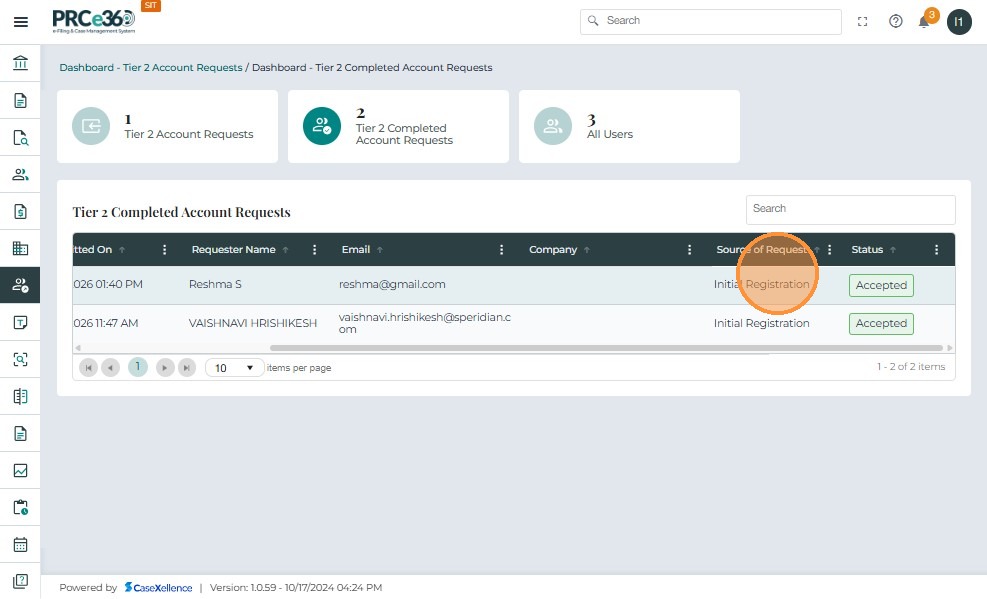
Dashboard totals update automatically. You may also view Completed Requests.
Processed requests show:
- Accepted
- Rejected
After approval, the user may log in with full Tier 2 access.