Company Management Access Request – Approval Process
The Company Management Access Request Approval Process allows IT Admins and Legal Supervisors to review, approve, or reject user-submitted requests for company management access. This process ensures that only authorized users are linked to company profiles within the system.
Through the New Company Management Access Request Queue, approvers can:
- View all pending access requests
- Review request details using the confirmation ID
- Approve or reject requests using the appropriate actions
- Automatically trigger email notifications to requesters based on the decision
- Track completed requests under the All Completed Company Management Access Request Queue
Steps for Approval
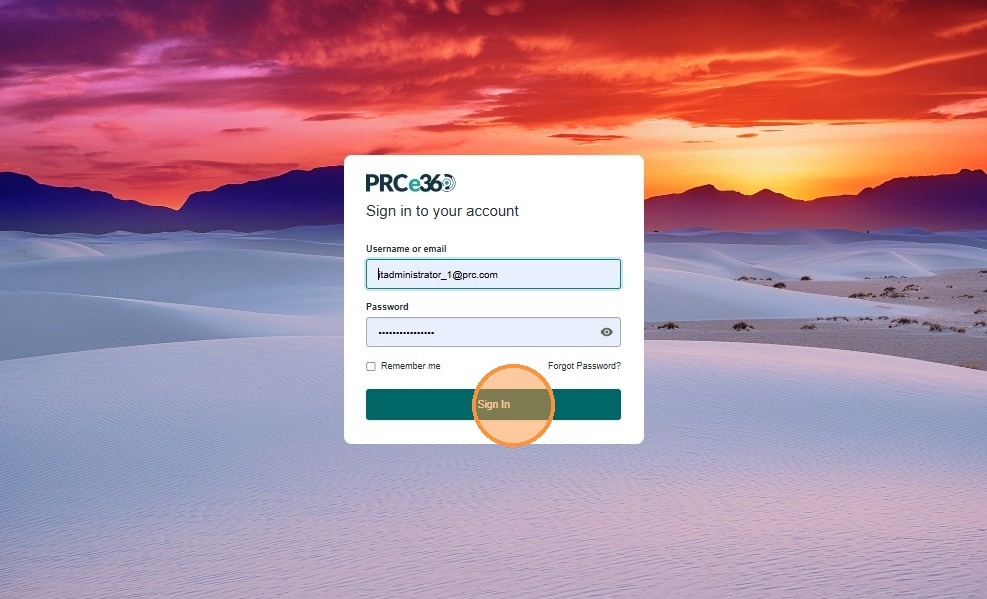
1. Sign In to the System
Enter your username or email and password in the respective fields, then click the Sign In button to access your dashboard.
2. Navigate to Companies
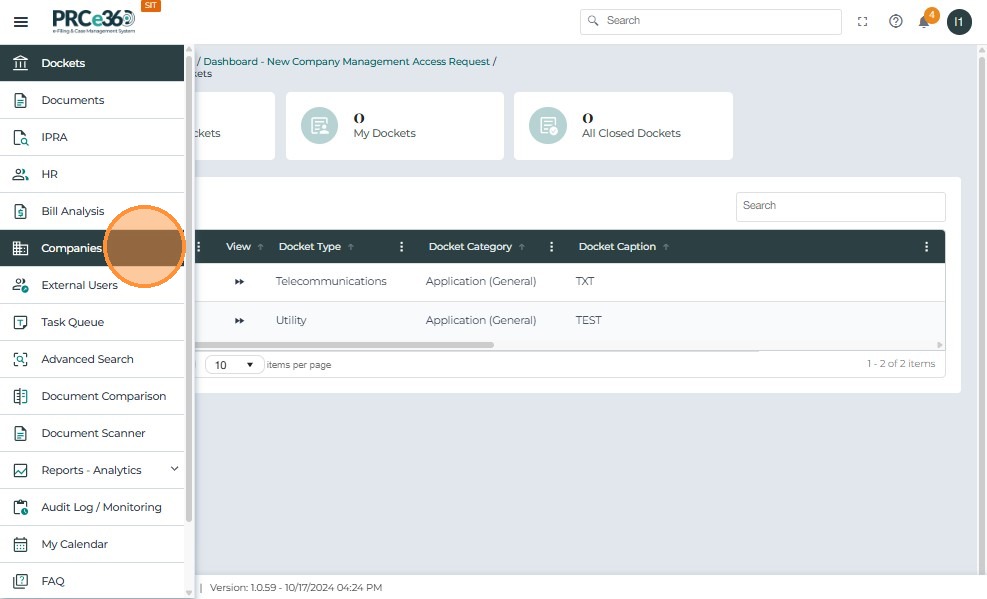
Once logged in, go to the left-side navigation menu and click Companies.
3. Access the New Company Management Access Request Queue
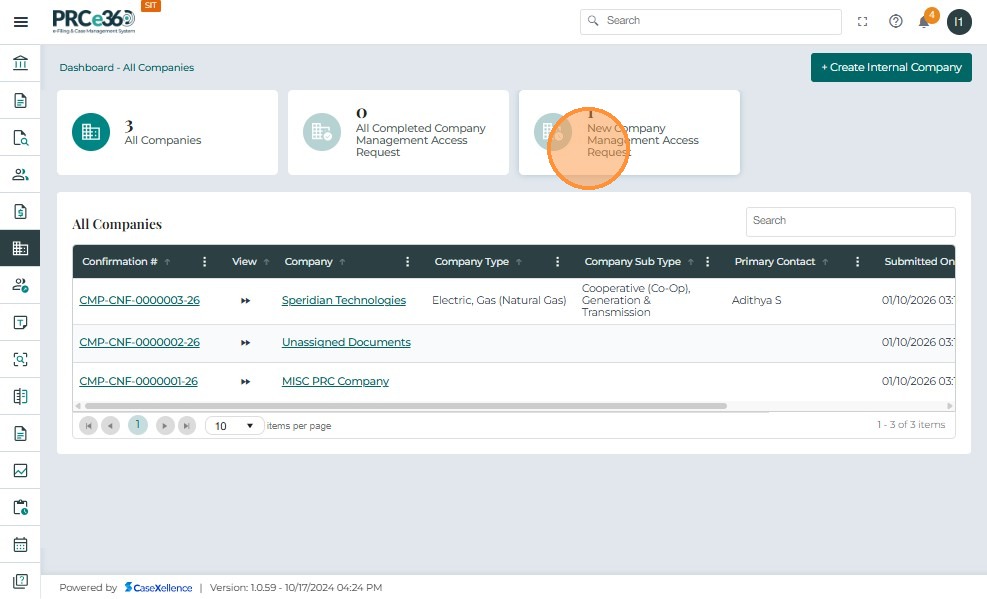
On the All Companies dashboard, two counters appear at the top:
- All Completed Company Management Access Request
- New Company Management Access Request
Click the New Company Management Access Request counter to open the list of pending access requests.
4. Review Pending Access Requests
The New Company Management Access Request Queue displays all submitted access requests with key details:
- Confirmation #
- Company Name
- Company Type & Sub Type
- Submitted On (Date & Time)
- Submitted By (Requester Name)
- Status (e.g., Pending)
Click the Confirmation # to open and review a specific request.
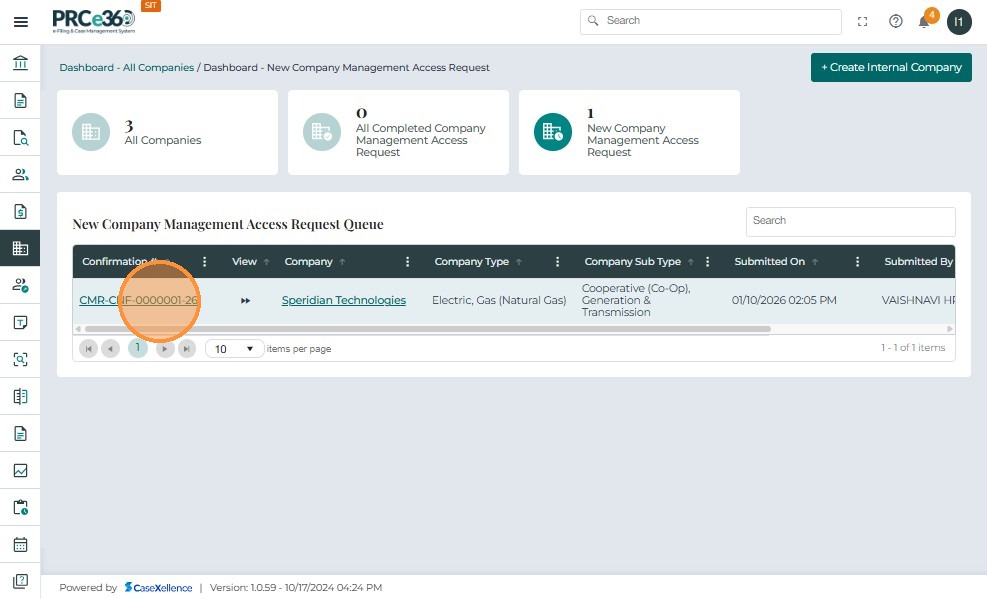
5. Review Request Details
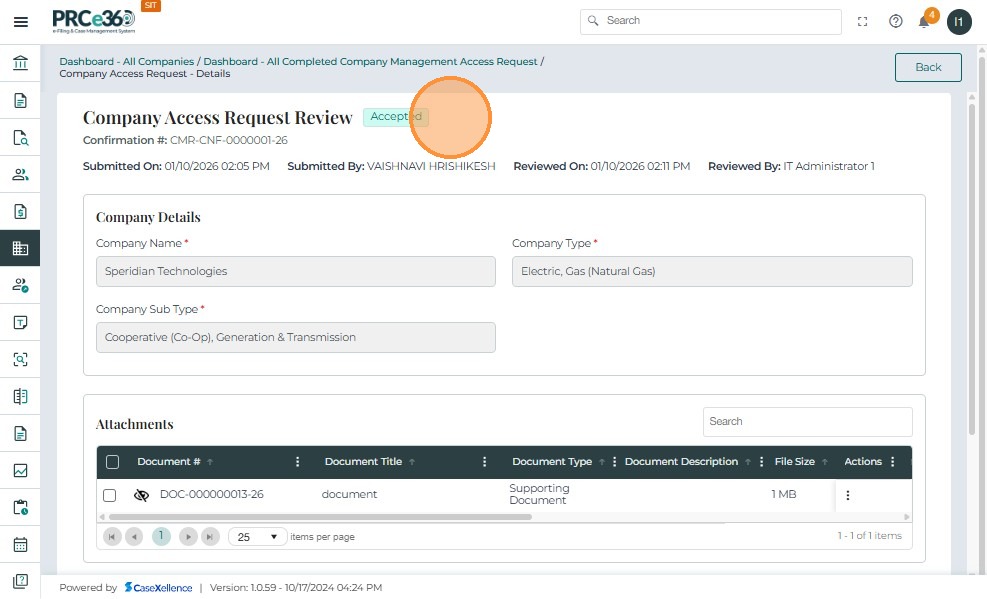
The Company Access Request Review page displays:
- Company Information: Name, Type, Sub Type, and ID Number/Operator ID (if applicable)
- Submitted Details: Submission date, requester's name, confirmation number
- Attachments: Documents uploaded by the requester
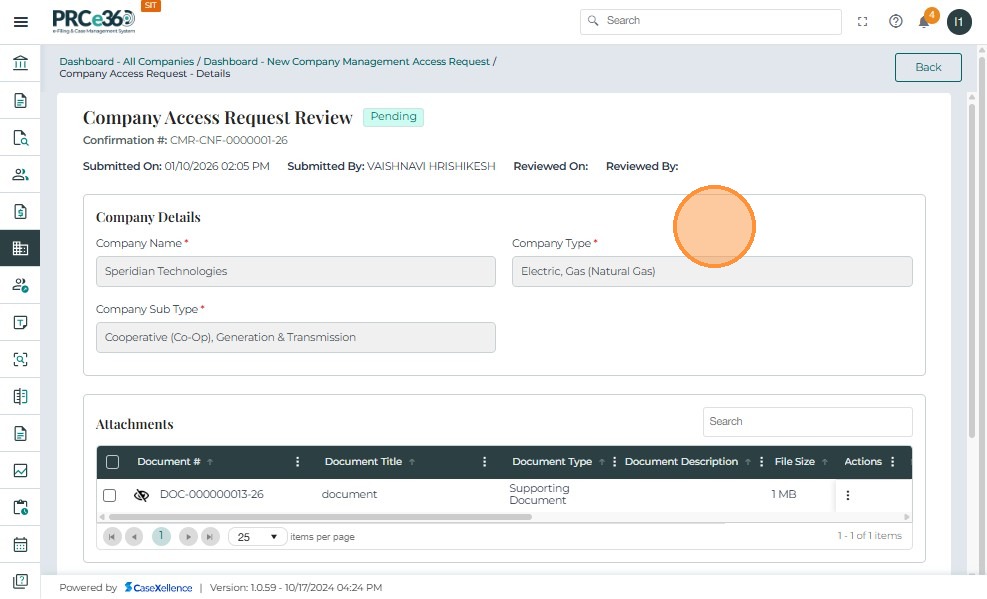
6. Make a Decision
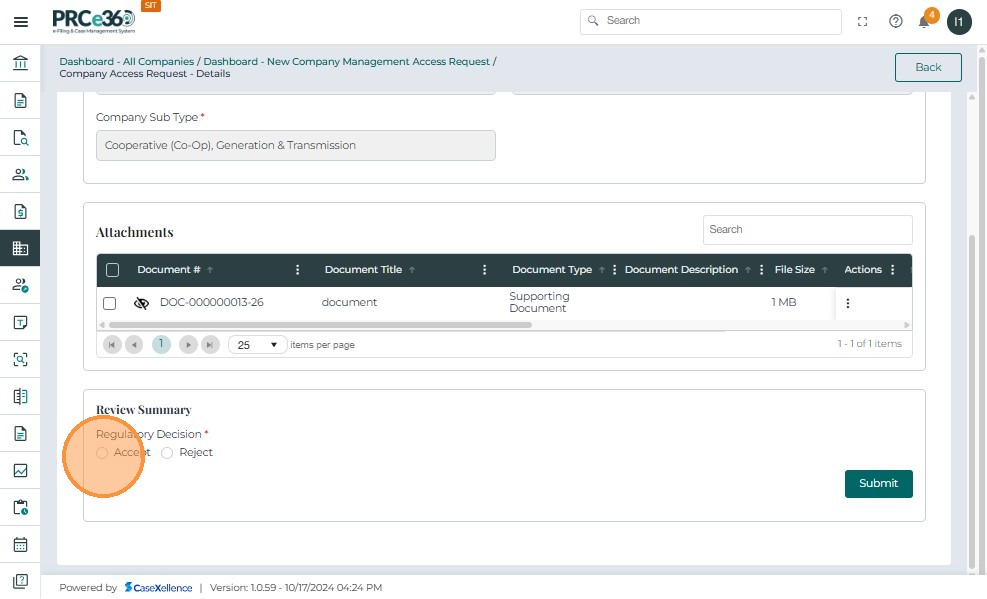
Scroll to the Review Summary section. Under Regulatory Decision, choose:
- Accept – to approve the request
- Reject – to deny the request
Note: Ensure all details and supporting documents are validated before making a decision.
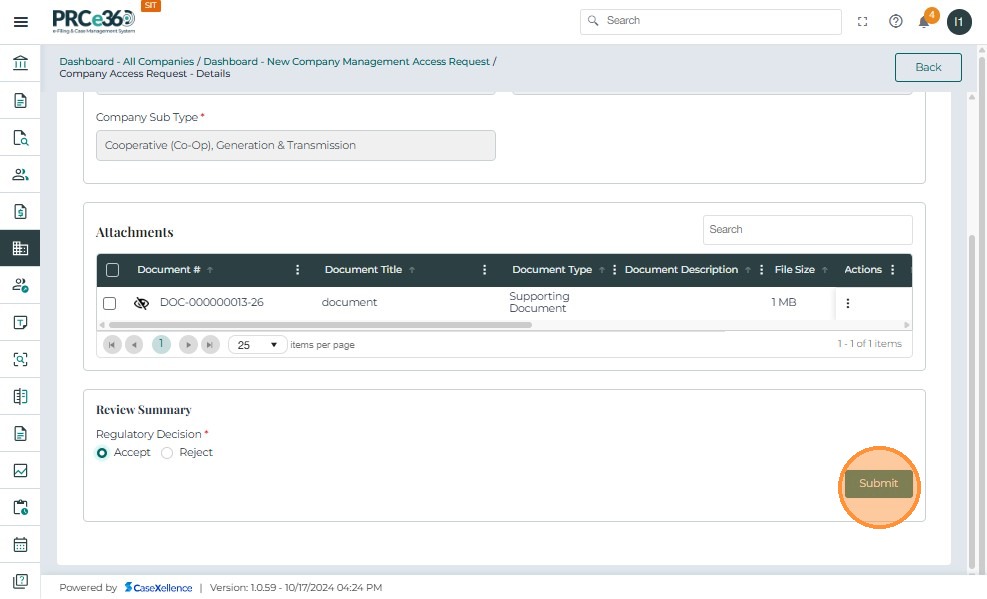
7. Submit the Decision
If Accept is selected:
- Click Submit
- The requester receives an approval email
- The approved company automatically appears under the requester's My Companies tab
If Reject is selected:
- Enter the required denial reason
- Click Submit
- The requester receives a rejection email
- The request status updates to Rejected
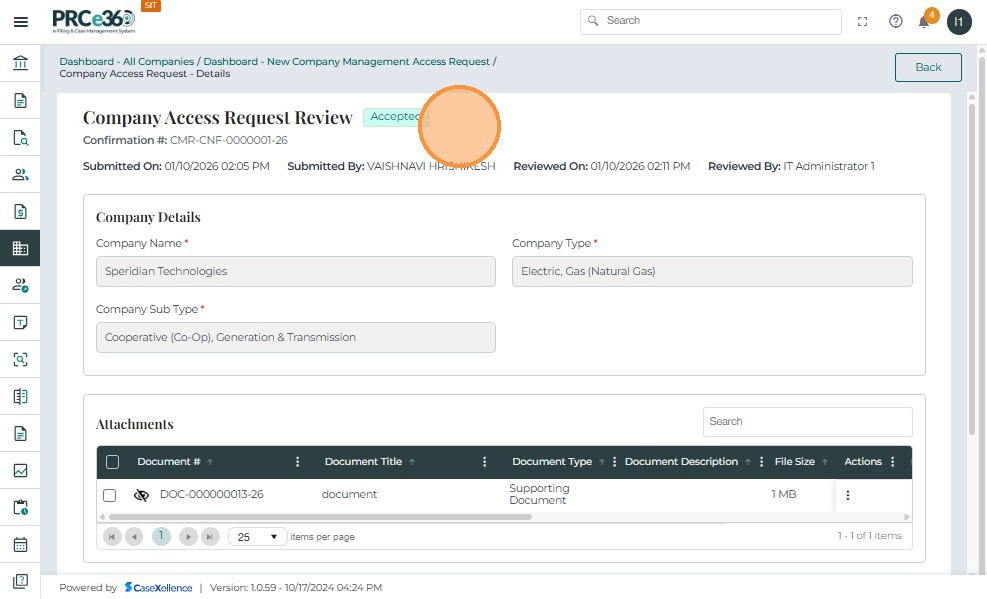
8. Verify Status Update
Once approved:
- The request status updates to Accepted
- A green status badge labeled Accepted appears
- The Reviewed On date and Reviewed By user are automatically recorded
- The requester receives an approval email and the company is linked to their profile
9. Return to Previous Page
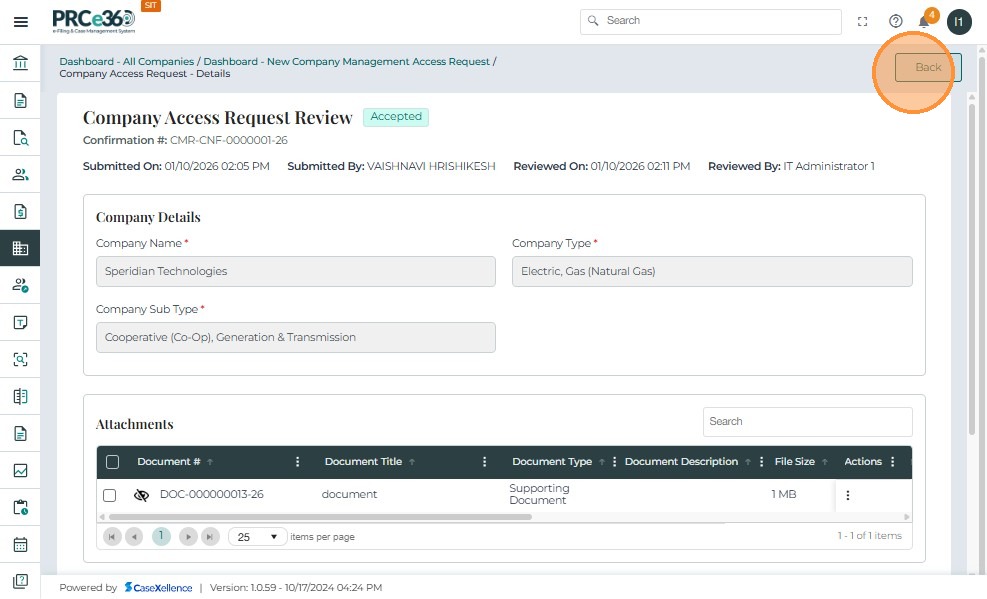
After confirming the updated status, click Cancel at the top-right corner to return to the previous page.
View Completed Requests
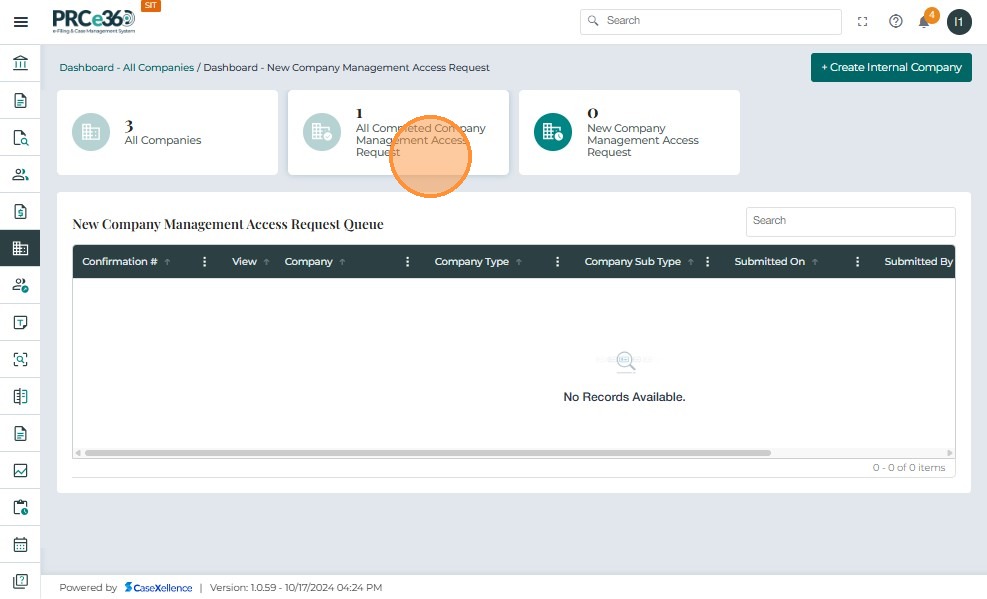
Counter Update
Once a request is approved or rejected:
- The All Completed Company Management Access Request counter updates automatically
- The request is removed from the New Company Management Access Request queue
- The updated totals reflect all processed access requests
Access Completed Requests
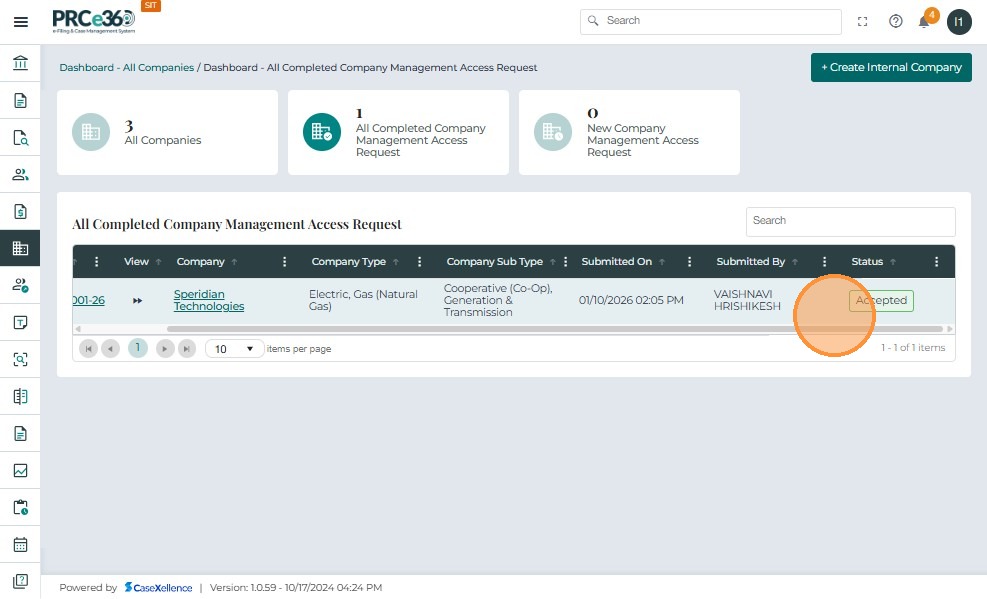
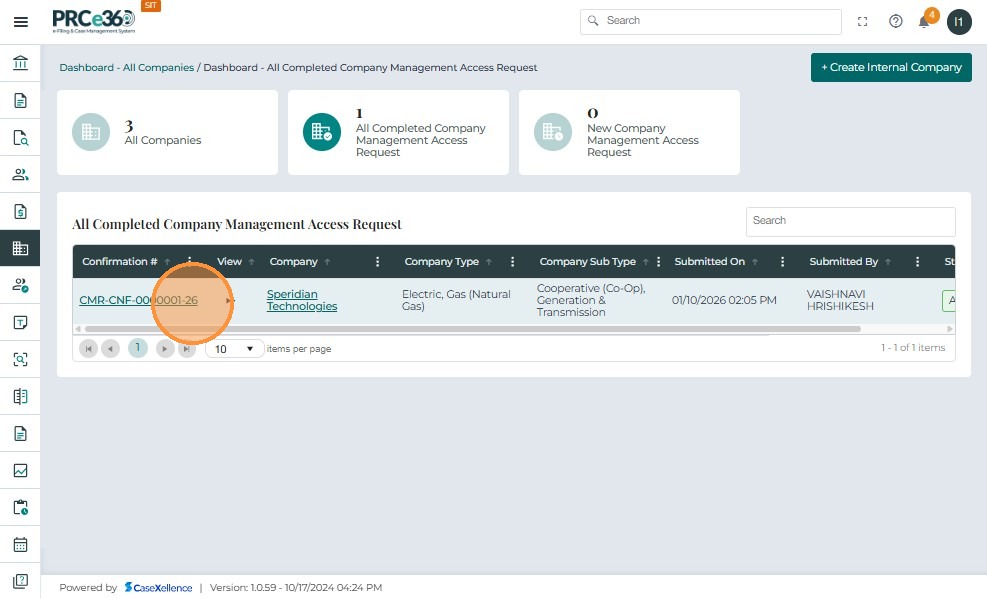
Navigate to the All Completed Company Management Access Request section to view all processed requests.
This page lists:
- Confirmation #
- Company Name
- Company Type
- Submitted By
- Status (Accepted or Rejected)
Accepted requests appear with a green status label.
Review Completed Request Details
Click any Confirmation # in the list to view details of a completed request.
The Company Access Request Review page for completed items includes:
- Full company information
- Uploaded documents
- Review history with reviewer name, date, and final decision
Click Cancel (top-right) to return to the list after reviewing.