Reports - Analytics
The Reports feature helps users understand information clearly through graphical representations. Each report can be accessed by specific divisions or roles.
List of Reports and Their Functions
| Report | Eligible Roles | Function |
|---|---|---|
| Docket Report | All Divisions have access to this report | To view, filter, and analyze docket information across the system |
| Company Report | Records Division and IT Division have access to this report | To view, filter, and analyze company information |
| Filed Document Report | All Divisions have access to this report | To view, filter, and analyze filed document information across the system |
| Docket Assignment Report | Divisions or roles that have permission have access to this report | To view, filter, and analyze docket assignment information |
| User List Report | All Divisions have access to this report | To analyze active and inactive users |
| IPRA Request Report | Records Division, IPRA Legal Counsel, Legal Supervisor, or Chief of Staff Division have access to this report | To view, filter, and analyze IPRA Request information |
| Pipeline Inspection | Pipeline Division, Chief of Staff Division, and IT Division have access to this report | To view, filter, and analyze pipeline inspection requests |
| HR Reporting | HR Division has access to this report | To view, filter, and analyze HR form activity |
| Filing Requests | Records Division, IT Division, and Chief of Staff Division have access to this report | To view, filter, and analyze filing request information |
| Bill Analysis | Chief of Staff Division and Commissioner Division have access to this report | To view, filter, and analyze bill analysis requests |
| Parties & Service Notifications Report | All Divisions have access to this report | To view, filter, and analyze parties and service notification information |
| Payments Report | All Divisions have access to this report | To view, filter, and analyze payment information |
| IPRA Export and Download Report | Records Division and IPRA Legal Counsel have access to this report | To view, filter, and analyze IPRA export and download activities |
| Filing Request Report | Records Division, IT Division, and Chief of Staff Division have access to this report | To view, filter, and analyze filing request information |
Access Reports
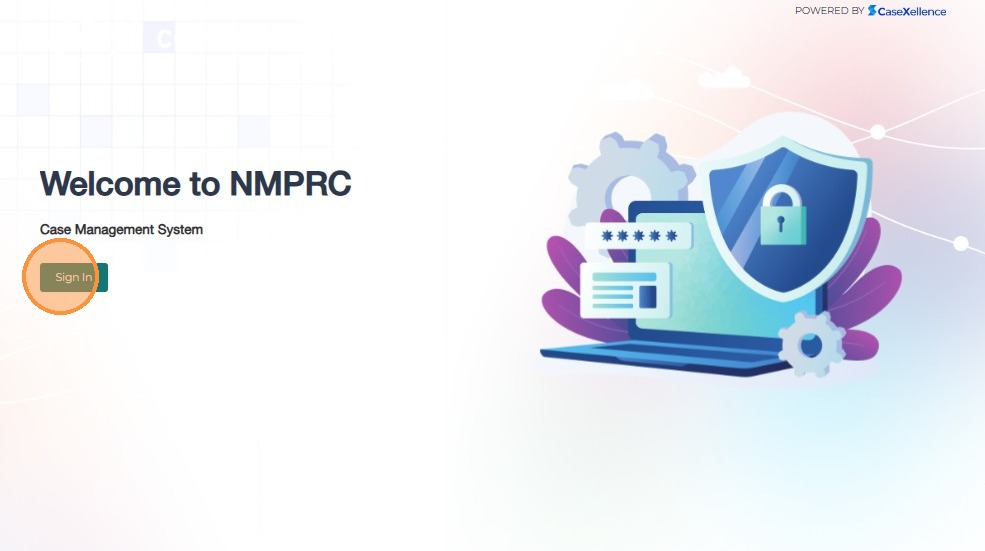
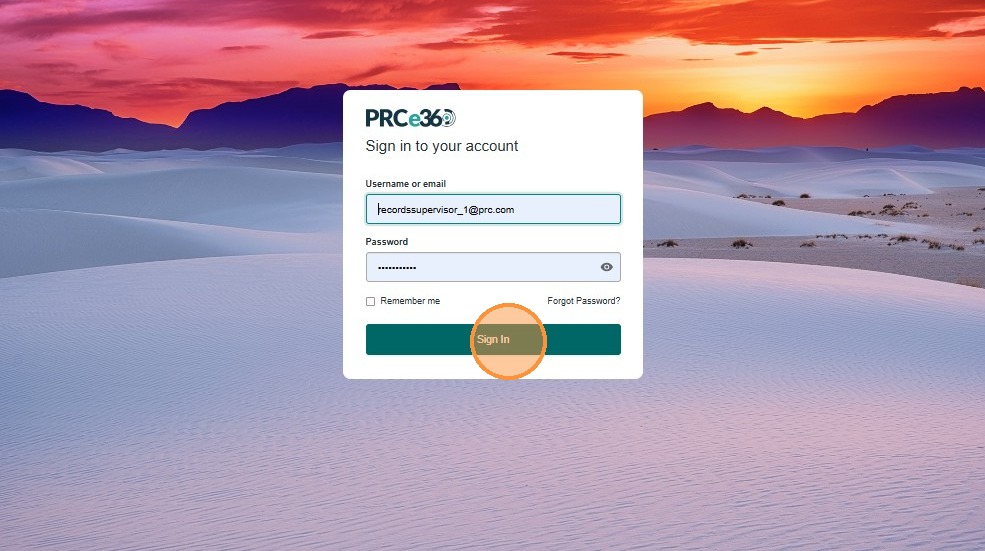
Sign In
Enter your user credentials to log in to the application, then click Sign In.
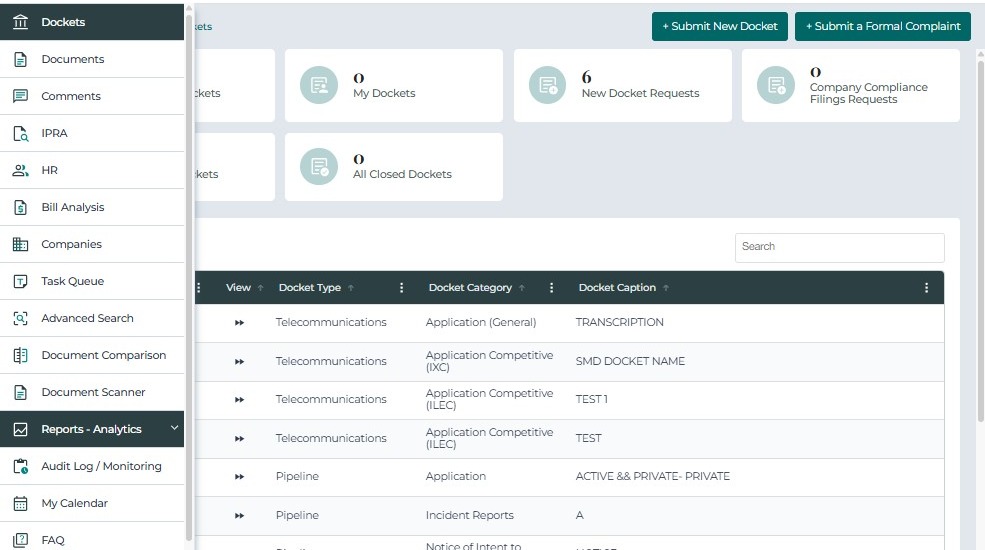
Navigate to Reports Dashboard
Click the side menu to navigate to the reports.
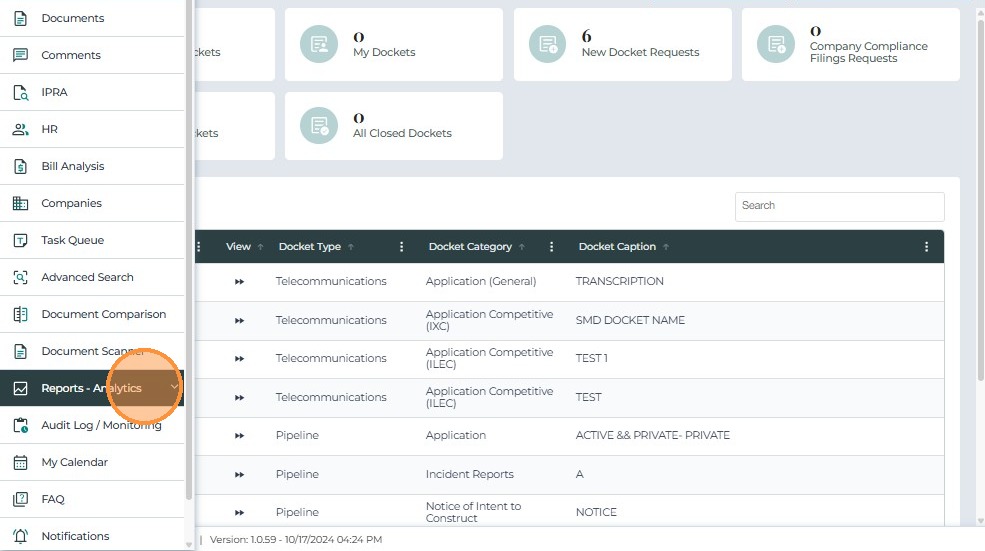
Click the Reports - Analytics tab to view the list of available reports.
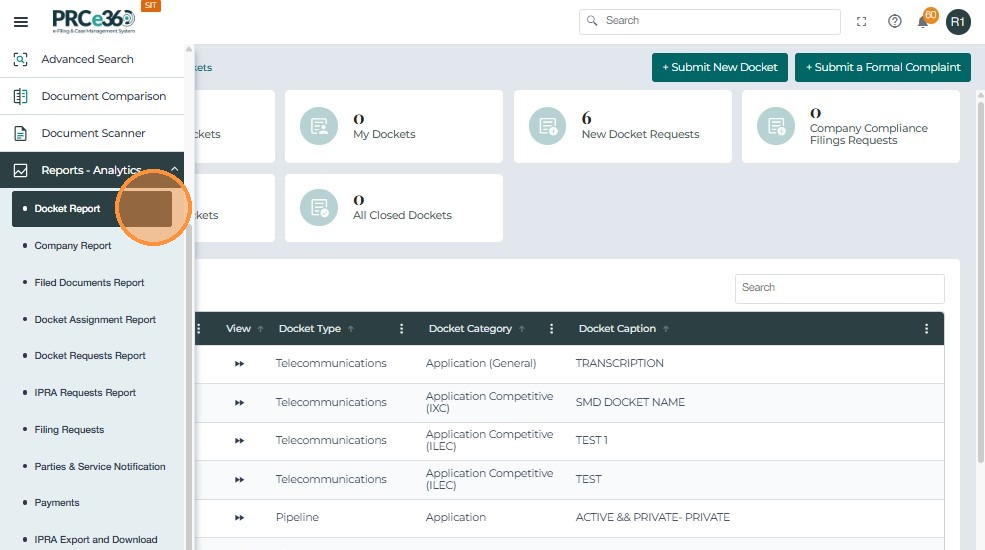
Click the desired report.
You will be navigated to the selected report.
Report Features
Numerical Display
The numerical display shows the total number of cases or requests depending on the report. This value will change based on the report selected.
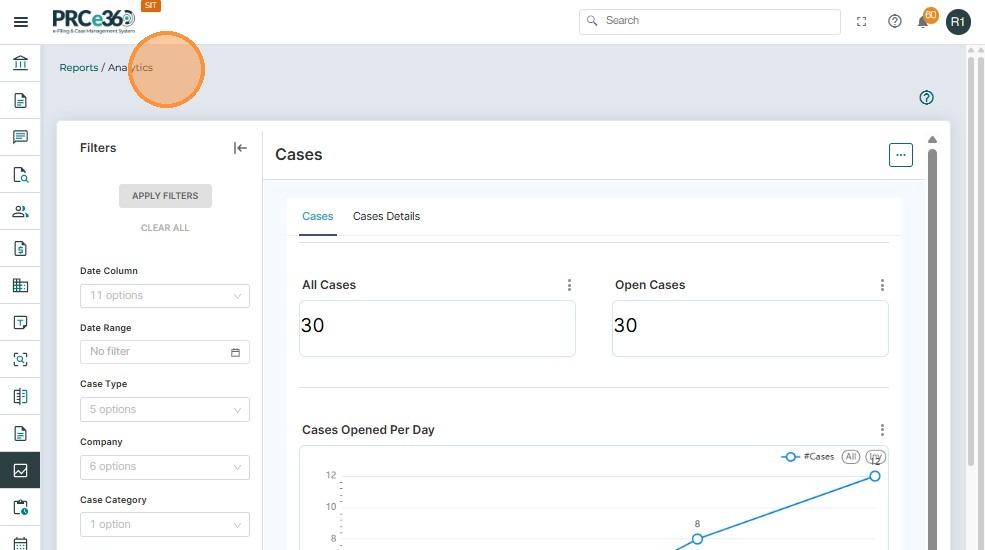
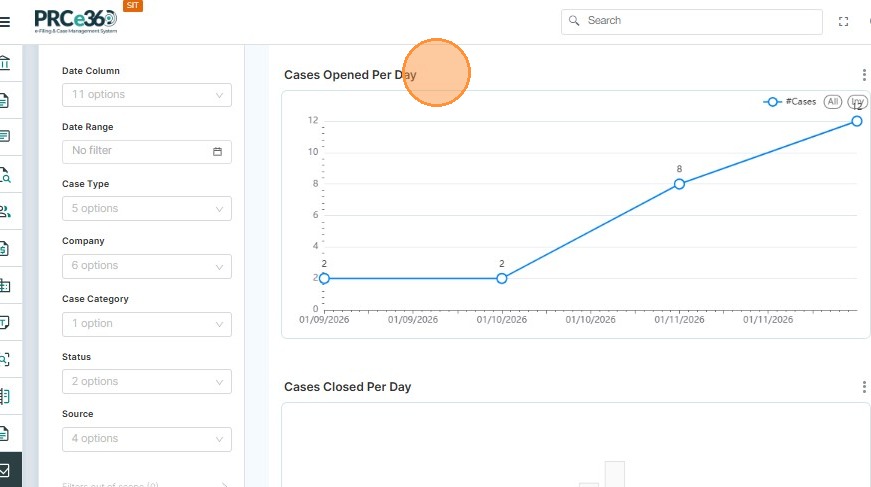
Line Graph
A line graph will be displayed based on the filters applied. The line graph values will be different for each report.
Filters
Several filters are available for each report. When applied, these filters will be reflected in the line graph.
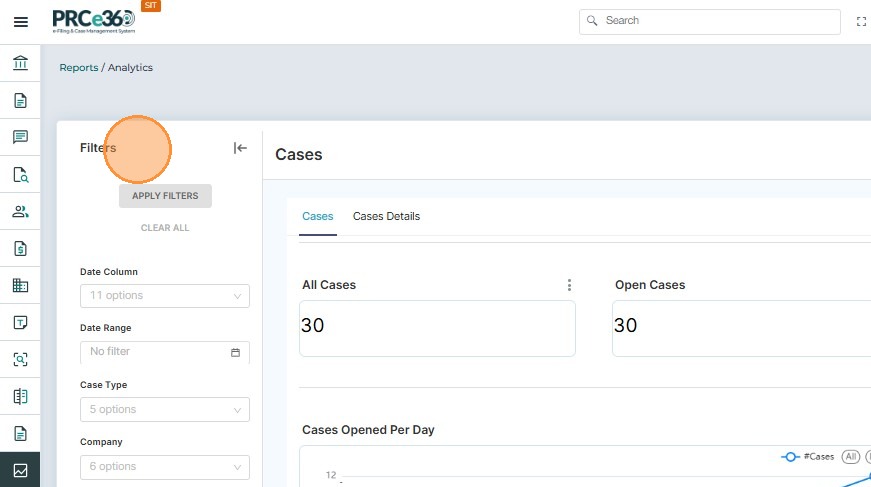
Select any filter value and click Apply Filter to apply it.
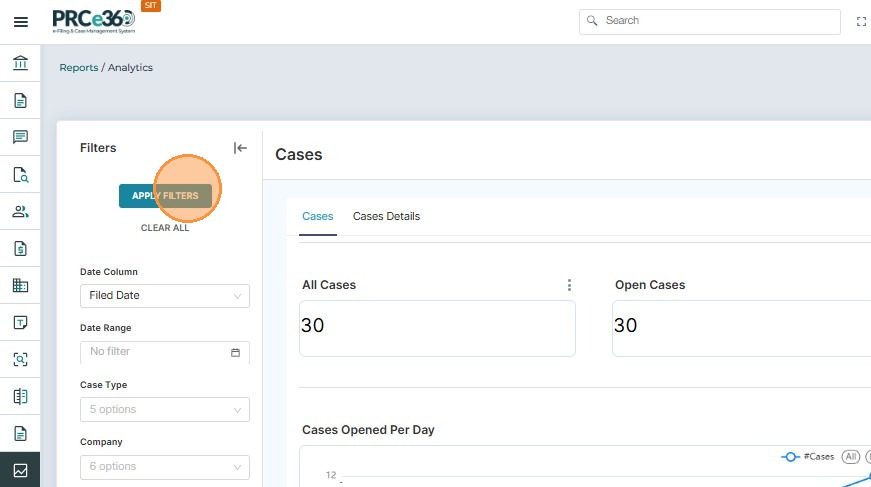
Click Clear All to remove the filters that were applied.
Details Tab
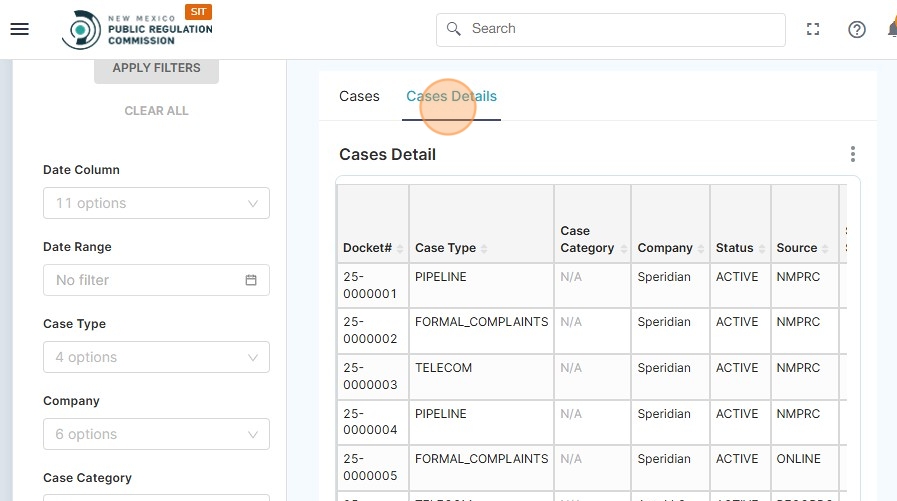
Click the Case Details tab to view the report details in table format.
Additional Features
When clicking the three-dot menu, more features will be displayed. This feature is available for the numerical display, the line graph, and the details tab.
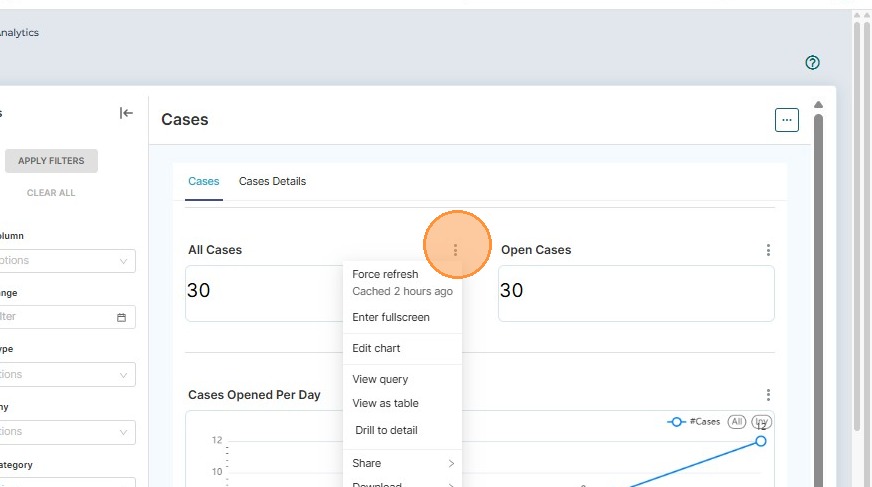


Available Options:
- Force Refresh – Refreshes the data to include the latest information
- Enter Full Screen – Enters full screen view
- Edit Chart – Allows editing of the available line chart
- View Query – Displays the query details
- View as Table – Displays the values in table format
- Share – Shares the chart by email or by copying to clipboard
- Download – Downloads the values or chart in CSV, Excel, or as an image