Document Comparison
The Document Comparison/Versioning feature allows users to maintain and track multiple iterations of the same document within a case. Each time a document is updated and re-uploaded, the system automatically stores it as a new version (e.g., V1, V2, V3), ensuring that earlier versions remain intact.
Purpose
-
Helps users track document progress across review cycles.
-
Prevents accidental overwriting of files.
-
Supports internal workflows, approvals, and collaborative updates.
-
Maintains complete version history for audit and compliance.
Functionalities
-
Create New Version: Uploading the same document again generates a new version entry.
-
View Version Details: Each version displays metadata such as uploaded date, user, and version number.
-
Preserve Old Versions: Previous versions remain accessible and cannot be edited.
-
Version Comparison: Users can compare any two versions visually to see updates or modifications.
Fetching the Document Comparison Details
When the user clicks on the 'Document Comparison' section from the menu bar, the system displays the document comparison screen.
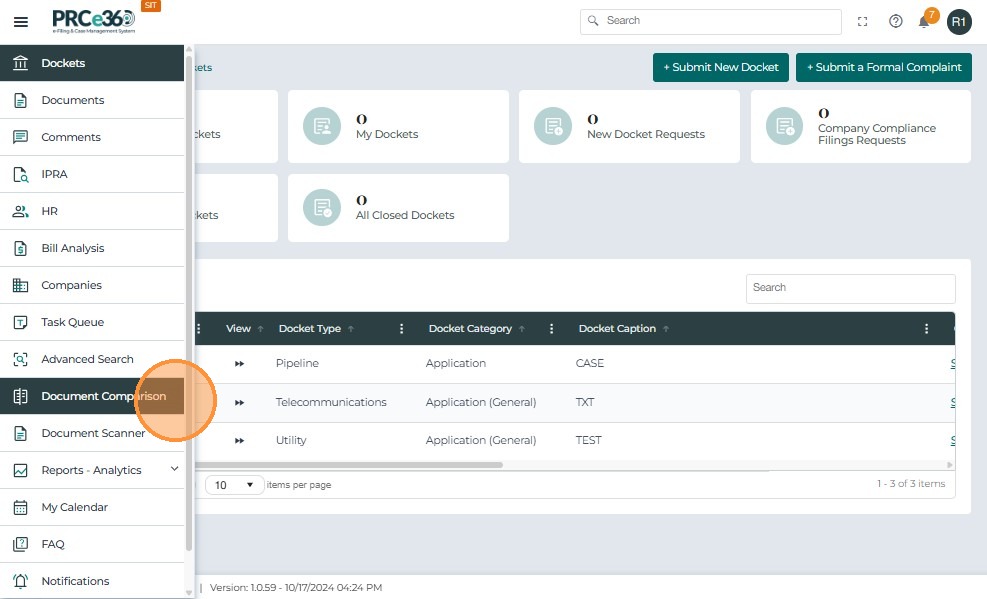
Overall Layout
-
The interface is divided into two panels (left and right) for comparing two documents side by side.
-
At the top, the title reads: Document Comparison & Review.
-
There is a horizontal divider between the two panels, with a Search Documents button centered below it.
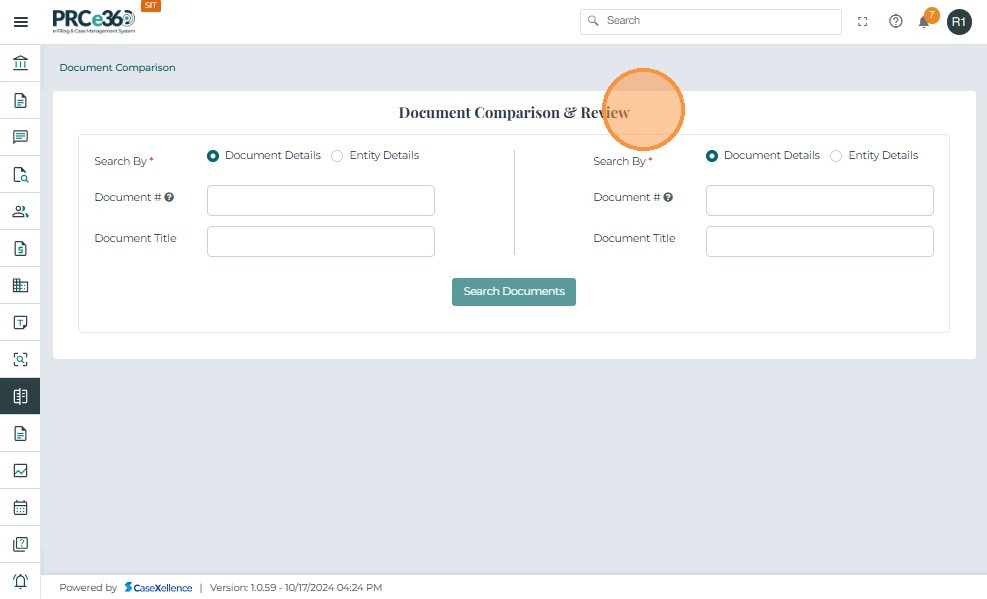
Left And Right Panel
Search By options
The system displays a radio button to select the comparison criteria, i.e. Document or Entity.
Other Details
-
Both panels have a red asterisk (*) next to Search By and Document #, indicating these are required fields.
-
There are small info icons () next to Document # in both panels, likely for tooltips or help.
-
Version Comparison: Users can compare any two versions visually to see updates or modifications.
Document Comparison & Review Workflow
- Search By Documents
-
The user selects the Search By option (Document).
-
The user enters the Document Number in the input field.
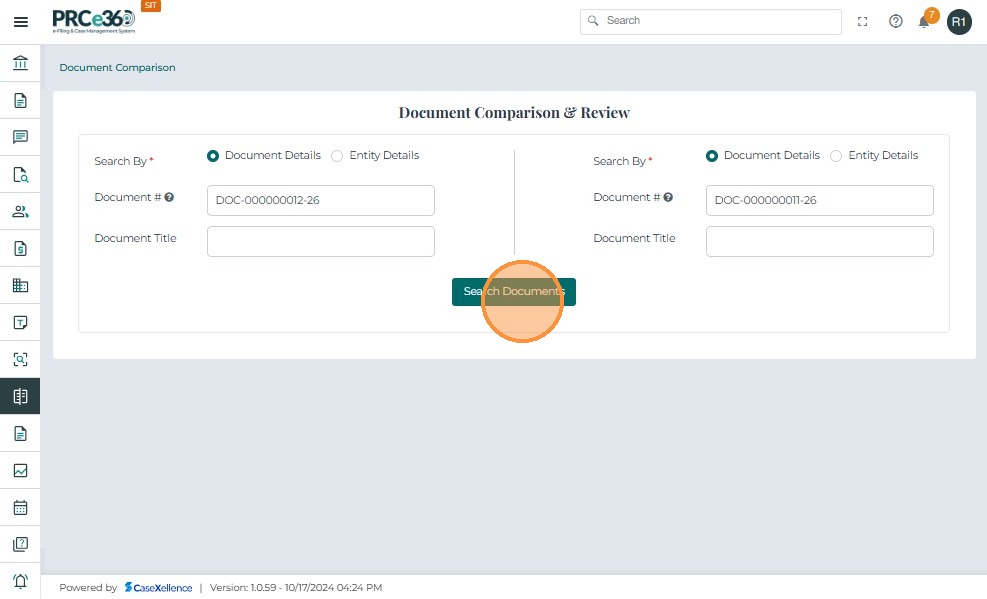
- View Search Results
-
Click Search Documents to retrieve the matching documents.
-
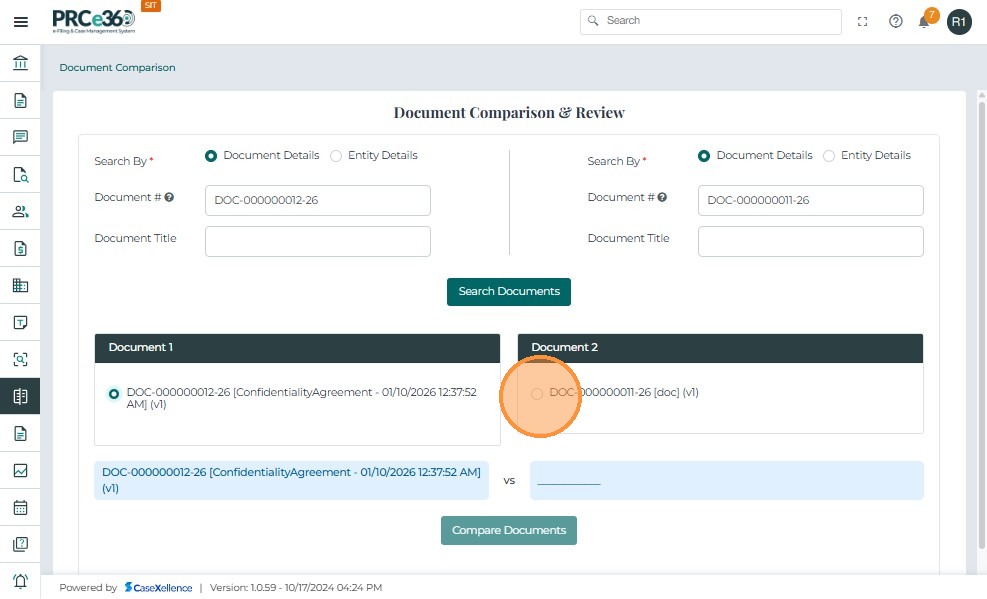
The system displays the documents found under Document 1 and Document 2 sections.
-
Each document is shown with its identifier and version details.
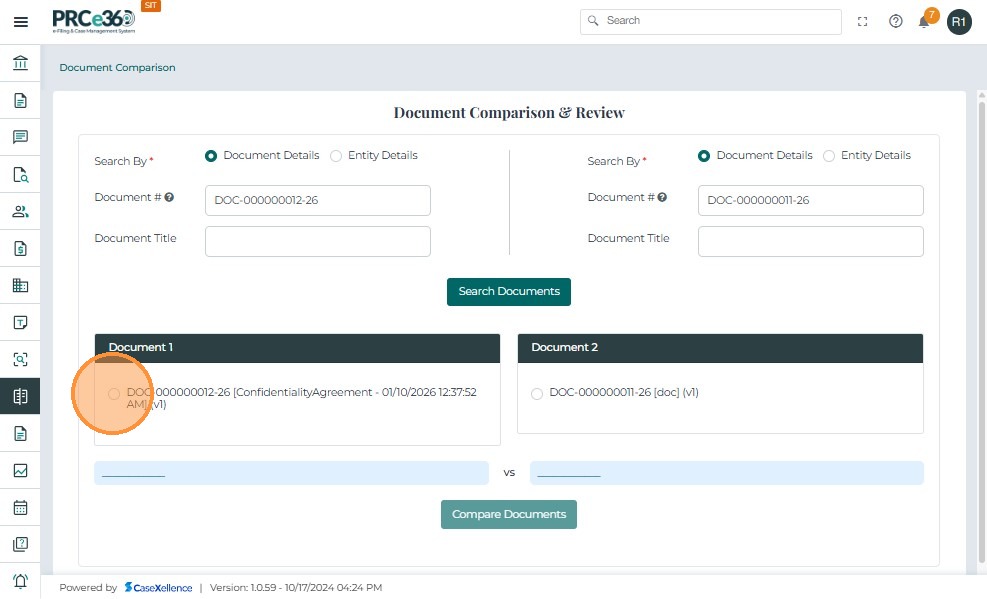
- Select Documents for Comparison
- The user chooses one document from Document 1 and one from Document 2 by selecting the corresponding radio buttons.
- Compare Documents
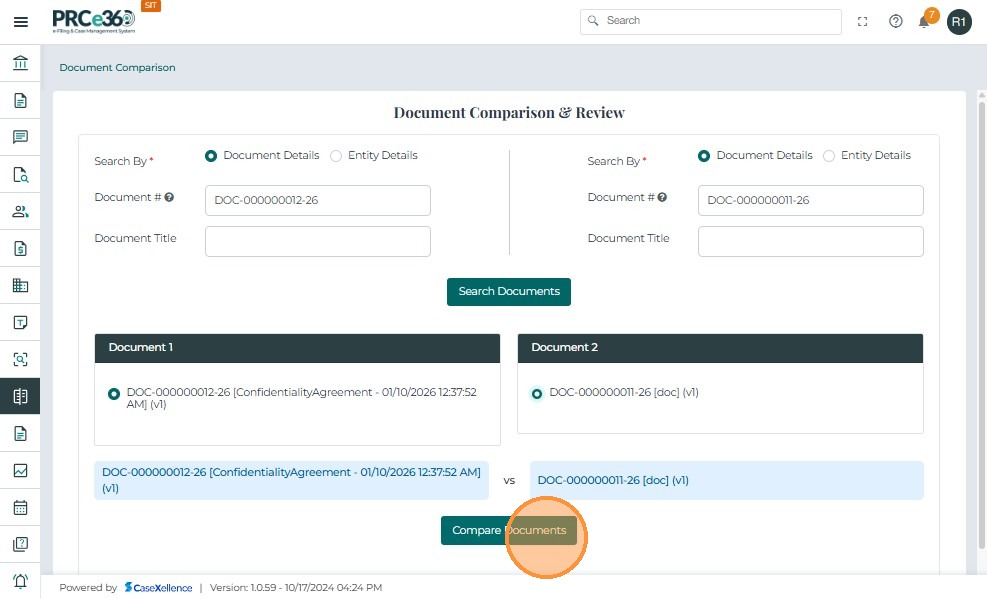
- After selecting both documents, the user clicks the Compare Documents button.
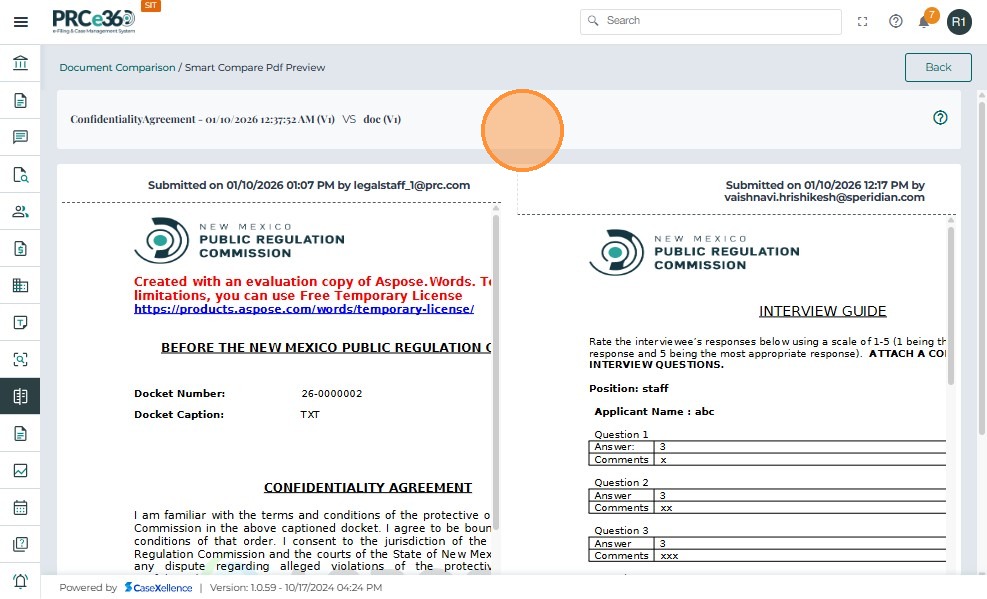
- The system initiates the comparison process and displays the differences between the selected documents. The system displays a'View Changes' button at the top right corner for the user to thoroughly look for the changes in both the documents.The 'View Changes' button works to highlight the comparison between the same niche of documents.
Search By Entity
-
Select Search Method - Choose Entity under Search By.
-
Choose Entity Type - Select an Entity Type from the dropdown (e.g., Case, Company, IPRA, Comment).

-
Select Entity - Pick the specific Entity # from the list.
-
Search - Click Search Documents.

-
View Results - The system retrieves documents linked to the selected entity and displays them under Document 1 and Document 2.
-
Select Documents - Choose one document from each section using the radio buttons.

- Compare - Click Compare Documents to initiate the comparison. The system displays both entities documents for the user to compare them. The user can click on 'View Changes' button to thoroughly look for the changes in both the documents

