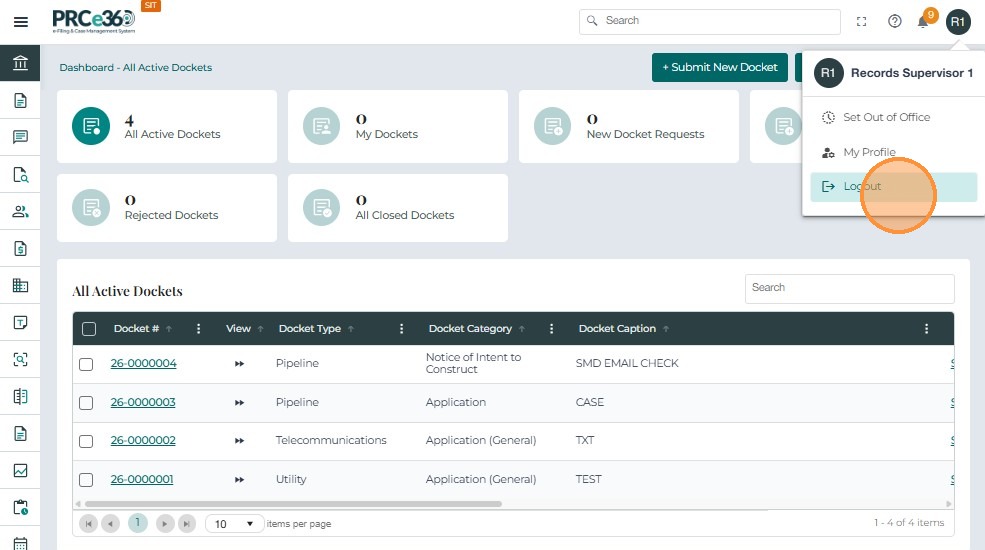
Dashboard Overview
The Dashboard provides a quick overview of all case-related information within the Case Management System.
Once logged in, users can view their assigned tasks, updated cases, and relevant notifications.
The dashboard layout and available features vary depending on the user's role and division.
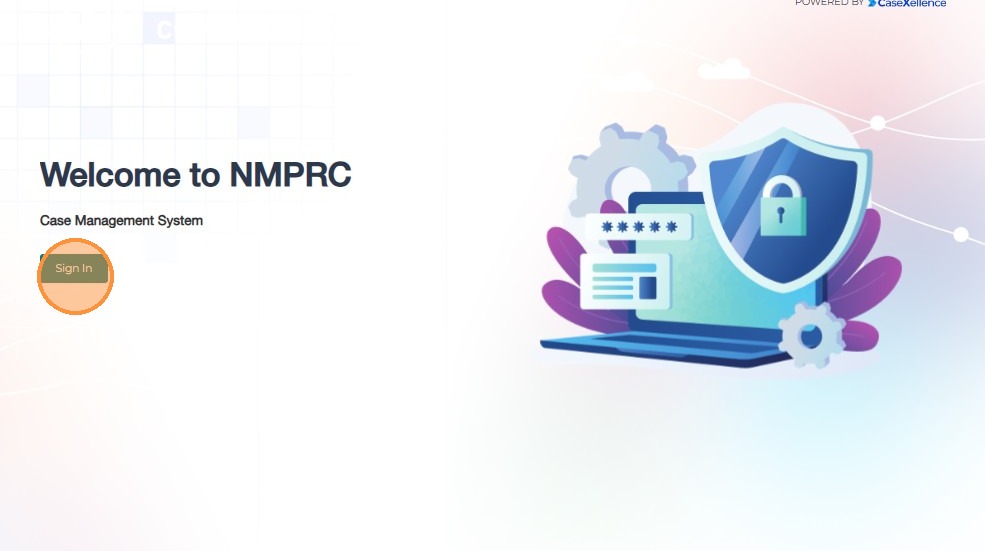
Sign In
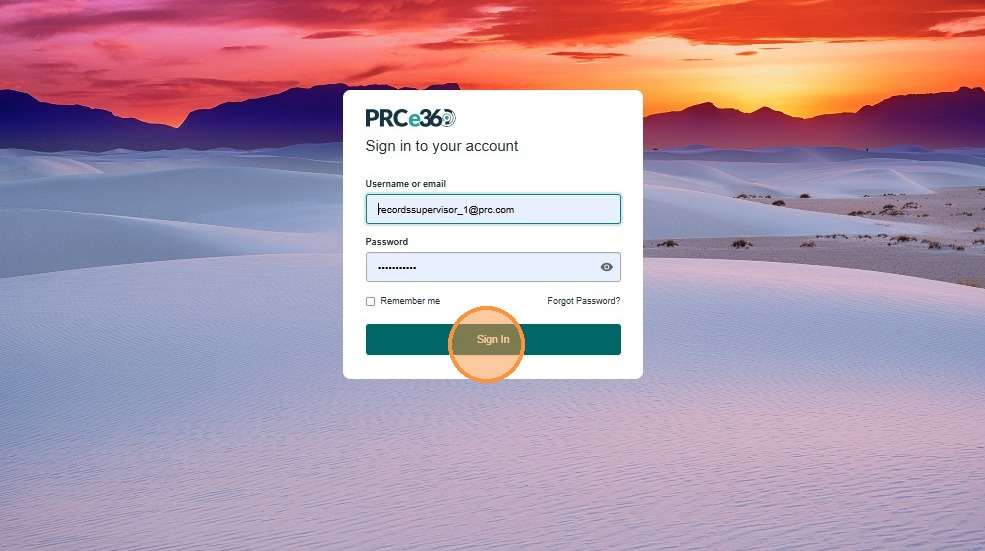
- Enter your credentials to log in to the application.
- Click Sign In.
Dashboard Overview
Once logged in, users land on the Dashboard, which provides access to all system features.
Common features available to all users include:
- Search
- User Guide
- Notifications
- Profile
Search
- Click the Search bar and type a case number.
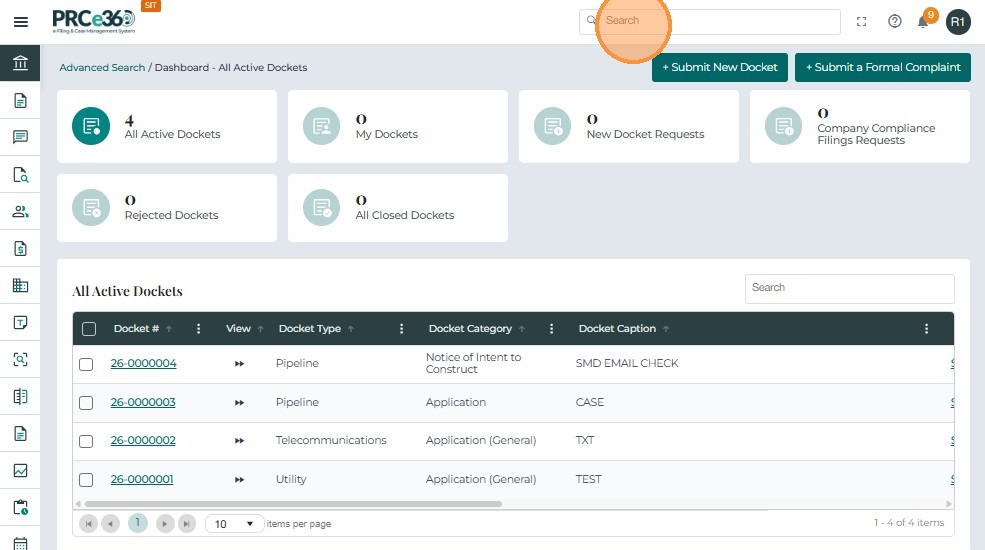
- A list of matching confirmation numbers appears.
- Click the desired confirmation number to view the details.
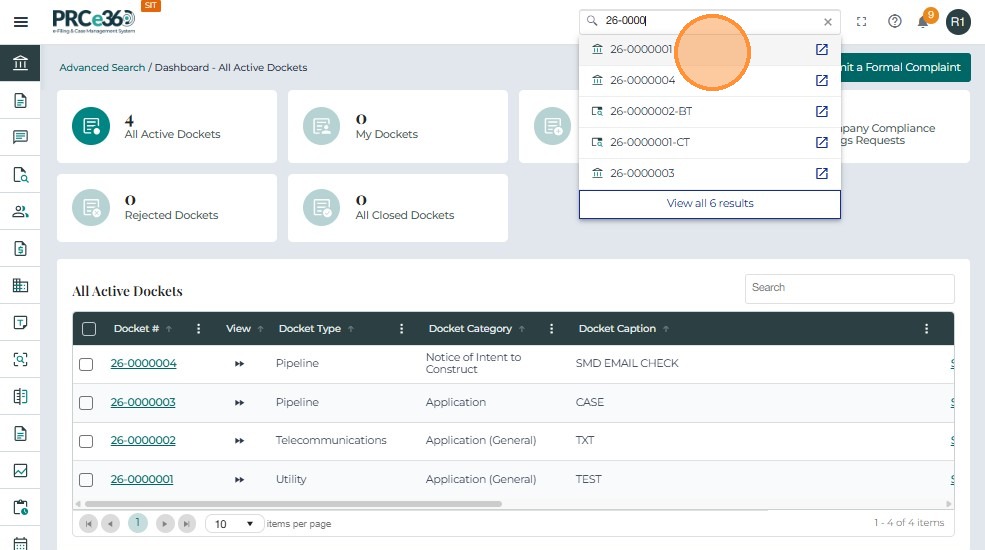
- The system navigates to the Case 360 details page.
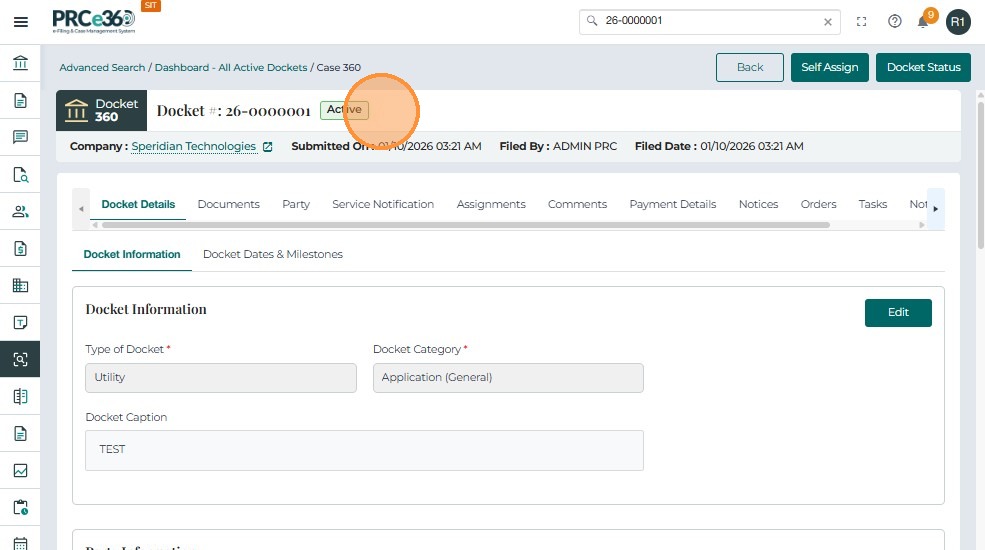
Full-Screen Feature
- Click the Full Screen icon to expand the display.
- Press the Esc key to exit full-screen mode.
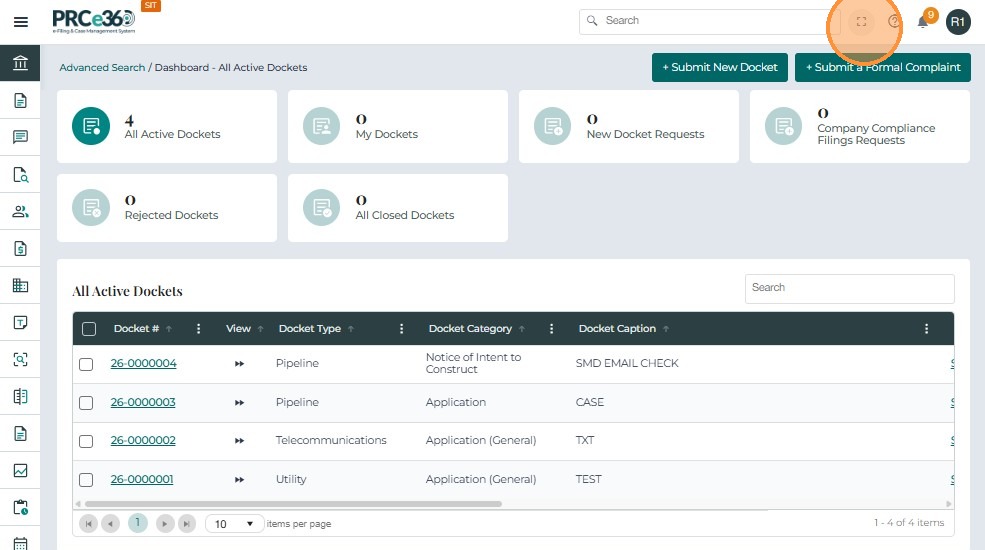
Help Feature
- Click the Help icon to access User Guides.
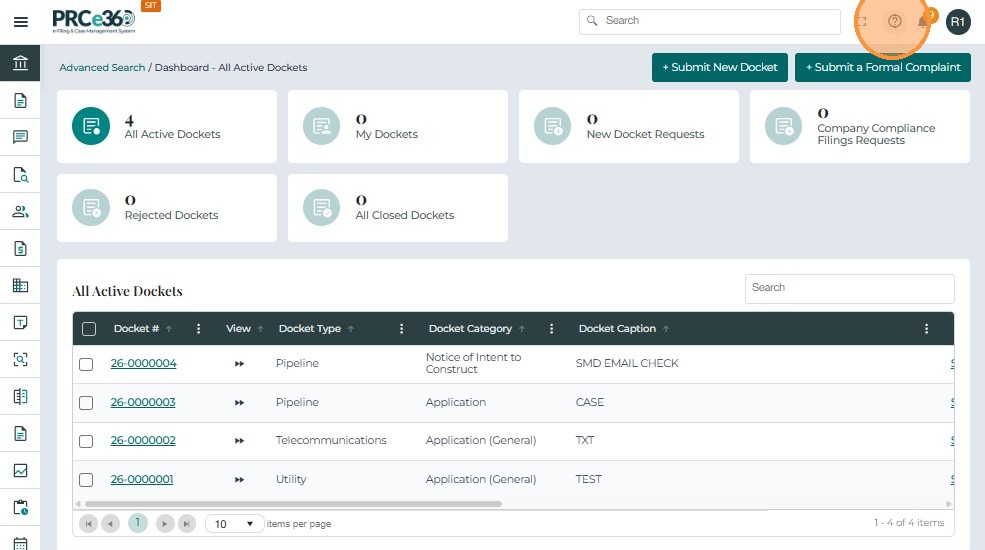
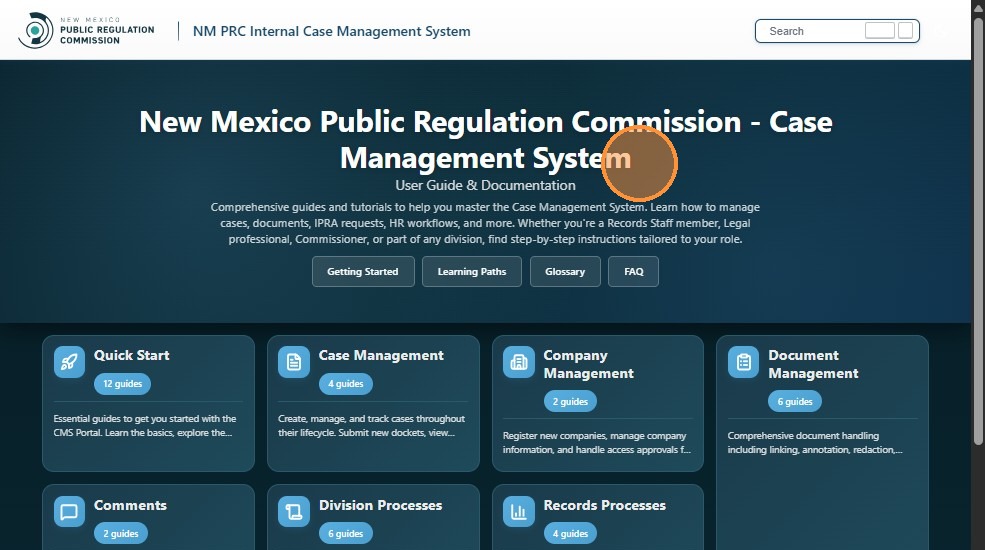
Notifications
- Click the bell icon to view your notifications.
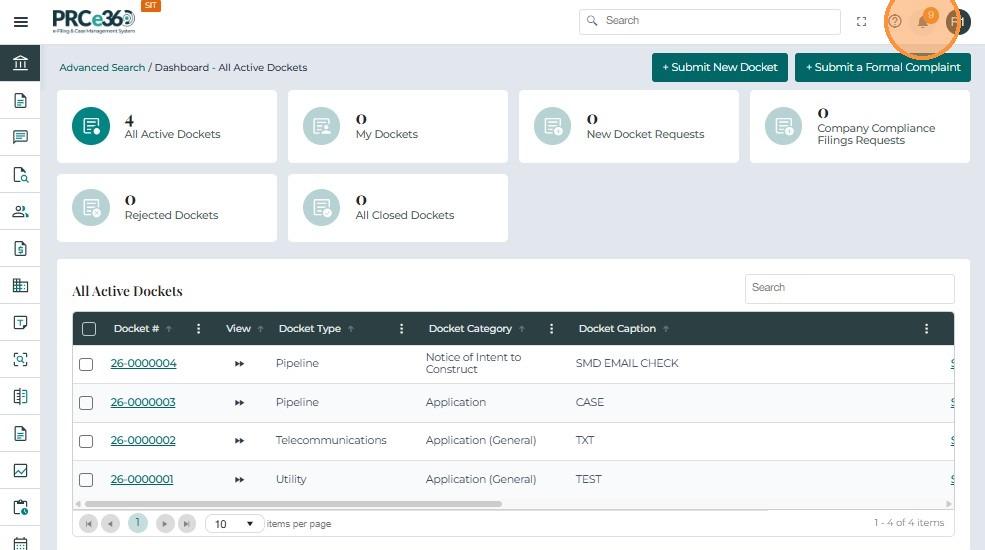
- The Notifications tab lists all user alerts.
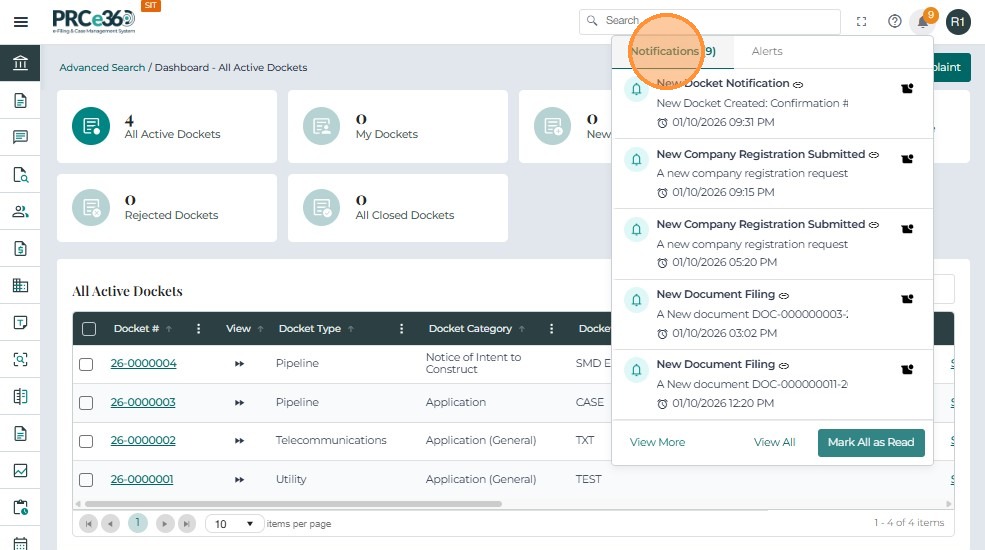
- Click View More to display additional notifications.
- Click View All to view the complete list.
- Notifications include a title and description.
- Use the Search field to find a specific notification.
- Click Mark All as Read to clear all unread items.
Alerts and Profile Options
- The Alerts tab displays active alerts for the user.
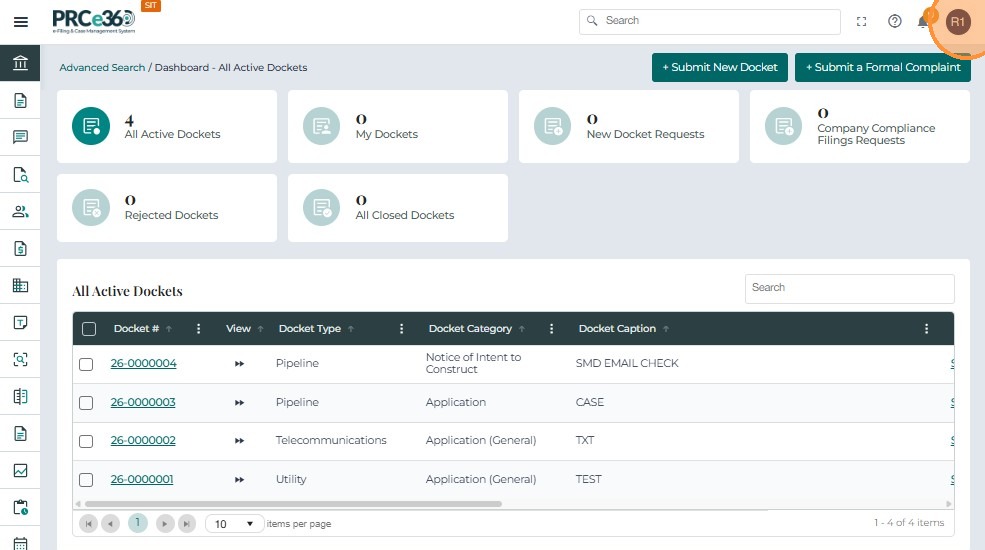
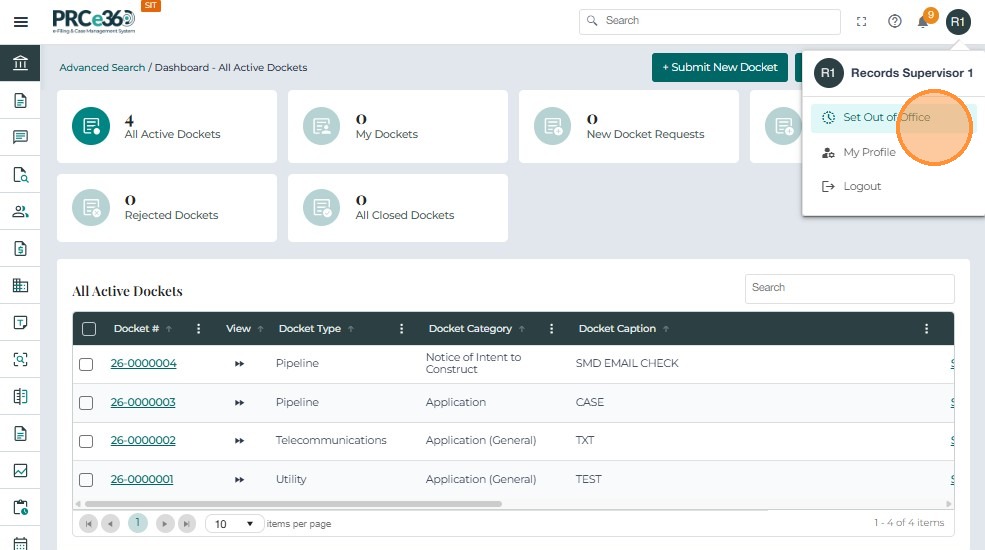
- Click the user icon in the top-right corner to view profile options.
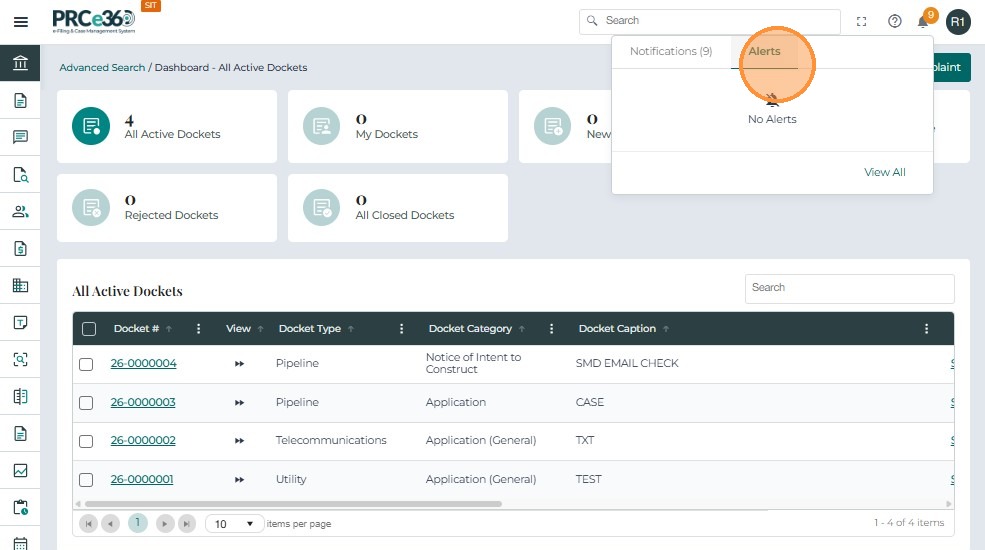
- The user's name and profile features are displayed.
- Set Out of Office allows others to see user availability.
- Specify the date and time range for unavailability, then click Save.
My Profile
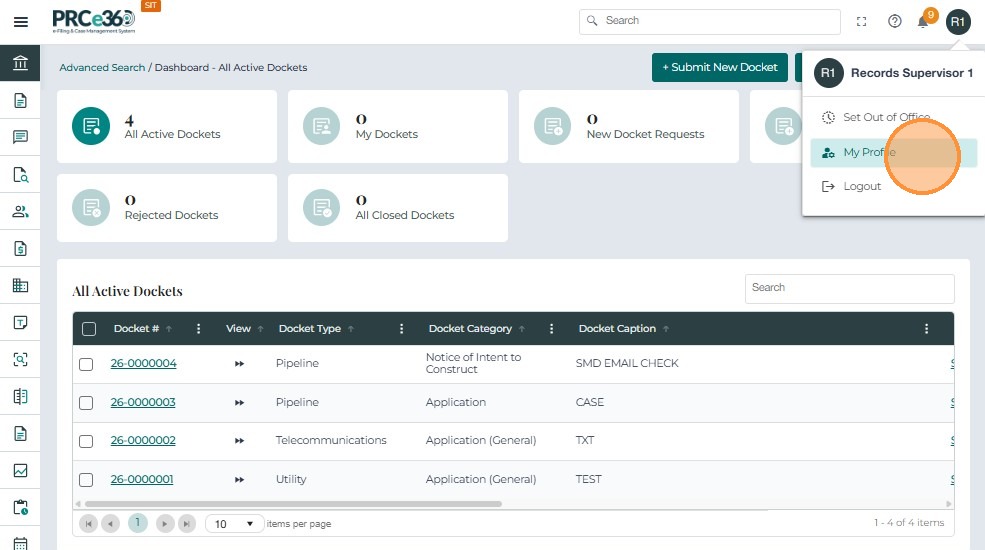
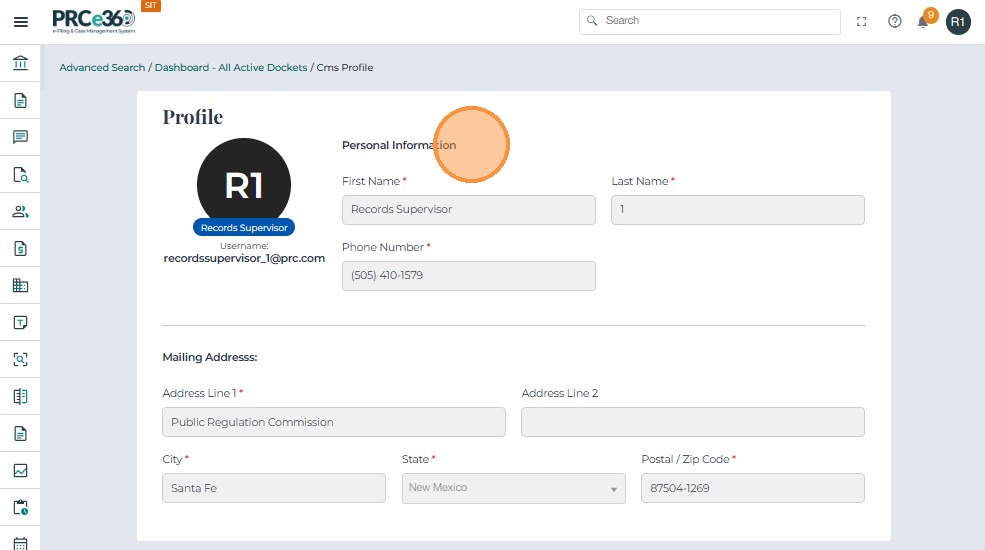
- Click My Profile to view personal details.
- The profile displays Name, Phone Number, Company, and Address.
Logout
- Click Logout to safely sign out of the application.